Settings - Commitments - Commitment Settings - Setting the Number Format
 Updated
Suggested Prior Reading
Settings - Commitments - Commitment Settings - Number Format
To Set the Number Format (for either Purchase Orders or Subcontracts)
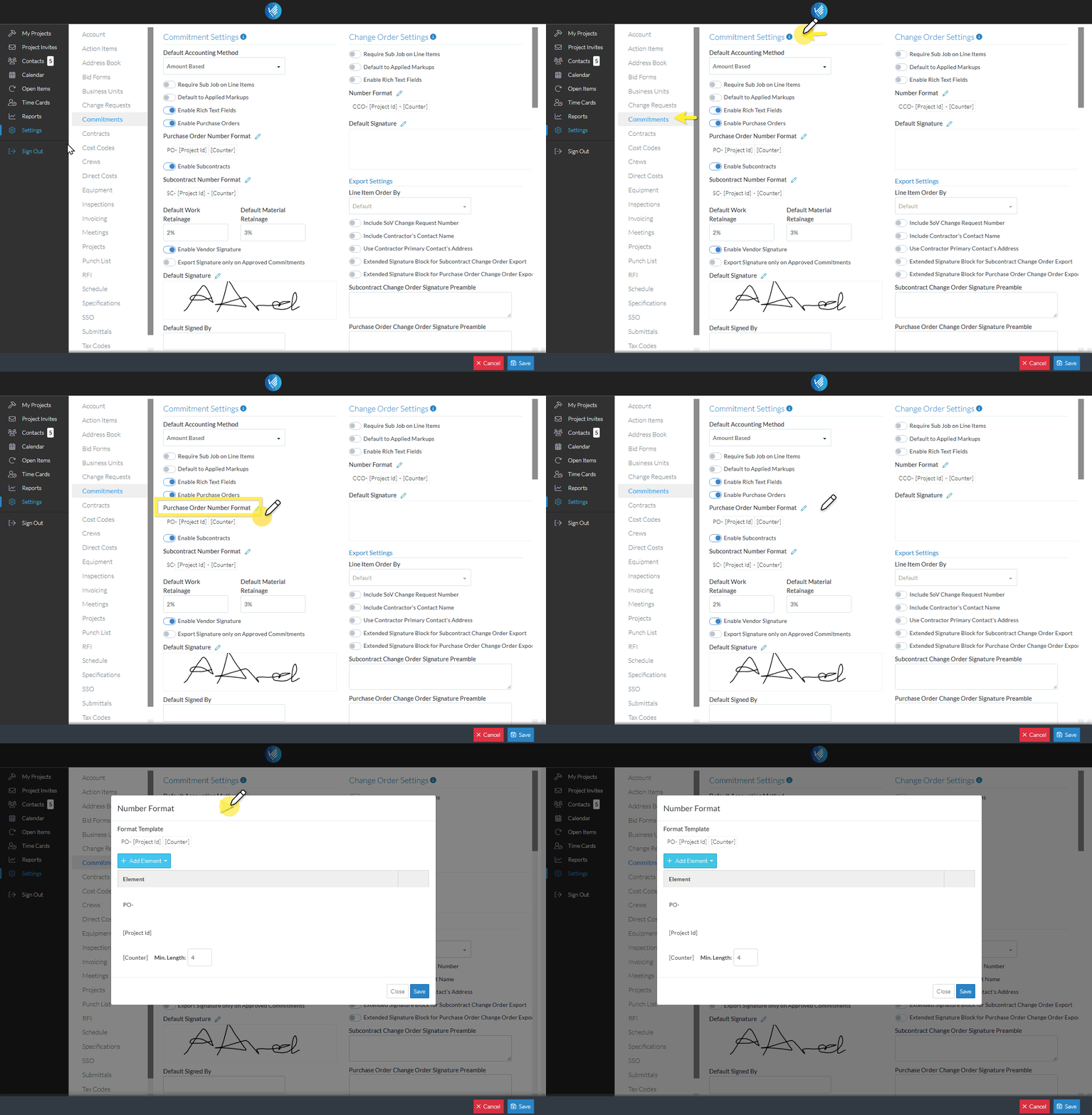
- Navigate to the Settings for Commitments if not already accessed, see Settings - Commitments.
- To change the Format click on the Edit
 button , next to the item label to change the format for:
Purchase Order Number Format
OR
Subcontract Order Number Format
Click here to set the Number Format for Purchase Orders
Click here to set the Number Format for Subcontracts
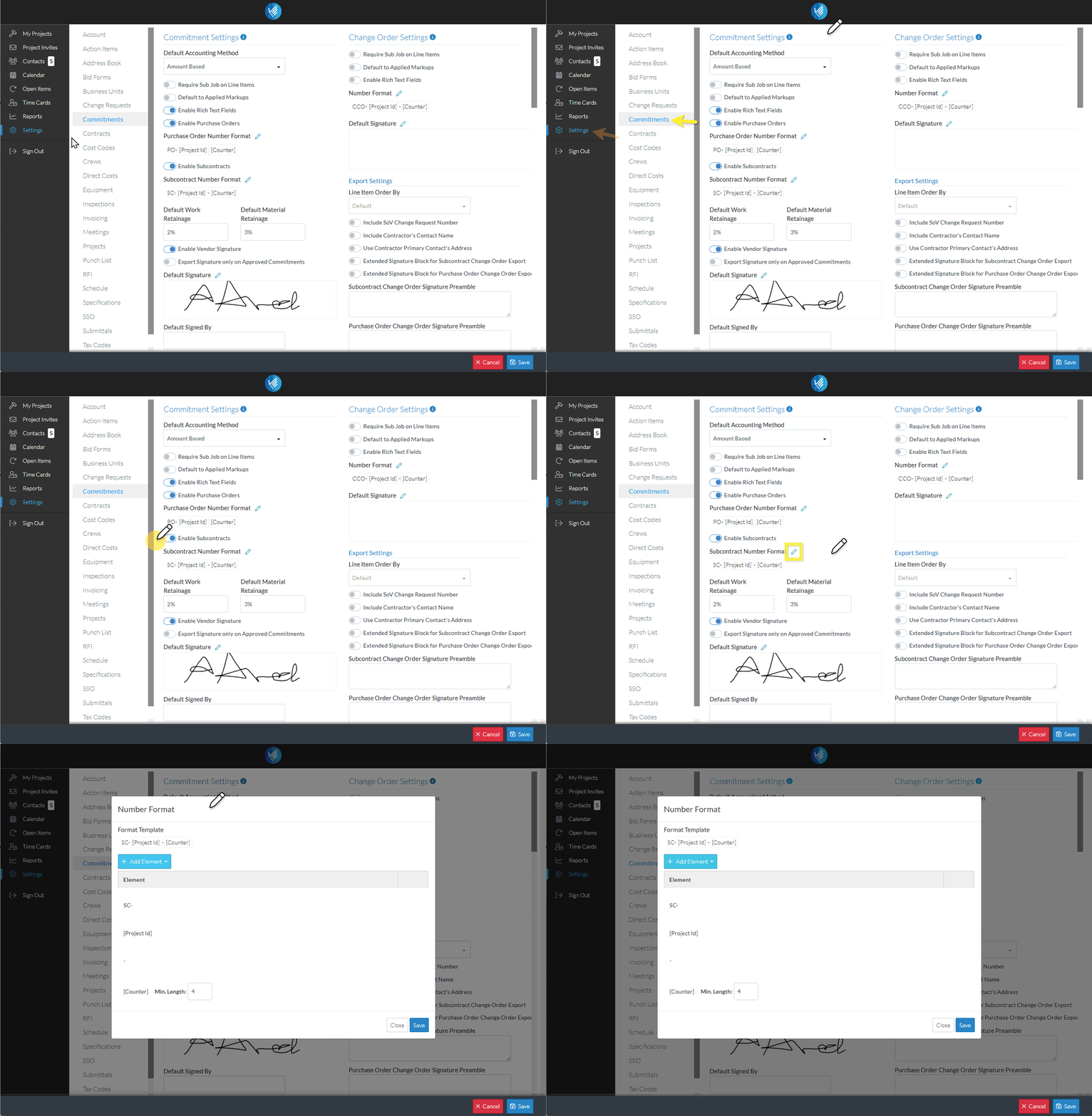
The Number Format form appears.
Some of the elements will have different variables to enter.
Note* None of the changes are saved until the entire Number Format is saved.
To Add an Element
- Click the + Add Element
 button.
A drop down appears with the list of Elements (see Settings - Commitments - Commitment Settings - Number Format). - Select the Element to Add
Click here to add Text
1. Click the Enter Text option
A new Row is created with a text box. Save and Cancel
  buttons appear when the row is hovered over.
2. Enter the static text to display in the Number Format.
3. Click the Save button on the row to save the Text. (Note* The Text row must be saved before the entire Number Format is saved).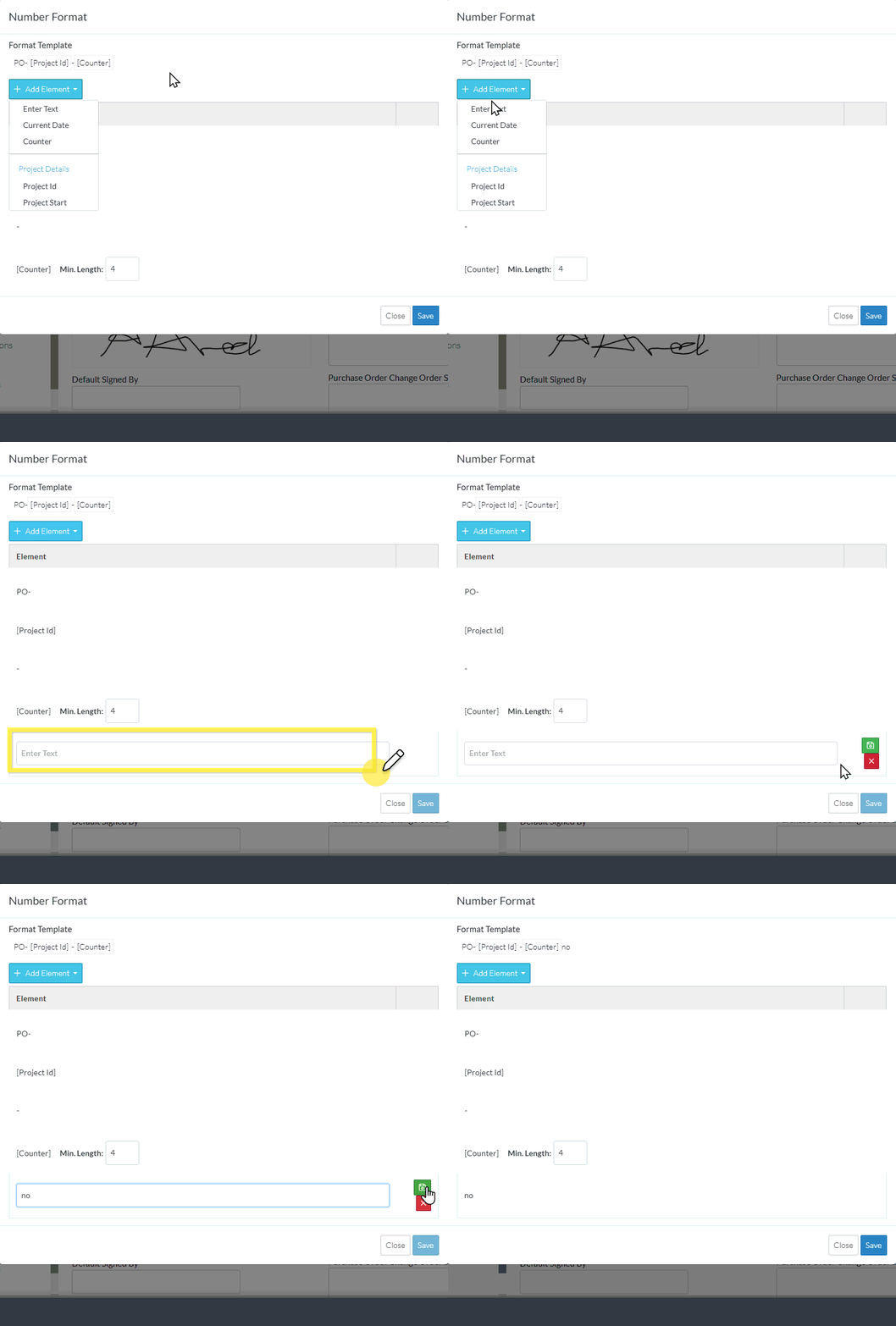
Click here to add the Current Date
1. Click the Current Date option.
A new row is created with a Date Drop Down. Save and
and  Cancel buttons appear when the row is hovered over.
The Default Current Date to use as the Number Format is Full Date (dd/mm/yyyy).
2. To change the date format to use:
2a. Click in the Date drop down and select the Date format to use.
2b. Click the Save button on the row to save the Current Date format to use.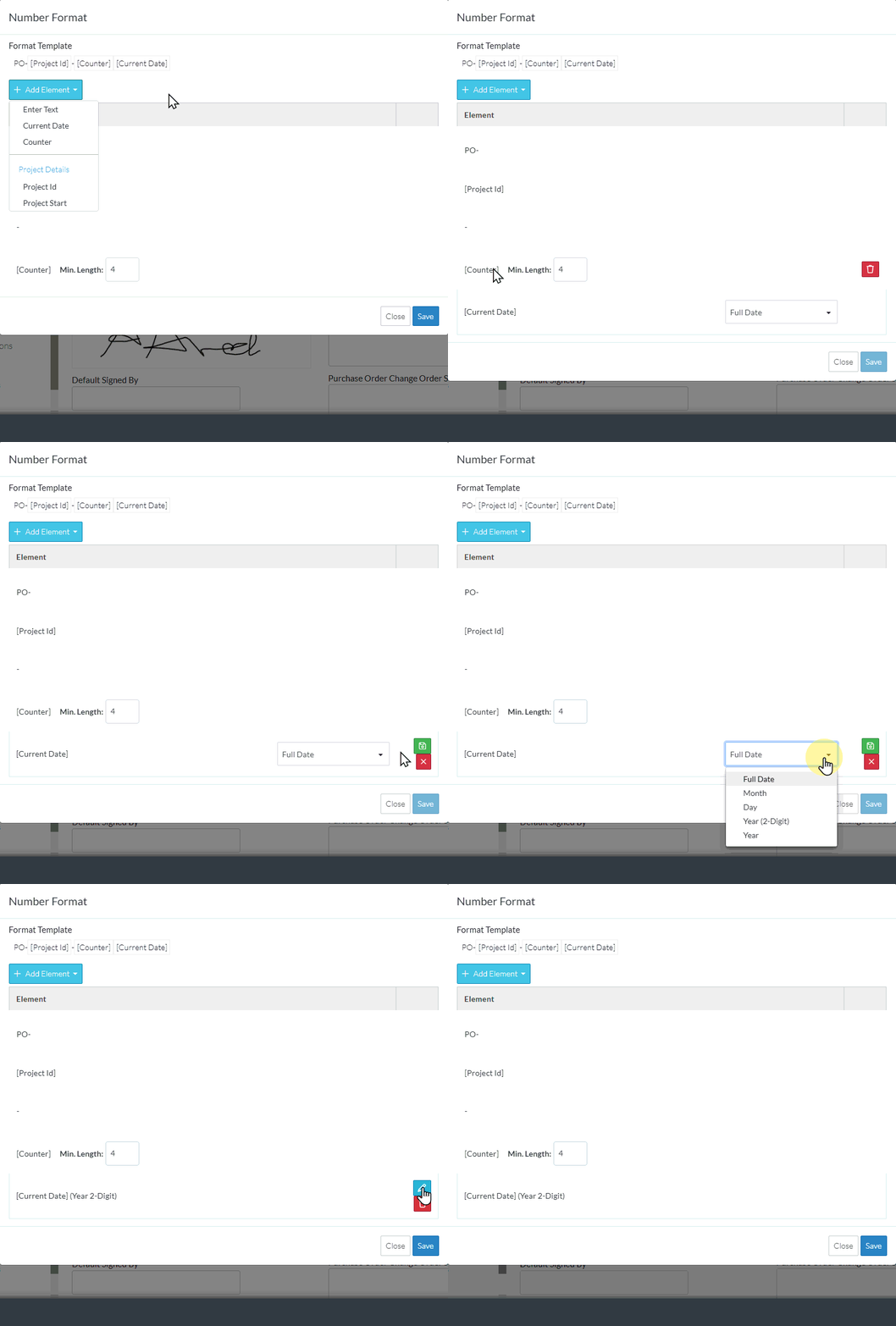
Click here to add a Counter
1. Click the Counter option.
A new row is created with a Minimum Length box. Cancel buttons appear when the row is hovered over.
2. If required, type in a minimum length or click on the up and down arrow, to change the minimum length of the counter.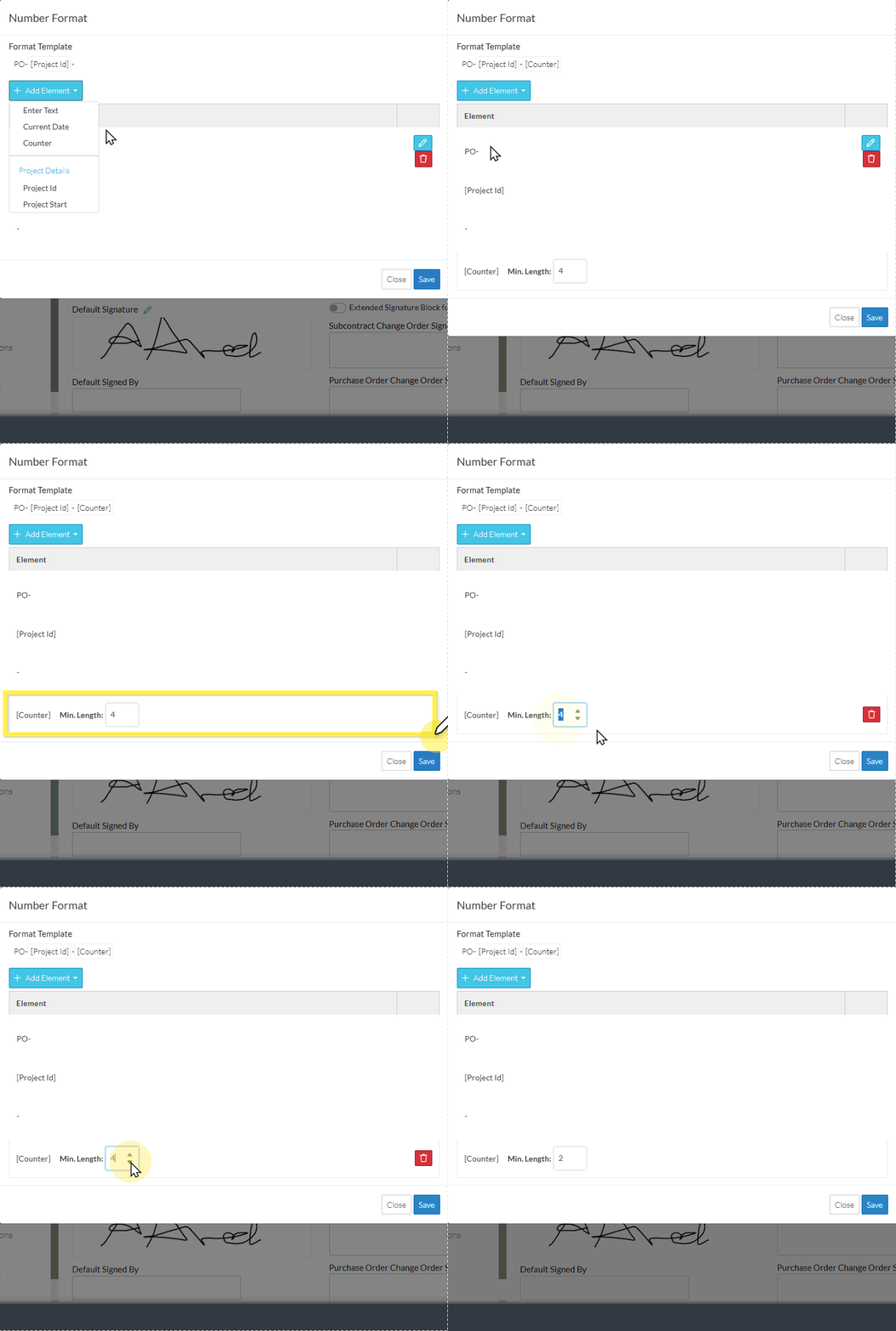
Click here to add the Project ID
Click the Project ID option.
A new row is created with a Date Drop Down. Cancel buttons appear when the row is hovered over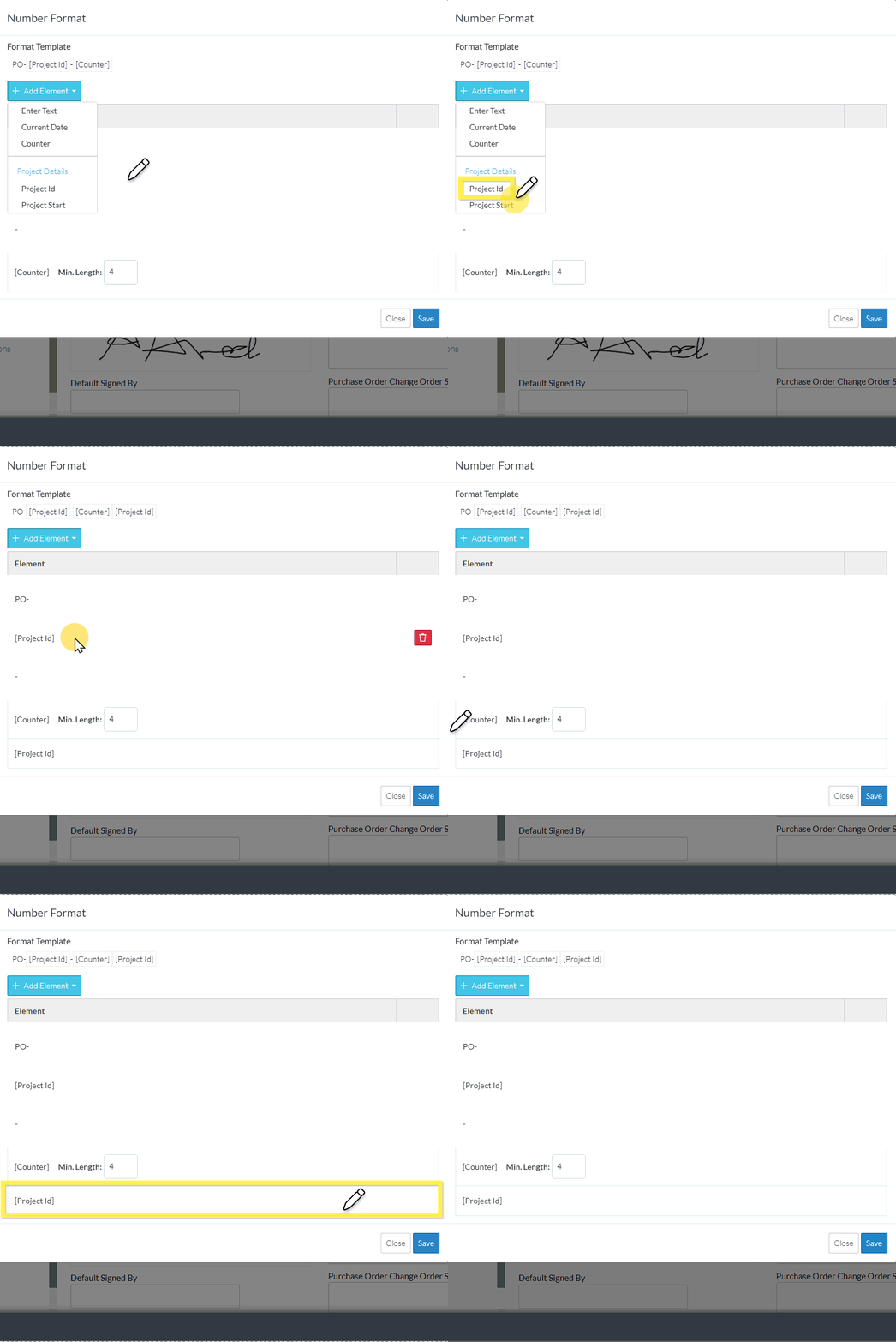
Click here to add the Project Start
1. Click the Project Start option.
A new row is created with a Date Drop Down. Save and Cancel buttons appear when the row is hovered over.
The Default Project Start Date format to use is the Full Date (dd/mm/yyyy).
2. To change the date format to use:
2a. Click in the Date Drop down and select the date format to use.
2b. Click the Save button on the row to save the Project Date format to use.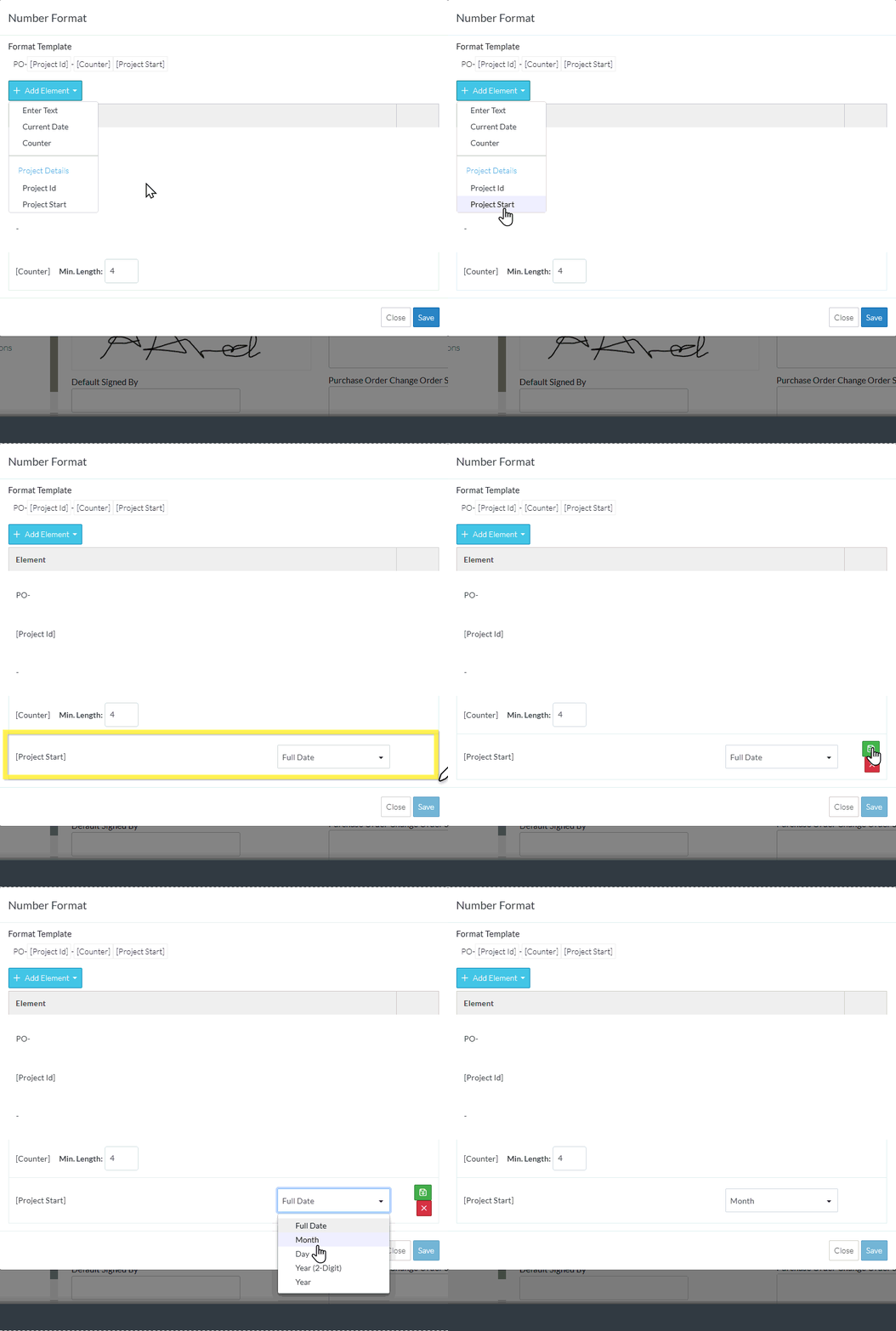
- To cancel the Add of any Element (before it has been saved), click the Cancel button on the row of the Element. It will be removed.
Note* The changes to the Number Format is not yet saved. This is a working session and the entire format must still be saved (see below).
A new row is created with a Date Drop Down. Save and Cancel buttons appear when the row is hovered over.
Click the Save button on the row to save the Current Date format to use.
OR
Click the Cancel button to cancel add of the Element.
To Change Settings for an Element that has Settings
- Hover over the row for the Element to change
An Edit and a Delete
  button appears.
The Edit button only appears if there are variables to enter for that Element. - Click on the Edit button to change the variable.
Click here to change the static Text that displays
1.Change the text.
3. Click the Save button on the row to save the Text. (Note* The Text row must be saved before the entire Number Format is saved).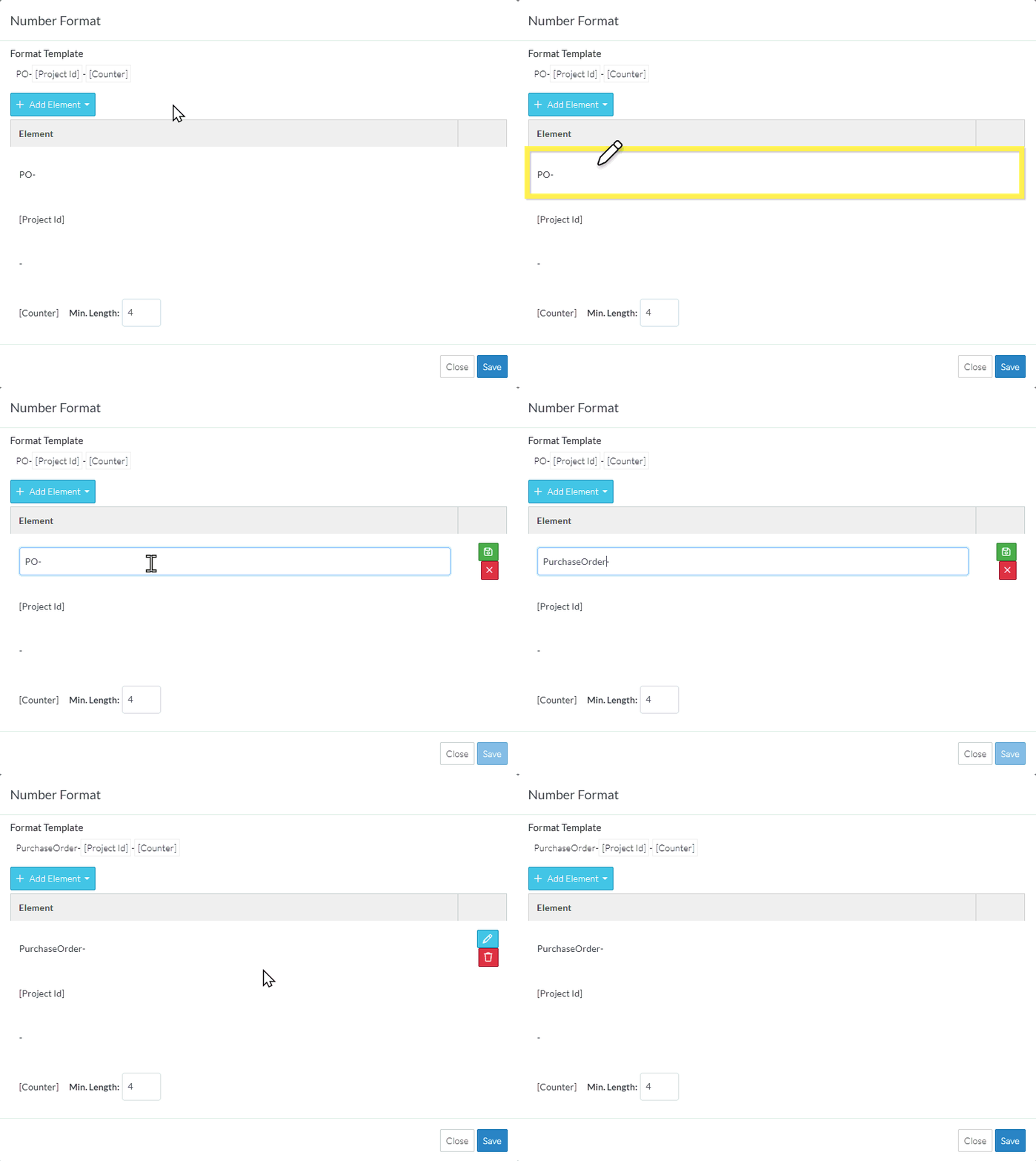
Click here to change the Current Date format
1. Click in the Date drop down and select the Date format to use.
2. Click the Save button on the row to save the Current Date format to use.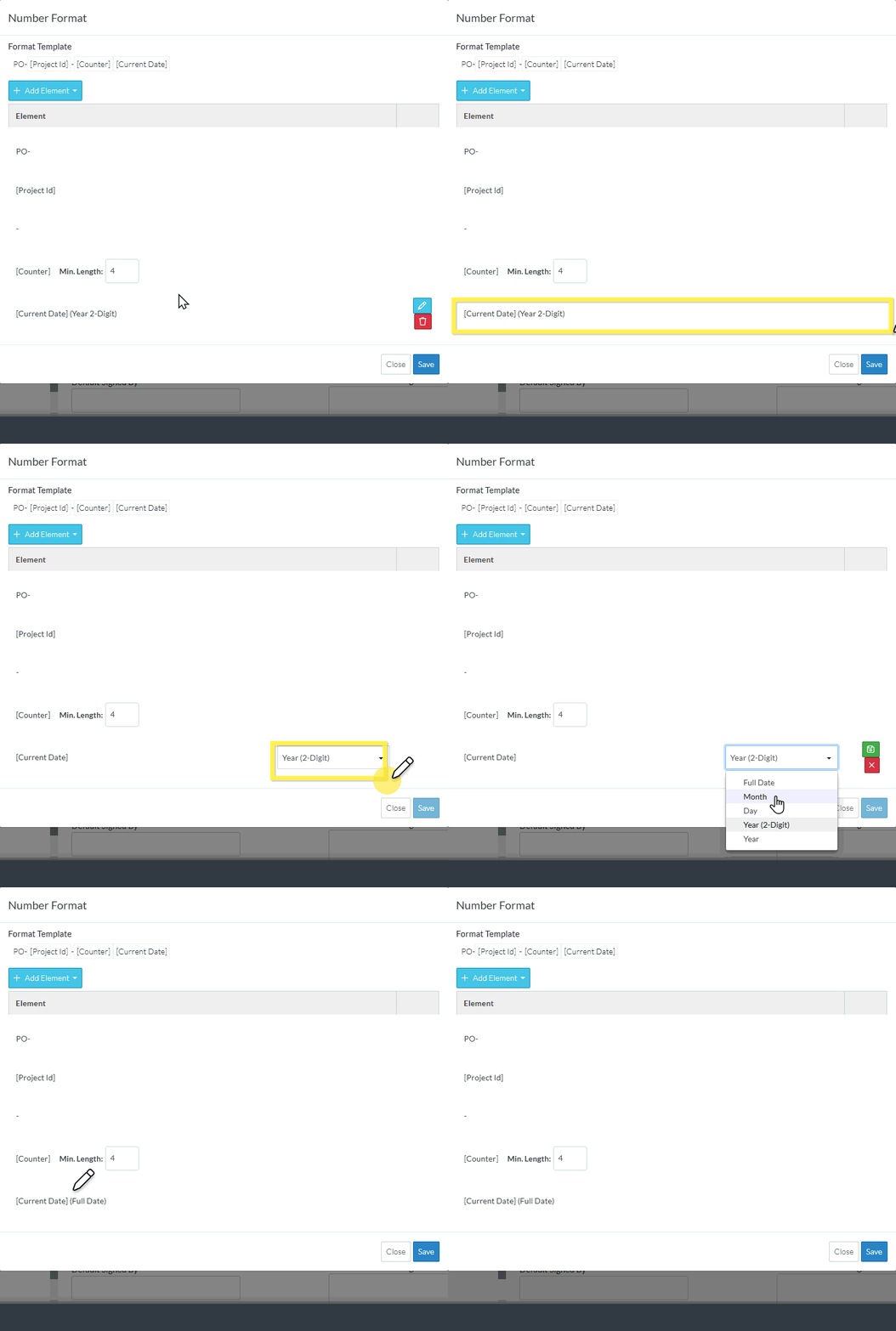
Click here to change the minimum length of the Counter
1. Type in a minimum length or click on the up and down arrow, to change the minimum length of the counter.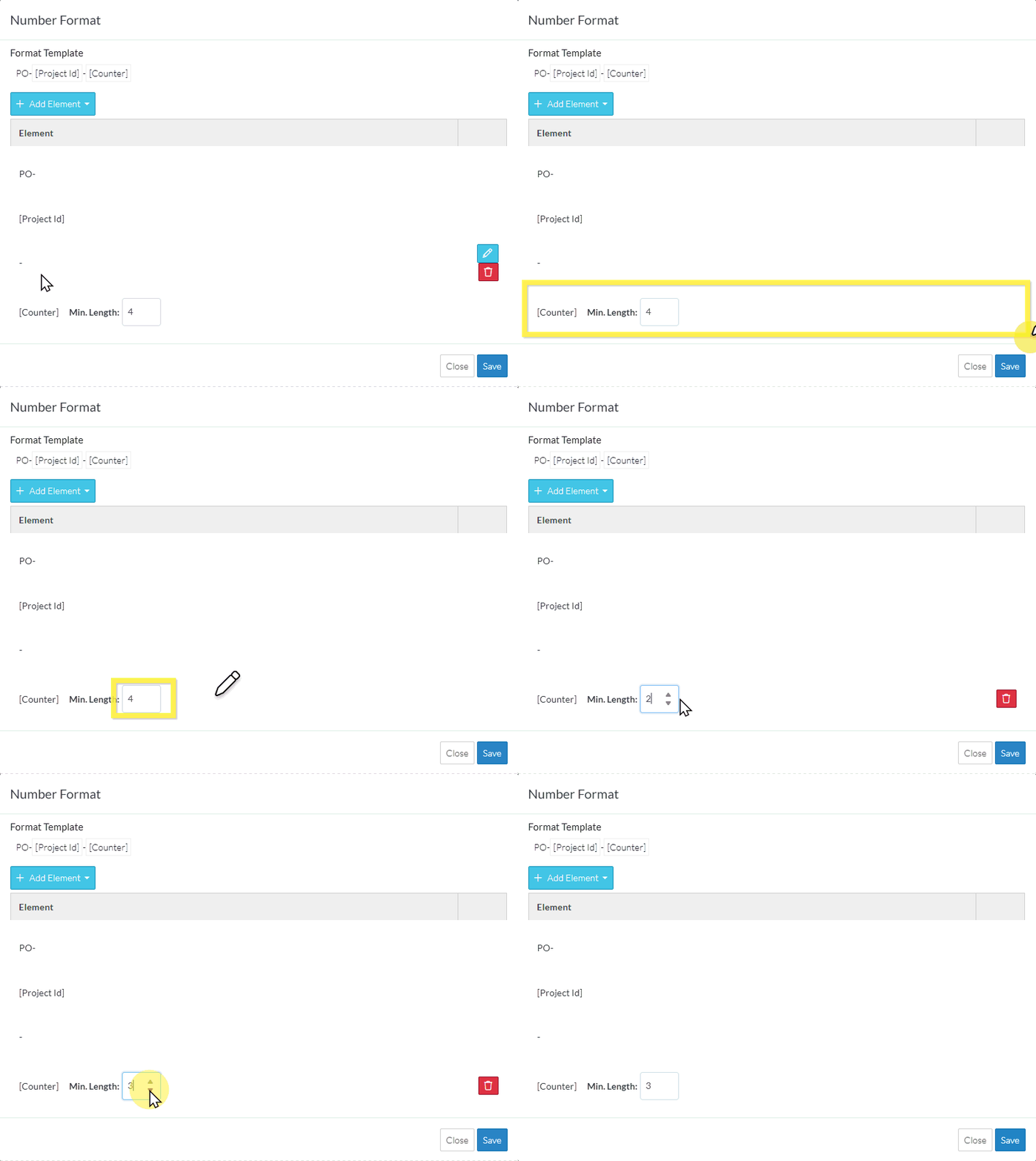
Click here to change the Project Start format
1. Click in the Date Drop down and select the date format to use.
2. Click the Save button on the row to save the Project Date format to use.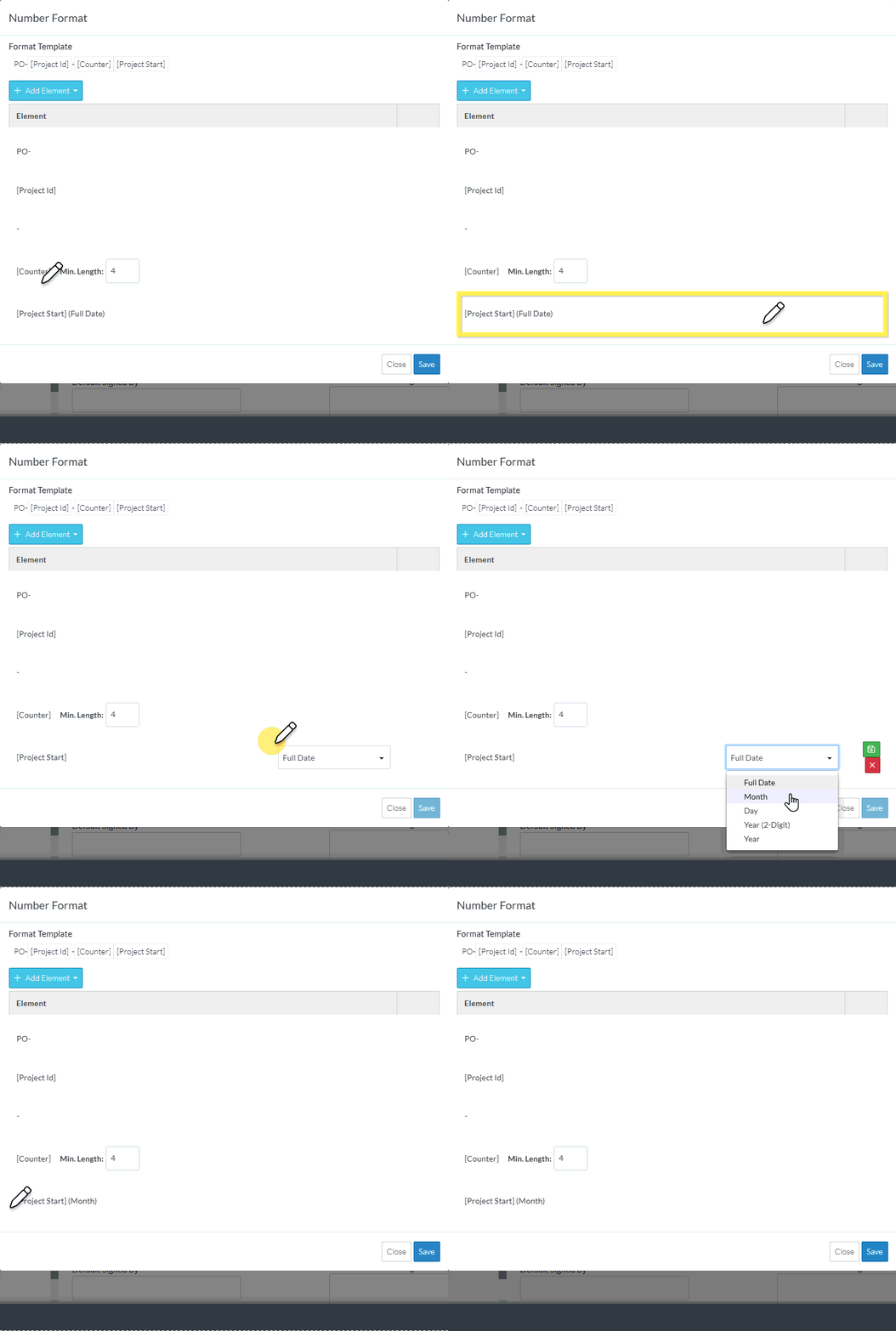
- To cancel the change of any Element (before it has been saved), click the Cancel button on the row of the Element.
Note* The changes to the Number Format is not yet saved. This is a working session and the entire format must still be saved (see below).
To delete an Element
This is help for deleting an Element that has been saved as the Number Format. (If an Element was added but the Number Format not yet saved, see Adding an Element above).
- Hover on the row of the Element to Delete.
A Delete button appears. Note* There may also be an Edit button if there are variables for that Element to change. - Click the Delete button.
The row will disappear.
Note* The changes to the Number Format is not yet saved. This is a working session and the entire format must still be saved (see below).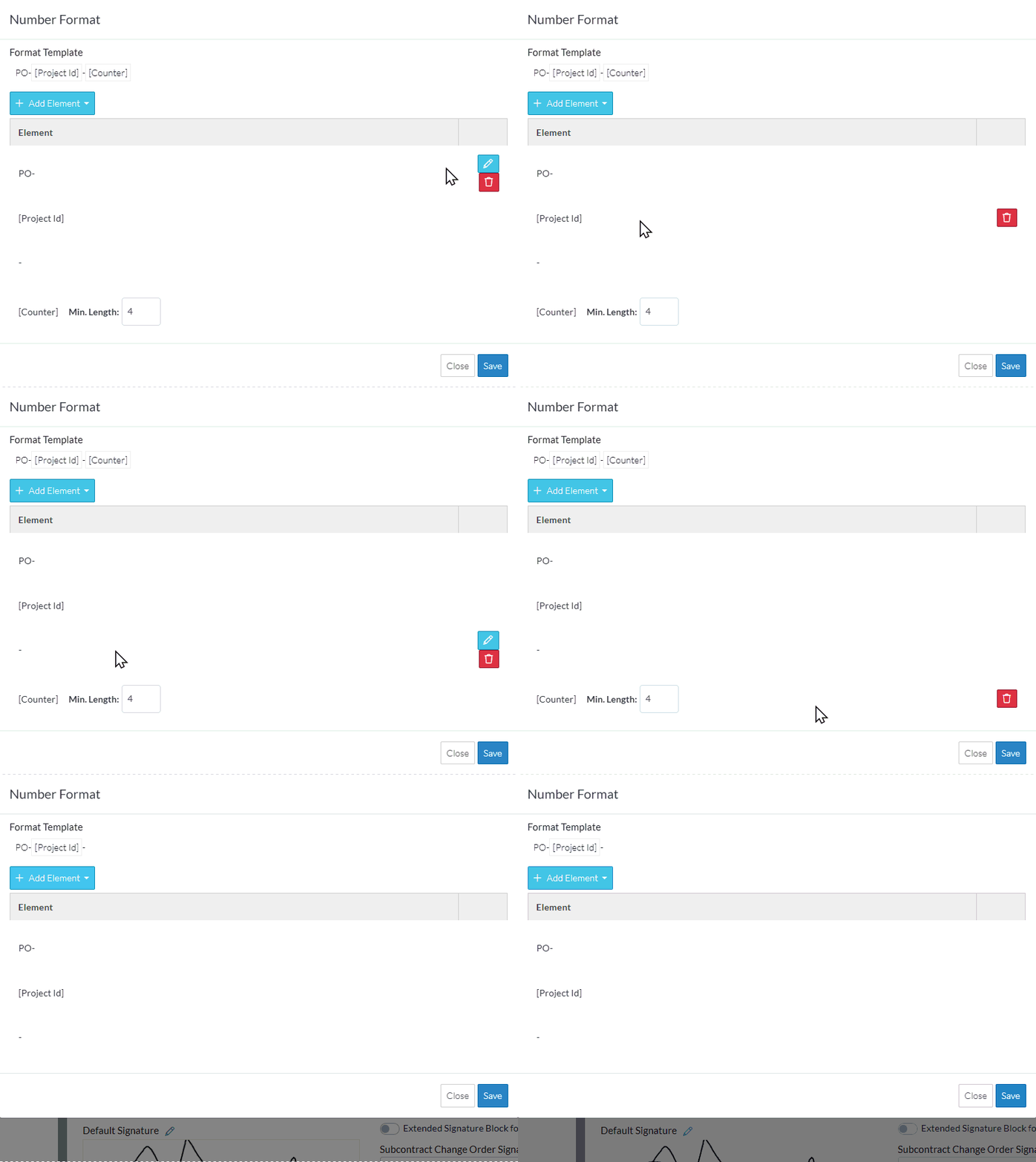
Save the Number Format change
To Save the Changes to the Number Format:
Click the Save  button
OR
Click the Cancel  button to cancel the changes.
