Settings - Commitments - Commitment Settings - Enable Rich Text Fields
 Updated
Suggested Prior Reading
Enable Rick Text Fields
This option sets whether or not the Purchase Order or Subcontract Description/Notes, Inclusions and Exclusions are entered and display as plain text or rich text.
Plain Text contains no styling formatting like bolding, italics, colors, custom fonts. Rich text enables applying styling like bolding, italics, underlining, colors, custom font sizes, unordered lists, numbered lists, paragraph formatting (left, right, center, full, indent or out dent) and tables.
This setting applies to all users and is on/off for all Purchase Orders and Subcontracts.
For more information on the Rich text style formatting, see Rich Text Information Entry.
Click here for an example of plain text

Click here for an example of rich text

To turn on/off the Rich Text Field Option
- Navigate to Settings for Commitments, see Settings - Commitments.
- Locate the Enable Rich Text Fields option in the Commitment Settings section.
- Click on the Slider bar or the text next to the slider bar to toggle it on/off.
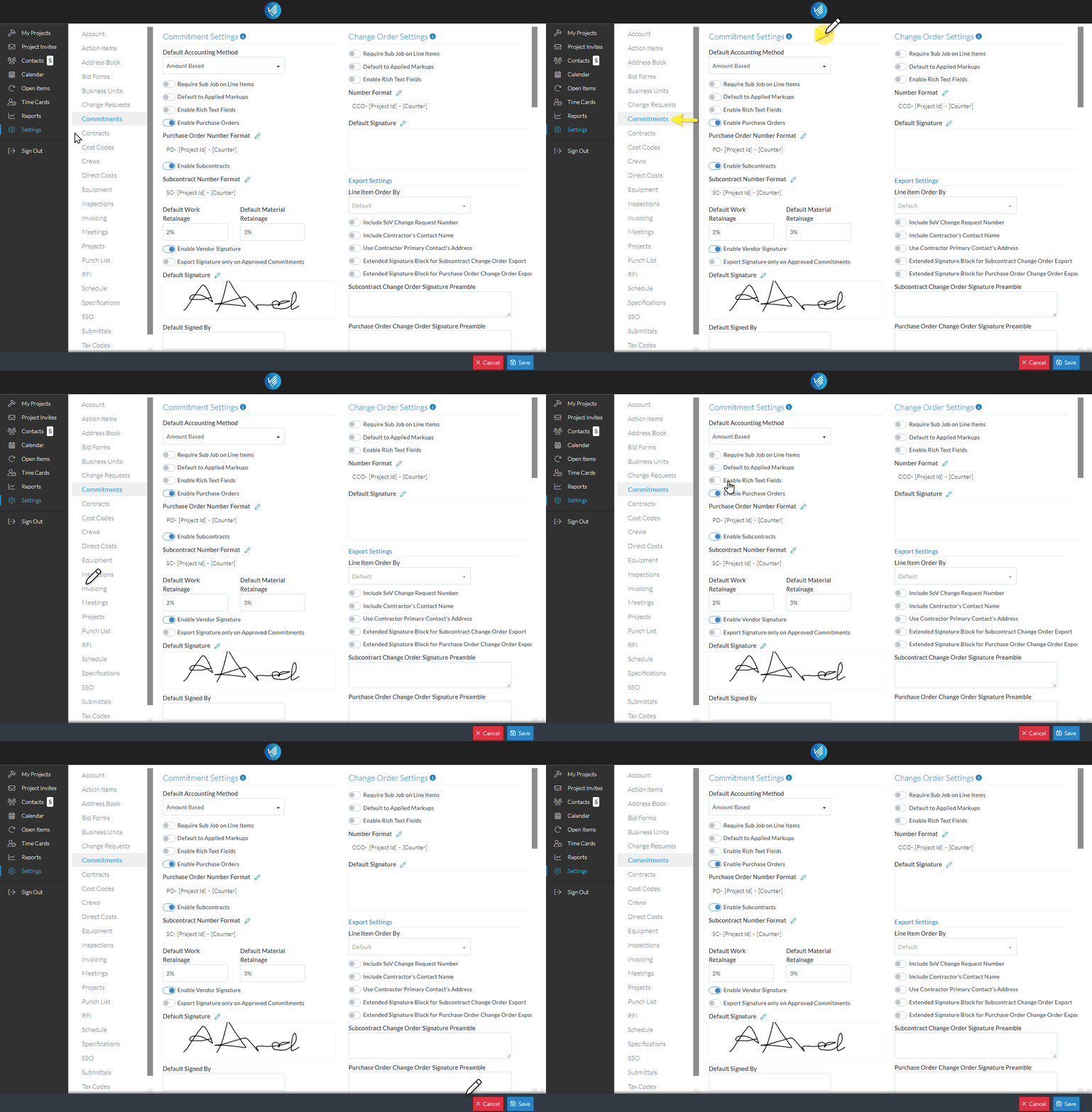
- Click the Save
 button to save the change
OR
Click the Cancel button to cancel the change.
