Settings - Commitments - Commitment Settings - Enable Purchase Orders/Subcontracts
 Updated
Suggested Prior Reading
Settings - Commitments - Commitment Settings
Enable Purchase Orders or Subcontracts or Both
JobPlanner can be set to manage:
- Just Purchase Orders
- Just Subcontracts
- Both Purchase Orders and Subcontracts
In the Settings for Commitments, the System Administrator can turn on/off the management of Purchase Orders and Subcontracts.
At least one of these of these options must be turned on (i.e. if Purchase Orders are turned off, Subcontracts must be on and vice versa).
When adding new Commitments, the New button will change depending on whether both are turned on or only one is turned on:
- If both are enabled, the function button to add a new Subcontract or Purchase Order displays as New Commitment
 . There will then be a drop down, where a new Subcontract or New Purchase Order can be selected to be created.
 - If just Subcontracts are enabled, the function button to add a new Subcontract displays as New Subcontract
 .
. - If just Purchase Orders are enabled, the function button to add a new Purchase Order displays as New Purchase Order
 .
.
See Commitments List - Layout for more information.
To Change the Enable Setting
- Navigate to Settings for Commitments, see Settings - Commitments.
- Locate the Enable Purchase Order and Enable Subcontracts options in the Commitment Settings section.
- Click on the Slider bar or the text next to the slider bar to toggle it on/off.
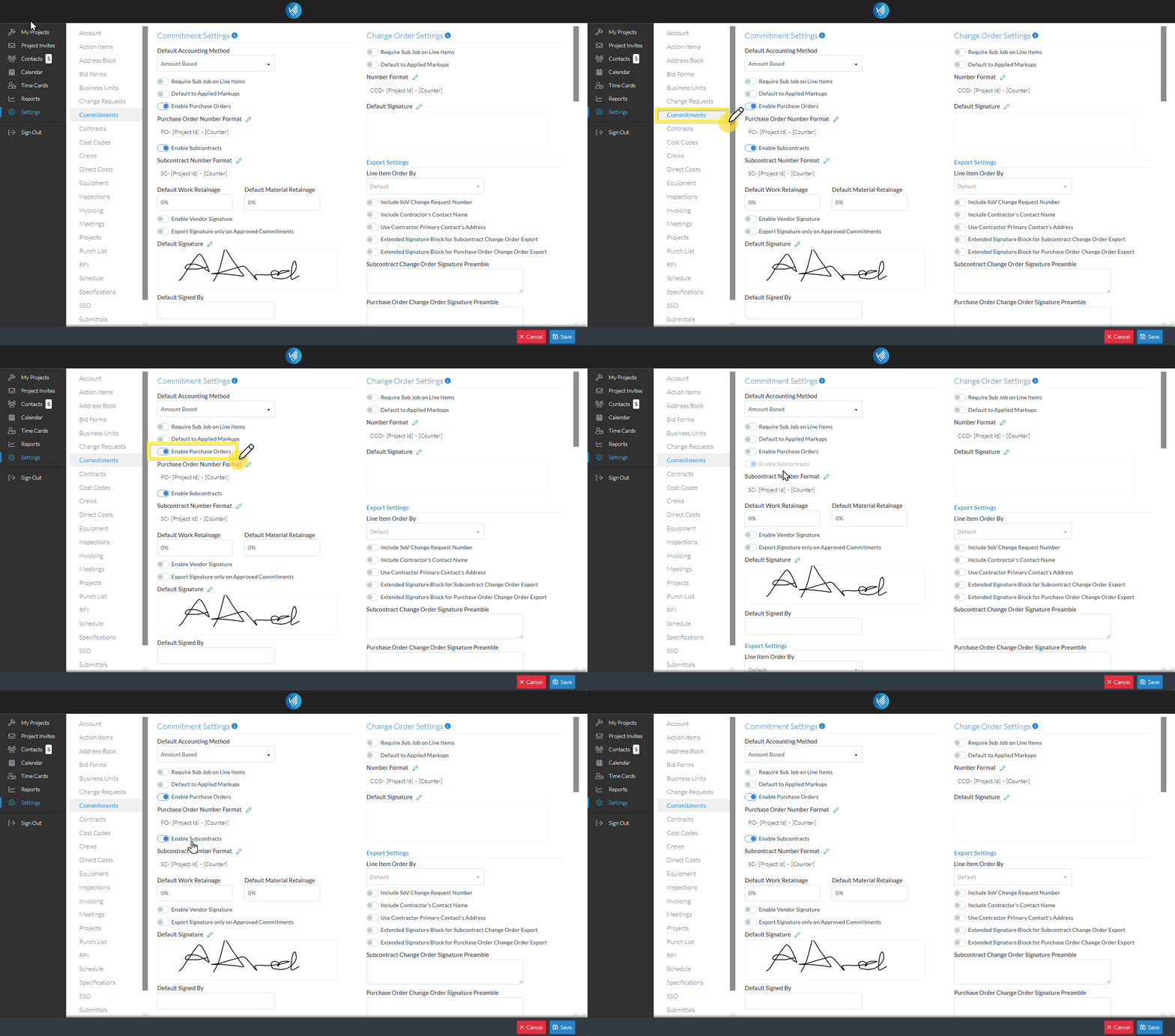
If one option is turned off, the other option can not be turned off as well. It is automatically set to on and can't be changed (i.e. the label is gray text and the slider bar it light blue).
To change which option is on, turn both on, then turn off the other option.
