Subcontract – View/Maintain - Form Navigation
 Updated
Suggested Prior Reading
Subcontract - View/Maintain - Form Navigation
The Subcontract - View/Maintain form displays all the information about the Subcontract. See Subcontract - View/Maintain – Form Layout for more information.
When the form is first opened, the General component displays by default (and is always displayed).
The Schedule of Values component always displays as well.
The other components that display depends on User Permissions.
This helps outlines
- Navigation of the General Component
- How to switch between the Subcontract Components that are displayed
- Other General Navigation Information
General Component
For overall information on the General Subcontract component, see Subcontract - View/Maintain - General Component (Overview).
Note* The General component has a lot of data and may require scrolling to see all the information.
If a User has View Only permissions on Commitments, see Subcontract - View/Maintain - General Component - View (Examples & Steps).
OR
If a User has Edit or Admin permissions on Commitments, see Subcontract - View/Maintain - General Component - Edit (Examples & Steps).
Use the Form Navigation Menu options to switch between Components
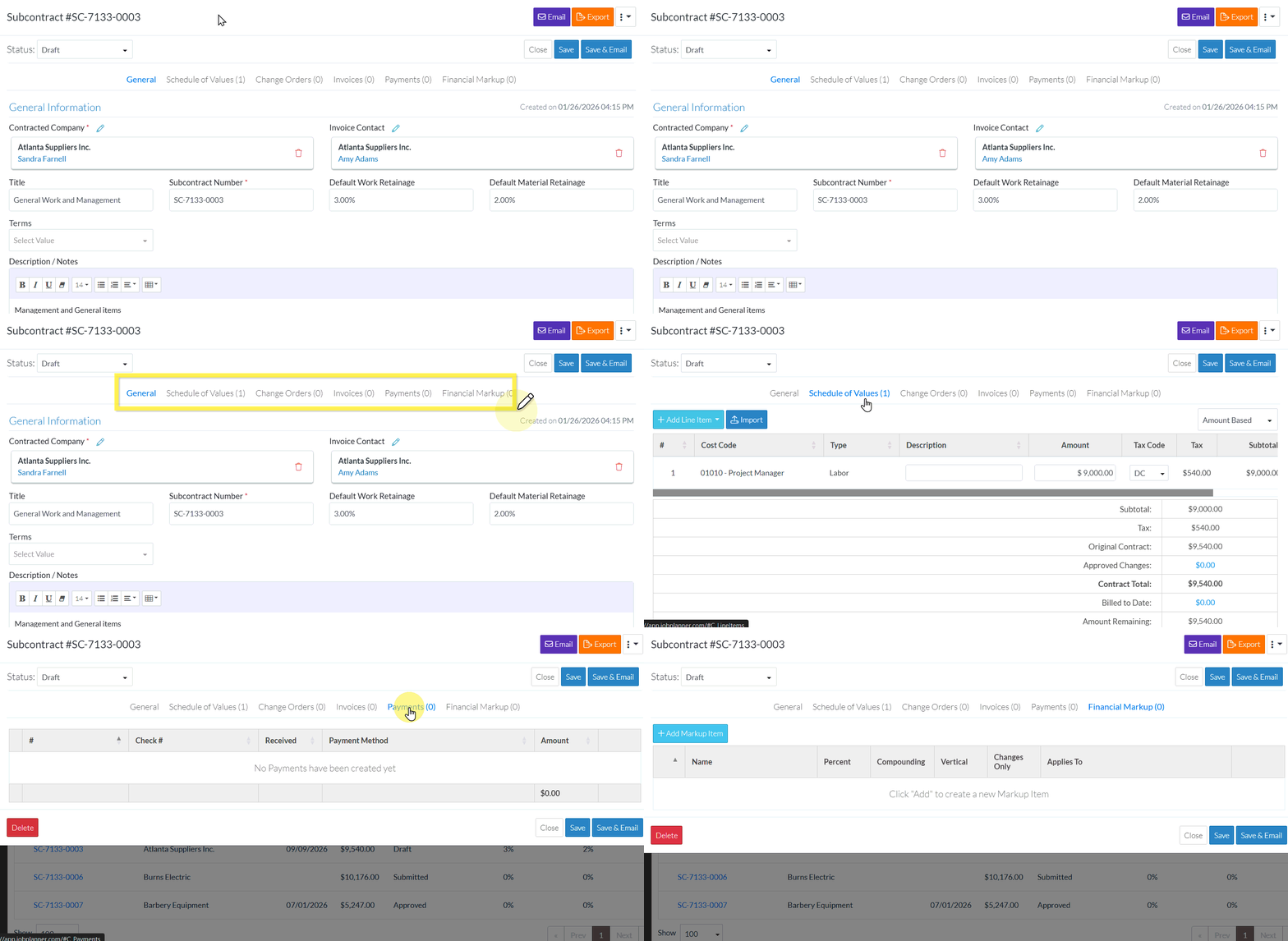
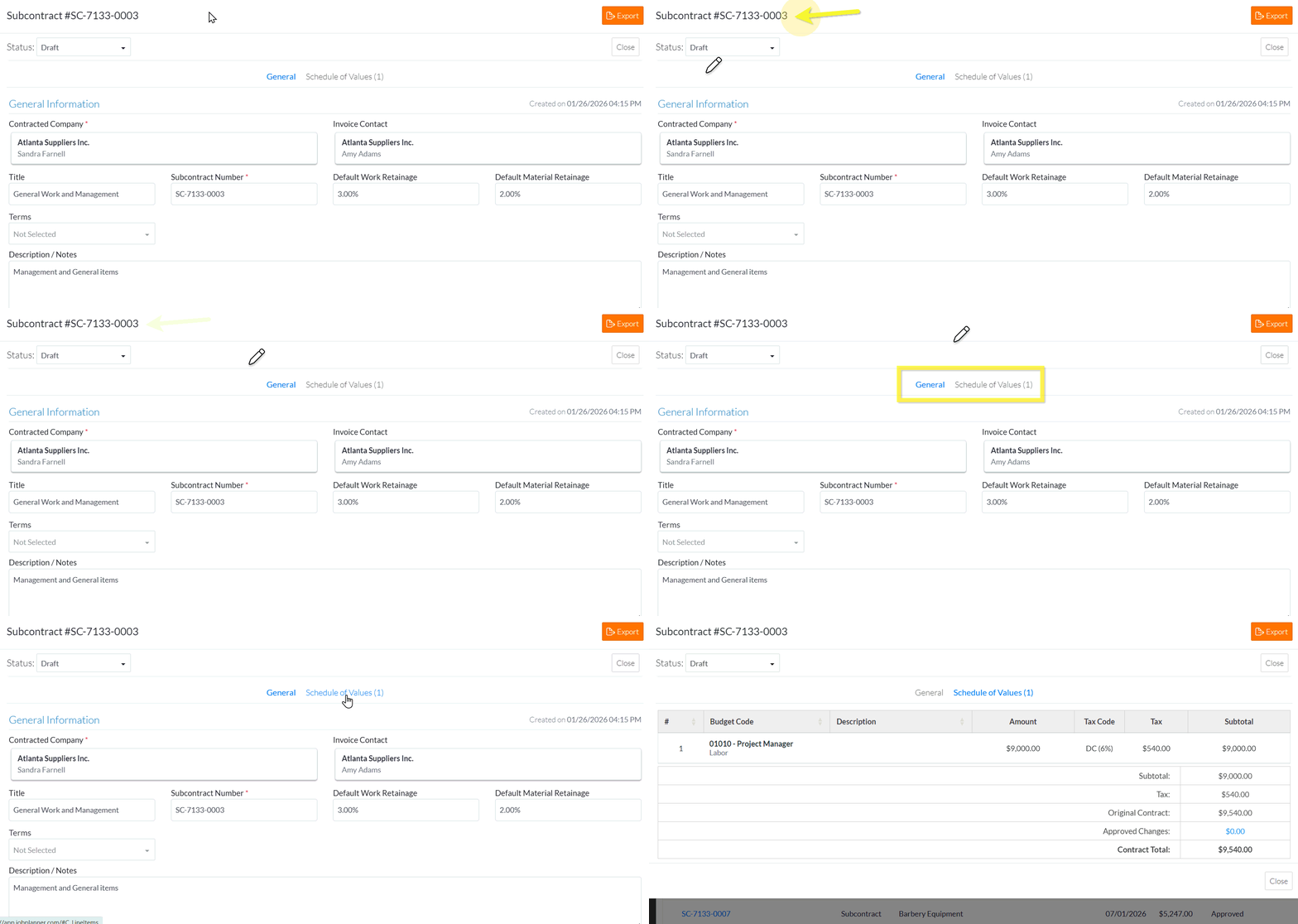
The Form Navigation Menu options are used to switch which of the Components of the Commitment display in the middle section of the form.
The options that display on the Form Navigation Menu depend on the permissions the User has.
The currently selected component is highlighted in blue writing.
Click on the text on the Form Navigation Menu to toggle between the components.
The menu options may appear with a () and a number next to it. This is the number of items in that component.
When toggling between components, the top and bottom sections of the form don't change, just the middle section changes.
Click here for an example of the Subcontract - View/Maintain form for a User with Admin permissions to Commitments and at least view permissions to Commitment Change Orders and Payable Invoices
Click here for an example of the Subcontract - View/Maintain form for a User with Admin permissions to Commitments and at least view permissions to Commitment Change Orders and Payable InvoicesD
There are multiple form navigation menu options that correspond to the permissions for the User.
Click here for an example of the Subcontract - View/Maintain form for a User with View only permissions to Commitments and no permissions to Commitment Change Orders or Payable Invoices
There are two form navigation menu options that correspond to the permissions for the User.
Other General Navigation Information
Regardless of what component is displaying for a Commitment:
For any User:
- The form can be closed
- The Subcontract can be exported
For a User with Add, Edit or Edit SOV permissions:
- The Subcontract can be saved (and it saves all the information on the General, Schedule of Values and Financial Markups components).
For a User with Admin permissions
- All the above is available
- The Status can be changed from any of the Commitment Components (as its always displayed no matter what component is selected).
- The Subcontract can be saved and emailed (and it saves all the information on the General, Schedule of Values and Financial Markups components).
- The Subcontract can be Emailed.
- The History of the Subcontract can be viewed.
