Subcontract – View/Maintain - Form Layout
 Updated
Suggested Prior Reading
Viewing/Maintaining a Subcontract
When viewing an existing Subcontract, the Subcontract - View/Maintain form displays (see Commitment - View to access the form).
This is help on the layout of the Subcontract - View/Maintain form.
The layout and whether information can be viewed or edited on the Subcontract - View/Maintain form depends on:
- The Permissions the User has been granted on Commitments (i.e. View Only, Add, Edit of the General information, Edit of the Schedule of Values or Admin permissions)
- The Permissions the User has been granted on:
- Commitment Change Orders (can they at least view Commitment Change Orders)
- Payable Invoices (can they at least view Payable Invoices)
- The Status of the Subcontract
- A Commitments setting that enables rich text entry for Description/Notes, Inclusions/Exclusions
For help on navigating the Subcontract - View/Maintain form, see Subcontract – View/Maintain - Form Navigation.
Overview of the Subcontract View/Maintain Form Layout
The Subcontract - View/Maintain Form is divided into three sections:
- Top section
- Middle section
- Bottom section
The middle section changes depending on what Subcontract Component is selected to display.
The top section and the bottom section don't change for the User except if the Subcontract Status is changed and it impacts the functions available.
Top Section
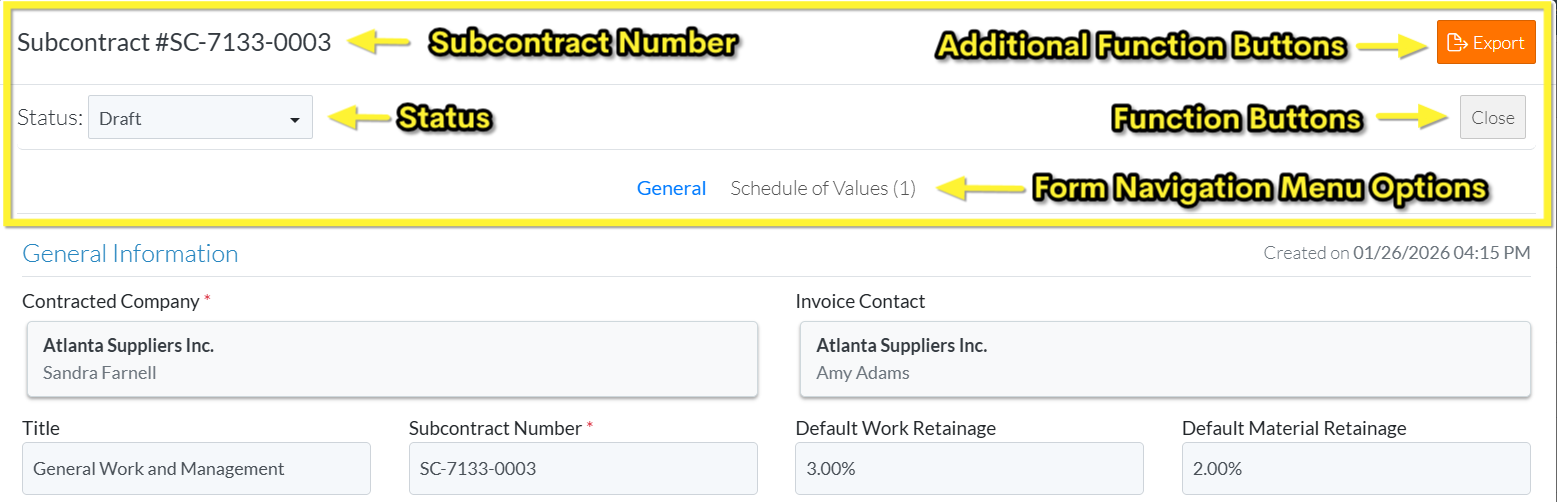
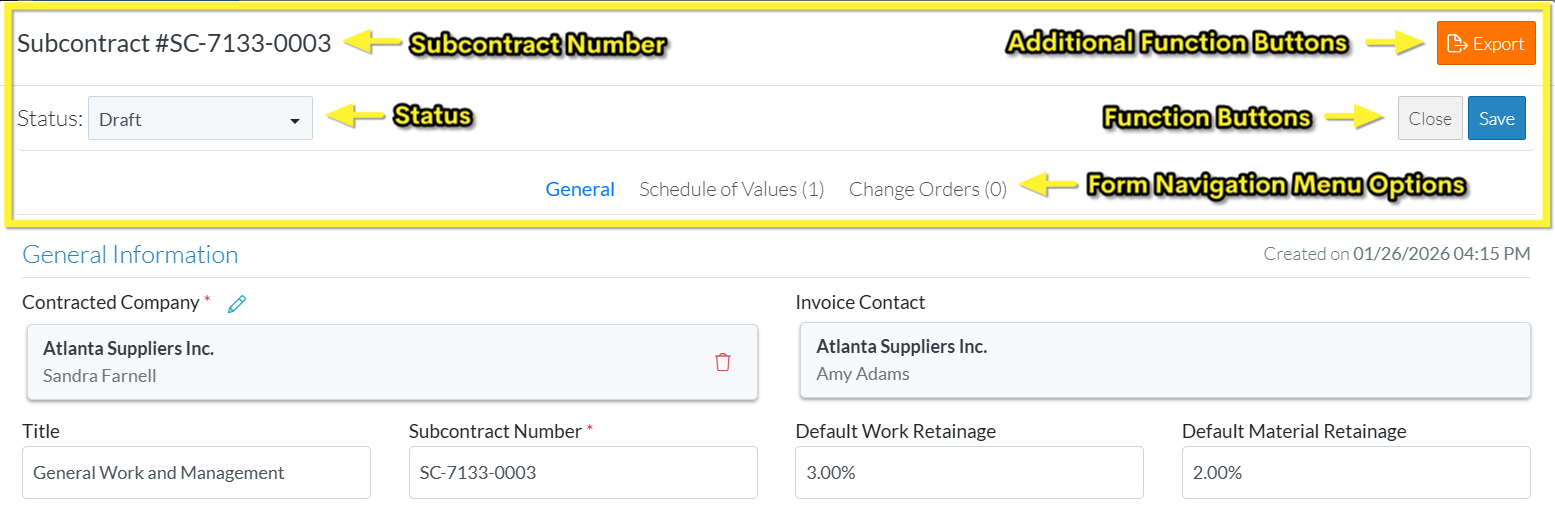
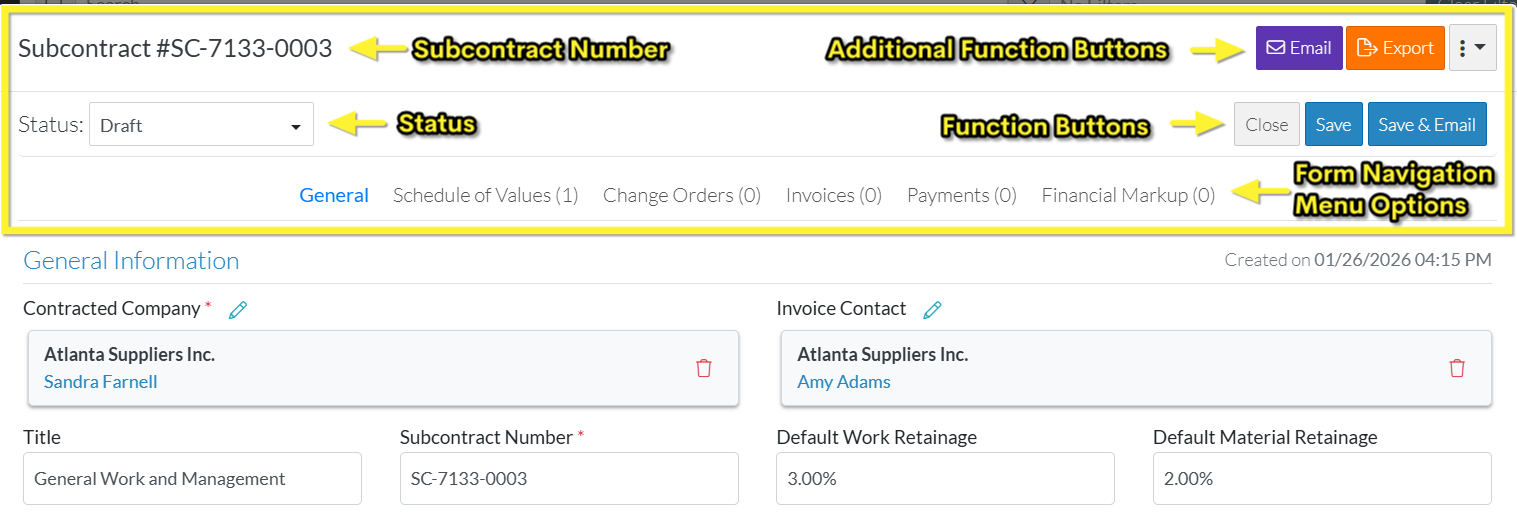
The top section of the form displays:
- The Subcontract Number
- The Status
- Additional Function Buttons
- Function Buttons
- Form Navigation Menu Options
The Subcontract number always displays the same, however the other parts on the top section will differ depending on permissions and the Subcontract Status:
Part | Display and Functionality |
Status | If a User does not have Admin permission on Commitments - the Status is display only and can not be changed. If a User does have Admin permission on Commitments - the Status is a display and drop down. It displays the current Status but it can be clicked on to change the Status. See Subcontract - View/Maintain - Status for more information. |
Additional Function Buttons | Additional functions for the Subcontract. All Users can
Admin Users can:
|
Function Buttons | Used to Close the Subcontract form, Save the Subcontract or Save and Email the Subcontract All Users can
Add, Edit or Edit SOV users can:
Admin Users have all the above functionality plus:
|
Form Navigation Menu Options | Used to display which component is currently selected and to switch between components of the Subcontract that are displayed in the middle section. All Users can:
Users with at least View permissions on Commitment Change Orders can:
Users with at least View permissions on Payable Invoices can:
|
 - the Subcontract information to a PDF
 the Subcontract – send an email with a link to the Subcontract information
 - a drop down to view additional information about the Subcontract such as History
 the form
 the Purchase Order
 - save the Subcontract and then send an email with a link to the Subcontract information
The following are examples of the top section of the Subcontract - View/Maintain for Users with different permissions to Commitments.
Click here for an example of View Only Permissions
An example of the top section of the form with the General Component displayed for a User with View Only permissions to Commitments and no access to Commitment Change Orders or Payable Invoices.
Click here for an example of Edit or Edit SOV Permissions
An example of the top section of the form with the General Component displayed for a User with Edit or Edit SOV permissions to Commitments and at least View access to Commitment Changes Orders and no access to Payable Invoices.
Click here for an example of Admin Permissions
Click here for an example of the top section of the form with the General Component displayed for a User with Admin permissions to Commitments and at least view access to Commitment Changes Orders or Payable Invoices.
Middle Section
The middle section changes depending on what Subcontract component is selected to display.
There are two Components that always display for a Subcontract:
- General (such as the Contracted Company, Title, Description, Dates etc.).
- For overall information on the Subcontract General component, see Subcontract - View/Maintain - General Component (Overview).
- If a User has View Only permissions on Commitments, see Subcontract - View/Maintain - General Component - View (Examples & Steps).
OR
If a User has Edit or Admin permissions on Commitments, see Subcontract - View/Maintain - General Component - Edit (Examples & Steps).
- Schedule of Values (the details about the Contract). See Commitment - Schedule of Values (Overview).
Other Components may also be available to display depending on permissions;
- Financial Markups. See Commitment - Financial Markups (Overview).
- Change Orders. See List of Change Orders for a specific Commitment.
- Invoices. See List of Invoices for a specific Commitment.
- Payments. See List of Payments for a specific Commitment.
The Component that is currently displayed is highlighted in the Form Navigation Menu Options. The Form Navigation Menu Options are also used to toggle between components displayed. See Subcontract – View/Maintain - Form Navigation for more information.
Bottom Section
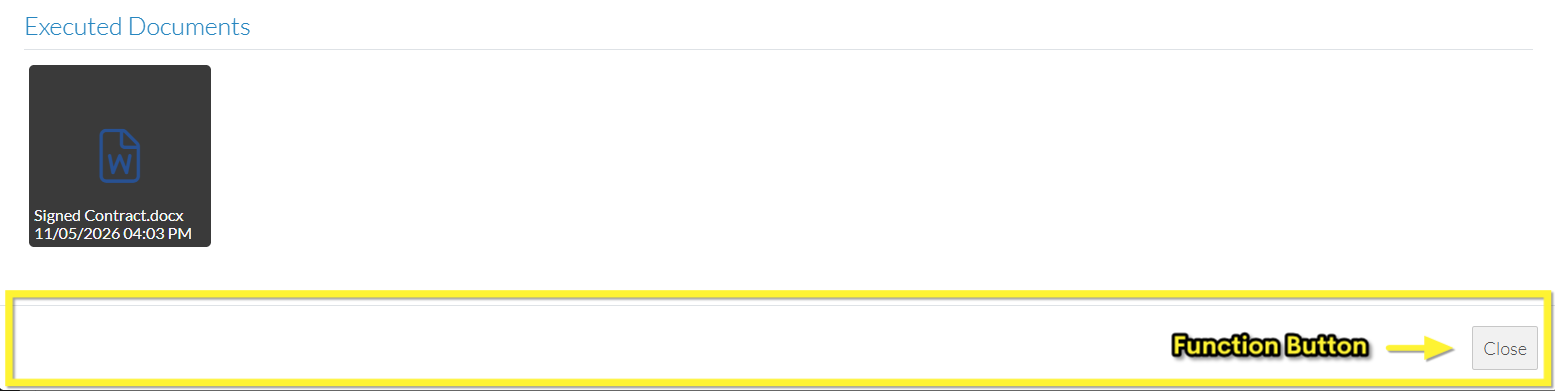
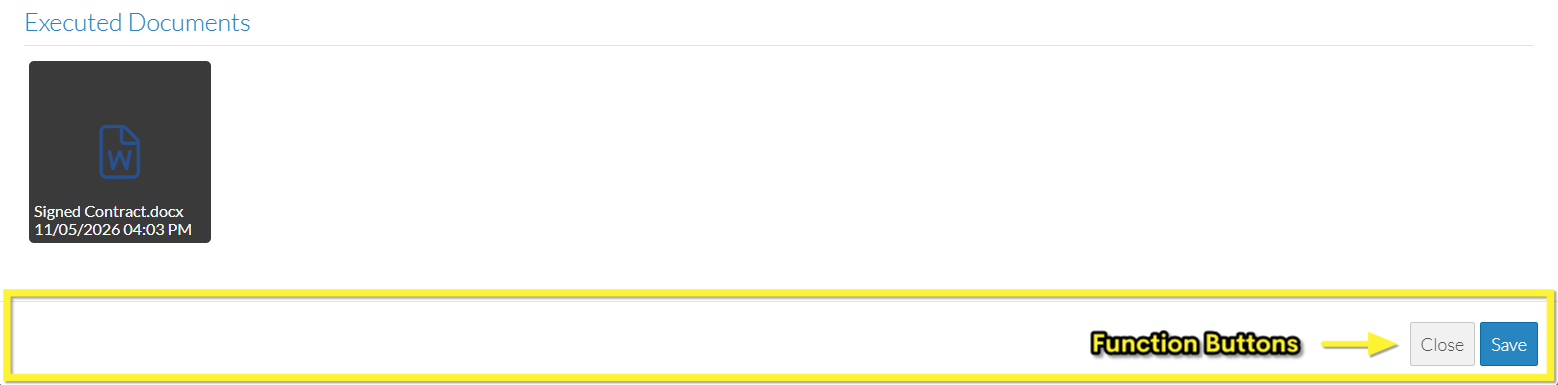
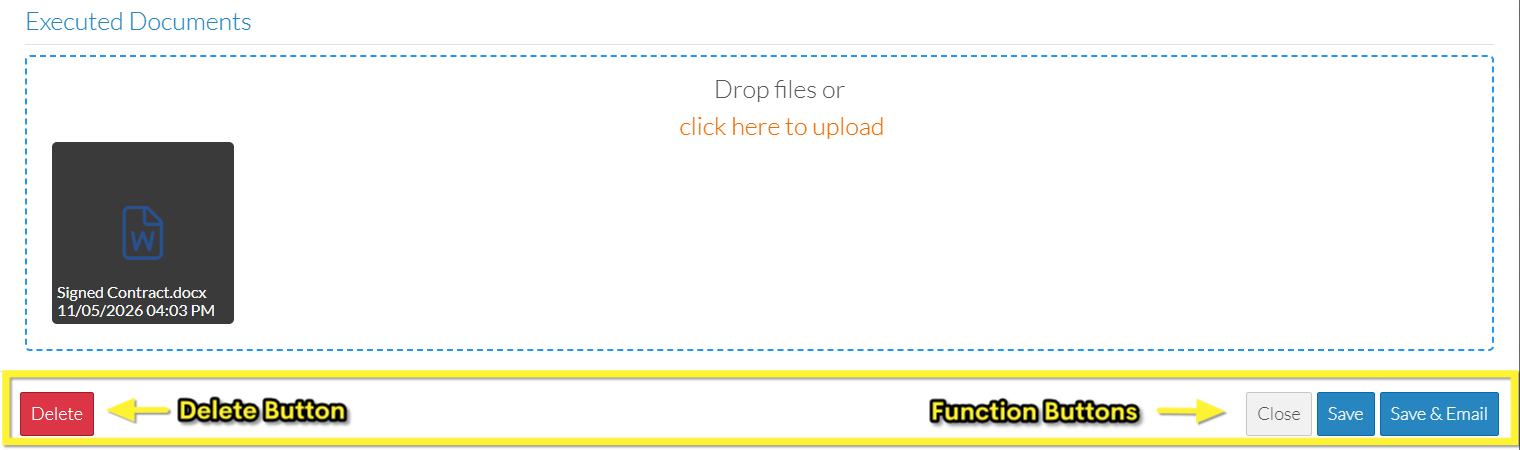
The bottom section of the Subcontract - View/Maintain has the same Functions Buttons as the top of the form, (i.e. to Close the Subcontract form, Save the Subcontract or Save and Email the Subcontract) for easy access as the form may be lengthy.
There may also be an additional Delete  button if the User has Admin permissions and the Subcontract is in a Status the enables deleting.
The following are examples of the bottom section of the Subcontract - View/Maintain for Users with different permissions to Commitments.
Click here for an example of View Only Permissions
An example of the bottom section of the General component for a User with View Only permissions to Commitments
Click here for an example of Edit or Edit SOV Permissions
An example of the bottom section of the General component for a User with Edit or Edit SOV permissions to Commitments.
Click here for an example of Admin permissions
An example of the bottom section of the General component for a User with Admin permissions to Commitments.
Additional Examples
For each Organization/User, the form will display depending on permissions, status and settings.
To view additional examples of the complete form with different permissions, status and settings, see Subcontract – View/Maintain - Form Layout - Additional Examples.
Note* This covers a variety of examples, but does not cover all scenarios and the Organization/Users display may be different.
More Information
For more information on permissions settings for Commitments, Commitment Change Orders and Payable Invoices, see User Types - Company - Permissions - Project Features - Finances - Commitments.
For more information on the Rich Text Features for Description/Notes, Inclusions and Exclusions, see Settings - Commitments - Commitment Settings - Enable Rich Text Fields.
For more information on Subcontract Status, see Subcontract - Status.
