Contract Change Order - Schedule of Values - Add Line Item
 Updated
Suggested Prior Reading
Contract Change Order - Schedule of Values - Create During Add
OR
Contract Change Order - Schedule of Values - Create During Edit
OR
Contract Change Order - Schedule of Values - Maintain
OR
Contract Change Order - Schedule of Values - Maintain when Line Items added from Change Requests
Contract Change Order - Schedule of Values - Add Line Item
Line Items can only be added if the Contract Change Order is in a Status that enables adding/editing. See Contract Change Orders – Status.
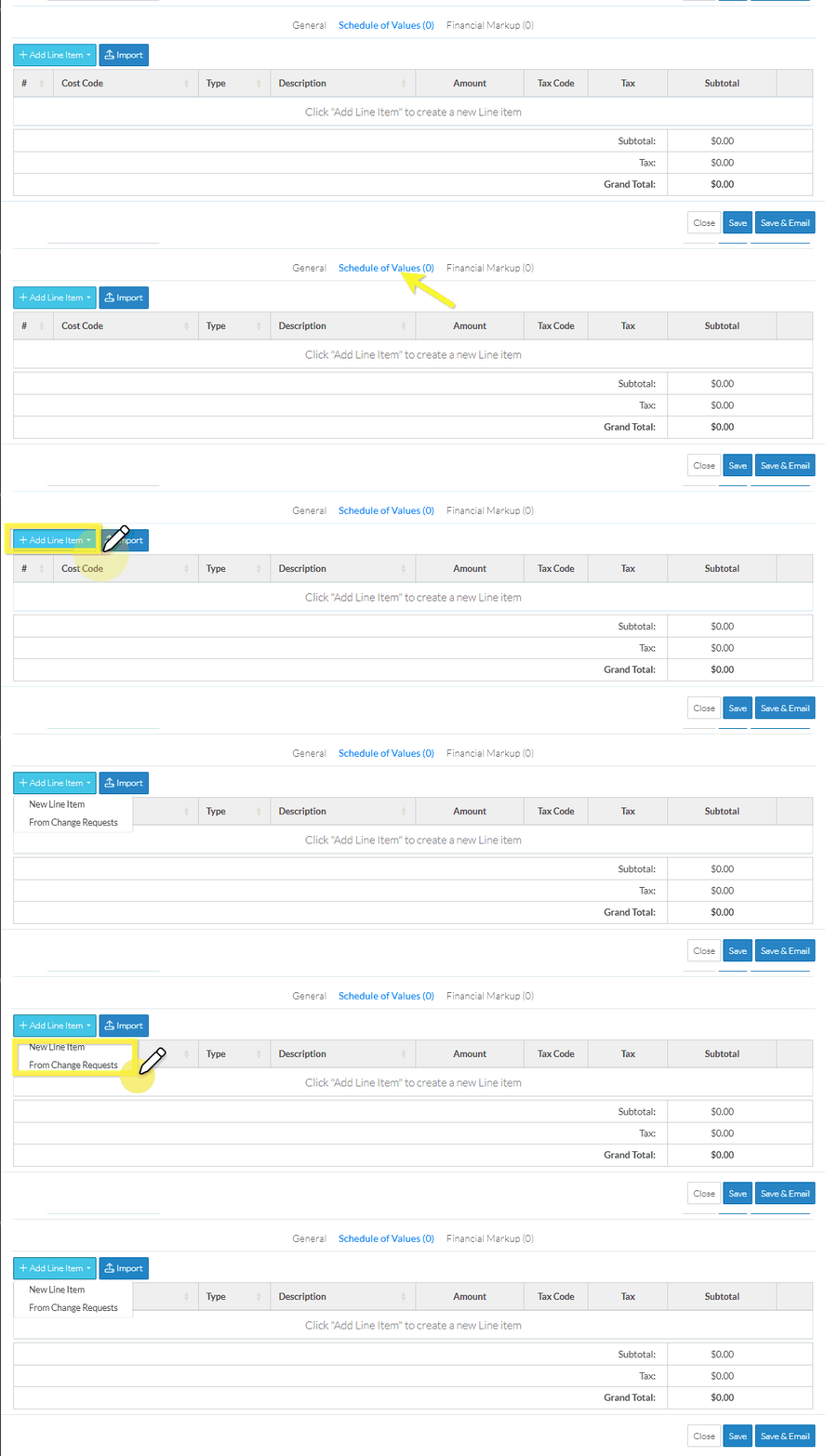
- If not already selected, access the Schedule of Values component for the Contract Change Order. See the Suggested Prior Reading above.
- Click the Add Line Item
 button.
A drop down appears with two options:
New Line Item - to create a brand new line item, entering all the information such as Cost Code, Cost Type etc.
From Change Requests - to create a line item based on line items from the Change Request. The Line item details from the Change Request are copied to the Change Order Line Item.
- Select the option. See below for more information on each option.
New Line Item
If New Line Item is selected, a new blank row is created on the Schedule of Values with the first column of information automatically selected and the drop down for the first column displayed.
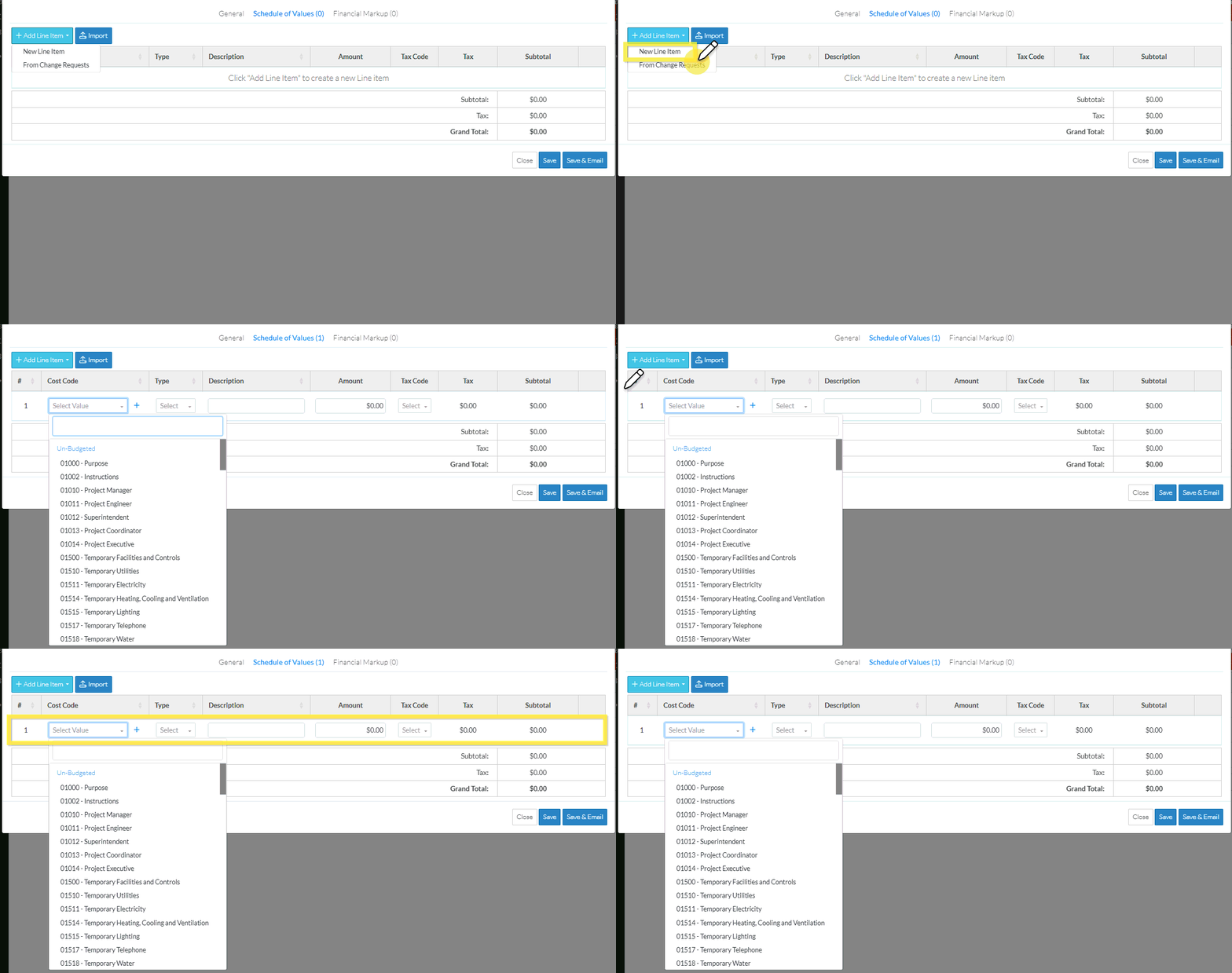
There are a number of different factors which determine the columns of information displayed on the Schedule of Values. The above example is one where the Cost Code is the first column but it may be a Sub Job (if Sub Jobs are turned on).
Enter the Line Item information, see Contract Change Order - Schedule of Values - New Line Item.
From Change Request
If From Change Request is selected, the Select Change Requests form displays.
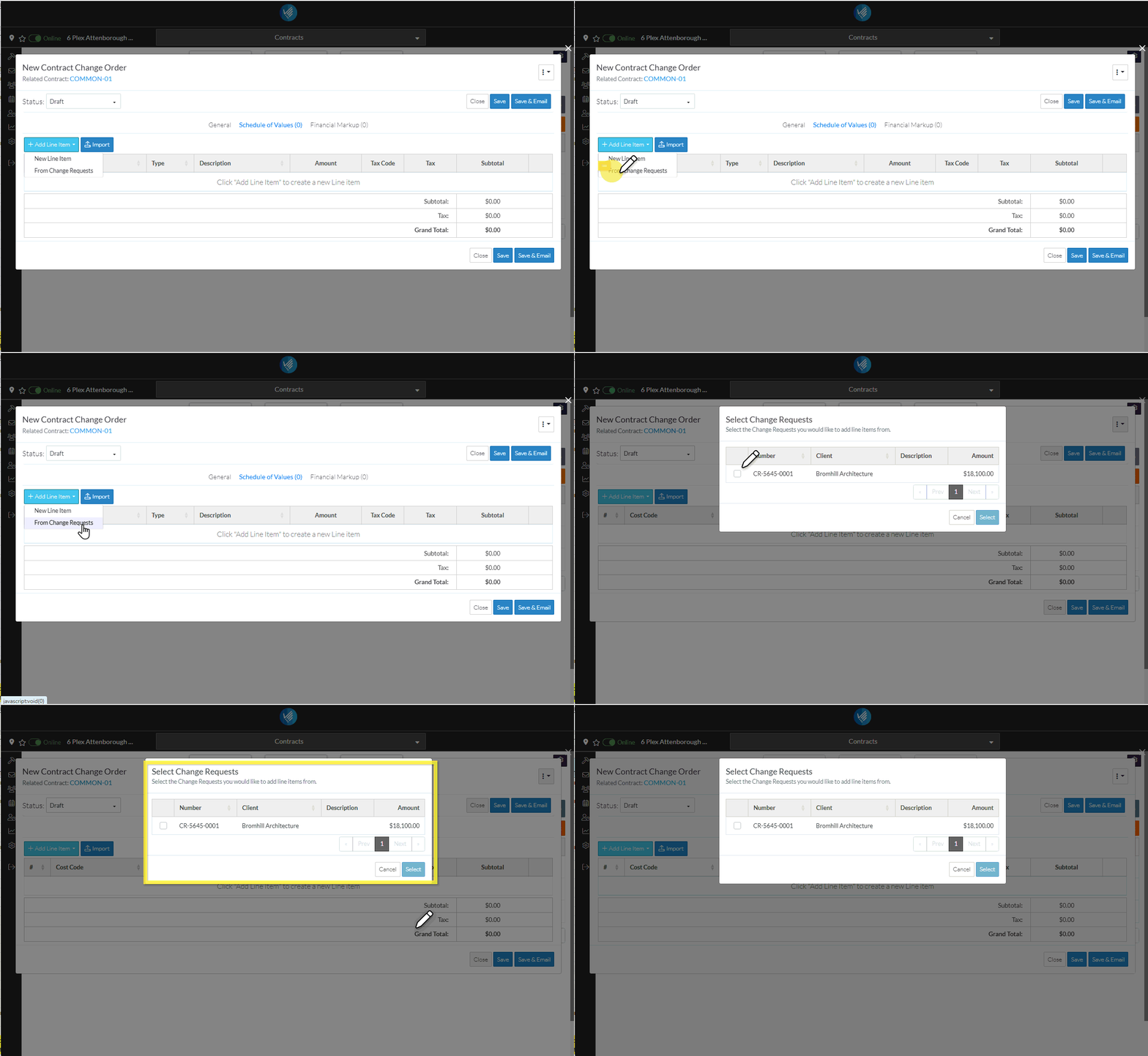
See Contract Change Order - Schedule of Values - Select Change Requests for more information.
Next Steps
For a New Line Item, see Contract Change Order - Schedule of Values - New Line Item.
To create Line Item(s) from approved Change Request(s), see Contract Change Order - Schedule of Values - Select Change Requests.
