Contract Change Order - Schedule of Values - Create During Edit
 Updated
Suggested Prior Reading
Contract Change Order - View/Edit
Contract Change Order - Schedule of Values
Schedule of Values - Creation during Edit
This help pertains to Creation of a Schedule of Values during the edit of an existing Contract Change Order when no Schedule of Values has yet been created.
In order to create the Schedule of Values for an existing Contract Change Order, the Change Order must be in a status that enables editing, see Contract Change Order - Status.
Creation of the Schedule of Values means setting the Schedule of Values Accounting Method, adding, editing or deleting Line Items and then saving the Contract Change Order including the Schedule of Values. Once that occurs the Schedule of Values is created.
Creation applies when no Line Items have been entered on the Schedule of Values. The creation can occur during the edit of an existing Contract - if a Contract was added and saved, but the Schedule of Values wasn't created during the add.
- To create the Schedule of Values during the add of a new Contract Change Order, see Contract Change Order - Schedule of Values - Create During Add.
- To maintain the Schedule of Values during the edit of an existing Contract Change Order and where Line Items have already been created, see Contract Change Order - Schedule of Values - Maintain.
To create the Contract Change Order Schedule of Values
Access the Schedule of Values
- Initiate the edit of the Contract Change Order (if not already done), see Contract Change Order - View/Edit.
The Contract Change Order View/Edit form displays (see Contract Change Order – View/Edit - Form Layout and Navigation for more information if required). - Click on the Schedule of Values on the Form Navigation Menu Options on the Contract View/Edit form.
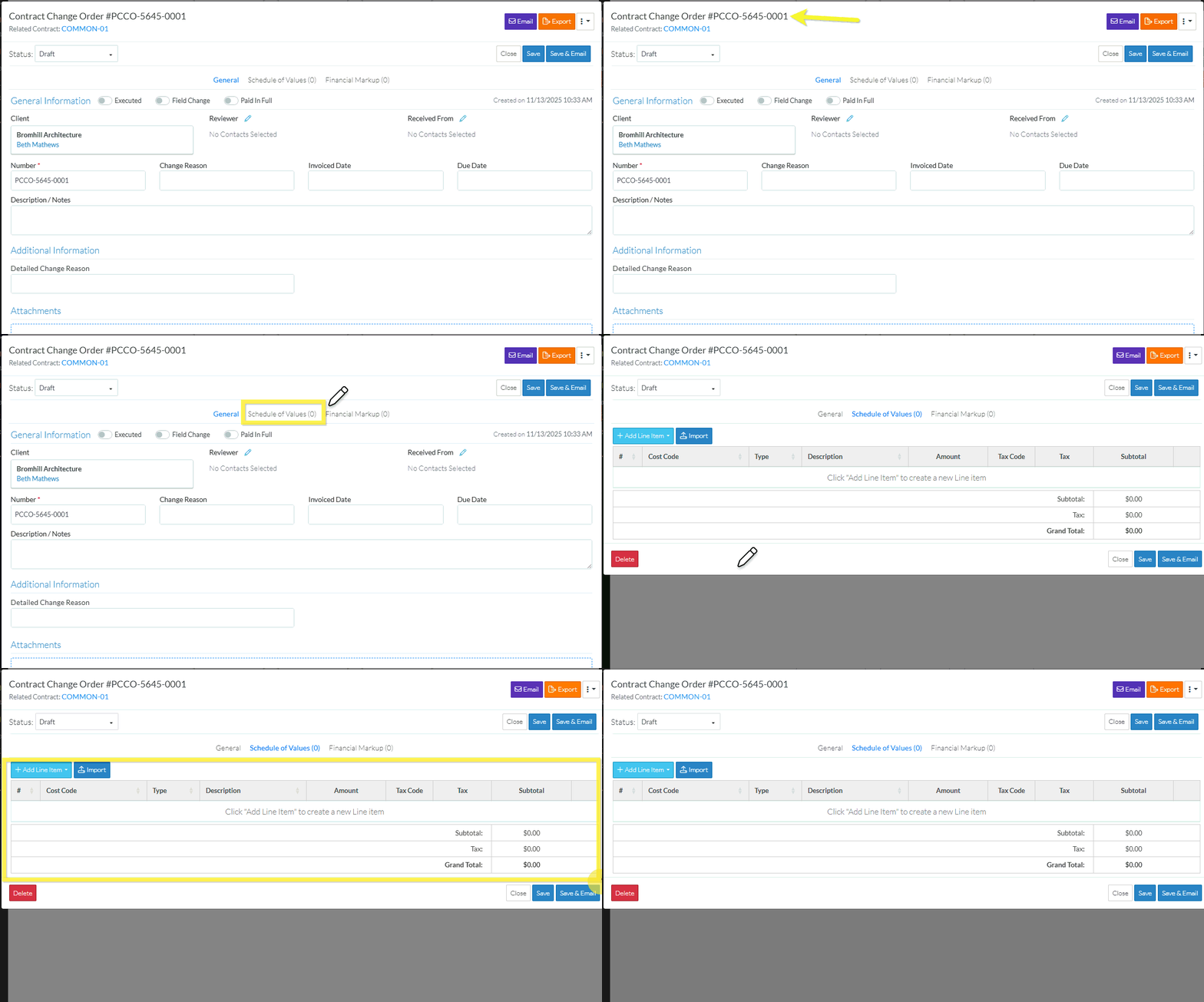
The Schedule of Values component for the Contract displays. See Schedule of Values – Layout and Navigation for more information. There will be no Line Items entered. If Line Items are entered, see Contract Change Orders - Schedule of Values - Maintain.
Set the Accounting Method
- Change the Accounting Method if required, see Schedule of Values - Accounting Method. The Accounting Method must be changed before any Line Items are added.
Maintain the Schedule of Values
During this session, the Schedule of Values can have Line Items added, edited or deleted. The Schedule of Values is not yet saved until the Save function is invoked (see below).
All the information on the line items can be changed if the line item was entered during this session. After the Schedule of Values is saved and this session ended, the Parent/Sub (if used), the Cost Code and Cost Type for Line Items can not be changed (but the other information can be).
- Add a Line Item, see Contract Change Order - Schedule of Values - Add Line Item.
- Bulk Import Line Items, see Contract Change Order - Schedule of Values - Import.
- Edit a Line Item:
- Before the Line Item has been saved, see Contract Change Order - Schedule of Values - Edit Line Item (before Save).
- After the Line Item has been saved, see Contract Change Order - Schedule of Values - Edit Line Items (after Save).
- Delete a Line Item, see Contract Change Order - Schedule of Values - Delete Line Item.
Save the Schedule of Values (and end this session)
- Click the Save
 button to save the Contract i.e. all the information on the General, Schedule of Values and Financial Markup forms.
OR
Click the Save & Email button to save the Contract i.e. all the information on the General, Schedule of Values and Financial Markup forms and send an email with a link to the Contract in JobPlanner. The Contract is also added as an attachment in PDF format, with the Default Company signature and date.
OR
Click the Close button to close the form without saving the information.
Next Steps
Maintain the Schedule of Values after it has been created, see Contract Change Order - Schedule of Values - Maintain.
Setup Financial Markups if required, see Contract Change Order - Financial Markups.
View more details about how the Contract Change Order Total column displays on the Budget, see Contract Change Order – Budget.
Create or manage Invoices for Contract Change Order, see Contract Invoices - Overview.
Create or manage Payments for Contract Change Order Invoices, see Contract Payments - Overview.
Delete a Contract Change Order, see Contract Change Order - Delete.
