Contract Change Order - Delete
 Updated
Suggested Prior Reading
Contract Change Orders - Overview
Contract Specific Change Orders List - Overview
To Delete an Existing Contract Change Order
This is help for deleting an existing Contract Change Order from the Contract specific list of Change Orders. (To delete it from the list of all Change Orders for all Contracts for the Project, see Contracts - List of All Change Orders - Overview).
Only Contract Change Orders with a certain status can be deleted. Those Change Orders with an Approved, Rejected or Void Status can not be deleted and the Delete button will not be displayed. see Contract Change Orders – Status for more information.
To delete a Contract Change Order, it must first be viewed/edited and then the delete function invoked from the View/Edit form.
- Access the Contract Change Order and view or edit it, see Contract Change Order - View/Edit.
The Contract Change Order - View/Edit form displays.
The General component displays by default after the edit is initiated but other Components can be switched to via the Form Navigation Menu Options. See Contract Change Order – View/Edit - Form Layout and Navigation for more information.
The Contract Change Order can be deleted from any of the Components; General, Schedule of Values or Financial Markups.
At the bottom, left hand side off the Contract Change Order - View/Edit form is a Delete  button that displays (as long as the Contract Change Order is in a Status that allows deleting. If the Status doesn't allow deleting, the Delete button does not display). This button appears regardless of what Component is selected.
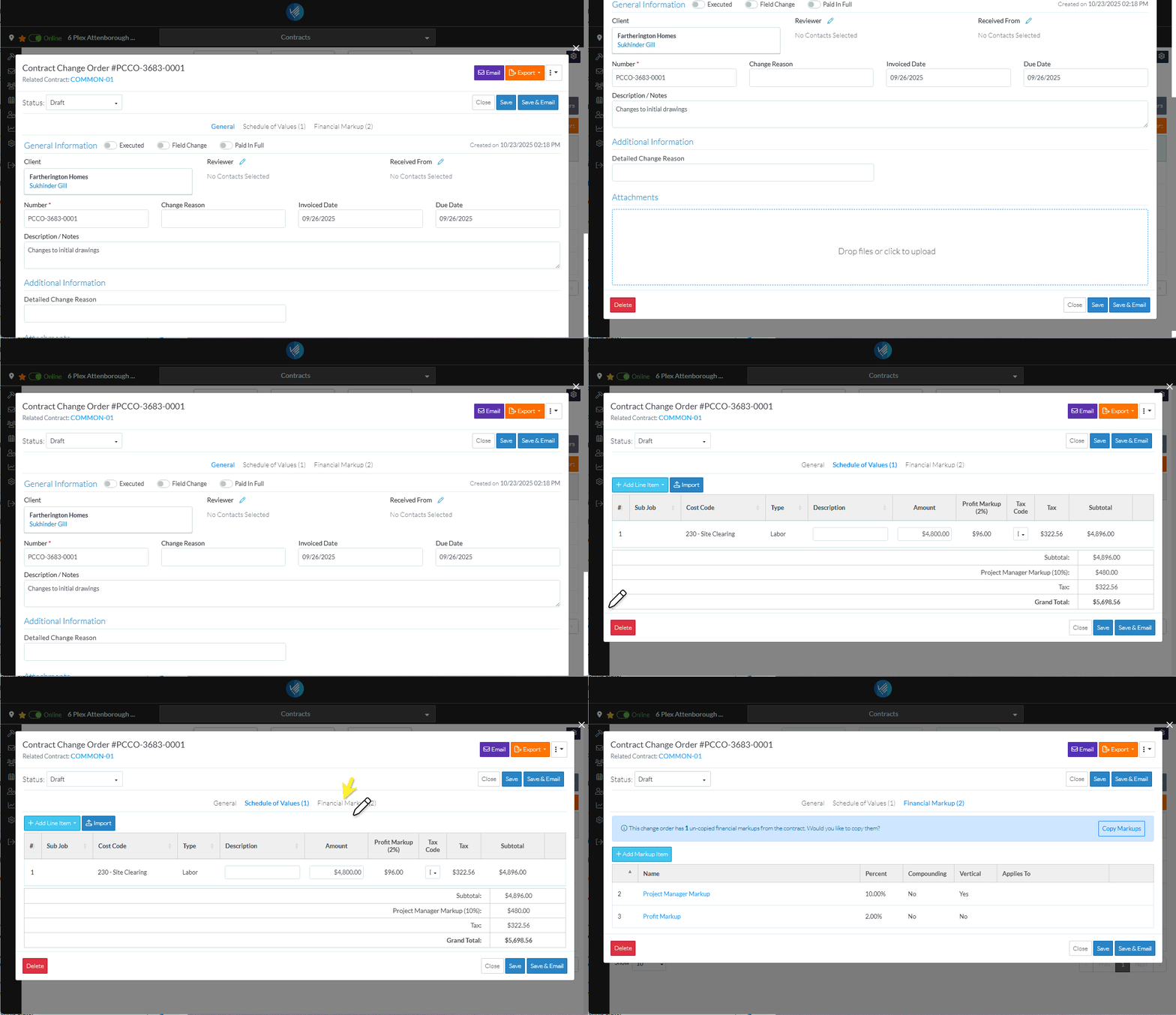
- From any of the Components, click the Delete button.
- A confirmation prompts appears confirming that Delete.
- Click the Delete button to delete the Contract Change Order.
OR
Click the Close button to cancel the delete.
The Contract List displays.
Next Steps
See Contracts List - Overview, for a list of the functionality available from the Contracts List.
