Contract Change Order - General - Attachments - Delete
 Updated
Suggested Prior Reading
Contract Change Order - Add/Edit/View - Attachments
To delete an Attachment
- Hover on the File to delete
- Click on the delete
 button on the item. The file will be removed.
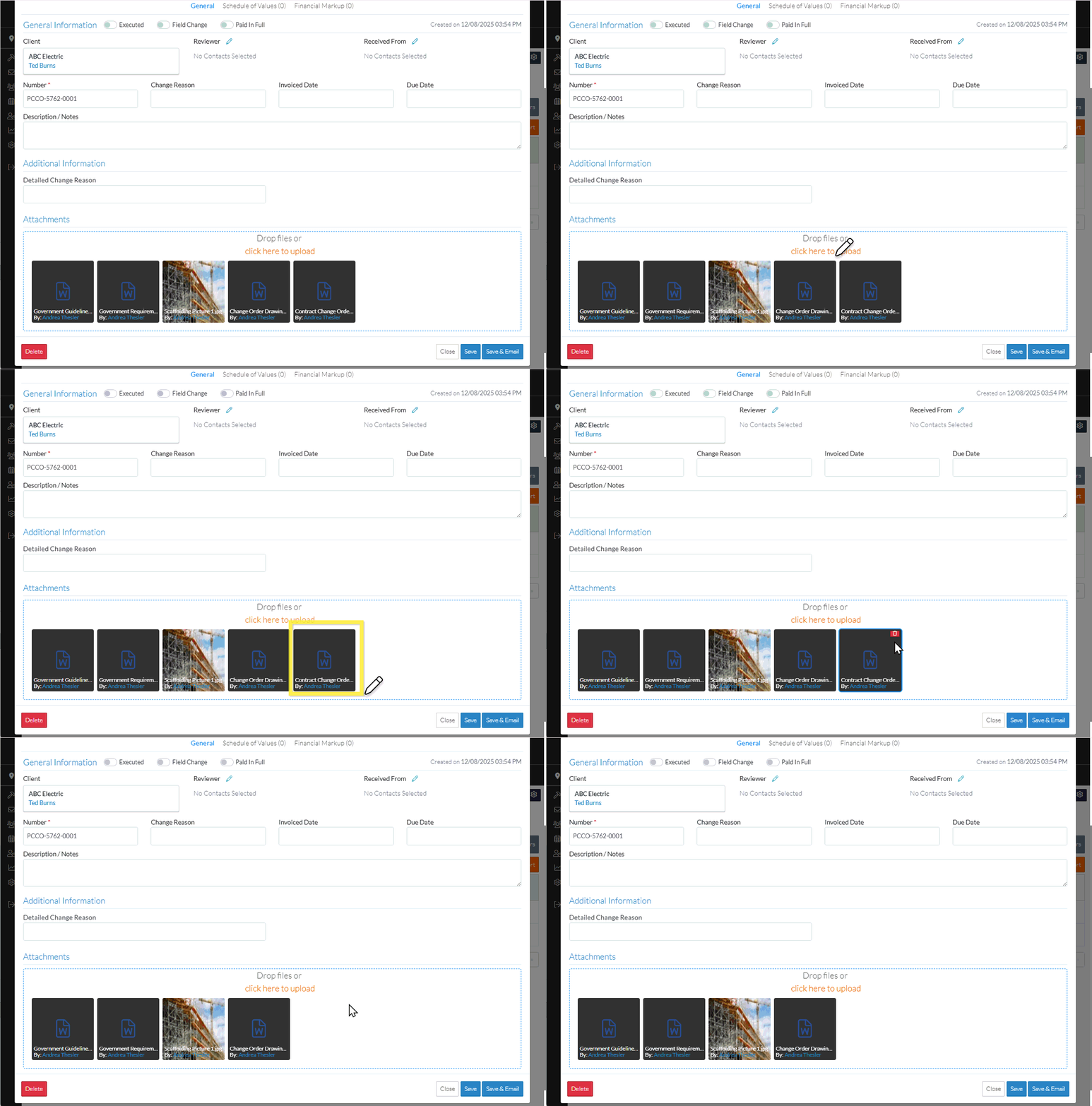
The deletion is not yet saved. This is a working session and the Contract Change Order must be saved to save these changes (see below).
- To upload Attachments, see Contract Change Order - General - Attachments - Upload.
- To view Attachments (that have previously been saved), see Contract Change Order - General - Attachments - View.
- Add, Edit or View additional information on the Change Order, see More Information below.
OR
Click the Save button to save all the information on the General, Schedule of Values and Financial Markup components for the Contract Change Order.
OR
Click the Save & Email button to save all the information on the General, Schedule of Values and Financial Markup components for the Contract Change Order and send an email with a link to the Contract Change Order in JobPlanner. The Contract Change Order is also added as an attachment in PDF format.
OR
Click the Close button to close the form without saving the information on any of the Components.
The Contract List displays.
More Information
To change the status, see Contract Change Order - Add - Status OR Contract Change Orders - Edit - Status.
Create or manage Contract Change Order Schedule of Values, see Contract Change Order - Schedule of Values.
Create or manage Contract Change Order Financial Markups, see Contract Change Order - Financial Markups.
Delete a Contract Change Order, see Contract Change Order - Delete.
Next Steps
To view all functionality available from the Contracts List, see Contracts List - Overview
