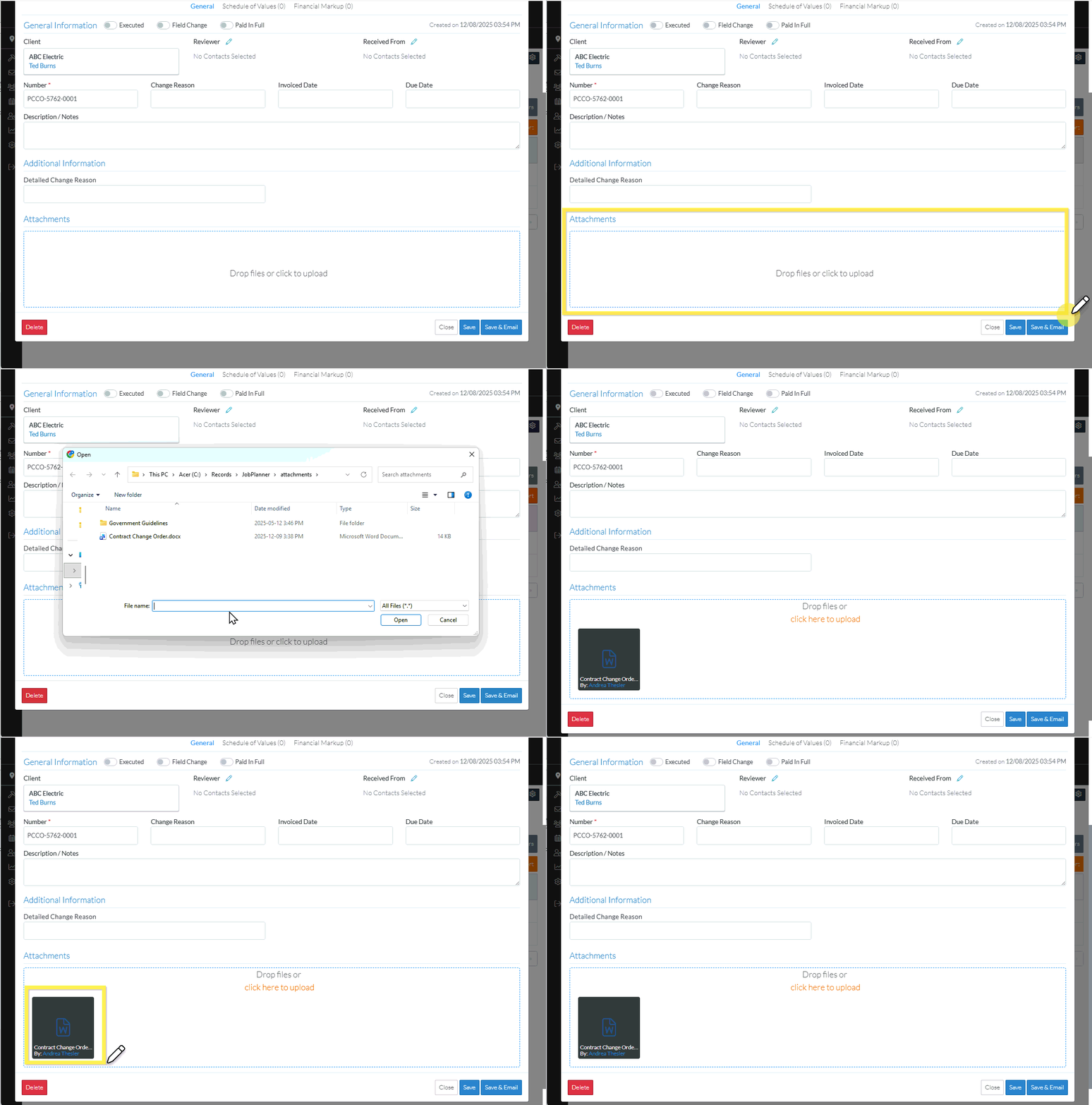
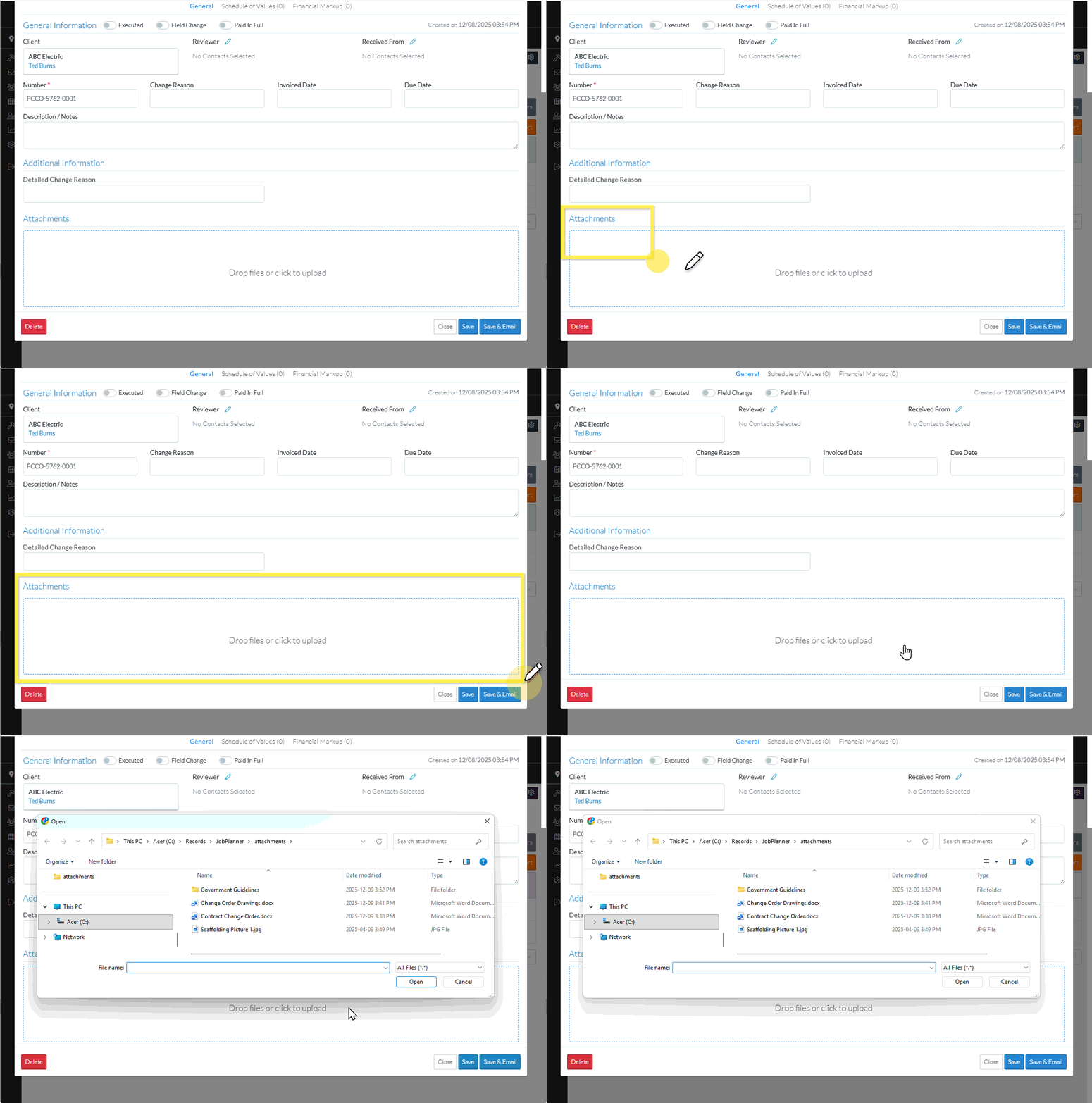
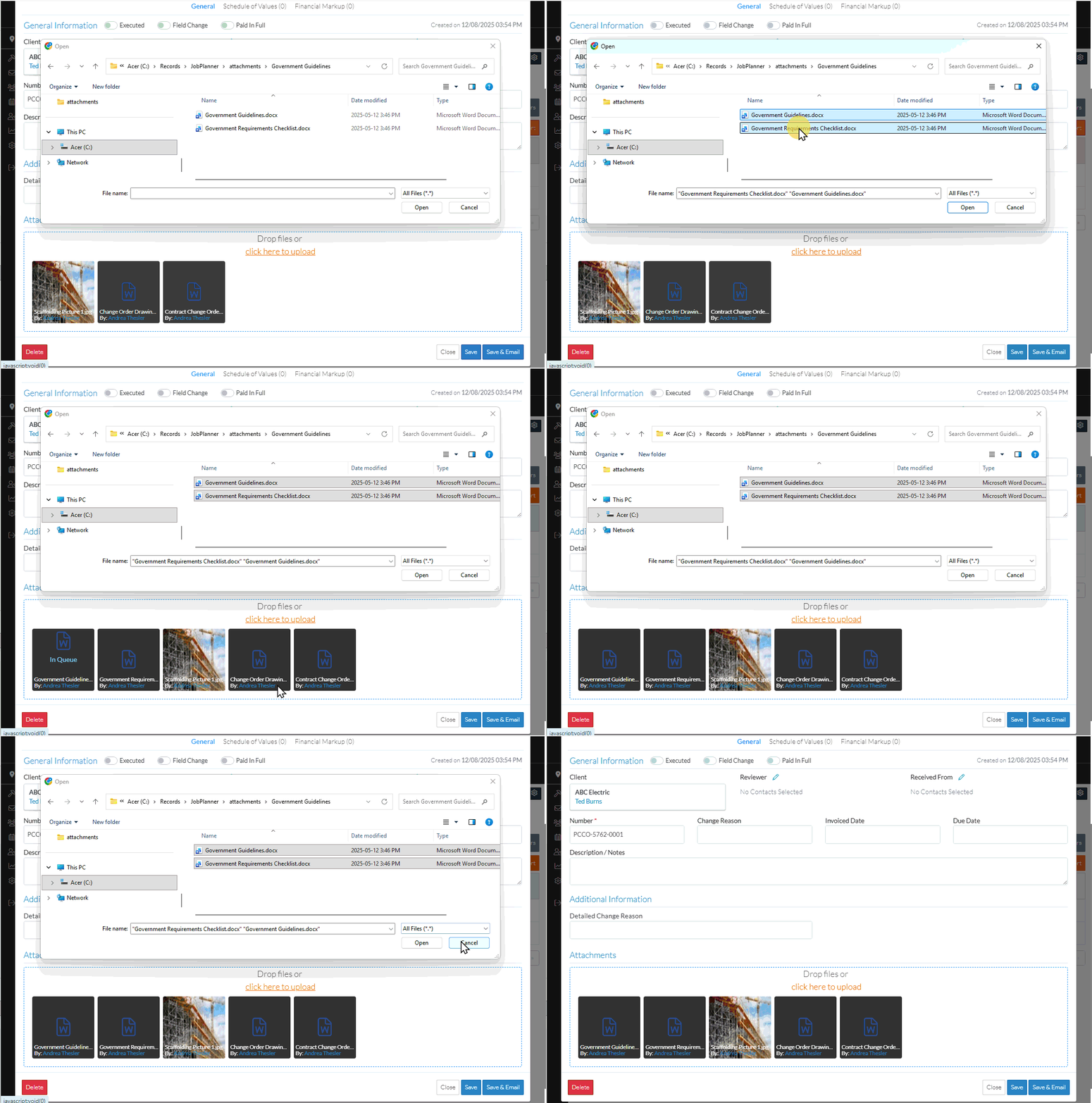
If no documents have been uploaded and the function has not yet been clicked, click anywhere within the box to invoke the upload
OR
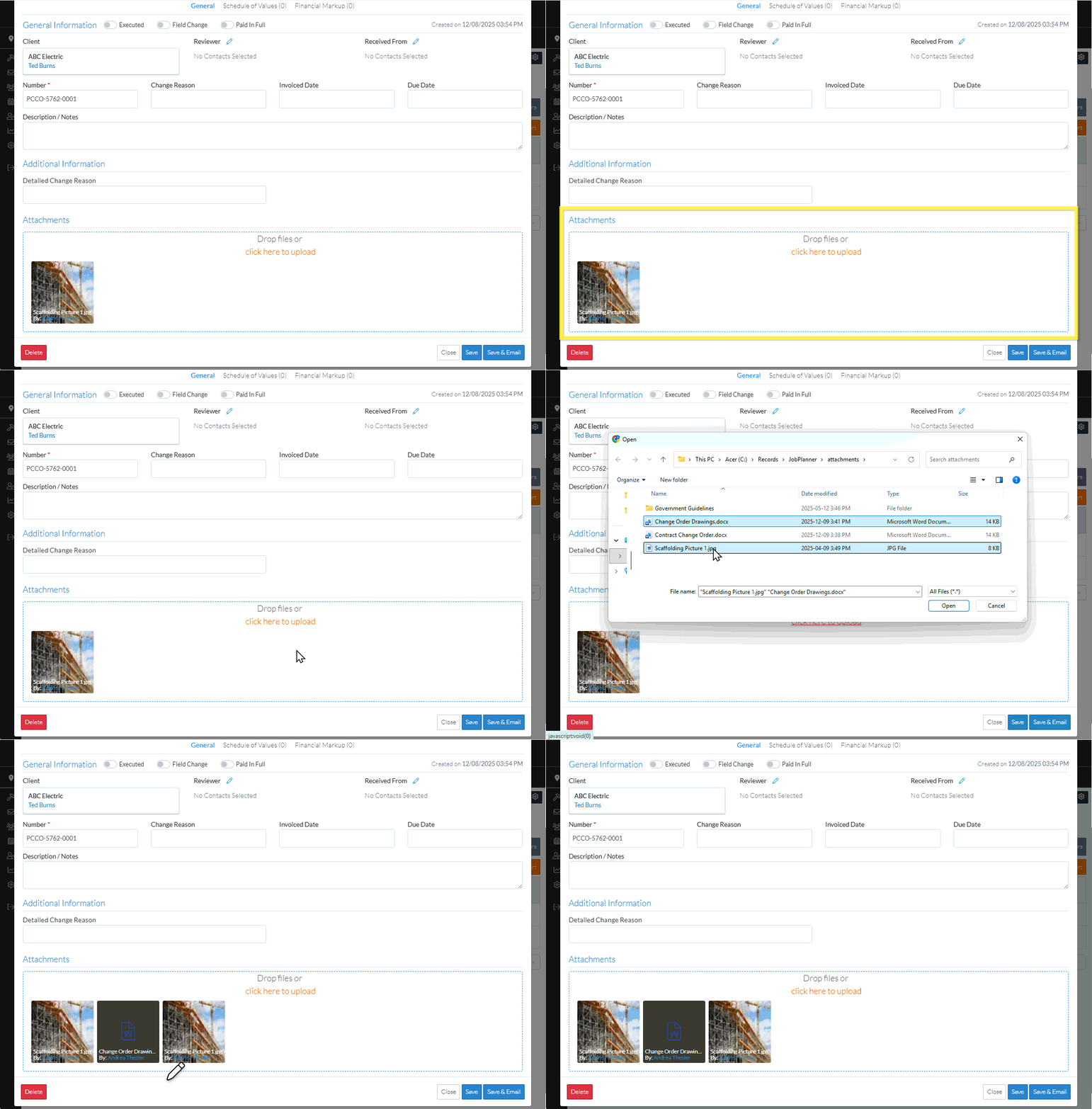
If a document has been uploaded or the function previously clicked, click on the click here to upload text to invoke the upload.
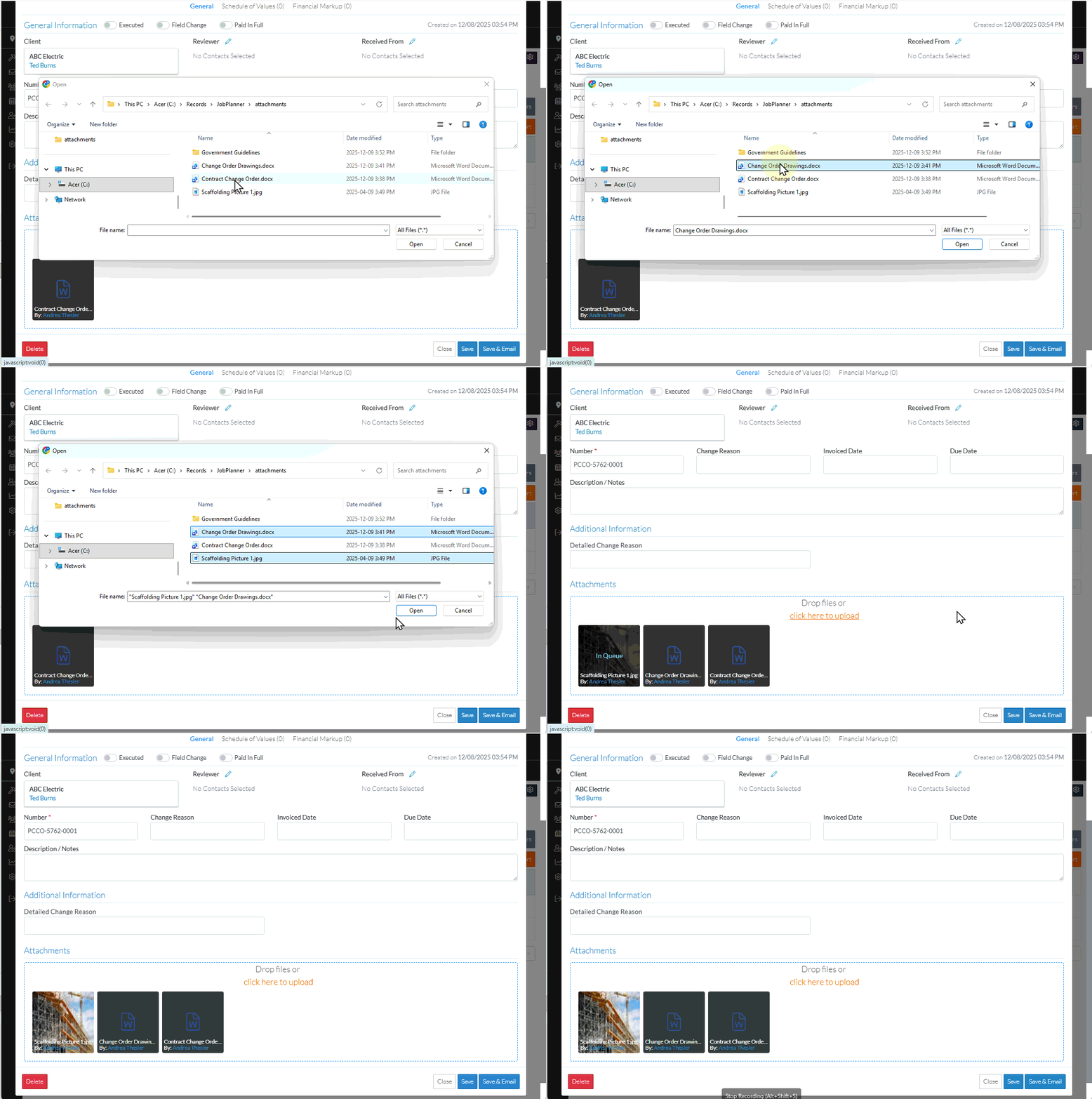
Select one or more files to upload: Double click on a single file to select it OR Click on a File and click open to select itOR Select multiple files by holding down the Shift button and clicking on the Files and then selecting OpenOR Drag and drop files into the Files box either a single file or multiple files
Note* Directly after an upload but before the information is saved, the Files can't be viewed (they can be deleted) but not viewed until after the Save.
The upload is not yet saved. This is a working session and the Contract Change Order must be saved to save these changes (see below).
Add, Edit or View additional information on the Change Order, see More Information below. OR Click the Save button to save all the information on the General, Schedule of Values and Financial Markup components for the Contract Change Order. OR Click the Save & Email button to save all the information on the General, Schedule of Values and Financial Markup components for the Contract Change Order and send an email with a link to the Contract Change Order in JobPlanner. The Contract Change Order is also added as an attachment in PDF format. OR Click the Close button to close the form without saving the information on any of the Components. The Contract List displays.
 Updated
 button to save all the information on the General, Schedule of Values and Financial Markup components for the Contract Change Order.
 button to save all the information on the General, Schedule of Values and Financial Markup components for the Contract Change Order and send an email with a link to the Contract Change Order in JobPlanner. The Contract Change Order is also added as an attachment in PDF format.
 button to close the form without saving the information on any of the Components.