Contract Change Order - General
 Updated
Suggested Prior Reading
OR
Contract Change Order - View/Edit
Contract Change Order - General
When adding, editing or viewing Contract Change Orders, there are multiple components. See Contract Change Order – Add - Form Layout and Navigation or Contract Change Order – View/Edit - Form Layout and Navigation for more information
The Contract Change Order General component is where the general or core details of the Change Order are entered.
The General component is displayed by default when the Add or View/Edit function is initiated. The General text will be highlighted blue in the form navigation menu options to indicate this.
The following is an example of the View/Edit form. The New Change Order form is the same except there is no Change Order Number displayed in the title at the top (there is just the text: New Contract Change Order).
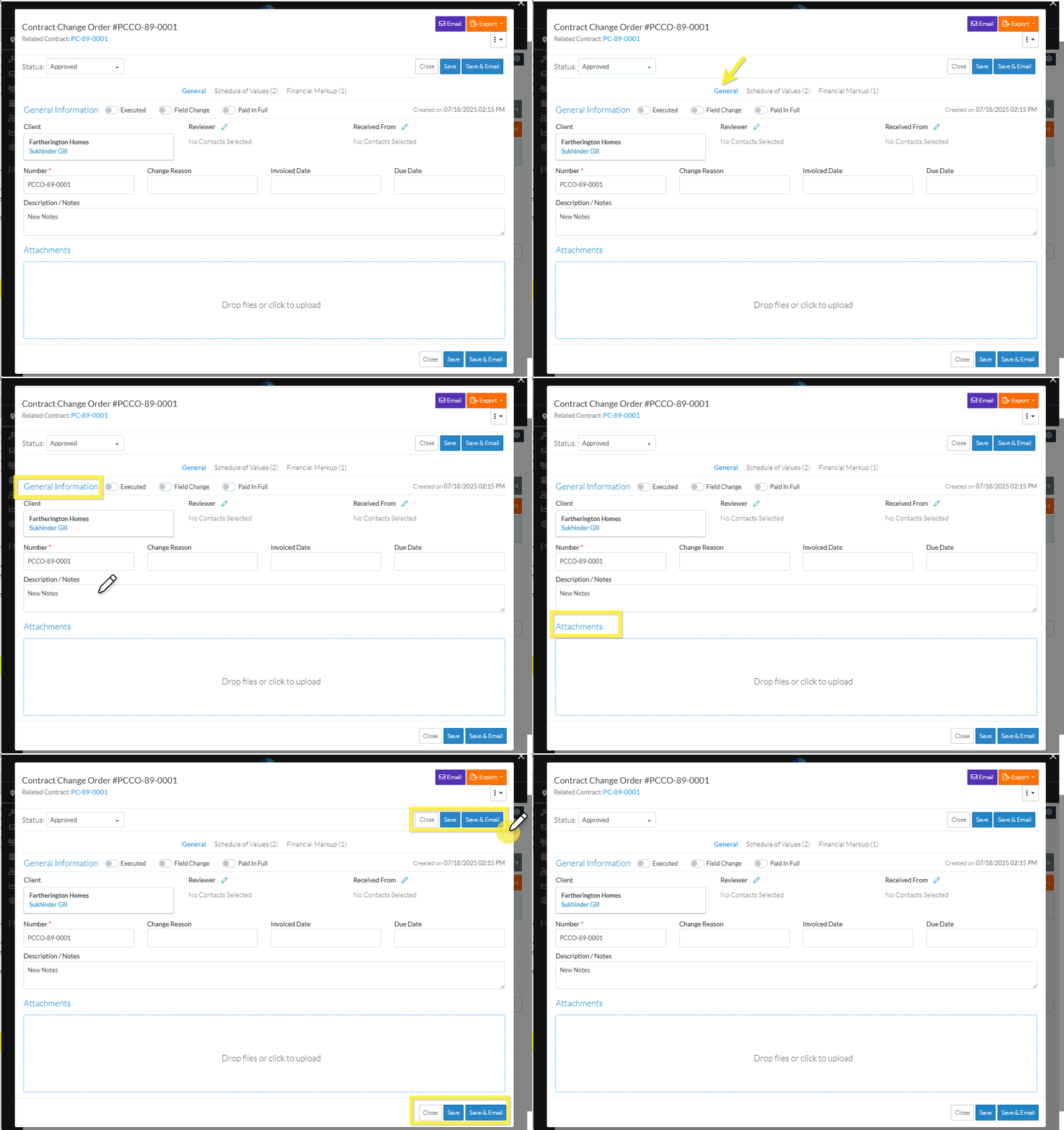
The General Component is separated into sections, with each section having a heading highlighted in blue:
- General Information - general details, see Contract Change Order - Add/Edit/View - General Information.
- Additional Information - this only displays if custom fields have been setup for the Contract Change Order, see Contract Change Order - Add/Edit/View - Additional Information.
- Attachments - These are general files associated with the Contract Change Order, see Contract Change Order - Add/Edit/View - Attachments.
For a New Change Order or editing an existing Change Order, all the details on the Contract General component can be added or changed except for the Client which is inherited from the Contract.
The System Administrator can turn on/off display of a majority of fields on the General Component and whether or not a field is required (to align to the process for the organization). See Settings - Contracts - Change Order Core Field Settings for more information.
Any field marked with an asterick is a required field (as set by the system or the System Administrator).
If any of the General information is entered or changed, the overall Change Order must be saved to save those changes.
Sync to ERP
If it is an approved Change Order and if the option to sync to the ERP is enabled, there will be a button to sync to the ERP system.
More Information
To enter or change the General Information, see Contract Change Order - Add/Edit/View - General Information.
To enter or change the additional information, see Contract Change Order - Add/Edit/View - Additional Information.
To upload attachments, see Contract Change Order - Add/Edit/View - Attachments.
Next Steps
To change the status, see Contract Change Order - Add - Status OR Contract Change Orders - Edit - Status.
Create or manage Contract Change Order Schedule of Values, see Contract Change Order - Schedule of Values.
Create or manage Contract Change Order Financial Markups, see Contract Change Order - Financial Markups.
Delete a Contract Change Order, see Contract Change Order - Delete.
