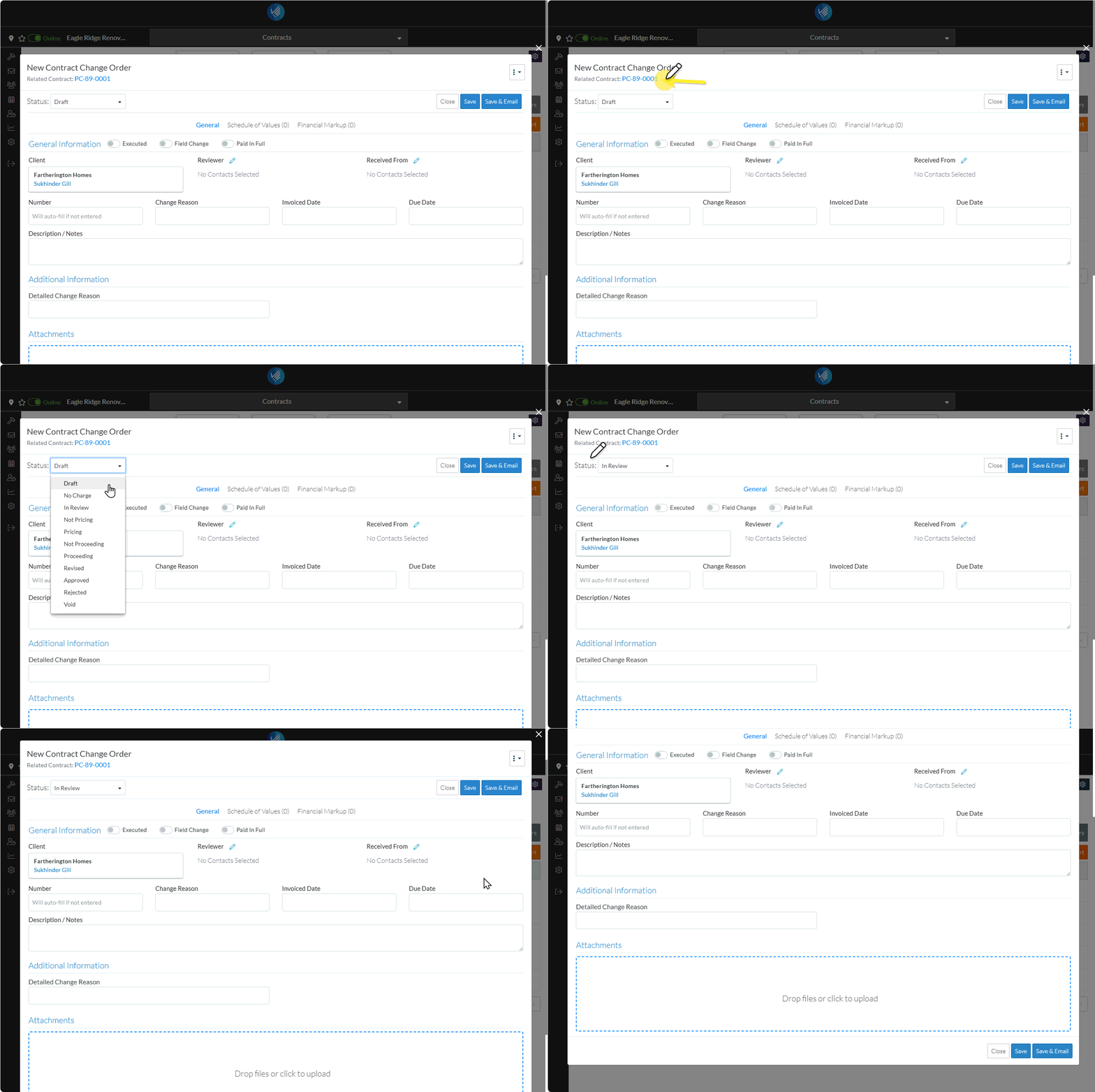
When adding a Contract Change Order, the Status defaults to Draft (but can be changed during the add if required).
The Status displays near the top of the New Contract Change Order form, and displays there regardless of which Contract Change Order component is selected: General, Schedule of Values, Financial Markup. The status can be changed when any of those Components are displayed as it is the status for the entire Contract Change Order.
Note* If the Status is changed during the Add, the changed Status displays however, the new Status isn't actually applied until the Change Order is saved. Therefore, during the add session, all the functionality on all the components is still based on the Draft Status (and not necessarily the Status displayed).
To change the Contract Status during the Add, click in the Status drop down (it displays near the top of the form below the New Contract Change Order form title and Related Contract and displays regardless of what Component is selected to display: General, Schedule of Values and Financial Markup).
This list of Contract Change Order Statuses display. The currently selected status is highlighted with a gray bar in the drop down list. Also, any status that is hovered on is highlighted with a gray bar.
Select the Status by clicking on it.
The selected Status displays. Note* At this point, the status is not yet changed. The Contract Change Order must be saved to save and apply the Status change.
Enter or change other information as required, go to Next Steps below. OR Click the Save button (at either the top or bottom of the form) to save the Contract Change Order including the Status set and any other information on the General, Schedule of Values and Financial Markup components. OR Click the Save & Email button (at either the top or bottom of the form) to save all the information for the Contract Change Order as outlined above and send an email with a link to the Contract Change Order in JobPlanner (and optionally include the Change Order as a PDF attachment in the email). The Email Contract Change Order form displays (see Email Contract Change Order). OR Click the Close button (at either the top or bottom of the form) to close the form without saving the Change Request. If information was changed and not saved, then an additional prompt displays to confirm that changes aren't to be saved.Click the Cancel button to cancel the Close action and return to the New Change Request form. See Next Steps below. OR Click the Don't Save button to cancel adding of the New Change Request. OR Click the Save button to save the Change Request including the Status set and any other information on the General, Schedule of Values and Financial Markup components.
Depending on where the function was invoked from, that list will be displayed. See the appropriate help:
 Updated
 button (at either the top or bottom of the form) to save the Contract Change Order including the Status set and any other information on the General, Schedule of Values and Financial Markup components.
  button (at either the top or bottom of the form) to save all the information for the Contract Change Order as outlined above and send an email with a link to the Contract Change Order in JobPlanner (and optionally include the Change Order as a PDF attachment in the email). The Email Contract Change Order form displays (see Email Contract Change Order).
 button (at either the top or bottom of the form) to close the form without saving the Change Request. If information was changed and not saved, then an additional prompt displays to confirm that changes aren't to be saved.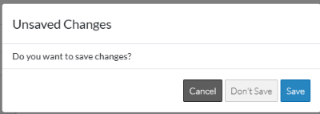
 button to cancel the Close action and return to the New Change Request form. See Next Steps below.
 button to cancel adding of the New Change Request.