Contract - New Change Order
 Updated
Suggested Prior Reading
Contract Change Orders - Overview
Contract Specific Change Orders List - Overview
New Contract
- Access the project, see Project - Accessing.
- Access the Contracts List, see Contracts List - Accessing.
- Access the Contract Specific Change Order List, see Contract Specific Change Orders List - Accessing
- Click the + New Change Order
 button.
The New Contract Change Order form displays. See Contract Change Order – Add - Form Layout and Navigation for more information on the layout.
The Related Contract Number displays. The blue text displaying the Contract Number can be clicked on, to the display the Contract - View/Edit Form. See Contract - View/Edit.
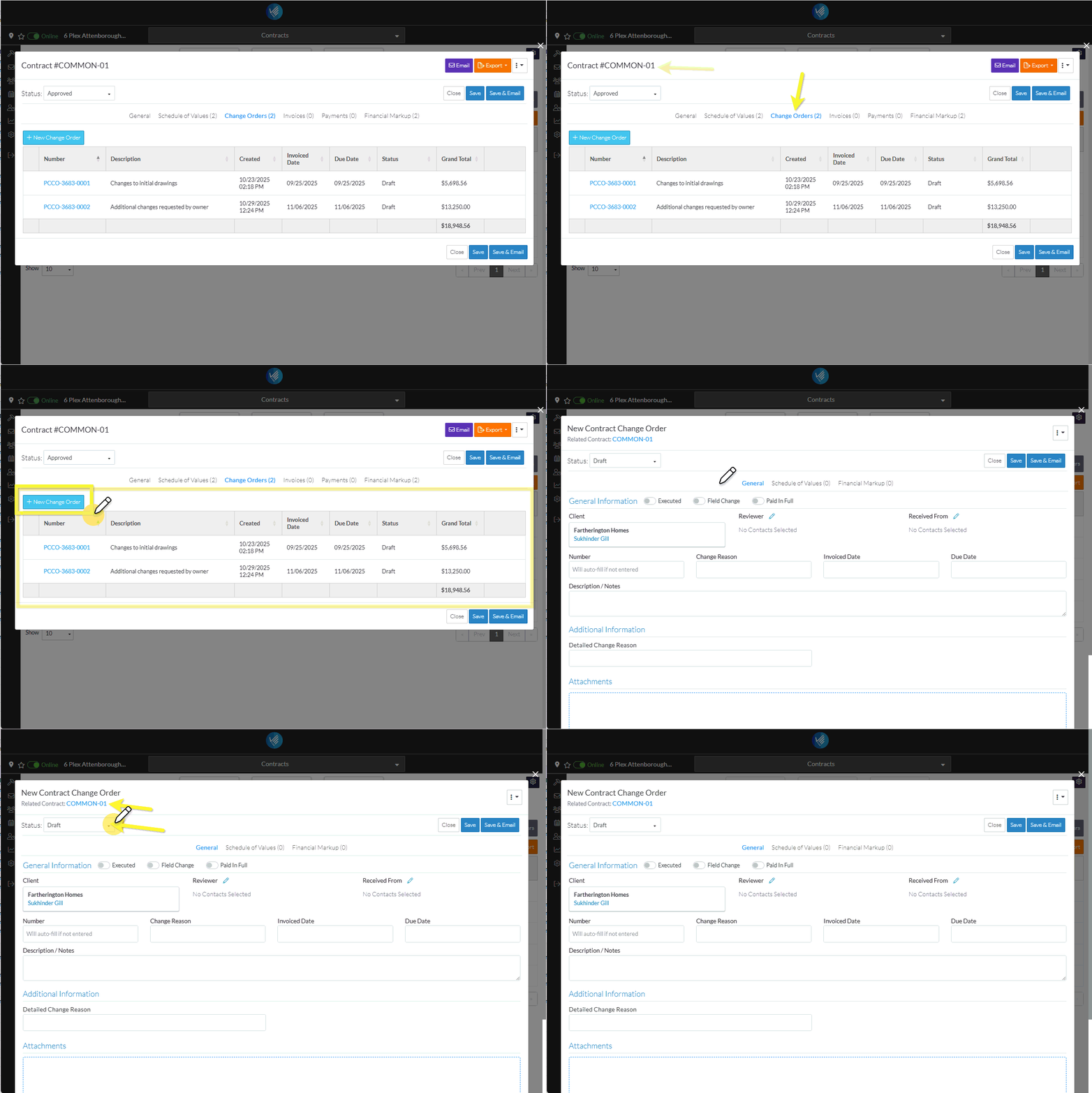
The General component displays by default during the add but other Components can be switched to via the Form Navigation Menu Options.
When adding a Contract Change Order, the Status defaults to Draft. This is usually the appropriate status to use during the initial add while information is being entered and details haven't been finalized. See Contract Change Orders – Status for a description of all the Statuses.
Next Steps
Enter or view the information as required, see Contract Change Order - Add/Edit/View - Details.
Create the Contract Change Order Schedule of Values, see Contract Change Order - Schedule of Values.
Create or maintain the Contract Change Order Financial Markups, see Contract Change Order - Financial Markups.
