Contract Specific Change Orders List - Accessing
 Updated
Suggested Prior Reading
Contract Specific Change Orders List - Overview
To access the Contract specific Change Orders
To access Change Orders specific to a Contract, the Contract must first be viewed/edited.
- Navigate to the Contract, see Contracts - View/Edit.
The Contract View/Edit form displays. See Contract – View/Edit - Form Layout and Navigation for more information on the layout.
- Click on Change Orders in the Form Navigation Menu Options.
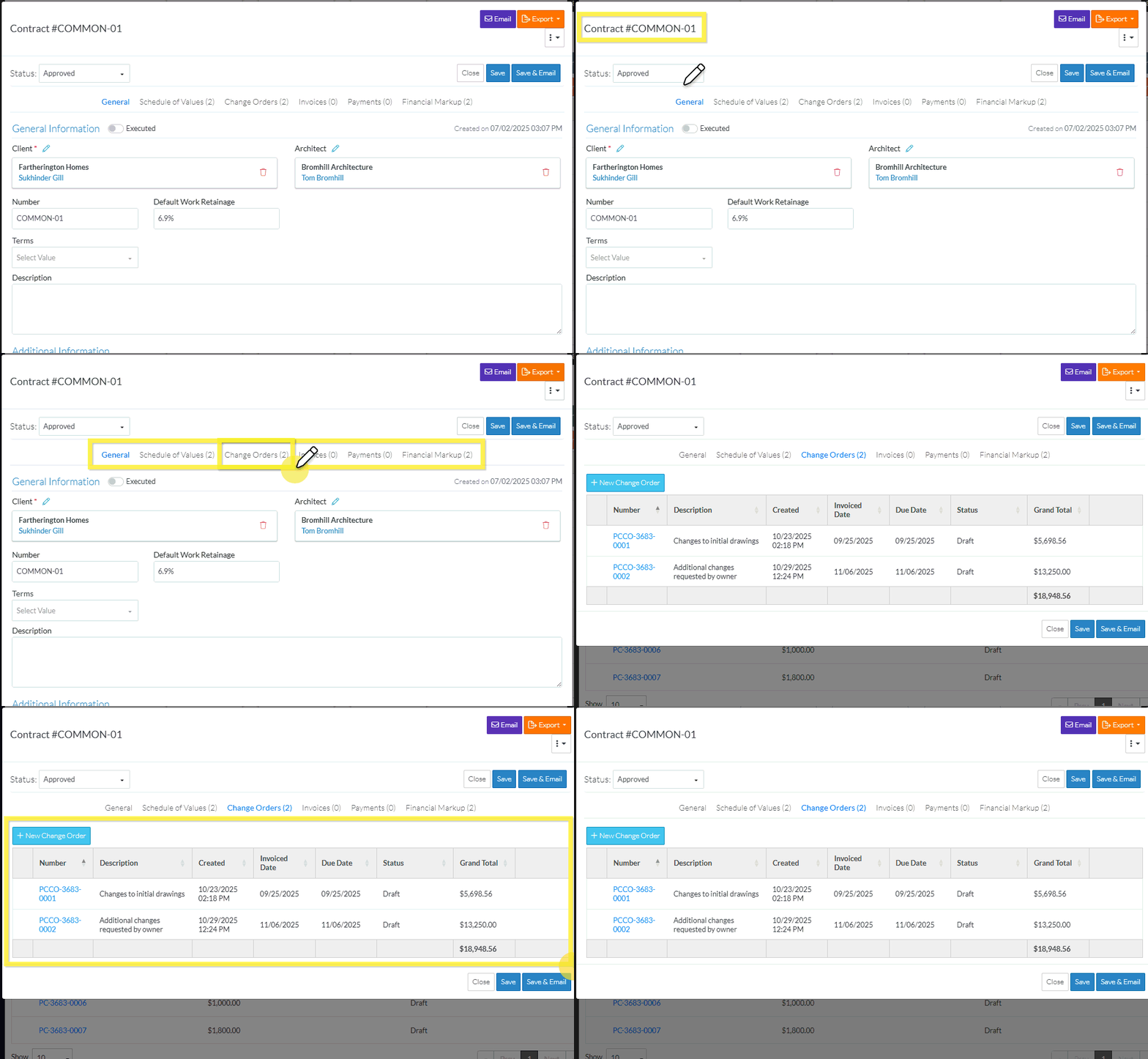
The Contract Change Order(s) component displays in the middle of the Contract View/Edit form. The component is a list of the Contract Change Orders setup for the project (or the list may be blank if no Change Orders have yet been entered), plus a function button or informational text and totals.
The Change Orders text in the Form Navigation Menu Options is now blue to indicate that the Change Order component is currently being displayed.
Depending on the status of the Contract, the functionality available and the display may differ.
More Information
For more information on the overall layout of the Contract View/Edit Form with the Change Orders Component selected, see Contract – View/Edit - Form Layout and Navigation.
For more information on the layout and navigation of the Change Order Component on the Contract View/Edit form, see Contract Specific Change Orders List - Layout and Navigation.
Next Steps
To add a New Contract, see New Contract.
To manage the status of a Contract, see Contracts - Edit - Status.
To view or edit an existing Contract (including settings up Schedule of Values, adding change orders, creating and tracking Invoices and Payments or settings the Financial Markups), see Contracts - View/Edit.
To Export the list of Contracts, see Contracts List - Export.
To delete a Contract, see Contracts - Delete.
