Contract Specific Change Orders List - Layout and Navigation
 Updated
Suggested Prior Reading
Contract Change Orders - Overview
Contract Specific Change Orders List - Overview
Contract Specific Change Orders List - Accessing
Contract Specific Change Orders List - Layout and Navigation
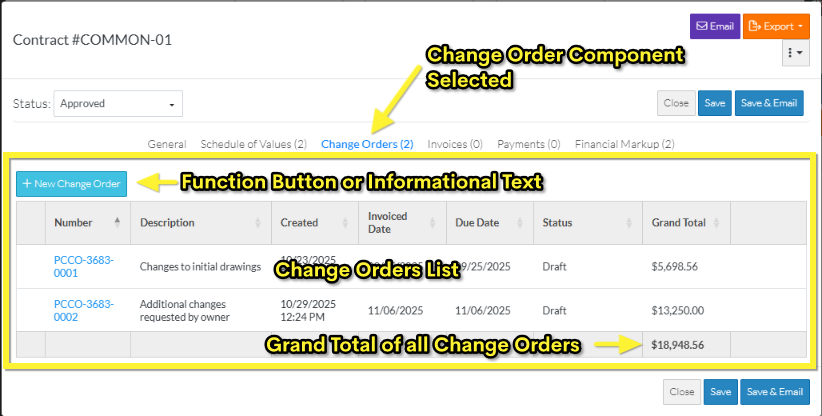
When Change Orders are selected from the Contract View/Edit form, the Change Order Component displays in the middle section of the form.
- At the top of the component, either a function button or informational text displays (depending on the Contract Status)
- Below that is the Change Orders List where a row displays for each Contract Change Order with columns for the Contract Number, Description, Created Date, Invoiced Date, Due Date, Status and Grand Total. These columns can't be changed or moved.
- The Grand Total for each Change Order is displayed on each row, as well the Grand Total for all Change Orders is displayed at the bottom of the list. The Grand Total in both places includes the Line Item Amounts, plus Taxes plus any Markup values.
The columns can be sorted to view the information different ways.
The following is an example where there are Change Orders entered and change orders can be added.
Change Orders Can't be Added
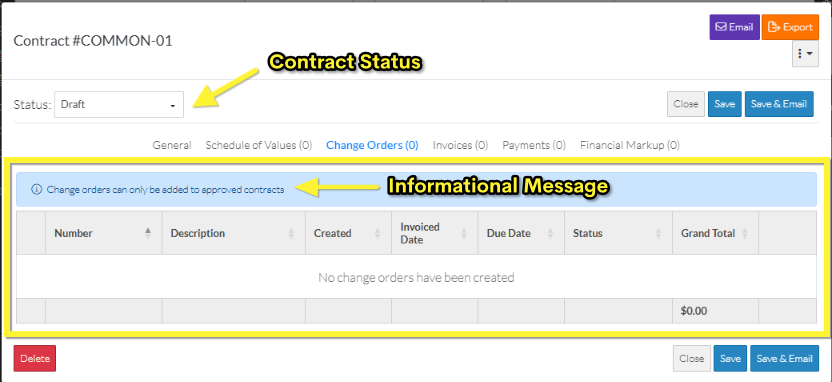
If the Contract is not in an Approved or Complete Status, a message displays at the top of the list in a blue bar indicating that Change Orders can't be added. In the example below, the list is empty as no Change Orders have been created.
Change Orders can be added
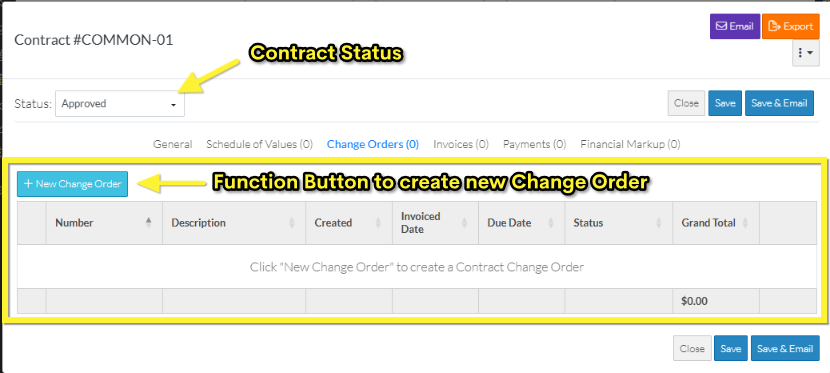
If a Contract is in an Approved or Complete Status, there will be a + New Change Order  button at the top left of the component.
More Information
For more information on the Contract specific Change Orders List, see Contract specific Change Orders List - Sort Columns.
Next Steps
To view or edit an existing Change Order from this list, see Contracts - List of All Change Orders - View/Edit.
To delete an existing Change Order from this list, see Contracts - List of All Change Orders - Delete.
New Contract Change Orders can not be added from here. They can only be added from the specific Contract, see Contract Specific Change Orders List - Overview.
