Contract Change Order - Add/Edit/View - General Information
 Updated
Suggested Prior Reading
Contract Change Order - General
General Information Overview
When adding or editing a Contract Change Order, there is a General component that has all the general information pertaining to the Change Order.
The Contract General component has various sections. This help pertains to the fields available for the General Information section. The information is the same for new Change Order versus editing existing Change Orders. The following screen prints are for editing an existing Contract. Adding a New Contract will just have a different form title, labelled New Contract Change Order (instead of the Change Order number). (See Contract Change Order - General for more information).
All the General Information can be added or edited, regardless of the Status, except the Client which is inherited from the Contract. (See Contracts Change Order - Status for more information).
The System Administrator can turn on/off visibility of some fields and/or set if the field is required or not. Therefore, the form may not appear exactly as displayed in the help (see Settings - Contracts - Change Order Core Field Settings).
To add or edit General Information:
- From the Contract - New Change Order form or the Contract Change Order - View/Edit form, click on General on the Form Navigation Menu Options (if not already selected).
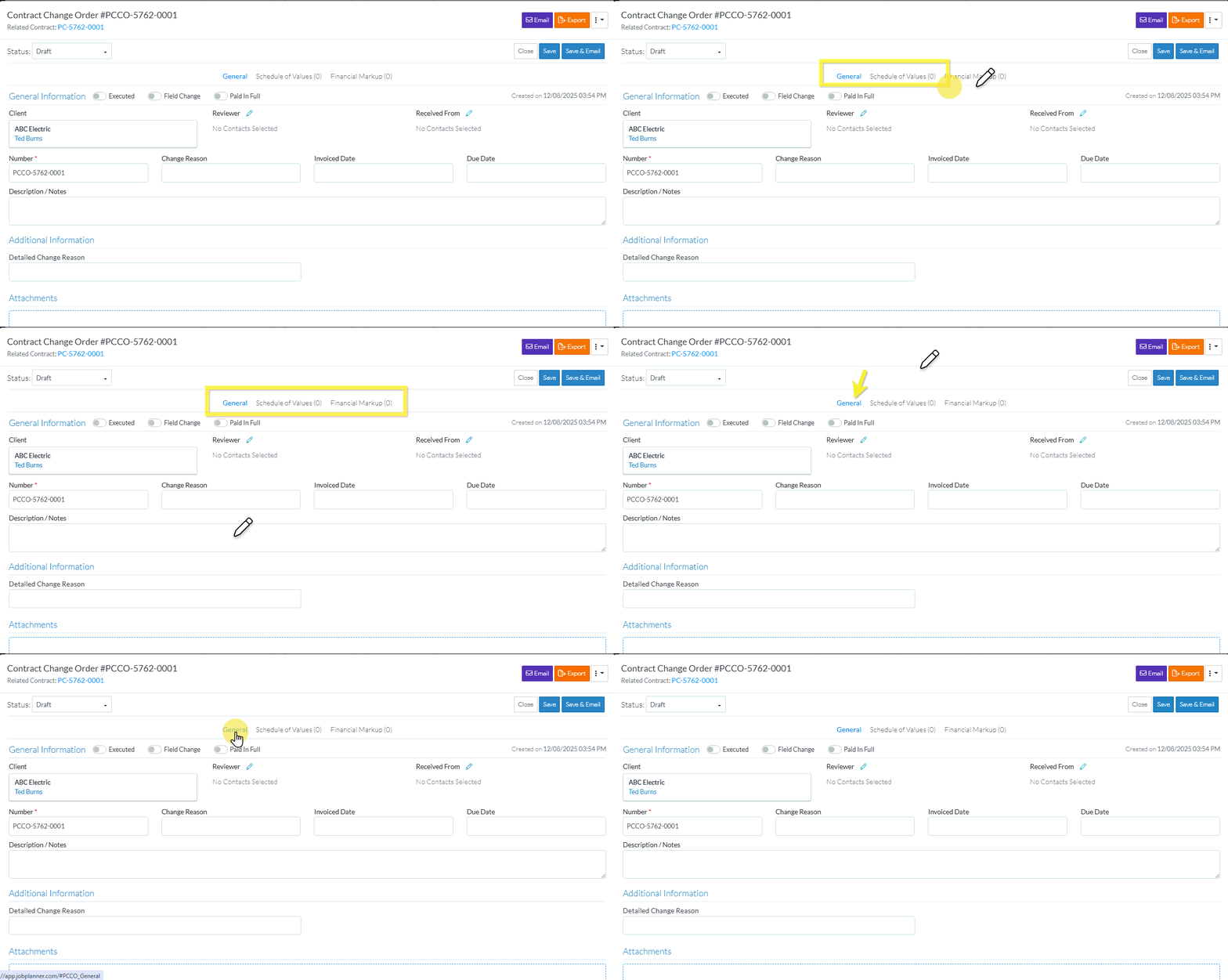
- Add or change the General Information as described below.
See Contract - Data Settings for more information on each field.
Name | Description |
Executed | This option identifies whether or not the Change Order is fully executed.
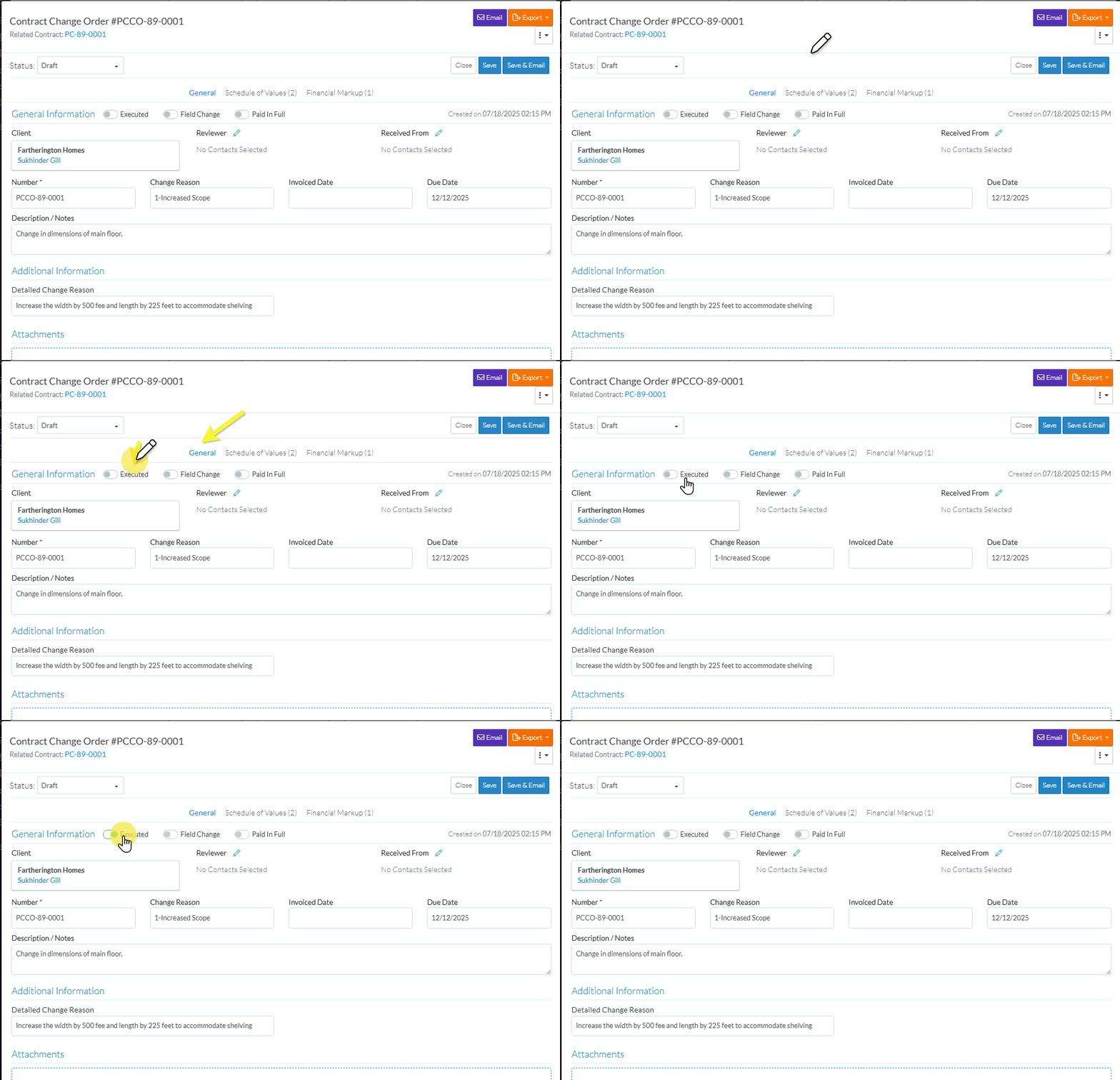 |
Field Change | This option identifies whether or not the Change Order was initiated from the field to document changes. Click on the slider bar or text to toggle this option on/off (follow the instructions above for Executed). |
Paid in Full | This option identifies whether or not the Change Order was paid in full. It is for easy identification of that, versus reviewing the invoicing and payments. Click on the slider bar or text to toggle this option on/off (follow the instructions above for Executed). |
Client | The Client for whom the work is being done. This may also be called the Owner or Principle or it could be a General Contractor (whomever is financing the project). This field can not be changed as it is inherited from the Contract. |
Reviewer | The person responsible for reviewing the information. To add a new Reviewer or change the existing one:
The list of Project Contacts is displayed. If there is not a Reviewer already assigned, All Project Contacts display. If there is already a Reviewer assigned, that Project Contact won't be listed. See Select Project Contact for more detailed information on this form. Below are quick steps to selecting the Contact.
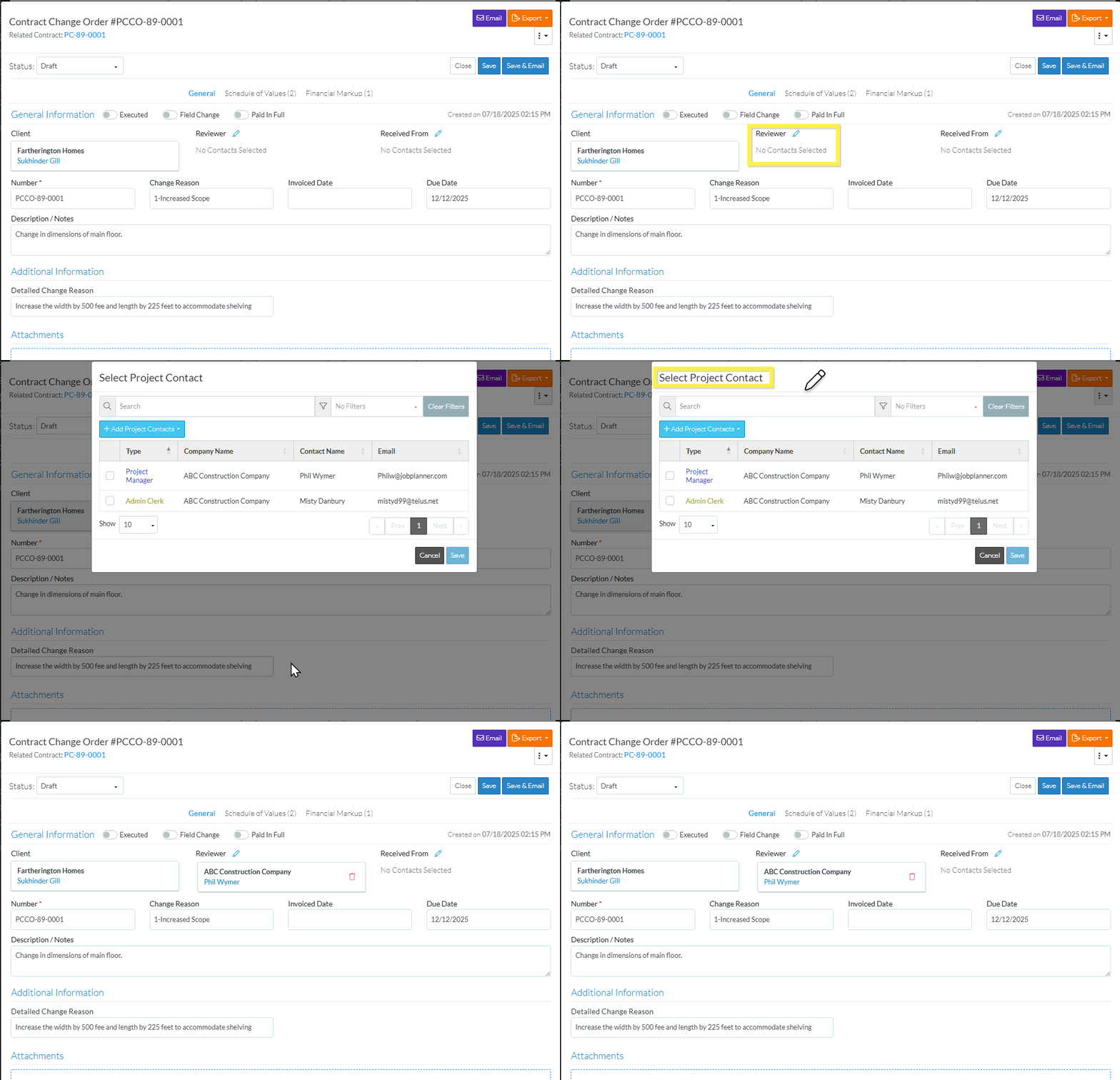 The selected Contact displays. |
Received From | The individual this Change Order was received from. Only one Received From can be selected at a time. Follow the instructions above for adding or changing the Reviewer but clicking the Edit See Reviewer above or Select Project Contact for more detailed information on this form. |
Number | The Contract Change Order Number. This can be manually typed in or the system will auto-populate this with a number if it is left blank. This is a required field. The format of the Number is set by the System Administrator. See Settings - Contract - Change Order Settings. It displays on Contract Specific Change Order Lists and Lists of all Change Orders for all Contracts for the Project (by default but can be turned off to display). |
Change Reason | The Reason for the change. This is the short abbreviated reason. Type in the information. |
Invoiced Date | This is the date the Change Order was invoiced. It is for easy identification of that, versus reviewing the invoices. It displays on Contract Specific Change Order Lists and Lists of all Change Orders for all Contracts for the Project (by default but can be turned off to display). |
Due Date | The date the work on this Change Order is scheduled to be viewed. It displays on Contract Specific Change Order Lists and Lists of all Change Orders for all Contracts for the Project (by default but can be turned off to display). |
Description / Notes | This is a description of the Change Order. It displays on Contract Specific Change Order Lists and Lists of all Change Orders for all Contracts for the Project (by default but can be turned off to display). |
 button next to the Reviewer text.
 button.
- To enter or change the additional information, see Contract Change Order - Add/Edit/View - Additional Information.
- To upload attachments, see Contract Change Order - Add/Edit/View - Attachments.
- Add, Edit or View additional information on the Change Order, see More Information below.
OR
Click the Save button to save all the information on the General, Schedule of Values and Financial Markup components for the Contract Change Order.
OR
Click the Save & Email button to save all the information on the General, Schedule of Values and Financial Markup components for the Contract Change Order and send an email with a link to the Contract Change Order in JobPlanner. The Contract Change Order is also added as an attachment in PDF format.
OR
Click the Close button to close the form without saving the information on any of the Components.
Depending on where the function was invoked from, that list will be displayed. See the appropriate help:
Contracts - List of All Change Orders - Overview
Contract Specific Change Orders List - Overview
Change Requests List - Overview (Grouped List View)
Change Requests List - Overview (Simple List View)
More Information
To change the status, see Contract Change Order - Add - Status OR Contract Change Orders - Edit - Status.
Create or manage Contract Change Order Schedule of Values, see Contract Change Order - Schedule of Values.
Create or manage Contract Change Order Financial Markups, see Contract Change Order - Financial Markups.
Delete a Contract Change Order, see Contract Change Order - Delete.
Next Steps
To view all functionality available from the Contracts List, see Contracts List - Overview
