Contract Change Order - Financial Markups - Layout and Navigation
 Updated
Suggested Prior Reading
Contract Change Order - Financial Markups
Contract Change Order - Financial Markup - Layout and Navigation
The Financial Markups is a component that displays on the Contract Change Order form during the:
- Add of a New Contract Change Order (see Contract Change Order – Add - Form Layout and Navigation)
OR
- Edit of an existing Contract Change Order (see Contract Change Order – View/Edit - Form Layout and Navigation).
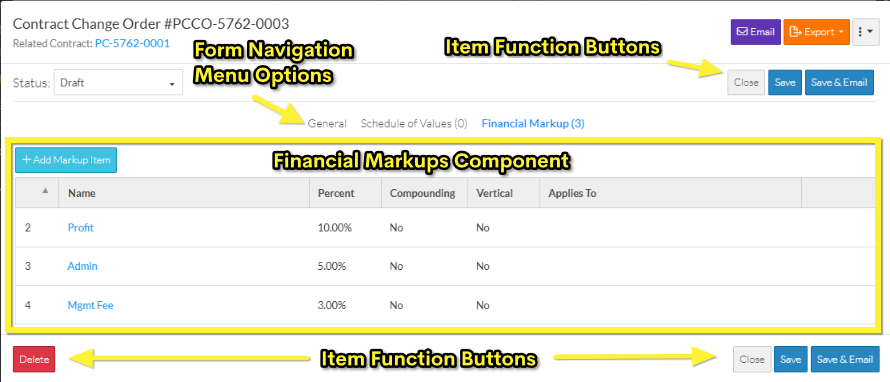
The Financial Markup for items are accessed through the Form Navigation Menu Options and by clicking on the Financial Markups text on the menu item. Note* The number of Financial Markup entered is displayed in brackets next to the text for quick reference.
When the Financial Markups option is selected, the Financial Markups component is displayed in the middle section of the form.
The following is the display of the Financial Markup Component when Markups are entered and the form is in View/Edit mode.
The following is the display of the Financial Markup Component without any information entered and for a New Contract Change Order.
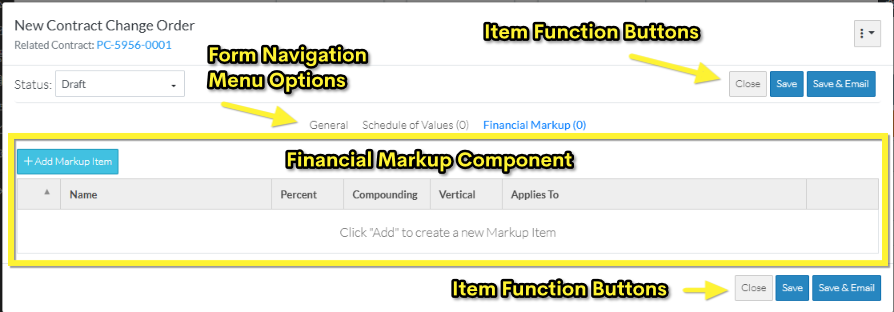
The Financial Markups component is the same for an add or edit, however the top and bottom of the form above and below the Financial Markups component appears differently based on if this is a new Contract or editing of an existing Contract. For information on the overall layout of the Contract Change Order form, see Contract Change Order – Add - Form Layout and Navigation OR Contract Change Order – View/Edit - Form Layout and Navigation.
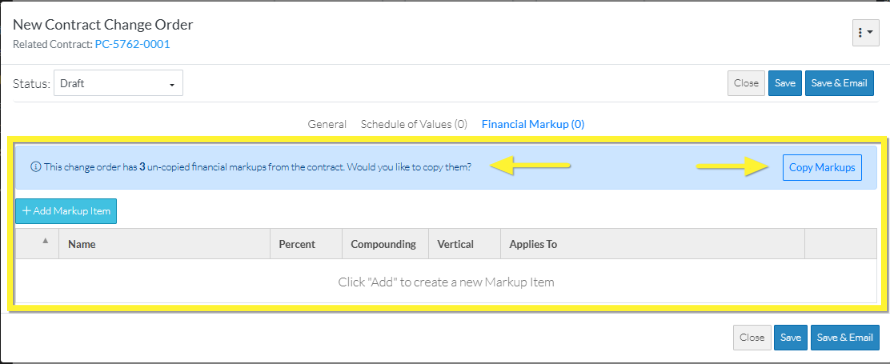
The Financial Markups component may appear differently if the Contract for this Change Order has Financial Markups. In that case, a message displays in a blue header bar at the top of the component with a function button to copy the Markups.
The Financial Markups component is a list of all the Financial Markups. It is where
- Financial Markup can be added
- Financial Markup can be edited
- Financial Markups can be copied from the Contract.
- Financial Markups can have their order changed for display and/or compounding order
- Financial Markup can be deleted
However, none of the changes are actually saved for the Financial Markups, until the entire Item is saved. This is done via the Item Function Buttons that appear at both the the top and bottom of the form (for easy access).
While Financial Markups are being added, edited or deleted and before the entire item is saved, this is considered a working session. The Save or Save & Email Item Function Buttons must be used to save the entire item and includes saving the Financial Markups. The Save or Save & Email Item Function Buttons apply to the entire item, not just the Financial Markups Component; they can be invoked from any component and will save all information on all Components.
Contract Change Order Status Impact on Financial Markups (limits on adding & editing)
The Financial Markups for a Contract Change Order can only be edited if the Contract Change Order is in a Status that enables editing. See Contract Change Orders – Status for more information.
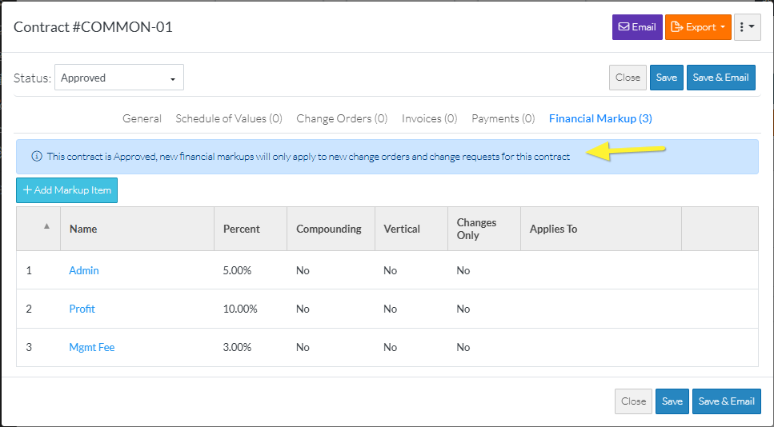
When the Financial Markups can't be edited, a message appears in a blue bar on the Financial Markups Component.
The Status of the Change Order is displayed (Approved, Rejected, Void) and a message shows that it can no longer be edited.
Next Steps
See Contract Change Order - Financial Markups - Maintaining.
