Change Request - Schedule of Values - Bulk Actions - Contract
 Updated
Suggested Prior Reading
Change Request - Schedule of Values - Bulk Actions
Bulk Actions - Contract
The Bulk Actions Button has functions to automatically add the selected Line Items on a Change Request Schedule of Values to a Contract Change Order Schedule of Values. This can be an existing Contract Change Order or a new one (that can be created with this function).
There are several items that impact this function.
- At least one Line Item must be Selected
- Change Request must be Approved
- Can not already be assigned to a Contract Change Order
- Can be assigned to a Change Order from any Contract
- Can only be assigned to Contract Change Orders with certain Status
More information on each is described below:
At least one Line Item must be Selected
At least one Line Item must be selected for the Bulk Actions button to be enabled (i.e. the text is black): 
If a Line Item is not selected, the Bulk Actions button is not enabled to be clicked (i.e. the text is gray): 
See Change Request - Schedule of Values - Bulk Actions - Select Line Items for more information on selecting Line Items.
Change Request must be Approved
Only Approved Change Requests can have their Schedule of Value Line Items assigned to Contract Change Orders.
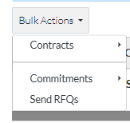
Invoking the Bulk Actions function for an Approved Change Request, will display a drop down menu with Contracts as the first option.
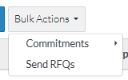
If the Bulk Action function is invoked for a Change Request that is not Approved, the Contracts menu option does not appear.
Can not already be assigned to a Contract Change Order
A Line Item that was already added to a Contract Change Order can not be added to another one. It can still be selected, however, it will be excluded from the function.
Can be assigned to a Change Order from any Contract
The Change Request Schedule of Values Line Items can be assigned to any Contract Change Order (with certain Status - see below). It doesn't have to be a Change Order for the Contract that this Change Request was created for.
Can only be assigned to Contract Change Orders with certain Status
The Change Request Schedule of Values Line Items can only be assigned Contract Change Order with certain Status.
They can be assigned to Contract Change Orders with Status of:
- Draft
- No Charge
- In Review
- Not Pricing
- Pricing
- Not Proceeding
- Proceeding
- Revised
Contract Change Orders with the above status will be listed to be selected to add Change Request Schedule of Values Line Items to.
They can not be assigned to Contract Change Orders with Status of:
- Approved
- Rejected
- Void
Contract Change Orders with the above status will not be listed to be selected.
Next Steps
Select Line Items to assign to a Contract, see Change Request - Schedule of Values - Bulk Actions - Select Line Items.
To see the information about when the Contracts menu option displays on the Bulk Actions button, see Change Request - Schedule of Values - Bulk Actions - Contract.
To create a new Contract Change Order and add the selected Line Items to that, see Change Request - Schedule of Values - Bulk Actions - Contracts - New Change Order.
To add the selected Line Items to an existing Change Order, see Change Request - Schedule of Values - Bulk Actions - Contracts - Add to Existing Change Order.
