Change Request List - Change Request - Email (Grouped List View)
 Updated
Suggested Prior Reading
Change Requests - Multiple Lists and Views
Change Requests List - Accessing
Change Requests List - Overview
Change Requests List - Layout and Navigation (Grouped List View)
To Email a Change Request
This is help for emailing a Change Request from the Change Requests List with the Grouped List View.
Note* There are multiple ways to access Change Requests and multiple views that can display, see Change Requests - Multiple Lists and Views for more information. This help is for the Grouped List View.
To email a Change Request, it must first be viewed/edited and then the Email function invoked from the View/Edit form.
- Access the Change Request - View/Edit form, see Change Requests List - Change Request - View/Edit (Grouped List View). Note* The following shows the Edit function invoked by double clicking on the Change Request row. See Change Requests List - Change Request - View/Edit (Grouped List View) for more ways to invoke the edit.
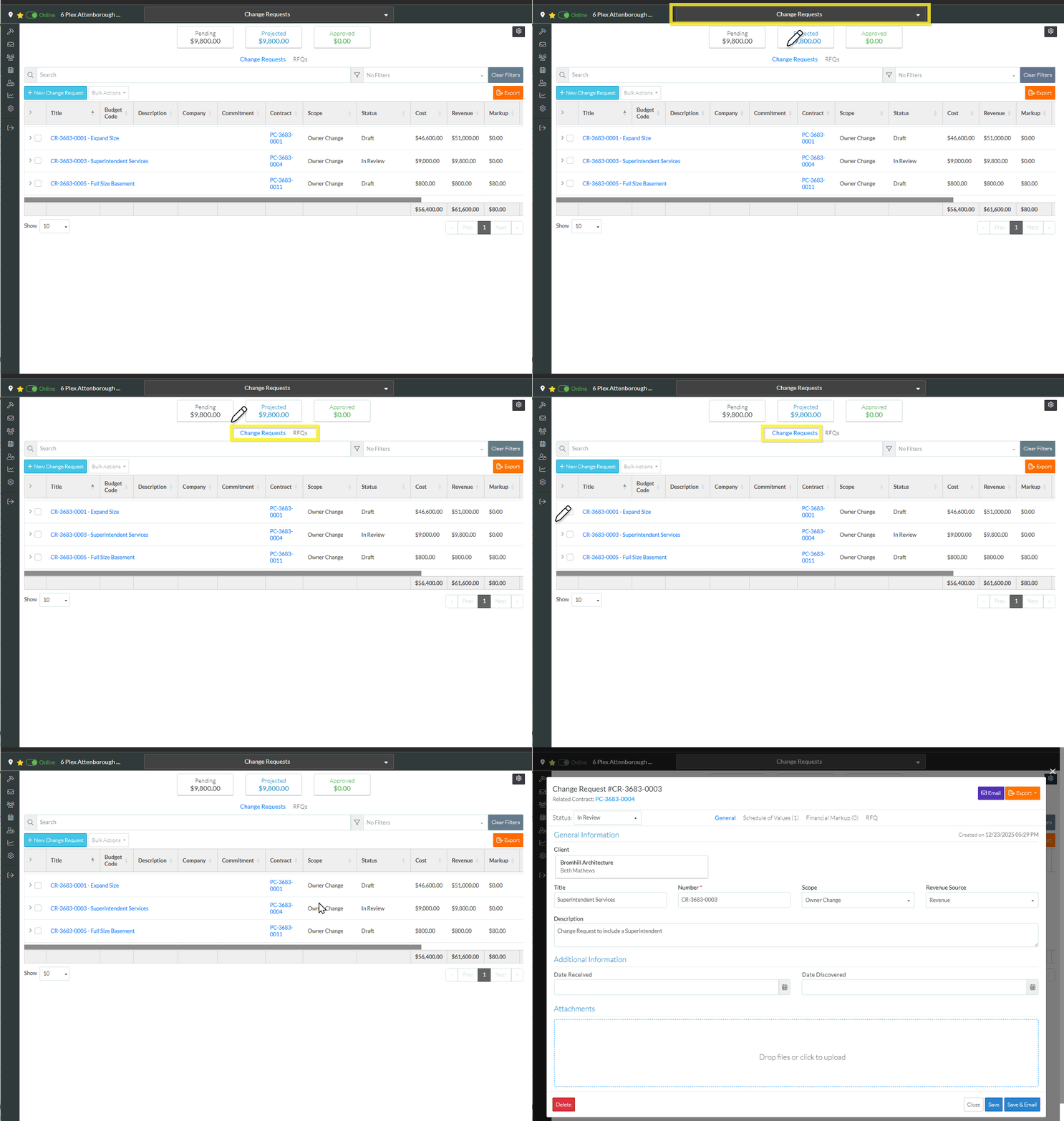
The Change Request - View/Edit form displays.
The General component displays by default after the edit is initiated but other Components can be switched to via the Form Navigation Menu Options. See Change Requests List - Layout and Navigation (Grouped List View) for more information.
The Change Request can be Emailed from any of the Components; General, Schedule of Values, Financial Markups or RFQs.
There are two ways to email the Change Request:
From the Email  button at the top right of the form.
OR
From the Save & Email  button at the bottom right of the form.
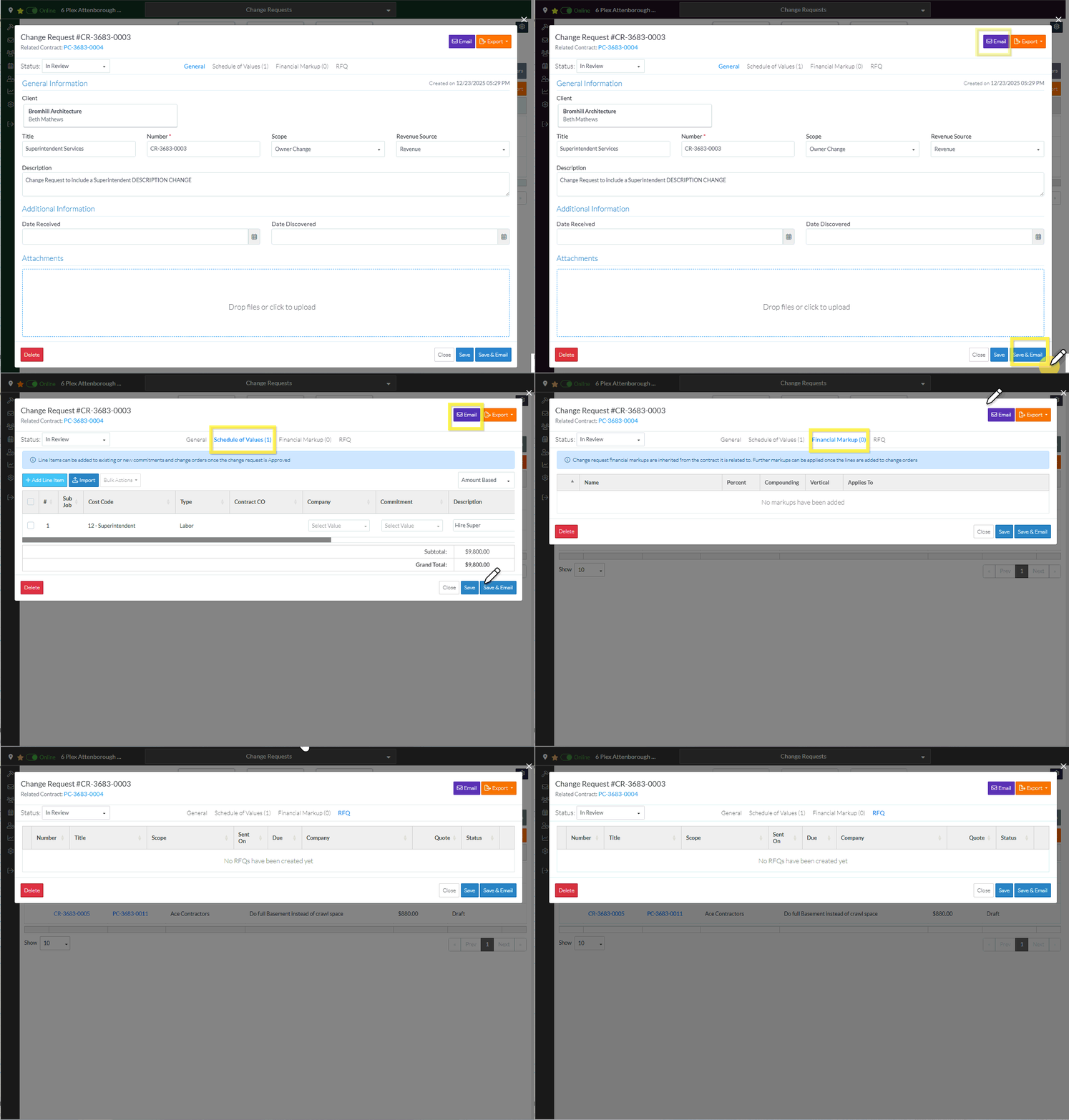
Both options enable emailing a link to the Change Request in JobPlanner as well as attaching a PDF or the Change Request.
The Email button at the top right of the form emails the Change Request as it was when the view/edit was invoked (any changes made during this session and before the Change Request is saved won't be included on the PDF that is sent). After the information is emailed, the Change Request - View/Edit form is displayed.
The Save & Email button at the bottom right of the form, saves all the information on the Change Request, Schedule of Values and Financial Markups first, then sends the email (so any changes made during this session will be saved and included on the PDF that is sent). After the information is emailed, the Change Requests List is displayed.
- From any of the Components, click either the Email button or the Save & Email .
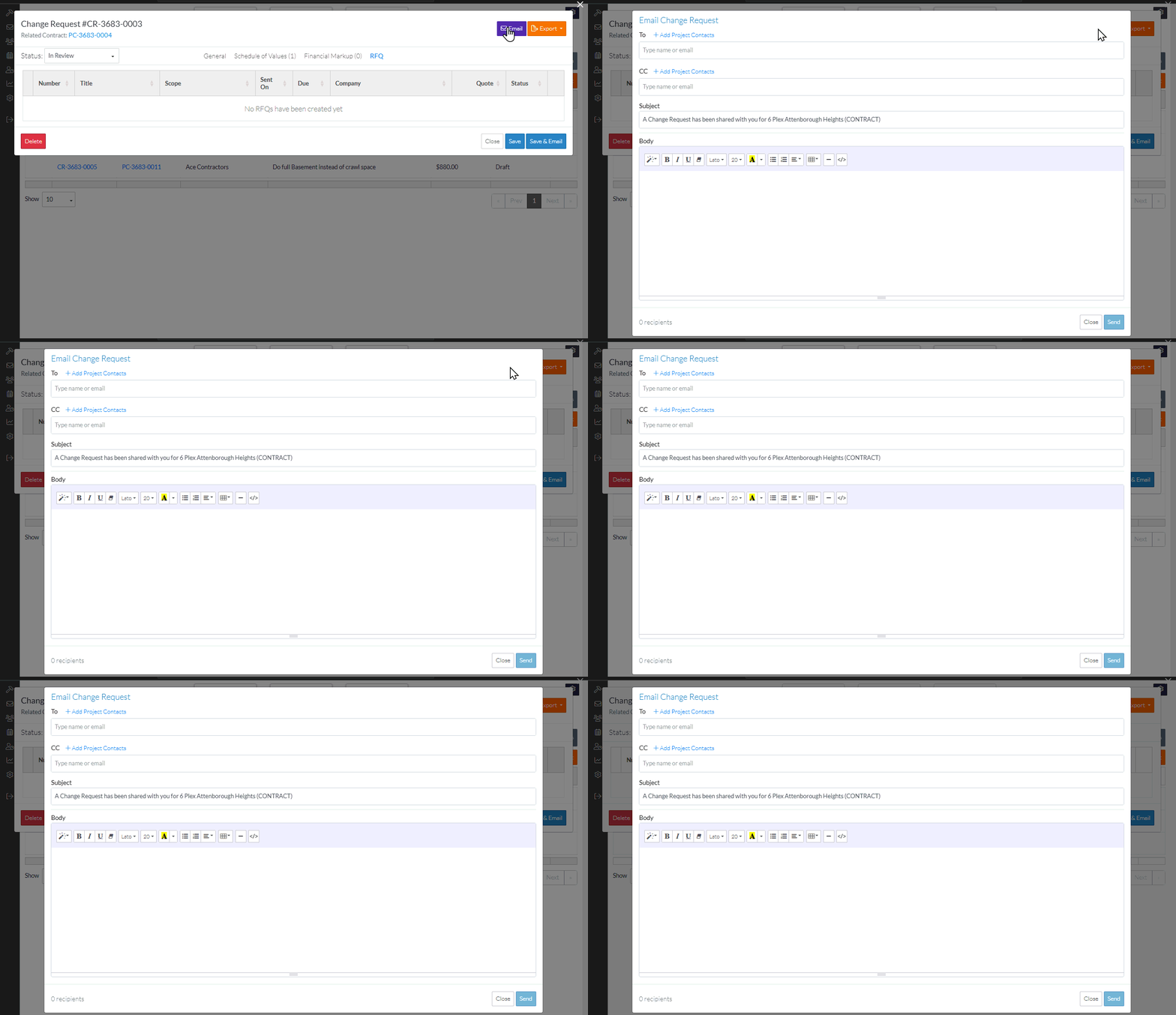
The Email Change Request form displays.