New Subcontract – Form Navigation

'--- Can't complete because can't add Subcontract 20261019-05. Done except for GIF
Suggested Prior Reading
Click here for more information on invoking the add of a new Subcontract
The process to create a new Subcontract differs depending on whether or not both Subcontracts and Purchase Orders can be created in the system (or just one or the other). See Adding New Commitments for more information.
If both Subcontracts or Purchase Orders can be created, see New Commitment.
OR
If only Subcontracts s can be created, see see New Subcontract (Initiate).
New Subcontract - Form Navigation
The New Subcontract form displays all the information about the Commitment. See New Subcontract - Form Layout for more information.
When a Subcontract is added, the General component displays by default (and is always displayed).
The Schedule of Values component always displays as well.
The other components that display depends on User Permissions.
This helps outlines
- Navigation of the General Component
- How to switch between the Subcontract Components that are displayed
- Other General Navigation Information
General Component
For overall information on the General Subcontract component, see New Subcontract - General Component (Overview).
Note* The General component has a lot of data and may require scrolling to see all the information.
To enter the General information for a new Subcontract, see New Subcontract - General Component (Examples & Steps).
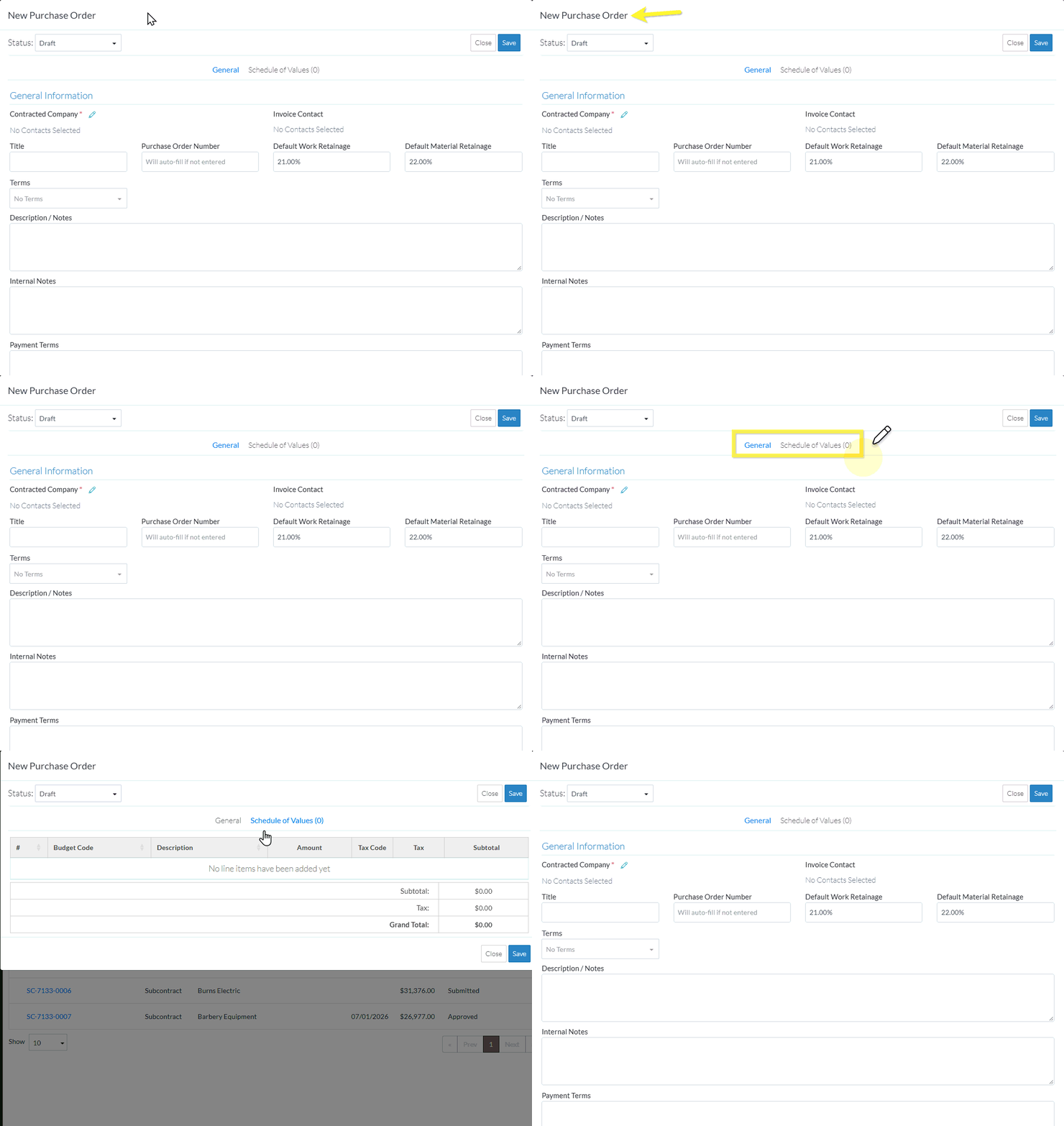
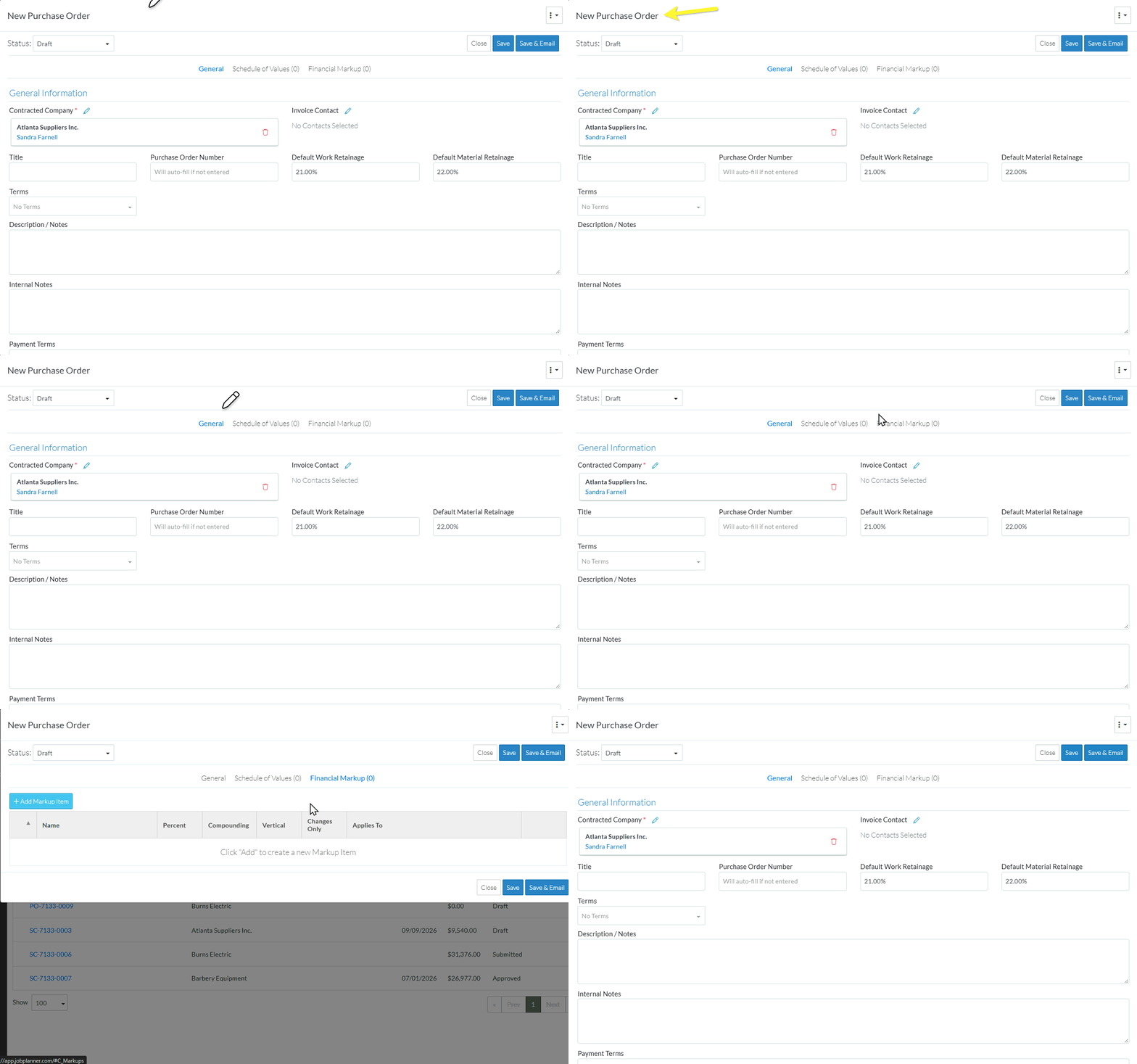
Use the Form Navigation Menu options to switch between Components
The Form Navigation Menu options are used to switch which of the Components of the Commitment display in the middle section of the form.
The options that display on the Form Navigation Menu depend on the permissions the User has.
The currently selected component is highlighted in blue writing.
Click on the text on the Form Navigation Menu to toggle between the components.
The menu options may appear with a () and a number next to it. This is the number of items in that component.
When toggling between components, the top and bottom sections of the form don't change, just the middle section changes.
Click here for an example of a New Subcontract for a User with Add permissions on Commitments
Click here for an example of a Subcontract for a User with Admin permissions on Commitments
Other General Navigation Information
Regardless of what component is displaying for a Commitment:
For a User with Add permissions
- The form can be closed
- The Subcontract can be saved (and it saves all the information on the General, Schedule of Values and if applicable Financial Markups components).
For a User with Admin permissions
- All the above is available
- The Status can be changed from any of the Commitment Components (as its always displayed no matter what component is selected).
- The Subcontract can be saved and emailed (and it saves all the information on the General, Schedule of Values and Financial Markups components).
