Settings - Change Requests - Change Request Settings - Enable Change Request Markups
 Updated
Suggested Prior Reading
Settings - Change Requests - Change Request Settings
Enable Change Request Markups
This option can be toggled on or off to set whether or not the Financial Markups on the Change Request can be maintained.
If that Contract has Financial Markups, the Change Request automatically inherits the Contract Financial Markups.
This setting dictates whether or not Financial Markups can be maintained on Change Requests, If this setting is on:
- Financial Markups inherited from the Contract - can be edited or deleted
- New Financial Markups specific to the Change Request can be added
Whether this is on or off also dictates how Financial Markups on Contract Change Order are automatically populated (instead of or in addition to being manually maintained on the Contract Change Order itself).
If this option is set to Off
- The Financial Markups copied from the Contract can not be changed on the Change Request (all Change Requests created for the Contract will all have the same Financial Markups)
- When the Change Request Line Items are created on a Contract Change Order, the Contract Financial Markups can optionally be copied to that Contract Change Order
- If they are copied they can be maintained (edited, deleted) and also new Financial Markups can be added
Click here for an example of the Contract Change Order Financial Markup form (before and after Financial Markups are copied)
The following is an example when there are Financial Markups on the Contract and they have not yet been copied to the Contract Change Order.
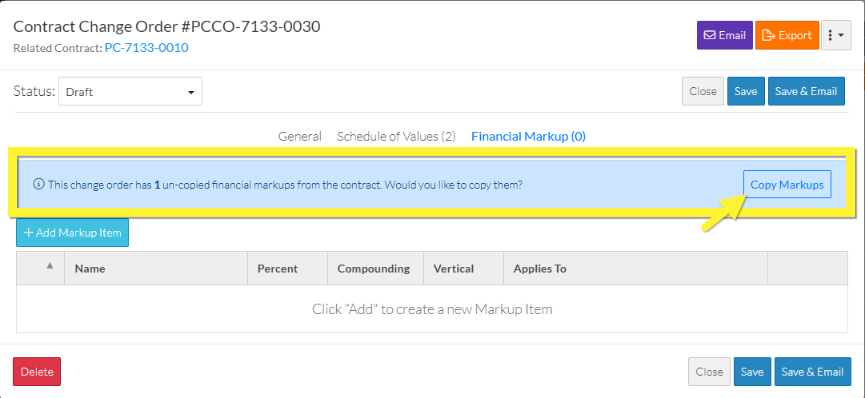
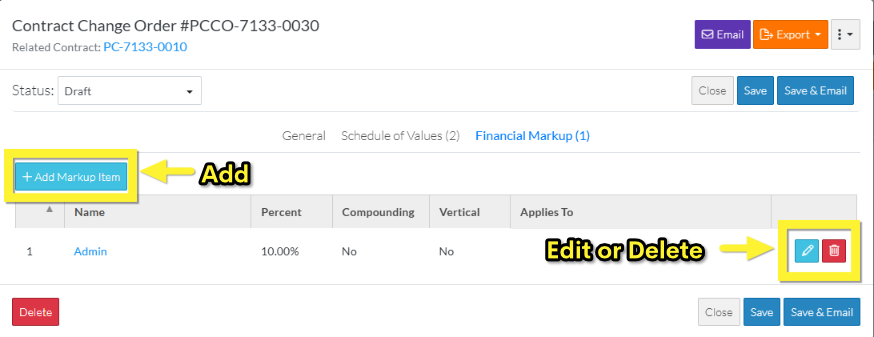
If the Financial Markups are copied from the Contract, the message disappears and the Financial Markups copied can be edited, deleted and also new ones can be added (as long as the Contract Change Order is in a Status that enables editing, see Contract Change Order - Status).
If this option is set to On
- The Financial Markups copied from the Contract can be changed on the Change Request; including editing or deleting them
- New Financial Markup specific to the Change Request can be added
- When the Change Request Line Items are created on a Contract Change Order, all Financial Markups from all Change Requests are copied to that Contract Change Order
- The Markup Name will automatically include the Change Request number that it was copied from (in brackets)
- The Financial Markup copied from the Change Request can not be edited (it can be viewed) only
- The Financial Markups will only apply to the Line Items created from the Change Request they are associated to
- The Financial Markup copied from the Change Request can be deleted
- New Financial Markups specific to the Contract Change Order can be added
Click here for an example of the Contract Change Order Financial Markup form created from a single Change Request
The following is an example where a Line Item from one Change Request was added to a Contract Change Order. The Change Request had one Financial Markup. The Contract had no Financial Markups.
The Financial Markup Name displays with the Change Request it was created from in brackets.
Financial Markups copied can only be viewed (not edited) but they can be deleted and also new ones can be added (as long as the Contract Change Order is in a Status that enables editing, see Contract Change Order - Status)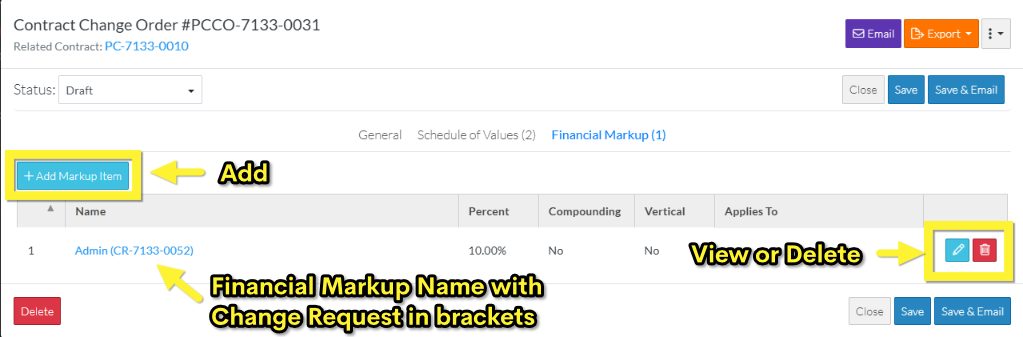
The following is an example of the Financial Markup if it was viewed. The information is grayed out and is not editable.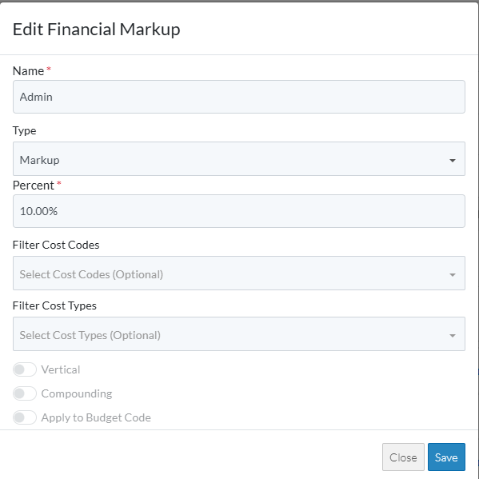
Click here for an example of the Contract Change Order Financial Markup form created from multiple Change Requests
The following is an example where Line Items were added to a Contract Change Order from two different Change Requests.
All the Financial Markups for both Change Requests are copied to the Contract Change Order and the Change Request number is displayed in brackets.
In this example, both Change Requests (CR-7133-0052 and CR-7133-0051) had an Admin Financial Markup of 10% so it displays twice, once for each Change Request. Then CR-7133-0052 had a Profit Financial Markup for 10% and CR-7133-0051 had an Overhead Financial Markup for 5%.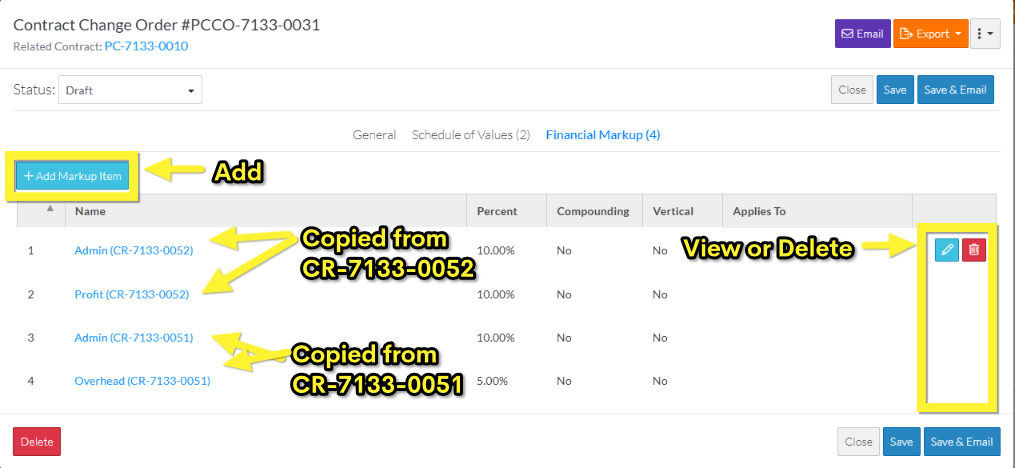
On the Schedule of Values, all the Financial Markups are applied but only to the Line Items created from the Change Request
that the Financial Markups were created from.
On the this example, all the Financial Markups are set to appear horizontally as a column on each line item. If they were set to appear vertically or as a separate line item the calculations would still only be done for the Line Items created from the Change Request that the Financial Markups were created from, see Financial Markup - Calculation and Display for more information.
In the example, Line Item #1 was created from Change Request, CR-7133-0052 so although all four Financial Markups columns display, values only appear in the Financial Markup columns for CR-7133-0052. The other Financial Markup columns for the other Change Request, CR-7133-0051 are $0.00.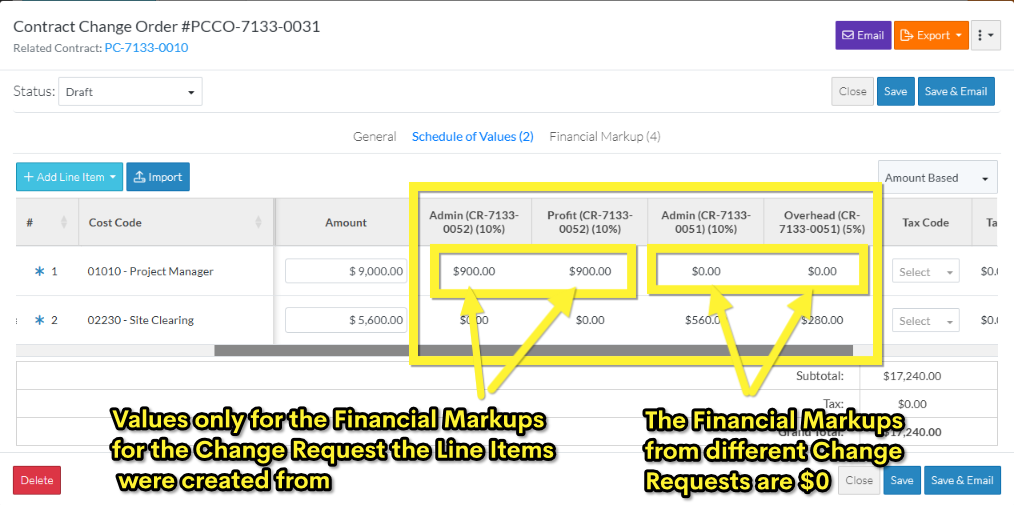
To toggle the setting:
- Access the Settings for Change Requests, see Settings - Change Requests.
- In the Change Request Settings, there will be an Enable Change Request Markups option.
If it is turned off (which it is by default), it displays as light gray and to the left 
If it is turned on, it displays as blue and to the right 
- Click on the Enable Change Request Markups slider bar bar or text to toggle it on or off.
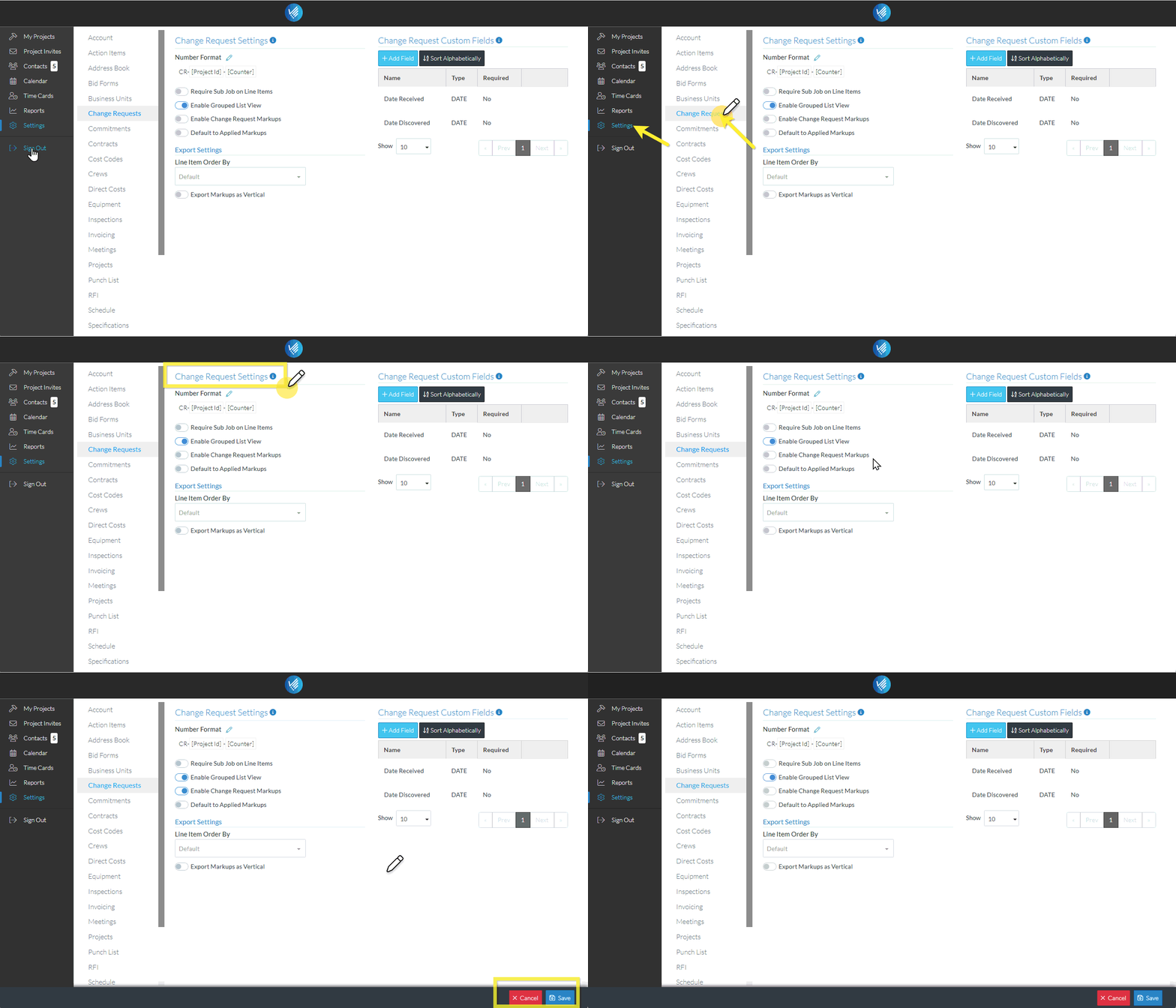
When a setting is changed on the form, the Cancel and Save buttons appear in the lower right hand corner.
- Click the Save
 button to save the setting change. A message appears indicating the information was saved.
OR
Click the Cancel button to cancel the changes.
Next Steps
For more information on the other Change Request settings that can be changed, see Settings - Change Requests.
For more information on Change Requests, see Change Requests - Overview.
