This is help on the RFQ Response form for manually entering a Response with no Cost Impact (when a response has not yet been submitted). (See RFQ Response - No Response Entered for more information).
On the RFQ Response form, click No if t is not already clicked. After No is selected, the No button is filled blue .
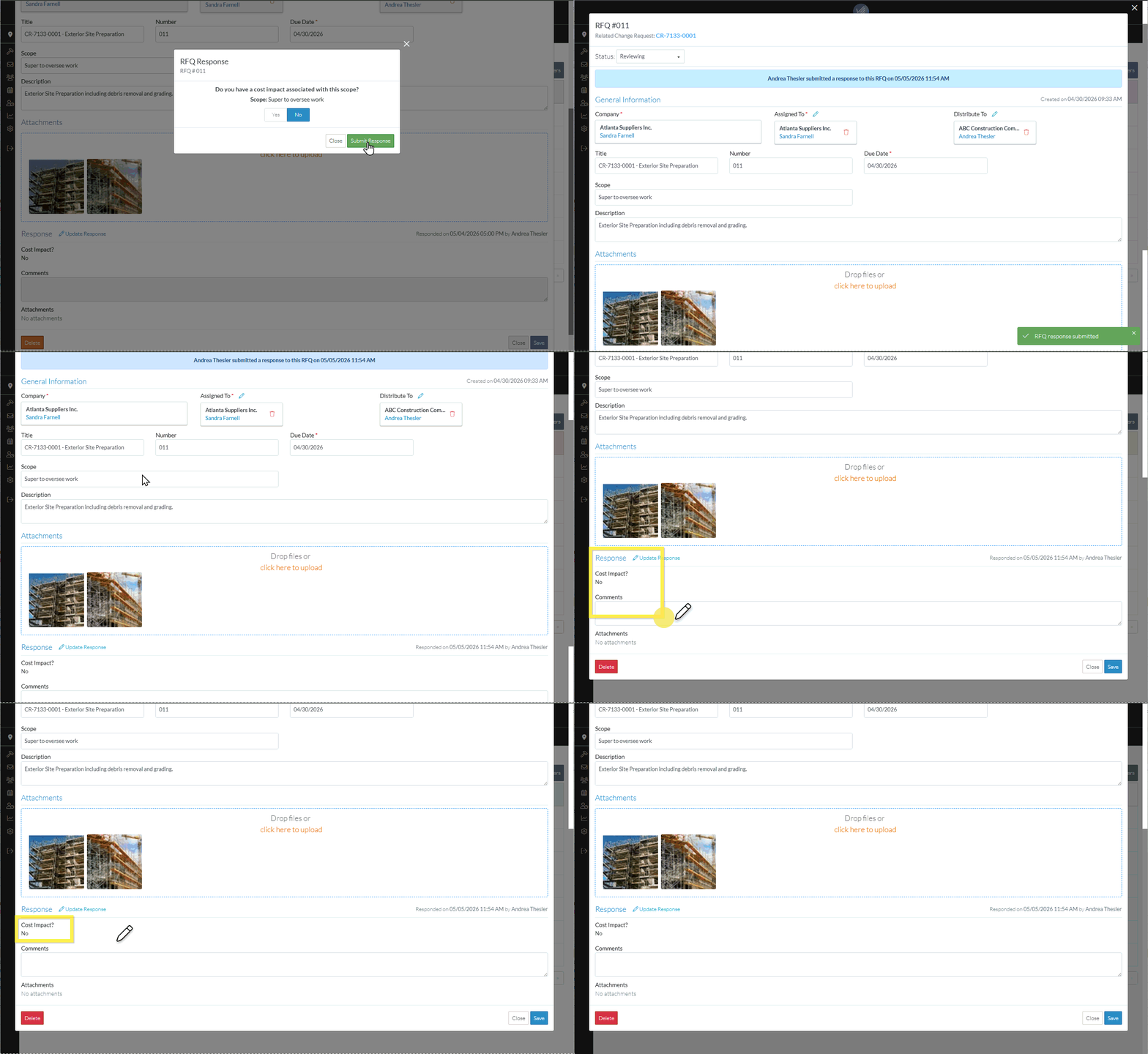
Click the Submit Response button to submit the Response to do the RFQ Scope without additional costs. The RFQ is saved with the Response information (it doesn't have to be saved again).The RFQ - View/Edit form displays. The Status will be automatically set to Reviewing. The Response displays Cost Impact - No (and there will be no Comments or Attachments). See RFQ - View/Edit - Layout and Navigation - Reviewing Status for more information.
Add, Edit or View additional information on the RFQ, see RFQ - View/Edit - Reviewing Status. OR Click the Save button to save any other changes and close the RFQ - View/Edit form. See Next Steps below. OR Click the Close button to close the RFQ - View/Edit form without saving any other changes (note* The Response is already updated).Click here for more information on the Close function.
If no information was changed or entered, the list the function was invoked from displays, see Next Steps below.
If information was changed, then an additional prompt displays indicating there were changes and there are additional prompts on what to do.
Click the Cancel button to cancel the Close action and return to the RFQ - View/Edit form (see the steps above) OR Click the Don't Save button to cancel changes to the RFQ. The list the was invoked from displays, see Next Steps below. OR Click the Save button to save the RFQ. The list the function was invoked from displays, see Next Steps below.
 Updated
 if t is not already clicked.
 .
. button to submit the Response to do the RFQ Scope without additional costs. The RFQ is saved with the Response information (it doesn't have to be saved again).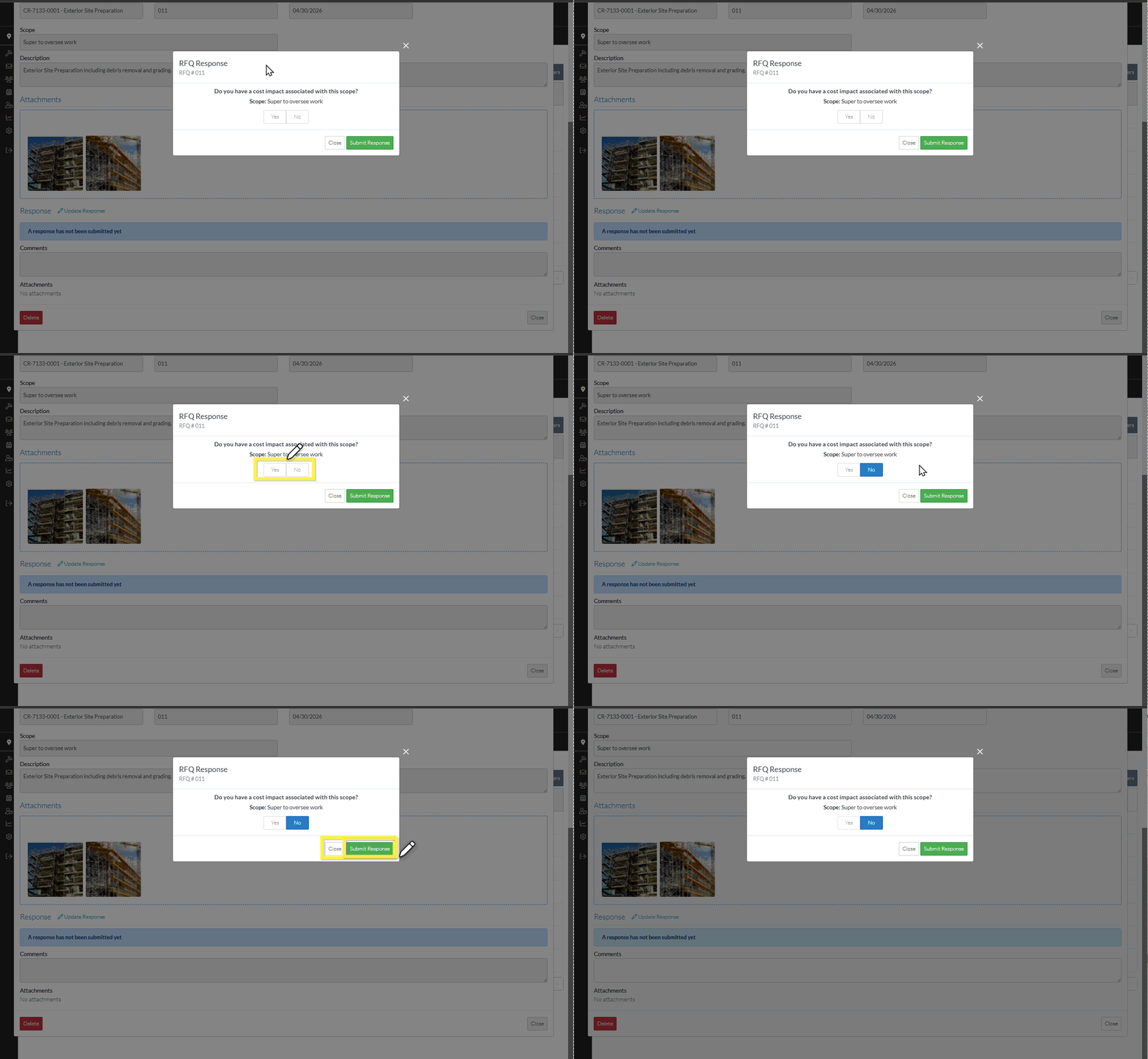
 button to save any other changes and close the RFQ - View/Edit form. See Next Steps below.
 button to close the RFQ - View/Edit form without saving any other changes (note* The Response is already updated).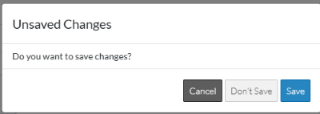
 button to cancel the Close action and return to the RFQ - View/Edit form (see the steps above)
 button to cancel changes to the RFQ. The list the was invoked from displays, see Next Steps below.
 button to save the RFQ. The list the function was invoked from displays, see Next Steps below.