RFQ Response - No Response Entered
 Updated
Suggested Prior Reading
RFQ - View/Edit - Manually Enter Response
OR
Response Submitted by Subcontractor/Vendor
This is help on the RFQ Response form for manually entering a Response (when a response has not yet been submitted). See RFQ - View/Edit - Manually Enter Response for more information.
The first option to set is whether or not there is a cost impact associated with the scope of this change.
The Vendor/Subcontractor could agree to the scope of the change without additional costs or there could be additional costs.
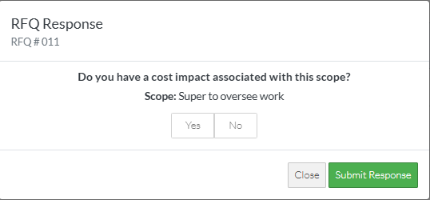
Click Yes  if there is additional costs for the scope of this work. See RFQ Response - New Response with Costs.
OR
Click No  if there is no additional costs for the scope of the work. See RFQ Response - New Response with no Cost Impact.
OR
Click Close  button to close the form without entering a response. See Next Steps below.
Next Steps
The list the View/Edit was invoked from displays.
- If it was invoked from the Change Request - View/Edit form via the RFQs component, see Change Request Specific RFQs - Overview.
- If it was invoked from the Change Requests on the Project Navigation Menu and via the RFQs in the Lists Navigation Menu, see Change Requests - List of all RFQs - Overview.
