RFQ - View/Edit - Response
 Updated
Suggested Prior Reading
Click here to View/Edit the RFP depending on the Status
For RFQs in a Pricing Status, see RFQ - View/Edit - Pricing Status for more information.
For RFQs in a Reviewing Status, see RFQ - View/Edit - Reviewing Status for more information.
For RFQs in a Revise Status, see RFQ - View/Edit - Revise Status for more information.
For RFQs in an Approved Status, see RFQ - View/Edit - Approved Status for more information.
For RFQs in a Closed Status, see RFQ - View/Edit - Closed Status for more information.
Viewing/Editing the RFQ Response
The Response can be automatically updated by the Subcontractor/Vendor that the Request was sent to (i.e. they submit a quote).
Alternatively, a project manager/estimator can manually submit a response on behalf of the Subcontractor/Vendor.
The Response can be:
- No Impact - i.e. there is no cost impact for the scope of the change
- Cost associated with the scope - there is a cost associated with the scope of the change
- If a Cost is associated with the Scope then Comments can be entered for the Response and Attachments can be uploaded for the Response.
Display of the Response Section depending on Status
The Response section only appears if an RFQ is not in a Draft Status. (see RFQ - Status for more information).
A Response can not be deleted (however the Response information can be set to zeros and comments and attachments removed).
Whether or not the Response can be updated depends on the Status.
Responses that can be updated
Responses can be updated for RFQs in the following Statuses:
- Pricing
- Reviewing
- Revise
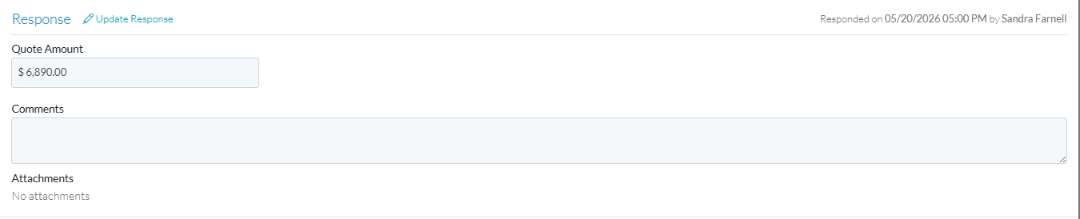
Click here for an example of the Response section that can be updated
The following is an example of the Response section that can be updated:
Responses that can not be updated
Responses can not be updated for RFQs in the following Statuses:
- Approved
- Closed
Click here for an example of the Response section that can not be updated
The following is an example of the Response section that can not be updated:

Display of the Response Section depending on whether a Response was submitted and without or without costs
The Response section displays differently depending on whether or not a Response has previously submitted and whether a Cost was associated with the scope change:
Click here to view the Response section when a Response has not yet been submitted
The following is the display of the Response section if no response has yet been submitted.

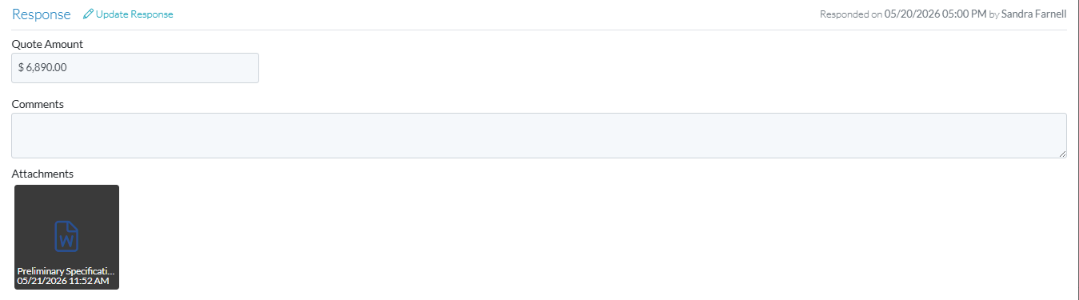
Click here to view the Response section when a Response has been submitted with a Cost
The following is the display of the Response section with a Response with a Cost submitted.
Click here to view the Response section when a Response has been submitted but with no cost impact
The following is the display of the Response section with a Response that has no Costs.

To Update the Response
- Scroll to the Response section.
- Click the Update Response blue text.
The RFQ Response form displays. - Manually enter a Response when no previous Responses have been entered, see RFQ Response - No Response Entered.
OR
Manually update a Response that was previously entered, see RFQ Response - Update Response Entered. - Add, Edit or View additional information on the RFQ, see More Information below.
OR
Click the Save button to save any changes and close the RFQ - View/Edit form. See Next Steps below.
OR
Click the Close button to close the RFQ - View/Edit form without saving the changes.
Click here for more information on the Close function.
If no information was changed or entered, the list the function was invoked from displays, see Next Steps below.
If information was changed, then an additional prompt displays indicating there were changes and there are additional prompts on what to do.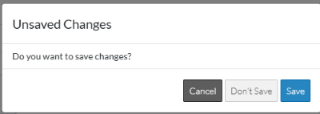
Click the Cancel button to cancel the Close action and return to the RFQ - View/Edit form (see the steps above)
OR
Click the Don't Save button to cancel changes to the RFQ. The list the was invoked from displays, see Next Steps below.
OR
Click the Save button to save the RFQ. The list the function was invoked from displays, see Next Steps below.
More Information
To view or edit General RFQ information, see RFQ - View/Edit - General Information.
To view, upload or delete Attachments, see RFQ - View/Edit - Attachments.
Next Steps
The list the View/Edit was invoked from displays.
- If it was invoked from the Change Request - View/Edit form via the RFQs component, see Change Request Specific RFQs - Overview.
- If it was invoked from the Change Requests on the Project Navigation Menu and via the RFQs in the Lists Navigation Menu, see Change Requests - List of all RFQs - Overview.
