RFQ - View/Edit - Closed Status
 Updated
Suggested Prior Reading
Viewing/Editing an existing RFP from the list of RFQs specific to a Change Request, see Change Request Specific RFQs - Overview.
OR
Viewing/Editing an existing RFP from the list of all RFQs for all Change Requests, see Change Requests - List of all RFQs - Overview
OR
Setting the Status of the RFQ to Closed from another Status, see RFQ - View/Edit - Edit Status to Closed
Editing an RFQ in the Closed Status
RFQs can be set to a Closed Status.
This is not an automatic status setting, it is set manually by the Project Manager/Estimator.
When the Status is set to Closed:
- The General Information can not be changed.
- Attachments can be Viewed but not Uploaded or Deleted.
- The Response can be viewed.
- The RFQ can be deleted
To View the RFQ in a Closed Status
- If required, invoke the View/Edit of the RFQ:
See the following for the list the view/edit is being invoked from:
Change Request Specific RFQs - View/Edit
OR
Change Requests - List of all RFQs - View/Edit
The RFQ - View/Edit form displays. For more information on a the layout of the RFQ - View/Edit form when the RFQ is in a Closed Status, see RFQ - View/Edit - Layout and Navigation - Closed Status.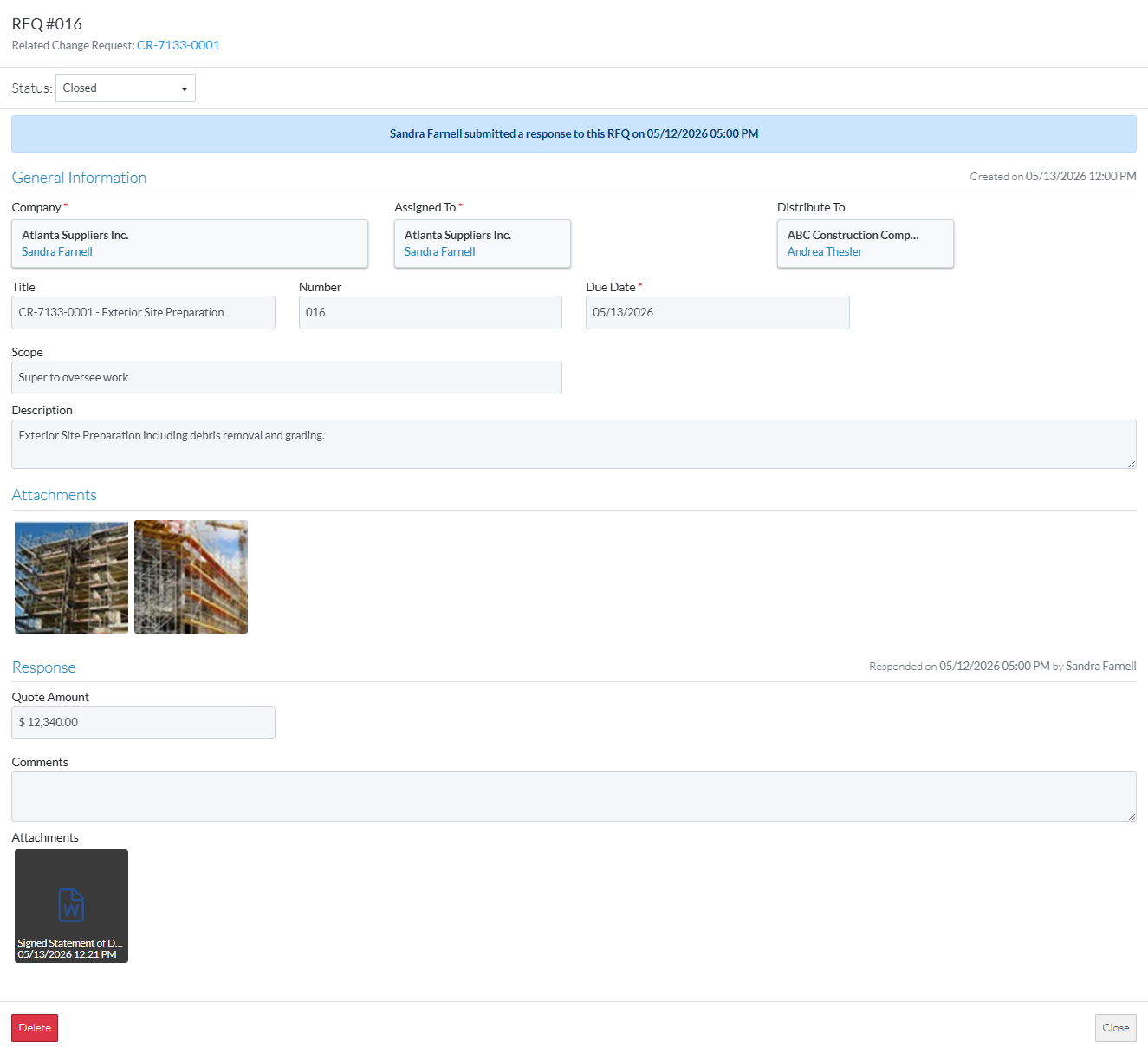
- View the General Information, see RFQ - View/Edit - General Information.
- View Attachments, see RFQ - View/Edit - Attachments.
- View the RFQ response, see RFQ - View/Edit - Response.
- Optionally, perform other functions, see More Information below.
- Click the Save
 button to save any changes and close the RFQ - View/Edit form. See Next Steps below.
OR
Click the Close button to close the RFQ - View/Edit form.
Click here for more information on the Close function.
If no information was changed or entered, the list the function was invoked from displays, see Next Steps below.
If information was changed, then an additional prompt displays indicating there were changes and there are additional prompts on what to do.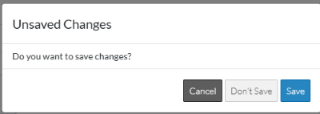
Click the Cancel button to cancel the Close action and return to the RFQ - View/Edit form (see the steps above)
OR
Click the Don't Save button to cancel changes to the RFQ. The list the was invoked from displays, see Next Steps below.
OR
Click the Save button to save the RFQ. The list the function was invoked from displays, see Next Steps below.
More Information
Manually set the Status of the RFQ to another Status
Set the Status to Draft, see RFQ - View/Edit - Edit Status to Draft (if available)
Set the Status to Pricing, see RFQ - View/Edit - Edit Status to Pricing
Set the Status to Reviewing, see RFQ - View/Edit - Edit Status to Reviewing
Set the Status to Revise, see RFQ - View/Edit - Edit Status to Revise
Set the Status to Approved, see RFQ - View/Edit - Edit Status to Approved (if available)
Delete the RFQ, see RFQ - Delete.
Next Steps
The list the View/Edit was invoked from displays.
- If it was invoked from the Change Request - View/Edit form via the RFQs component, see Change Request Specific RFQs - Overview.
- If it was invoked from the Change Requests on the Project Navigation Menu and via the RFQs in the Lists Navigation Menu, see Change Requests - List of all RFQs - Overview.
To edit the Change Request, to update the Revenue:
Click here for Grouped List View
OR
