RFQ - View/Edit - General Information
 Updated
Suggested Prior Reading
Change Request Specific RFQs - View/Edit
OR
Change Requests - List of all RFQs - View/Edit
Click here for more information on the View/Edit form depending on the Status
For RFQs in a Draft Status, see RFQ - View/Edit - Draft Status for more information.
For RFQs in a Pricing Status, see RFQ - View/Edit - Pricing Status for more information.
For RFQs in a Reviewing Status, see RFQ - View/Edit - Reviewing Status for more information.
For RFQs in a Revise Status, see RFQ - View/Edit - Revise Status for more information.
For RFQs in an Approved Status, see RFQ - View/Edit - Approved Status for more information.
For RFQs in a Closed Status, see RFQ - View/Edit - Closed Status for more information.
RFQ - General Information
The RFQ General Information is where the general information about the RFQ is entered and maintained.
When the RFQ is created, (see Change Request - Schedule of Values - Bulk Actions - Send RFQs OR All Change Requests List - Bulk Actions - Send RFQ) the RFQ information is entered - however some of the information can be left blank during the creation.
The Company (and Company Contact) is required to be entered at the time of creation and can not be changed. To send the RFQ to a different Company/Contact, the RFQ can be deleted and then recreated with the correct Company/Contact.
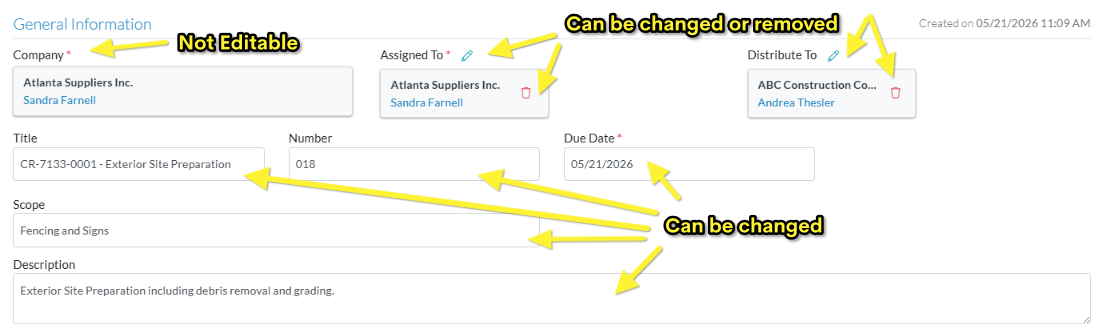
The rest of the General Information can only be edited for RFQs in a Draft or Reviewing Status.
Click here for more information on an RFP in Draft or Reviewing Status and the General Information can be edited
If the RFQ is in a Draft or Reviewing Status, all the General Information can be changed except the Company/Contact.
Click here for more information on an RFP in any other Status and the General Information can not be edited
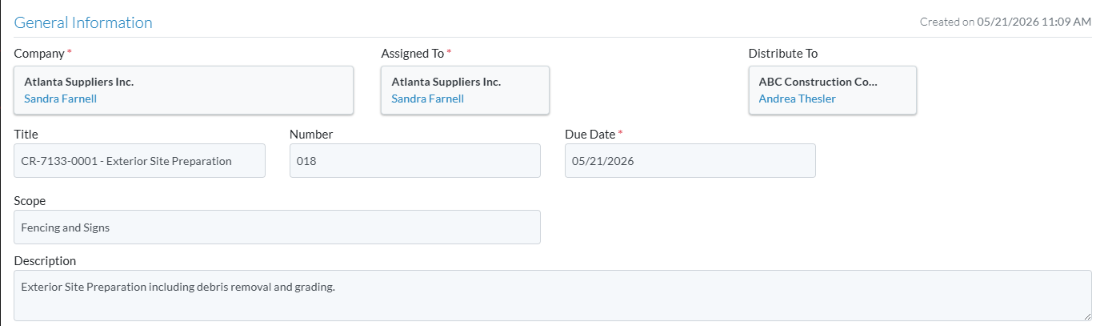
If the RFQ is in a Pricing, Revise, Approved or Closed Status, none of the General Information can be changed.
Company, Assigned To, Distribute To
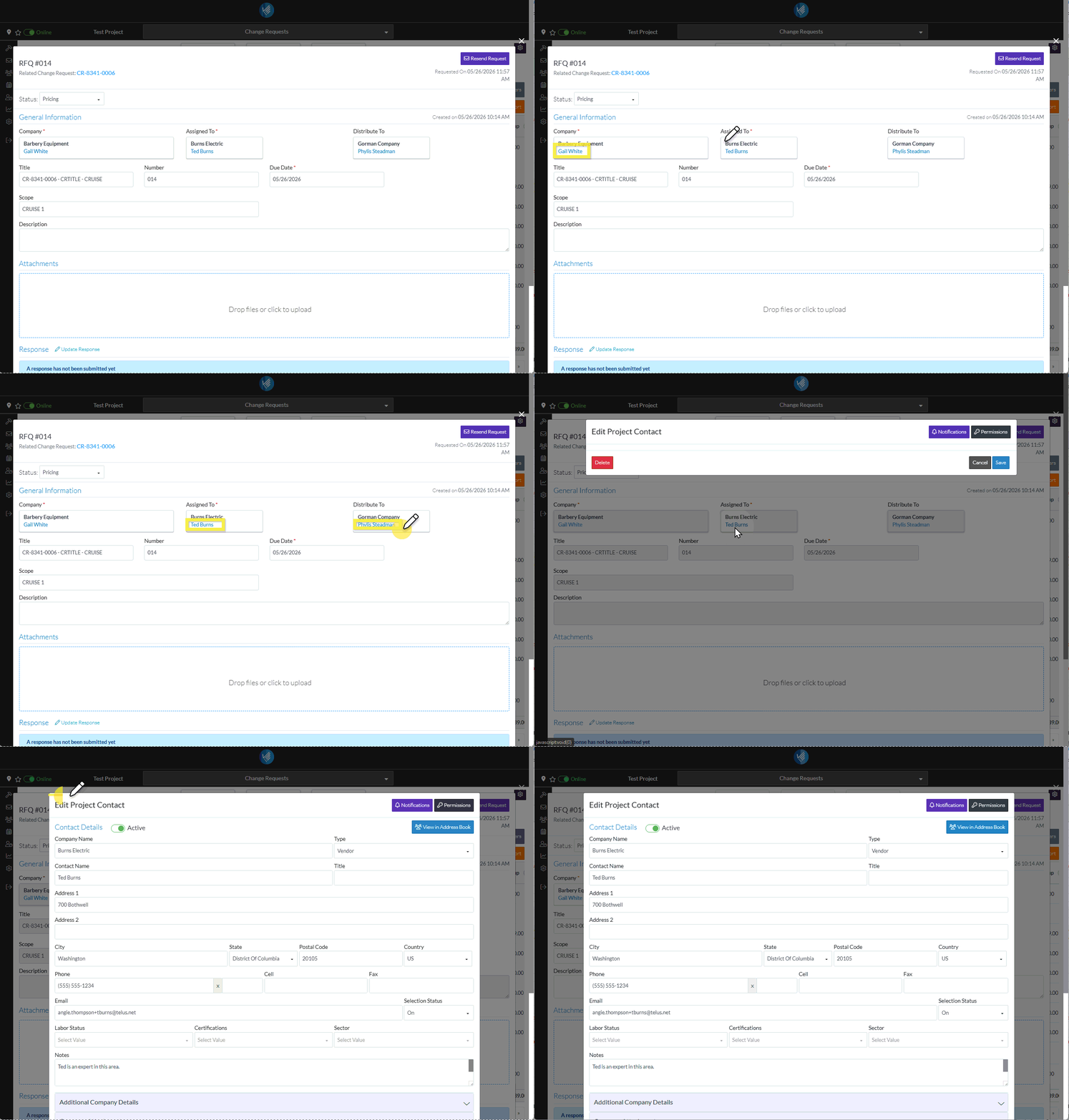
If the Company, Assigned to or Distribute To has been entered, the name of the Contact can be clicked on to view or edit more information about the Company/Contact.
Click here to see more information on viewing/editing the Company/Contact, Assigned To or Distribute To entered
Click on the Contact Name in blue text for the Company, Assigned To or Distribute To.
The Edit Project Contact form displays. See Edit/View Project Contact - Company User Types OR Edit/View Project Contact - Guest User Types for more information.
To view/edit the General Information
- Initiate the view/Edit function is not already initiated:
From the list of RFQs specific to a Change Request, see Change Request Specific RFQs - View/Edit.
OR
From the lit of all RFQs for all Change Requests, see Change Requests - List of all RFQs - View/Edit. - To view/edit the General Information for RFQs in a Draft or Reviewing Status, see RFQ - View/Edit - General Information - Edit.
OR
To view the General Information for all other Statuses, see RFQ - View/Edit - General Information - View. - Add, Edit or View additional information on the RFQ, see More Information below.
OR
Click the Save button to save any other changes and close the RFQ - View/Edit form. See Next Steps below.
OR
Click the Close button to close the RFQ - View/Edit form without saving any other changes.
Click here for more information on the Close function.
If no information was changed or entered, the list the function was invoked from displays, see Next Steps below.
If information was changed, then an additional prompt displays indicating there were changes and there are additional prompts on what to do.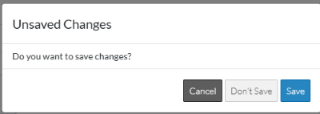
Click the Cancel button to cancel the Close action and return to the RFQ - View/Edit form (see the steps above)
OR
Click the Don't Save button to cancel changes to the RFQ. The list the was invoked from displays, see Next Steps below.
OR
Click the Save button to save the RFQ. The list the function was invoked from displays, see Next Steps below.
More Information
To view, or to upload or delete Attachments (if available for that Status), see RFQ - View/Edit - Attachments.
To view or update Responses (if available for that Status), see RFQ - View/Edit - Response.
Next Steps
The list the View/Edit was invoked from displays.
- If it was invoked from the Change Request - View/Edit form via the RFQs component, see Change Request Specific RFQs - Overview.
- If it was invoked from the Change Requests on the Project Navigation Menu and via the RFQs in the Lists Navigation Menu, see Change Requests - List of all RFQs - Overview.
