Change Request - Schedule of Values - Bulk Actions - Send RFQs
 Updated
Suggested Prior Reading
Change Request - Schedule of Values - Bulk Actions
Change Request - Schedule of Values - Bulk Actions - Select Line Items
Send RFQs Overview
The Bulk Actions Button has a function to send an RFQ for the selected Line Items on a Change Request Schedule of Values.
There are several items that impact this function:
- At least one Line Item must be selected for the Bulk Actions function to be enabled.
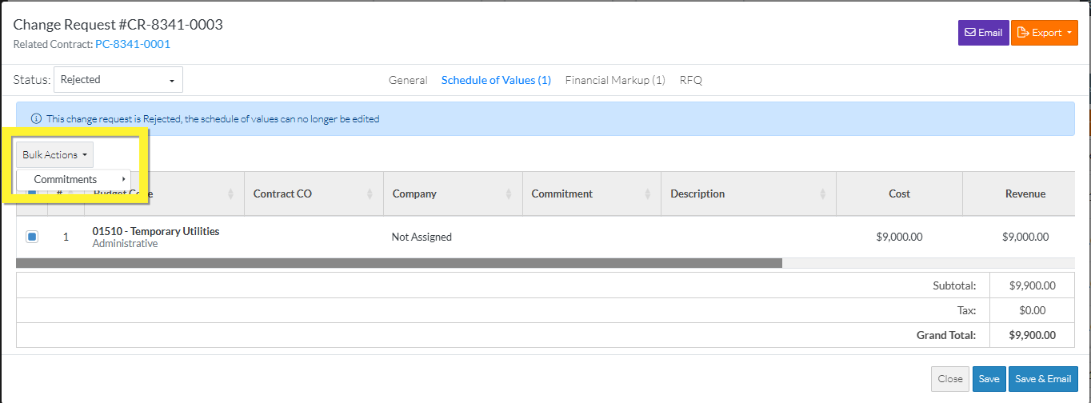
- To create and send RFQs, none of the Line Items selected can be for a Change Request in a Void or Rejected Status (see Change Request - Status). If one or more Line Items selected belong to a Change Request in a Void or Rejected Status, the Send RFQ menu option is grayed out and not available.
More information on each is described below.
At least one Line Item must be Selected
At least one Line Item must be selected for the Bulk Actions button to be enabled (i.e. the text is black): 
If a Line Item is not selected, the Bulk Actions button is not enabled to be clicked (i.e. the text is gray): 
See Change Request - Schedule of Values - Bulk Actions - Select Line Items for more information on selecting Line Items.
Change Request can not be in a Void or Rejected Status
If the Change Request is in a Void or Rejected Status, line items are selected and the Bulk Actions function is invoked, the Send RFQs option does not appear as sub menu. To see more information on the Change Request - Status, see Change Request - Status.
Bulk Actions - Send RFQs
To create RFQs, when Line Items are selected and the Change Request is not in a Void or Rejected Status:
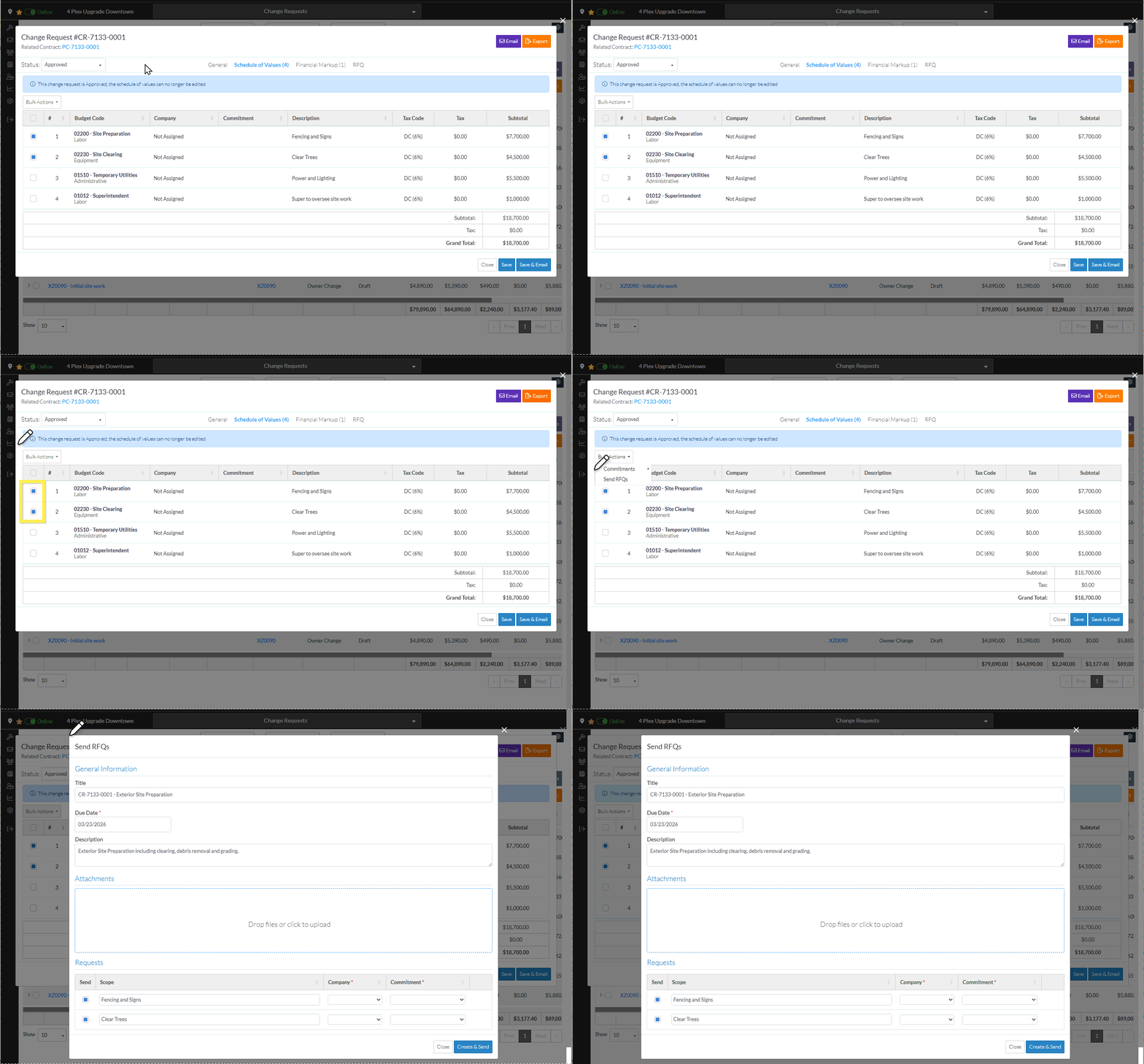
- If not already selected, access the Schedule of Values component for a Change Request, and select one or more Line Items, see Change Request - Schedule of Values - Bulk Actions - Select Line Items.
- Click the Bulk Actions
 button.
 - Click the Send RFQ menu option.
When doing the above steps, the Change Request Schedule of Values Component will display differently depending on the status of the Change Request.
Click here to see the above steps for an Approved Change Request
Click here to see the above steps for a Change Request that is not Approved (or Rejected or Void)
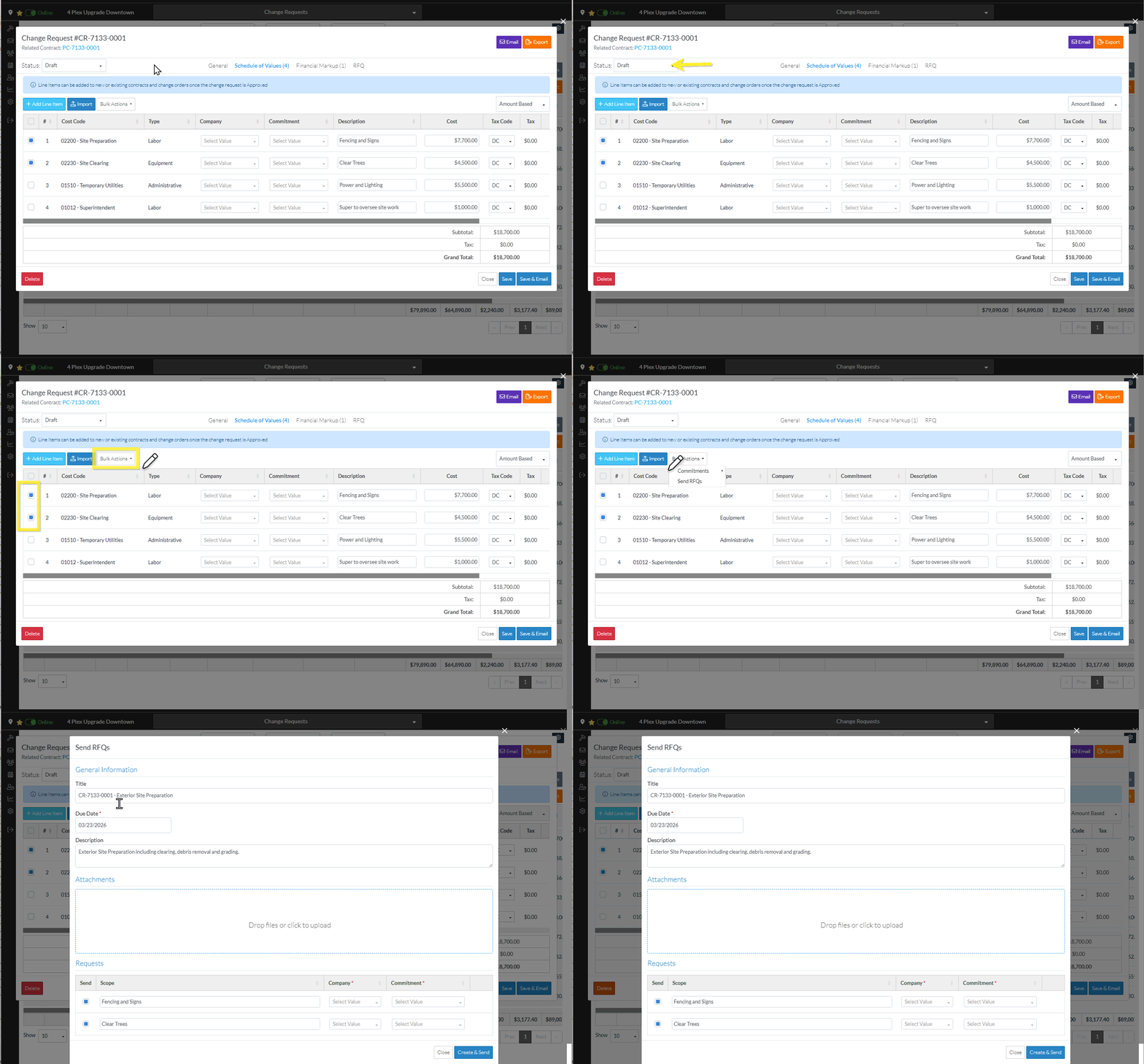
The Send RFQ form displays.
Next Steps
Create and Send the RFQ, see Change Request - Schedule of Values - Bulk Actions - Create and Send RFQs.
