Change Request Specific RFQs - View/Edit
 Updated
Suggested Prior Reading
Change Request Specific RFQs - Overview
Change Request Specific RFQs - Accessing
Change Request Specific RFQs - Layout and Navigation
To View or Edit an Existing RFQ
This is help for viewing or editing an existing RFQ from the Change Request - View/Edit form via the RFQs component.
- If not already displayed, access the RFQ Component on the Change Request - View/Edit form, see Change Request Specific RFQs - Accessing.
- If required, sort columns to navigate the List of RFQs and locate the RFQ to view/edit. See Change Request Specific RFQs - Sort Columns
- Edit or View the RFQ by hovering on the RFQ row and clicking on the View
 button on the RFQ row (in the far right column).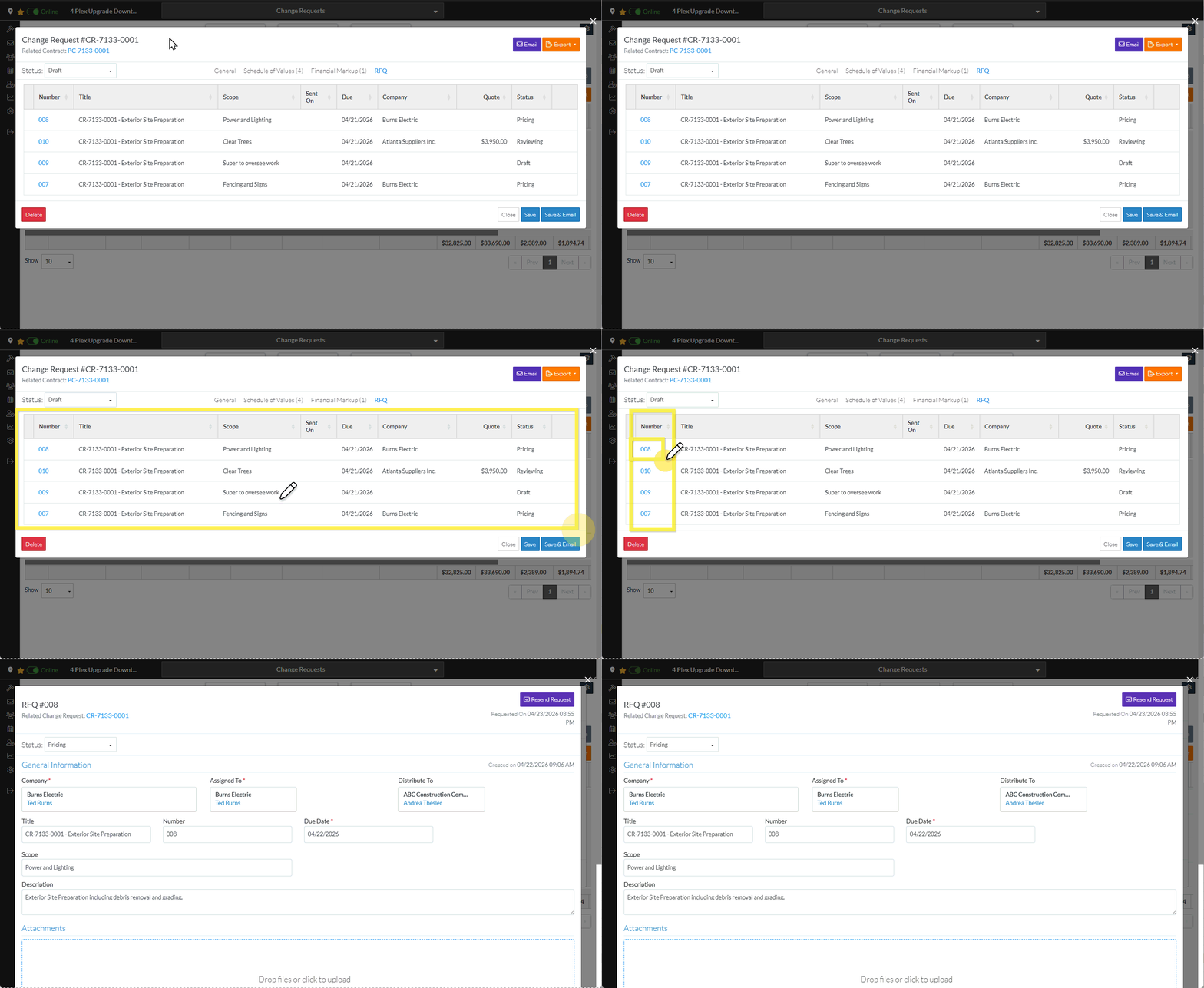
Right click on a RFQ and select View from the context sensitive pop-up menu.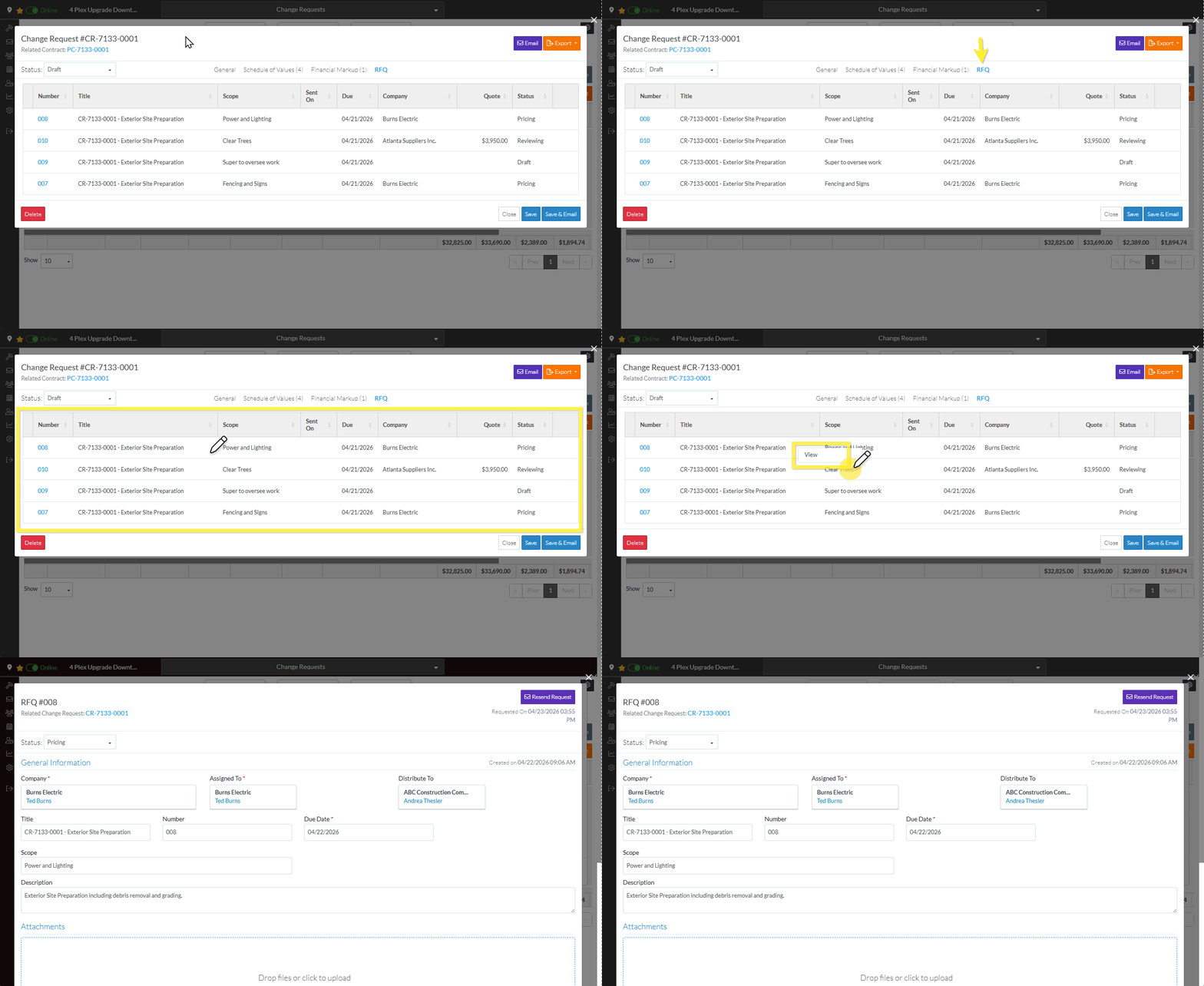
Double click on the Change Request Row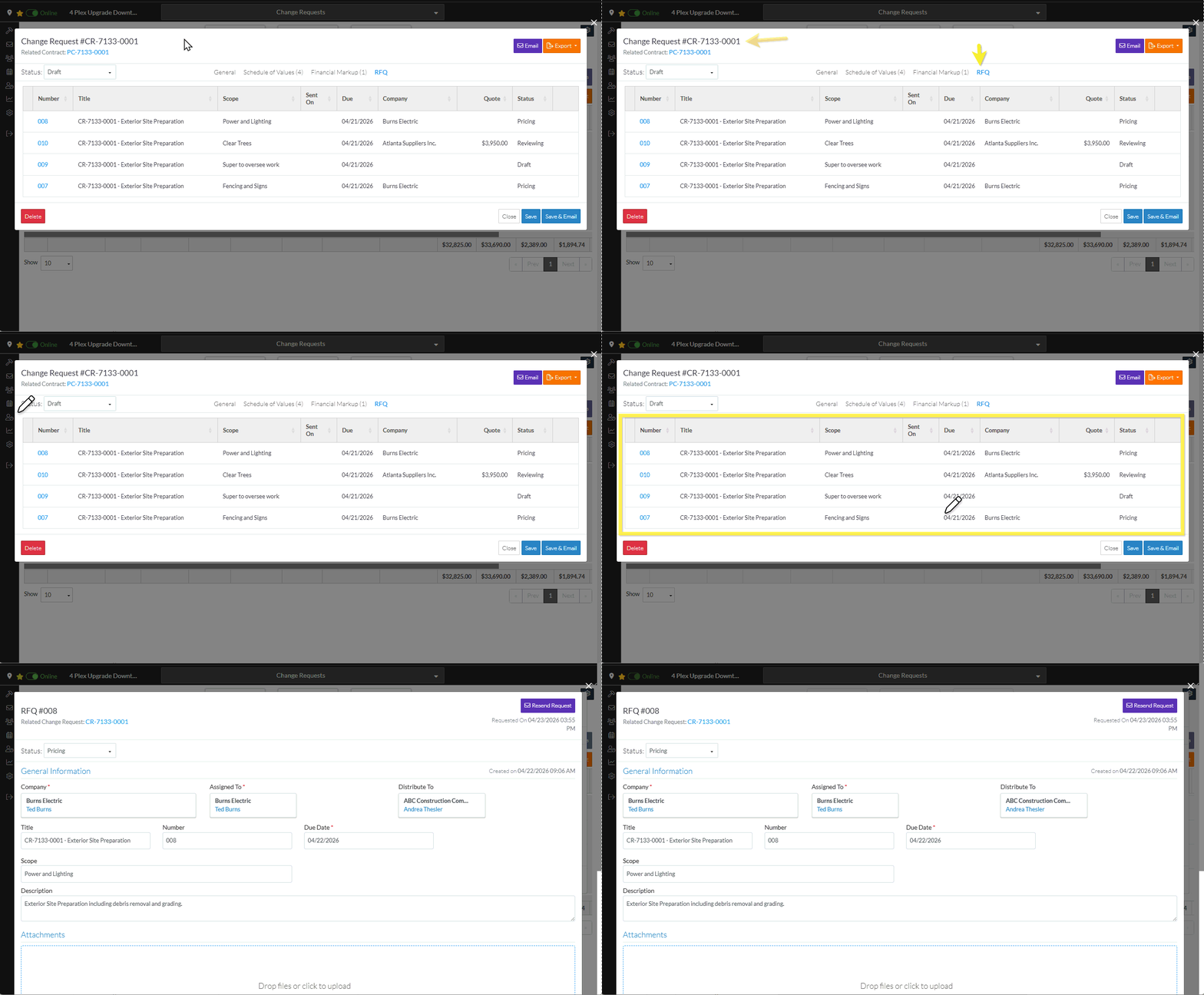
Click on the Title blue text.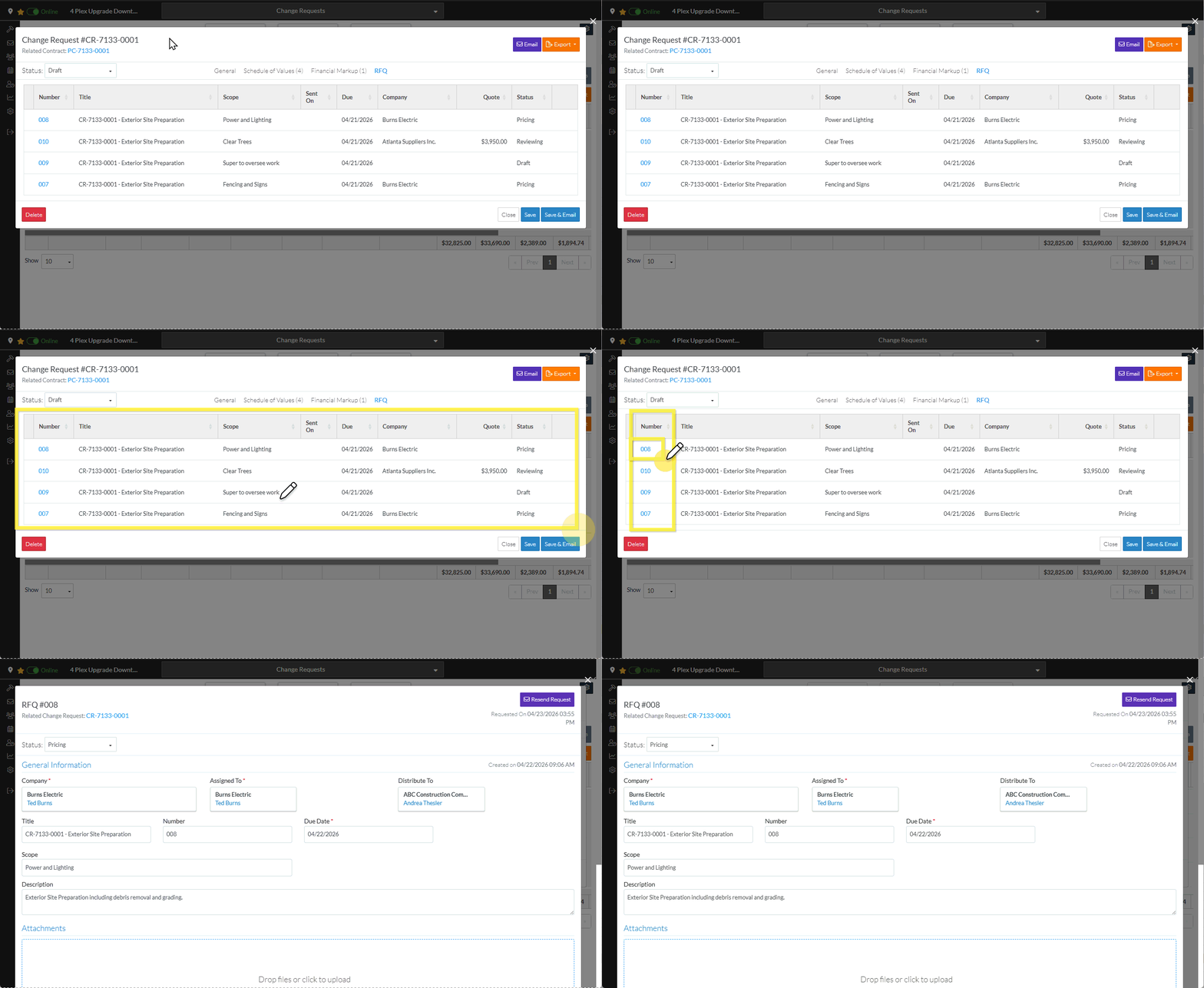
The RFQ - View/Edit form displays. The layout and navigation of this form depends on what the current status of the RFQ is.
Click here for more information on the Layout and Navigation of the form for each Status
For RFQs in a Draft Status, see RFQ - View/Edit - Layout and Navigation - Draft Status for more information.
For RFQs in a Pricing Status, see RFQ - View/Edit - Layout and Navigation - Pricing Status for more information.
For RFQs in a Reviewing Status, see RFQ - View/Edit - Layout and Navigation - Reviewing Status for more information.
For RFQs in a Revise Status, see RFQ - View/Edit - Layout and Navigation - Revise Status for more information.
For RFQs in an Approved Status, see RFQ - View/Edit - Layout and Navigation - Approved Status for more information.
For RFQs in a Closed Status, see RFQ - View/Edit - Layout and Navigation - Closed Status for more information.
Next Steps
Click here for more information on the Next Steps depending on the Status the RFP
For RFQs in a Draft Status, see RFQ - View/Edit - Draft Status for more information.
For RFQs in a Pricing Status, see RFQ - View/Edit - Pricing Status for more information.
For RFQs in a Reviewing Status, see RFQ - View/Edit - Reviewing Status for more information.
For RFQs in a Revise Status, see RFQ - View/Edit - Revise Status for more information.
For RFQs in an Approved Status, see RFQ - View/Edit - Approved Status for more information.
For RFQs in a Closed Status, see RFQ - View/Edit - Closed Status for more information.
