RFQ - View/Edit - Layout and Navigation - Pricing Status
 Updated
Suggested Prior Reading
Create and Manage RFQs - Overview
RFQs -Automatic Status Settings and Functions
Pricing RFQ
An RFQ in a Pricing Status, is one that has been sent to a Company/Contact (either through Jobplanner or manually outside of JobPlanner) and the Company is working on a Response.
- The Pricing Status is tied to the Send functionality and will be set automatically if the RFQ is sent to the Company/Contact (see Change Request - Schedule of Values - Bulk Actions - Send RFQs OR All Change Request Lists - Bulk Actions - Send RFQs OR RFQ - View/Edit - Send Request).
- An RFQ can have the Status manually set to Pricing (see RFQ - View/Edit - Pricing Status for more information).
Top of Form
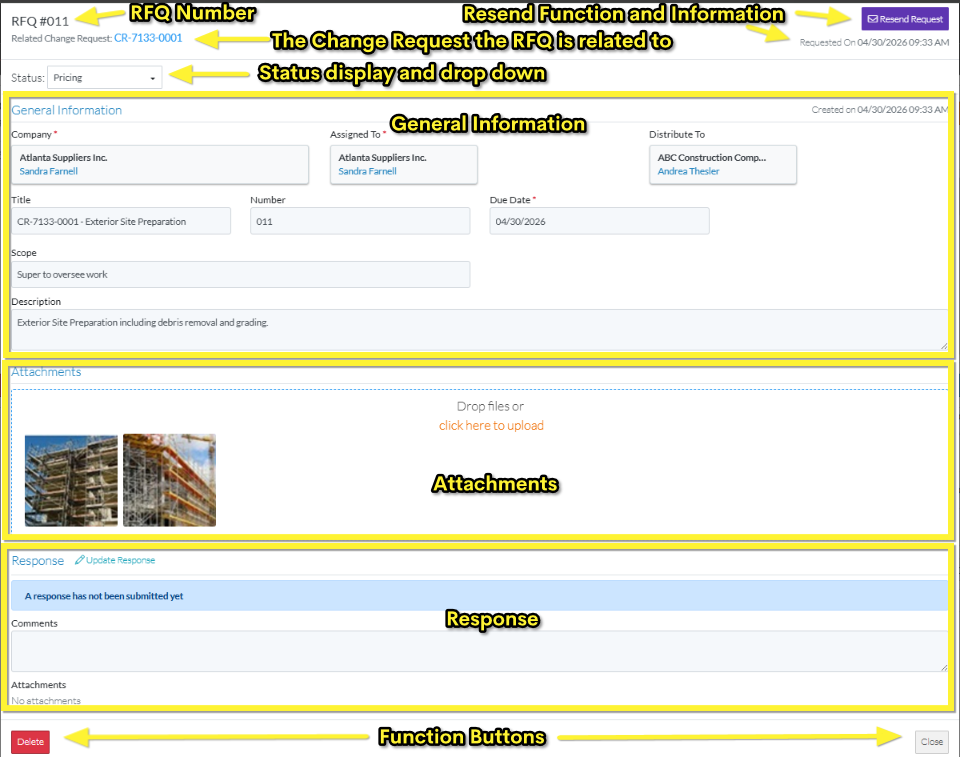
When viewing or editing an RFQ, the RFQ - View/Edit form displays the RFQ Number as the title.
Below that, the Related Change Request for the RFQ displays. The Change Request displays in blue text and the blue text can be clicked on to leave this form and go to the Change Request - View/Edit form (see Change Request – View/Edit - Form Layout and Navigation for more information).
The top of the form can display differently, depending on whether or not previous Status changes and functions occurred to this RFQ.
If the RFQ was previously sent to the Company/Contact:
This is the most likely scenario when an RFQ is in a Pricing Status.
If an RFQ was previously sent to the Company/Contact:
Across from the RFQ and Change Request is the Resend Request function and send information:
- If required, the request for quotation can be resent to the Customer/Contact (see RFQ Emails - Request for Quote for an example of the email that is sent).
- The Send information will display the date and time the last request was sent.
Below the RFQ and Change Request is the:
- Status display and drop down- where the Status is displayed and can be changed (if required).
If the RFQ was not previously sent to the Company/Contact:
This is a more unlikely scenario (as the RFQ is usually sent to the Subcontractor/Vendor through JobPlanner, however, it could occur if RFQ is not sent as the contact with the Subcontractor or Vendor is managed outside of JobPlanner.)
- Across from the RFQ and Change Request is the Send Request
 button and send information:
 - The Send information will display "Request On: Not Sent", indicating the request for quote has not yet been sent.
- The rest of the layout is the same as above.
If a Response was previously submitted:
If a Response was previously entered and then the Status was manually set to the Pricing Status, the top of the form displays displays a message indicating who submitted the response (which could be an external Vendor/Subcontractor if they entered it themselves or the Project Manager/Estimator if they entered it on their behalf) and the date/time.

Middle Section of the RFQ View/Edit Form
The middle section of the RFQ - View/Edit form changes depending on what functions have been done. For an RFQ in the Pricing Status the following displays:
- General Information - The General Information can be viewed but not changed when the RFQ is in the Pricing Status. See RFQ - View/Edit - General Information.
- Attachments - Attachments can be viewed, but not changed when the RFQ is in the Pricing Status. See RFQ - View/Edit - Attachments.
- Response - The Response can be viewed and also manually updated. See RFQ - View/Edit - Response.
Bottom Section of the Change Request Form
Function Buttons display at the bottom of the form to:
- Delete the RFQ - see RFQ - Delete
- Close the form (without saving any changes) or Save the RFQ.
Next Steps
View the Response, see RFQ - View/Edit - Response for more information on how the Response displays.
Manually update or change the Response, see RFQ - View/Edit - Update Response.
Send the Request, see RFQ - View/Edit - Send Request.
Resend the Request, see RFQ - View/Edit - Resend Request.
View the General Information, see RFQ - View/Edit - General Information.
View Attachments, see RFQ - View/Edit - Attachments.
Manually change the Status of the RFQ, see RFQ - View/Edit - Edit Status.
Delete the RFQ, see RFQ - Delete.
