RFQ - View/Edit - Pricing Status
 Updated
Suggested Prior Reading
Click here for the Status being set to Pricing when Creating and Sending an RFP to a Company
OR
From the list of all Change Requests, see All Change Request Lists - Bulk Actions - Send RFQs.
Click here to View/Editing an existing RFP that has the Status set to Pricing
OR
From the list of all RFQs for all Change Requests, see Change Requests - List of all RFQs - View/Edit.
To set the Status of the RFQ to Pricing from another Status, see RFQ - View/Edit - Edit Status to Pricing.
Editing an RFQ in the Pricing Status
An RFQ in a Pricing Status, is one that has been sent to a Company/Contact (either through Jobplanner or manually outside of JobPlanner) and the Company is working on a Response.
The Pricing Status is tied to the Send functionality and the RFQ will be updated automatically to Pricing if an RFQ is sent. It can also manually be set to Pricing as well. See the above Suggested Prior Reading.
The following describes the different scenarios:
- The Request for Quote is sent when the RFQ is created. The Status is automatically sent to Pricing.
- The Request for Quote is not sent when the RFQ is created:
- The RFQ is edited after it is created and the Request for Quote is then sent manually. The Status is automatically set to Pricing.
- The Request for Quote is not sent when the RFQ is created:
- The RFQ is edited after it is created and the Status is manually changed to Pricing. See RFQ - View/Edit - Edit Status to Pricing.
- A prompt appears asking if the Request is to be sent to the Company/Contact.
- If Yes, the request for quote is sent and the Status is automatically set to Pricing.
- If No, the request for quote is not sent and the Status is not changed - it remains what it was.
Once an RFQ is in a Pricing Status:
- The General Information can not be changed.
- Attachments can not be uploaded or deleted (they can only be downloaded or viewed).
- There will be a Response section that can be viewed or changed.
- The RFQ can be sent/resent to the Company/Contact.
- The RFQ can be deleted.
To View the RFQ in a Pricing Status and/or update the Response
- If required, invoke the View/Edit of the RFQ:
See the following for the list the view/edit is being invoked from:
Change Request Specific RFQs - View/Edit
OR
Change Requests - List of all RFQs - View/Edit
The RFQ - View/Edit form displays. For more information on the layout of the RFQ - View/Edit form when the RFQ is in a Pricing Status, see RFQ - View/Edit - Layout and Navigation - Pricing Status. This layout shows an RFQ that has had the RFQ previously sent to the Company/Contact and no Response has been entered.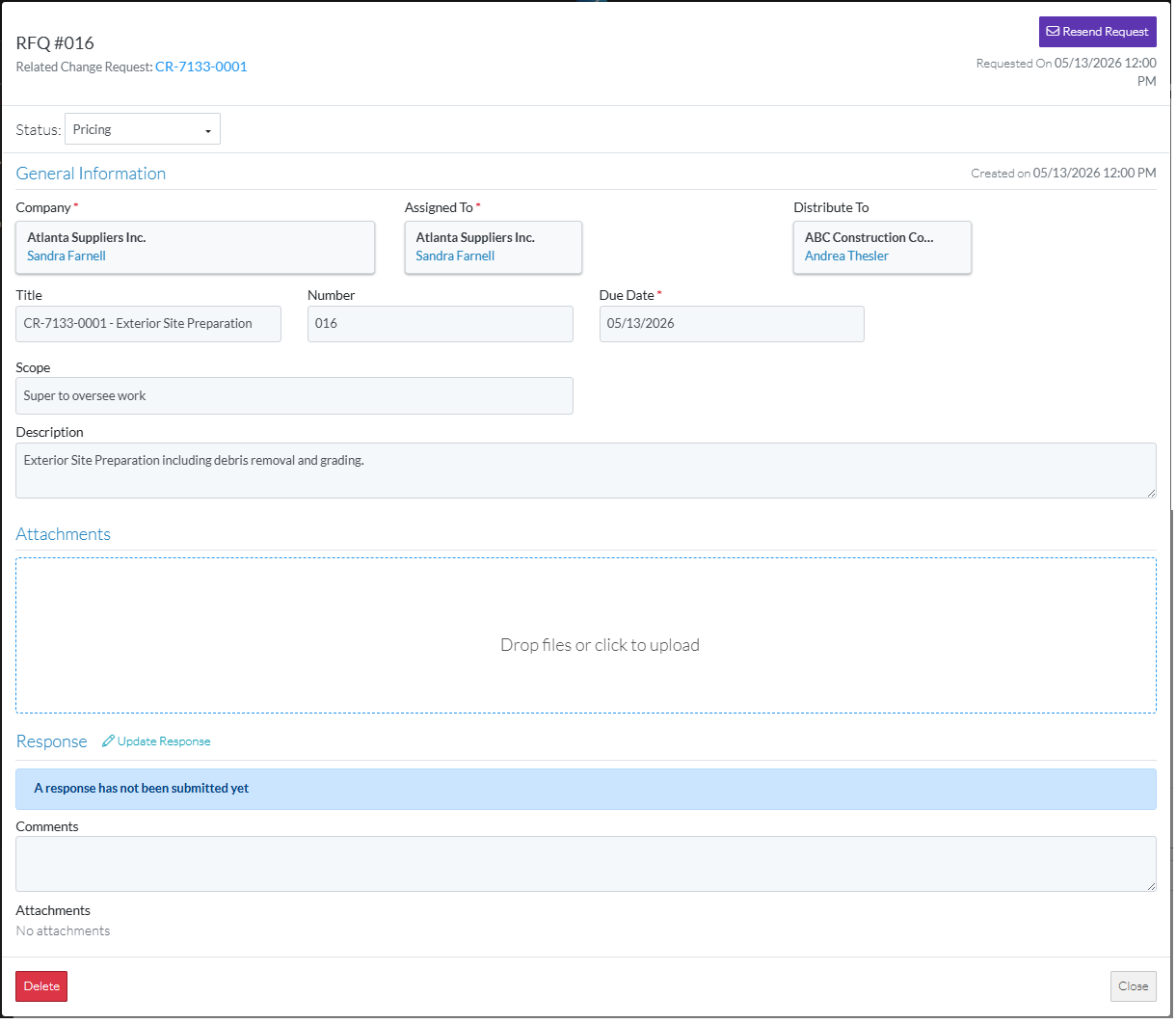
- View the General Information, see RFQ - View/Edit - General Information.
- View Attachments, see RFQ - View/Edit - Attachments.
- View the Response (if entered), see RFQ - View/Edit - Response for more information on how the Response displays.
- Manually update the RFQ response (if required), see RFQ - View/Edit - Update Response.
- Optionally, perform other functions, see More Information below.
- Click the Close button
 to close the RFQ - View/Edit form.
See Next Steps below.
More Information
If the RFQ is not already sent, send the Request, see RFQ - View/Edit - Send Request.
If the RFQ is already sent, resend the request for quote to the Company/Contact, see RFQ - View/Edit - Resend Request.
Manually set the Status of the RFQ to another Status
Set the Status to Draft, see RFQ - View/Edit - Edit Status to Draft (if available)
Set the Status to Reviewing, see RFQ - View/Edit - Edit Status to Reviewing
Set the Status to Revise, see RFQ - View/Edit - Edit Status to Revise (if available)
Set the Status to Approved, see RFQ - View/Edit - Edit Status to Approved (if available)
Set the Status to Closed, see RFQ - View/Edit - Edit Status to Closed
Delete the RFQ, see RFQ - Delete.
Next Steps
The list the View/Edit was invoked from displays.
- If it was invoked from the Change Request - View/Edit form via the RFQs component, see Change Request Specific RFQs - Overview.
- If it was invoked from the Change Requests on the Project Navigation Menu and via the RFQs in the Lists Navigation Menu, see Change Requests - List of all RFQs - Overview.
