RFQ - View/Edit - Attachments
 Updated
Suggested Prior Reading
Change Request Specific RFQs - View/Edit
OR
Change Requests - List of all RFQs - View/Edit
Click here for more information on the View/Edit form depending on the Status
For RFQs in a Draft Status, see RFQ - View/Edit - Draft Status for more information.
For RFQs in a Pricing Status, see RFQ - View/Edit - Pricing Status for more information.
For RFQs in a Reviewing Status, see RFQ - View/Edit - Reviewing Status for more information.
For RFQs in a Revise Status, see RFQ - View/Edit - Revise Status for more information.
For RFQs in an Approved Status, see RFQ - View/Edit - Approved Status for more information.
For RFQs in a Closed Status, see RFQ - View/Edit - Closed Status for more information.
Viewing/Maintaining RFQ Attachments
Attachments can be added to RFQs. The Attachments will be visible and accessible to any Subcontractor/Vendor that responds to the RFQ.
Attachments can be viewed and/or downloaded (and then viewed). Note* Some types of files are viewable within JobPlanner with a build in viewer, while others must be downloaded and then viewed within their native application.
Attachments can be uploaded and deleted only for RFQs in certain Statuses (see below).
Attachments that can be maintained
Attachments can be maintained (added or deleted) for RFQs in the following Statuses:
- Draft
- Reviewing
Click here for an example of the Attachments section that can be maintained but with no Attachments:
The following is an example of the Attachments section that can be maintained but with no Attachments:

Click here for an example of the Attachments section that can be maintained but with Attachments added
The following is an example of the Attachments section that can be maintained but with Attachments added:

Attachments that can be viewed only
Attachments can only be viewed or downloaded for RFQs in the following Statuses:
- Pricing
- Revise
- Approved
- Closed
Click here for an example of the Attachments section that can be viewed but with no Attachments
The following is an example of the Attachments section that can only be viewed with no Attachments:

Click here for an example of the Attachments section that can be viewed with no Attachments uploaded
The following is an example of the Attachments section that can be viewed but with Attachments added:

To view/upload or delete Attachments
- To view Attachments when they can also be maintained, see RFQ - View/Edit - Attachments - View
OR
To view Attachments when they can not be maintained, see RFQ - View/Edit - Attachments - View Only.
OR
To upload Attachments, see RFQ - View/Edit - Attachments - Upload.
OR
To delete Attachments, see RFQ - View/Edit - Attachments - Delete. - Add, Edit or View additional information on the RFQ, see More Information below.
OR
Click the Save button to save the Attachments and any other changes and close the RFQ - View/Edit form. See Next Steps below.
OR
Click the Close button to close the RFQ - View/Edit form without saving any changes including Attachments.
Click here for more information on the Close function.
If no information was changed or entered, the list the function was invoked from displays, see Next Steps below.
If information was changed, then an additional prompt displays indicating there were changes and there are additional prompts on what to do.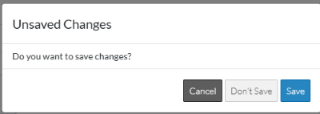
Click the Cancel button to cancel the Close action and return to the RFQ - View/Edit form (see the steps above)
OR
Click the Don't Save button to cancel changes to the RFQ. The list the was invoked from displays, see Next Steps below.
OR
Click the Save button to save the RFQ. The list the function was invoked from displays, see Next Steps below.
More Information
To view or edit General RFQ information, see RFQ - View/Edit - General Information.
To view or update Responses (if available for that Status), see RFQ - View/Edit - Response.
To view the Response, see RFQ - View/Edit - Response for more information on how the Response displays.
To manually enter the Response or update the Response, see RFQ - View/Edit - Update Response.
Next Steps
The list the View/Edit was invoked from displays.
- If it was invoked from the Change Request - View/Edit form via the RFQs component, see Change Request Specific RFQs - Overview.
- If it was invoked from the Change Requests on the Project Navigation Menu and via the RFQs in the Lists Navigation Menu, see Change Requests - List of all RFQs - Overview.
