Any type of file can be uploaded in the Attachments section. It can also be viewed or removed.
The Attachments will be visible and accessible to any Subcontractor/Vendor that responds to the RFQ.
Files can be uploaded using the File Explorer and/or they can be dragged and dropped to the Attachments section (both are explained below).
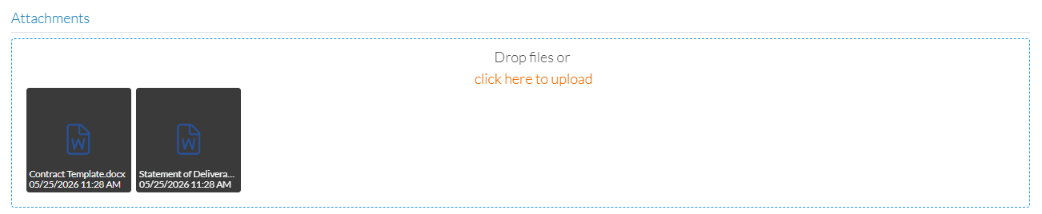
Attachments Display
The Attachments display will differ depending on whether or not Attachments were previously uploaded.
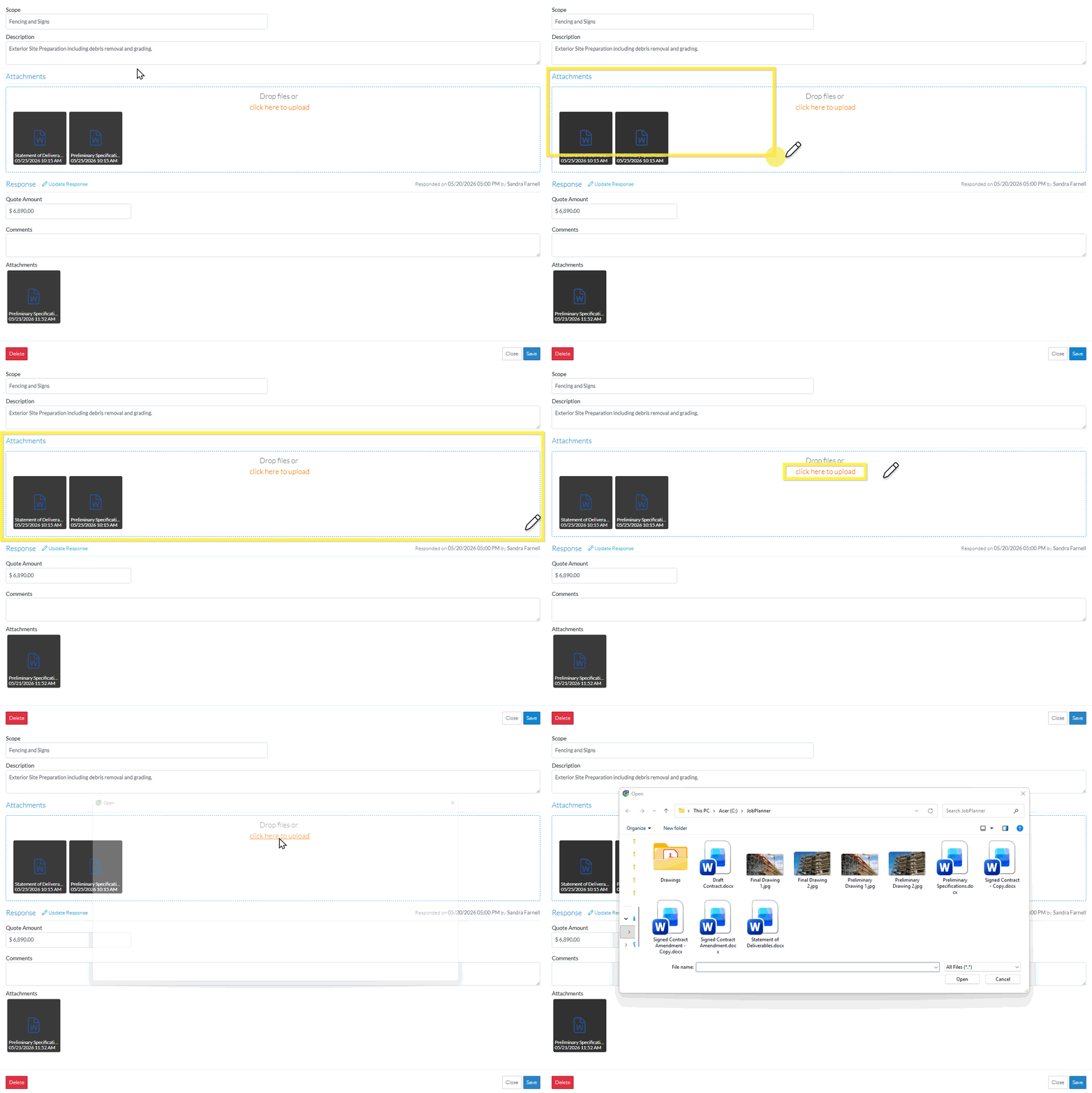
No Attachments
Attachments
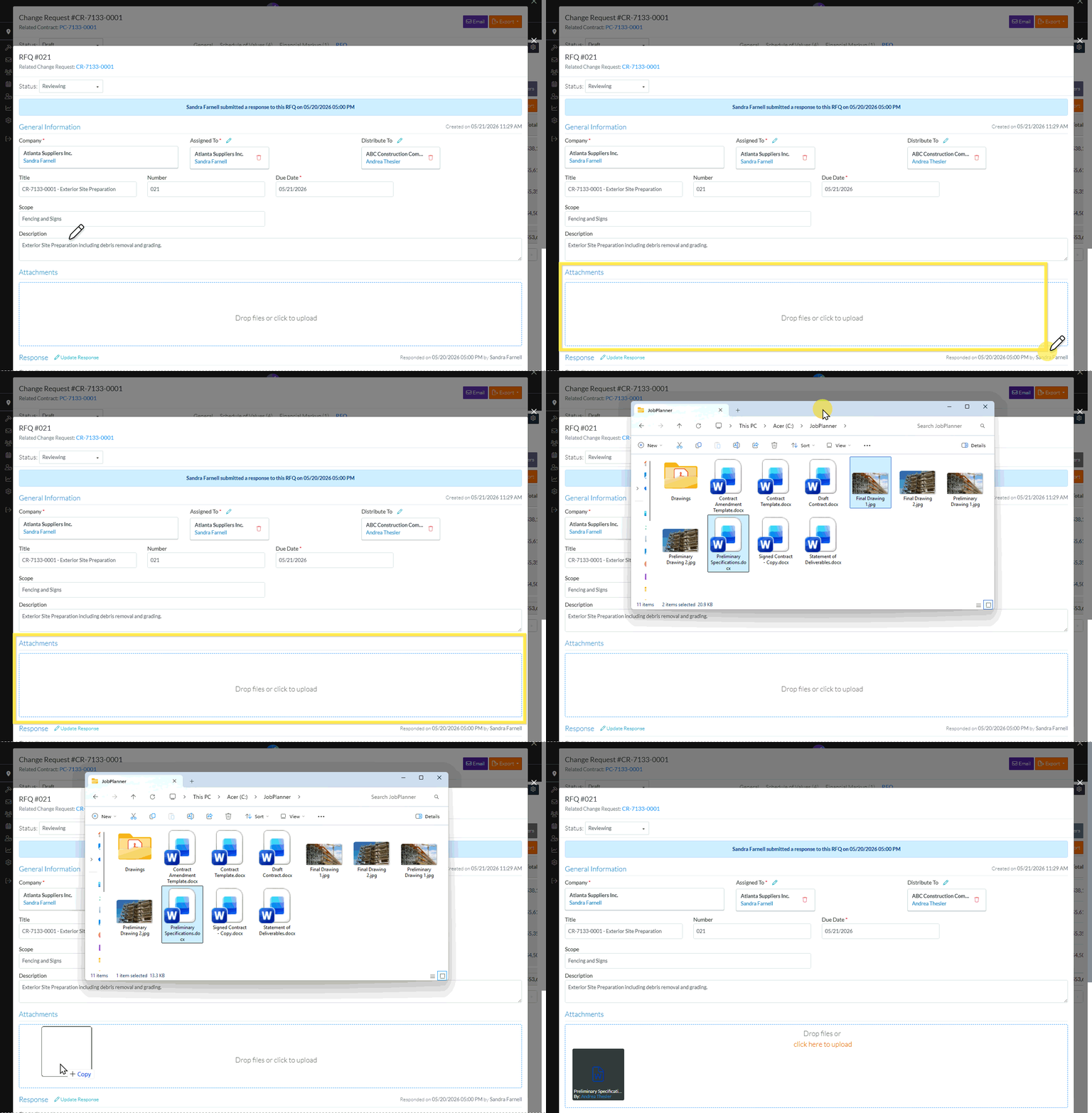
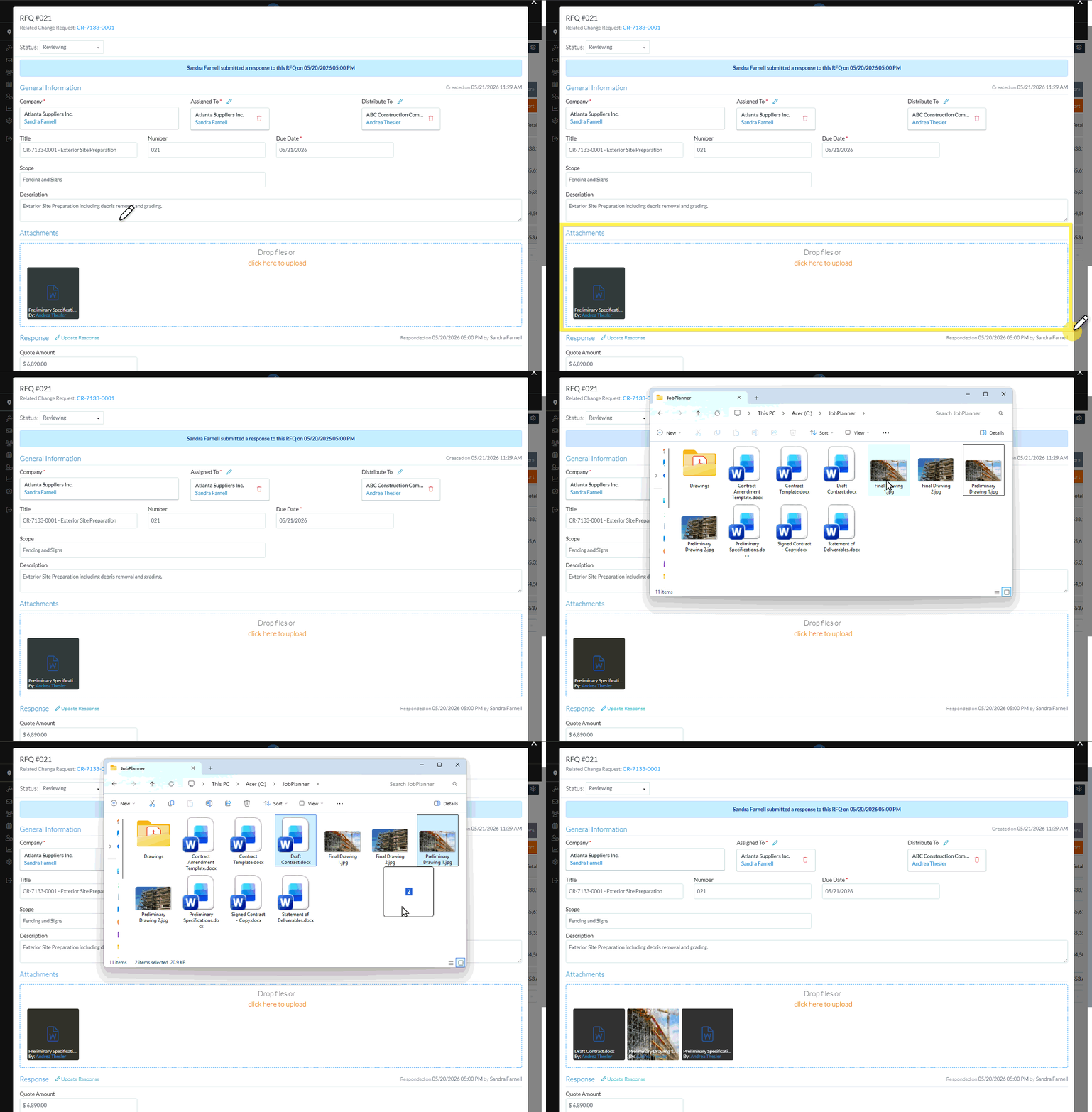
Drag and Drop Files
From a File Explorer window, drag and drop Files into the Attachments blue dotted box (regardless of whether files are uploaded or not). The following example is for when no files are uploaded.
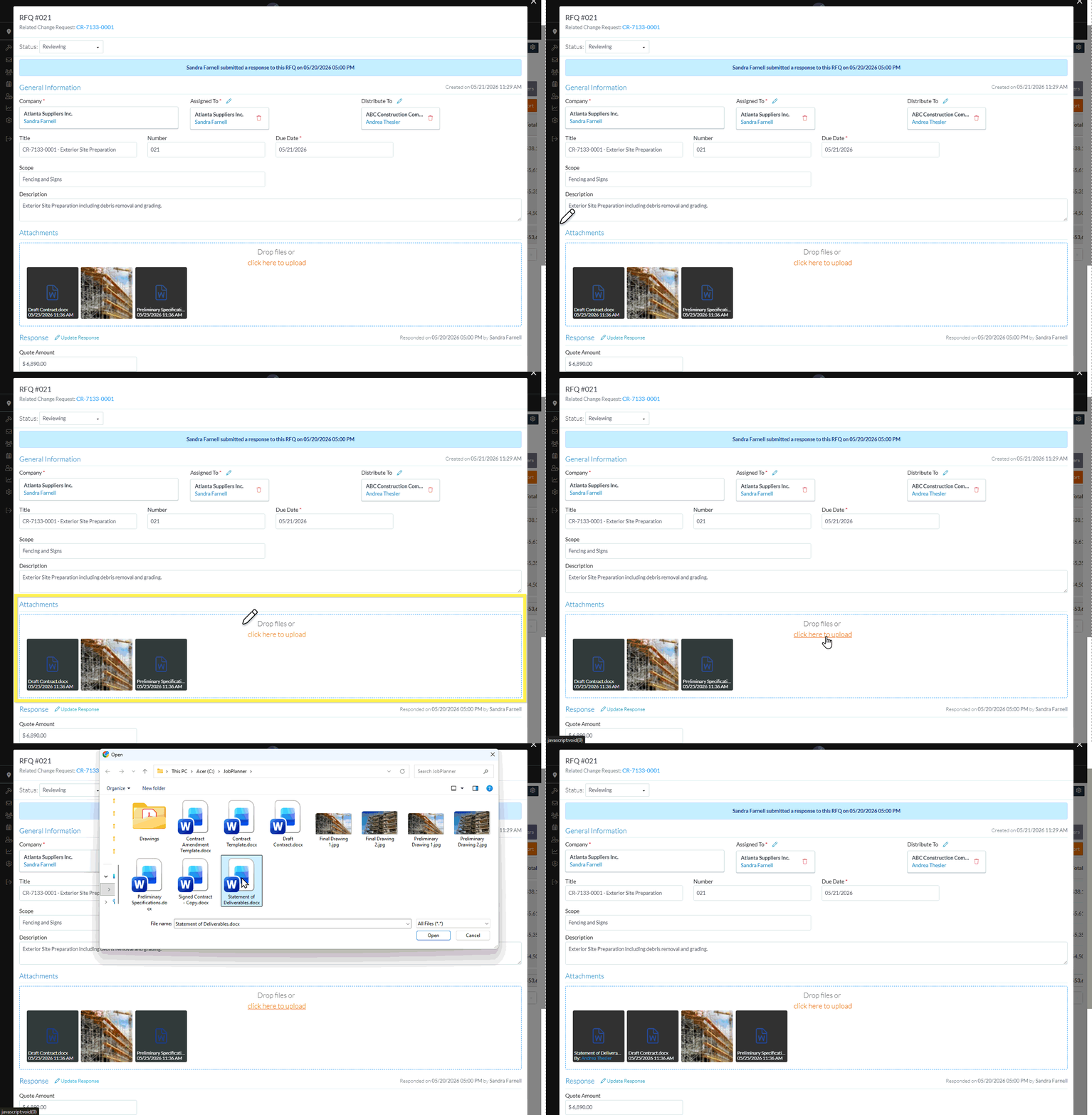
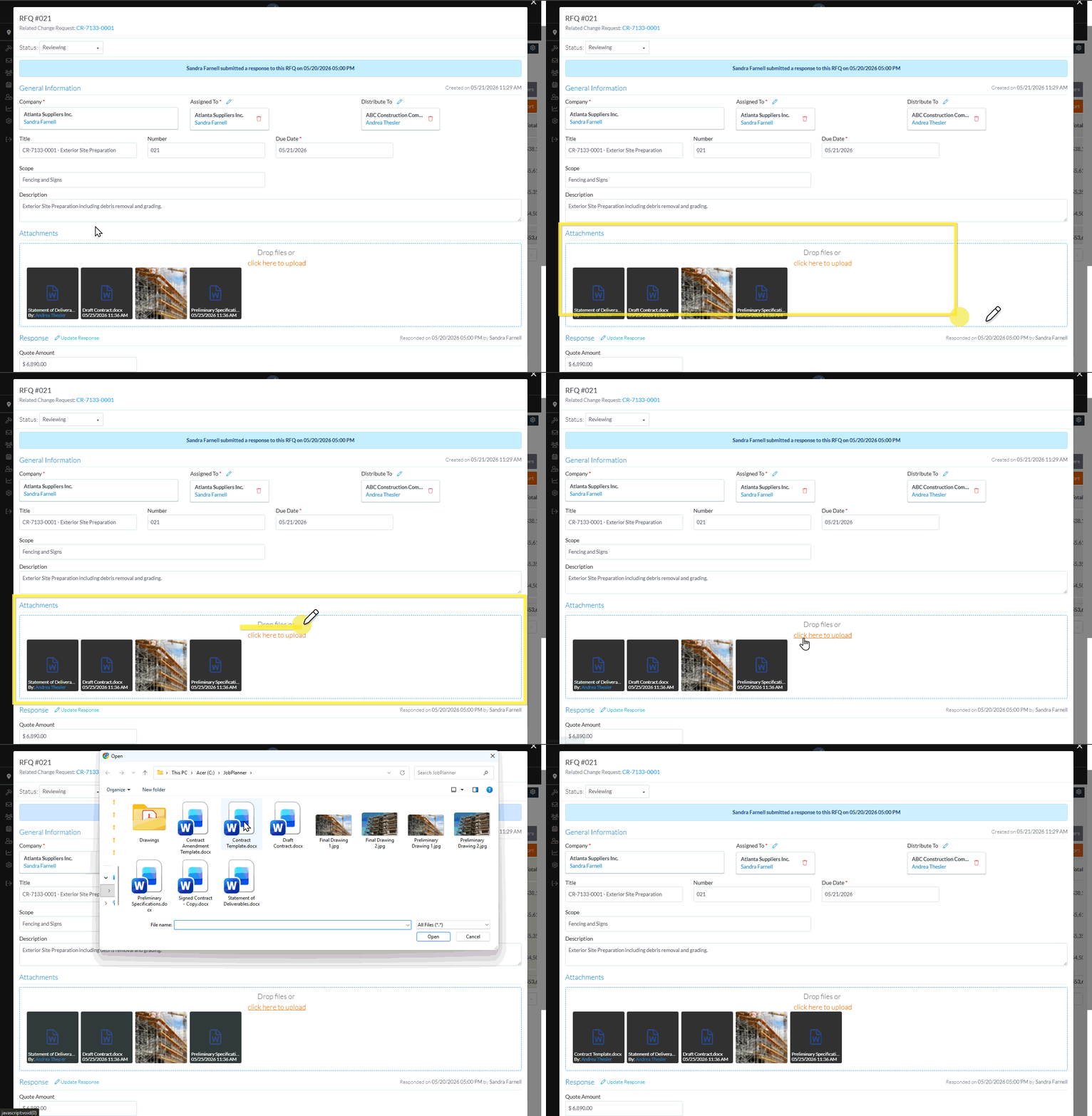
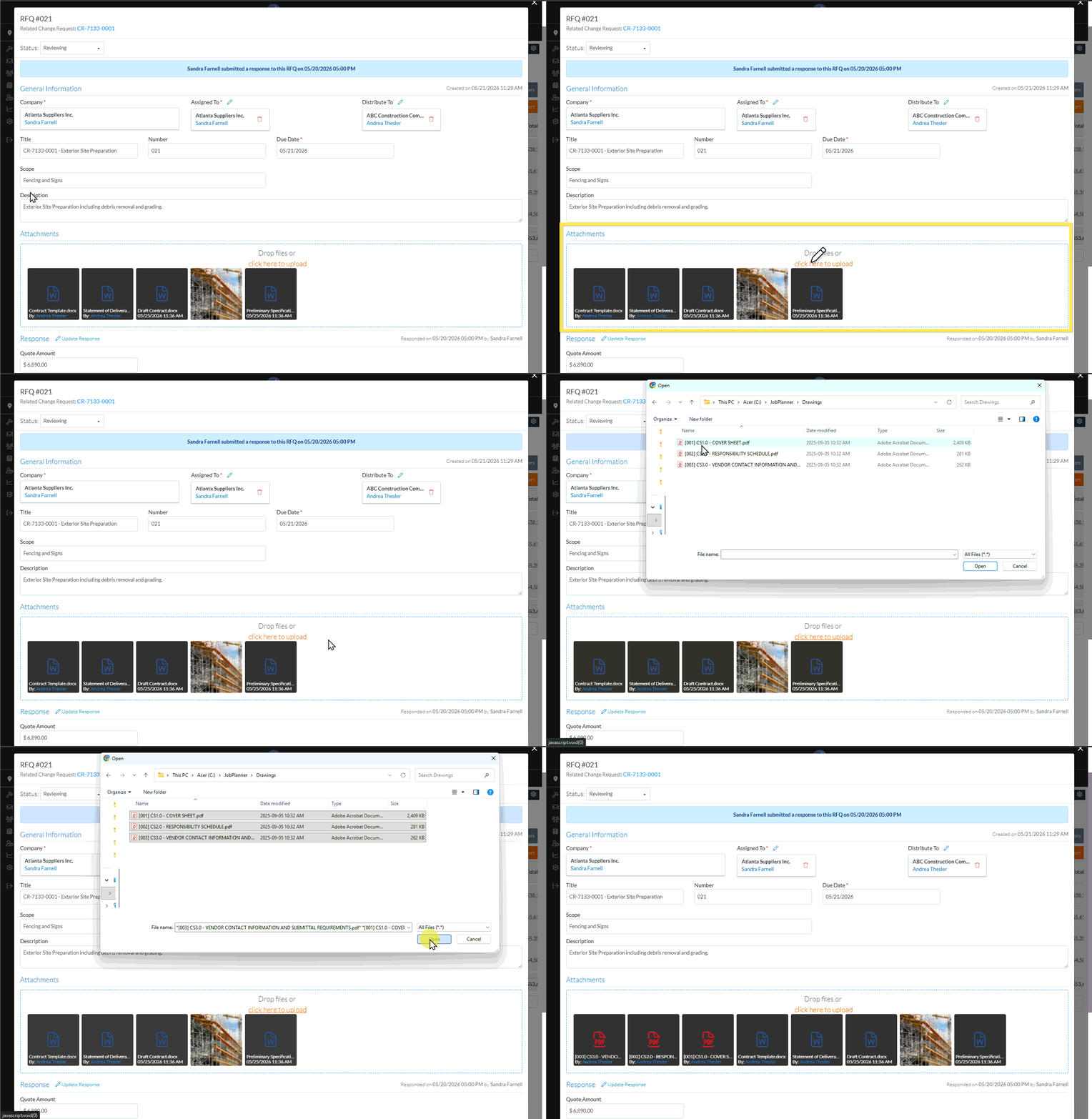
Single or multiple files can be selected and then dragged and dropped. The following example is for when files hafe been uploaded.
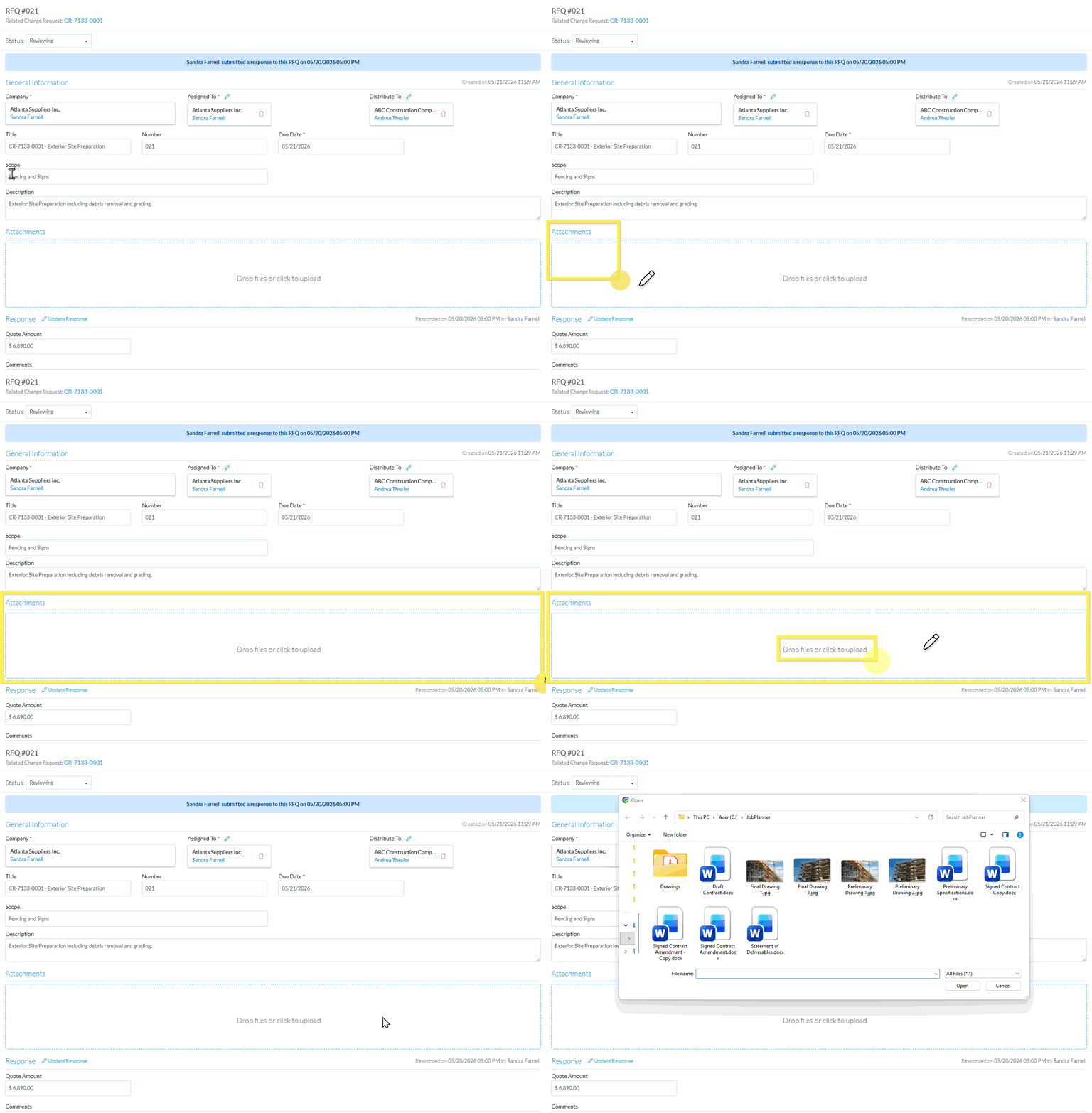
Manually Upload Files
Files can also be manually uploaded.
If no documents have been uploaded and the function has not yet been clicked, click anywhere within the box to invoke the upload. The File Explorer window displays.OR If a document has been uploaded or the function previously clicked, click on the click here to upload text to invoke the upload. The File Explorer window displays.
Select one or more files to upload: Click on a File and click open to select itOR Double Click on a File to select itOR Select multiple files by holding down the Shift button or CTRL button and clicking on the Files and then selecting OpenOR Single or multiple files can be dragged and dropped from here as well once the File Explorer window is displayed (See Drag and Drop above)
Note* Directly after an upload but before the information is saved, the Files can't be viewed (they can be deleted) but not viewed until after the RFQ has been Created and Saved.
Add, Edit or View additional information on the RFQ, see More Information below. OR Click the Save button to save the Attachments and any other changes and close the RFQ - View/Edit form. See Next Steps below. OR Click the Close button to close the RFQ - View/Edit form without saving any changes including Attachments.Click here for more information on the Close function.
If no information was changed or entered, the list the function was invoked from displays, see Next Steps below.
If information was changed, then an additional prompt displays indicating there were changes and there are additional prompts on what to do.
Click the Cancel button to cancel the Close action and return to the RFQ - View/Edit form (see the steps above) OR Click the Don't Save button to cancel changes to the RFQ. The list the was invoked from displays, see Next Steps below. OR Click the Save button to save the RFQ. The list the function was invoked from displays, see Next Steps below.
 Updated

 button to save the Attachments and any other changes and close the RFQ - View/Edit form. See Next Steps below.
 button to close the RFQ - View/Edit form without saving any changes including Attachments.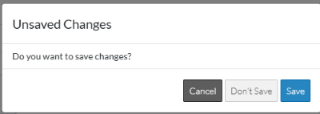
 button to cancel the Close action and return to the RFQ - View/Edit form (see the steps above)
 button to cancel changes to the RFQ. The list the was invoked from displays, see Next Steps below.
 button to save the RFQ. The list the function was invoked from displays, see Next Steps below.