RFQ - View/Edit - Attachments - Delete
 Updated
Suggested Prior Reading
To delete an Attachment
- Hover on the File to delete
- Click on the delete
 button on the item. The file will be removed.
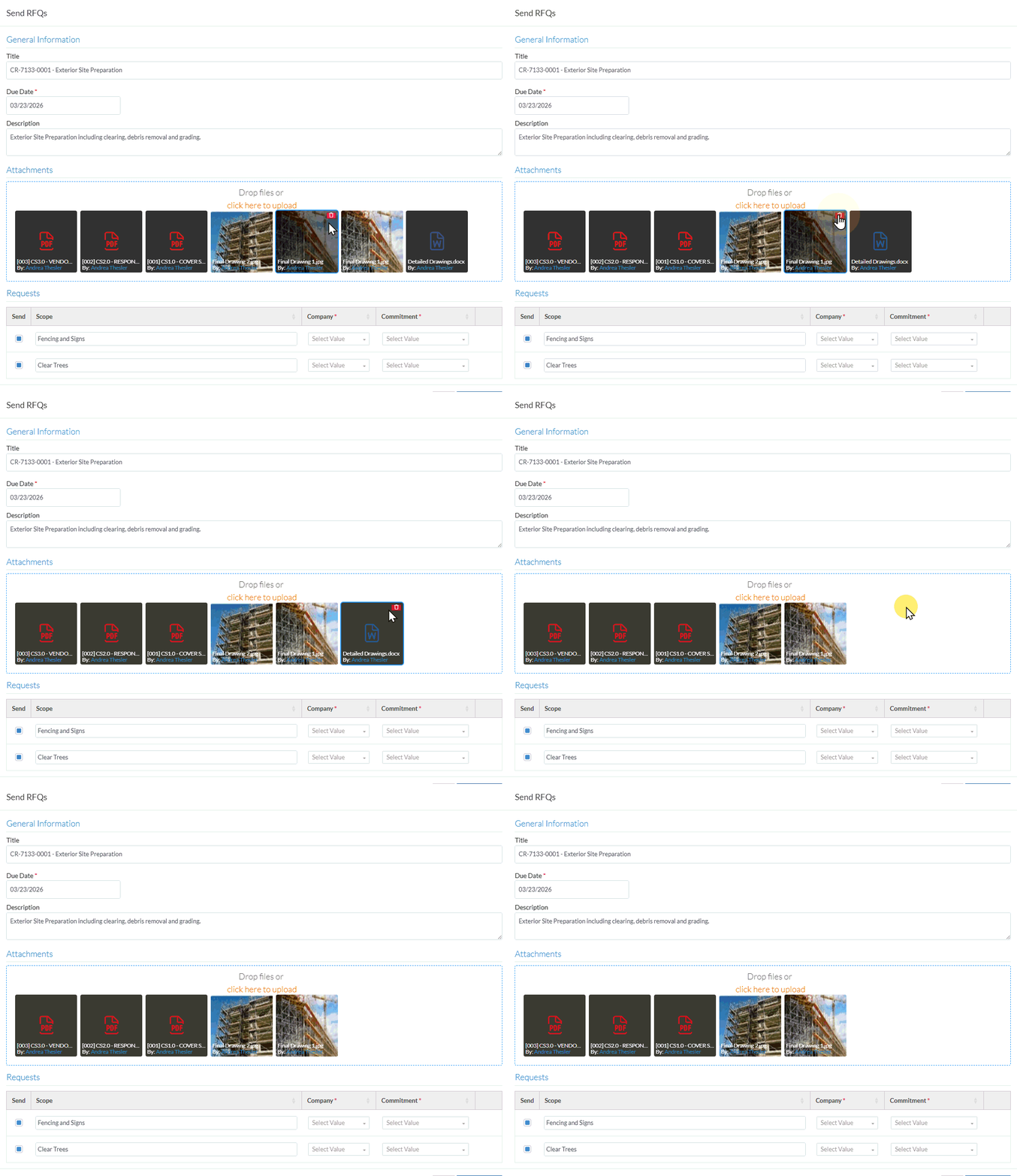
- To upload Attachments, see RFQ - View/Edit - Attachments - Upload.
- Add, Edit or View additional information on the RFQ, see More Information below.
OR
Click the Save button to save the Attachments and any other changes and close the RFQ - View/Edit form. See Next Steps below.
OR
Click the Close button to close the RFQ - View/Edit form without saving any changes including Attachments.
Click here for more information on the Close function.
If no information was changed or entered, the list the function was invoked from displays, see Next Steps below.
If information was changed, then an additional prompt displays indicating there were changes and there are additional prompts on what to do.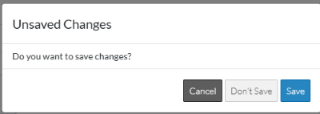
Click the Cancel button to cancel the Close action and return to the RFQ - View/Edit form (see the steps above)
OR
Click the Don't Save button to cancel changes to the RFQ. The list the was invoked from displays, see Next Steps below.
OR
Click the Save button to save the RFQ. The list the function was invoked from displays, see Next Steps below.
More Information
To view or edit General RFQ information, see RFQ - View/Edit - General Information.
To view or update Responses (if available for that Status), see RFQ - View/Edit - Response.
Next Steps
The list the View/Edit was invoked from displays.
- If it was invoked from the Change Request - View/Edit form via the RFQs component, see Change Request Specific RFQs - Overview.
- If it was invoked from the Change Requests on the Project Navigation Menu and via the RFQs in the Lists Navigation Menu, see Change Requests - List of all RFQs - Overview.
