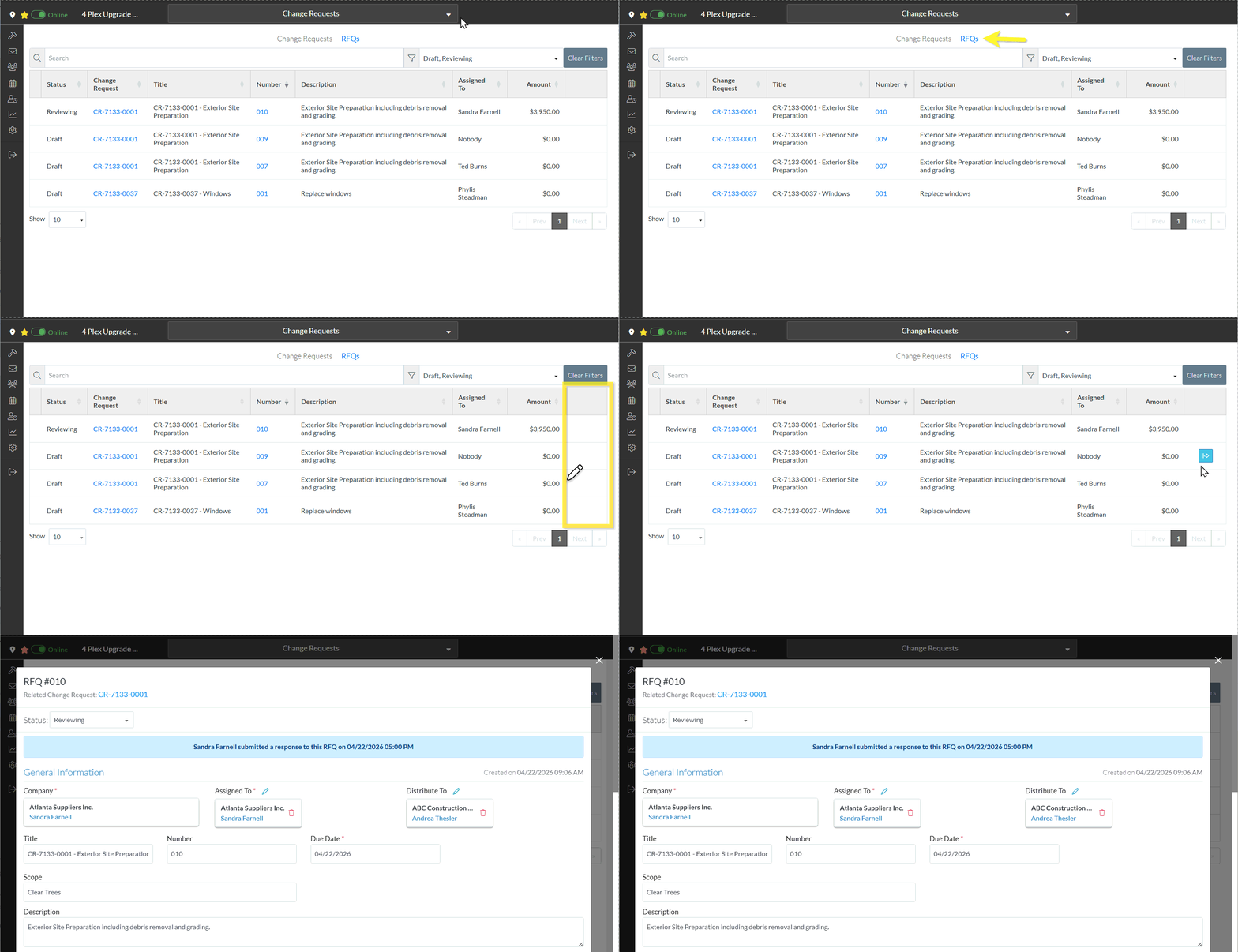
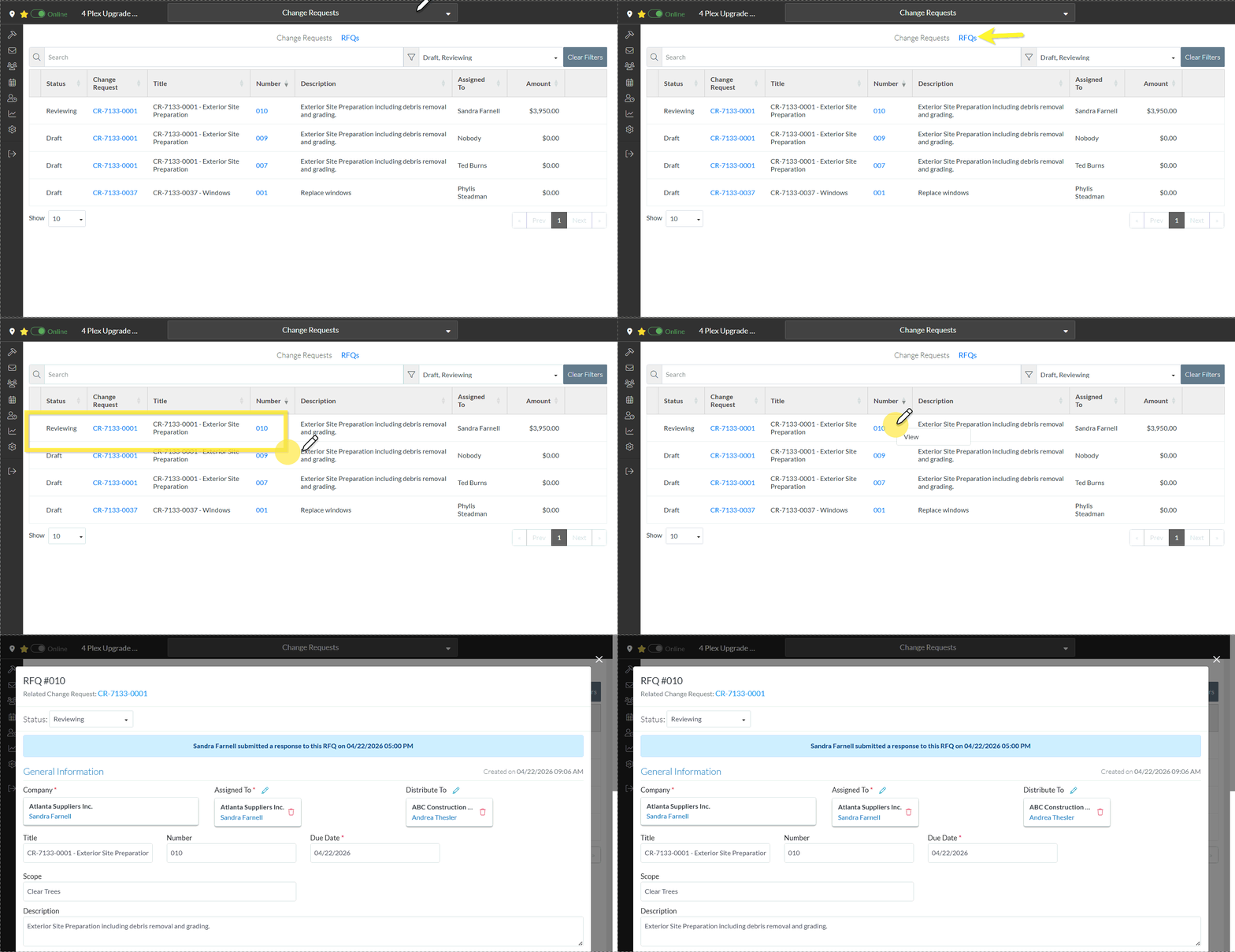
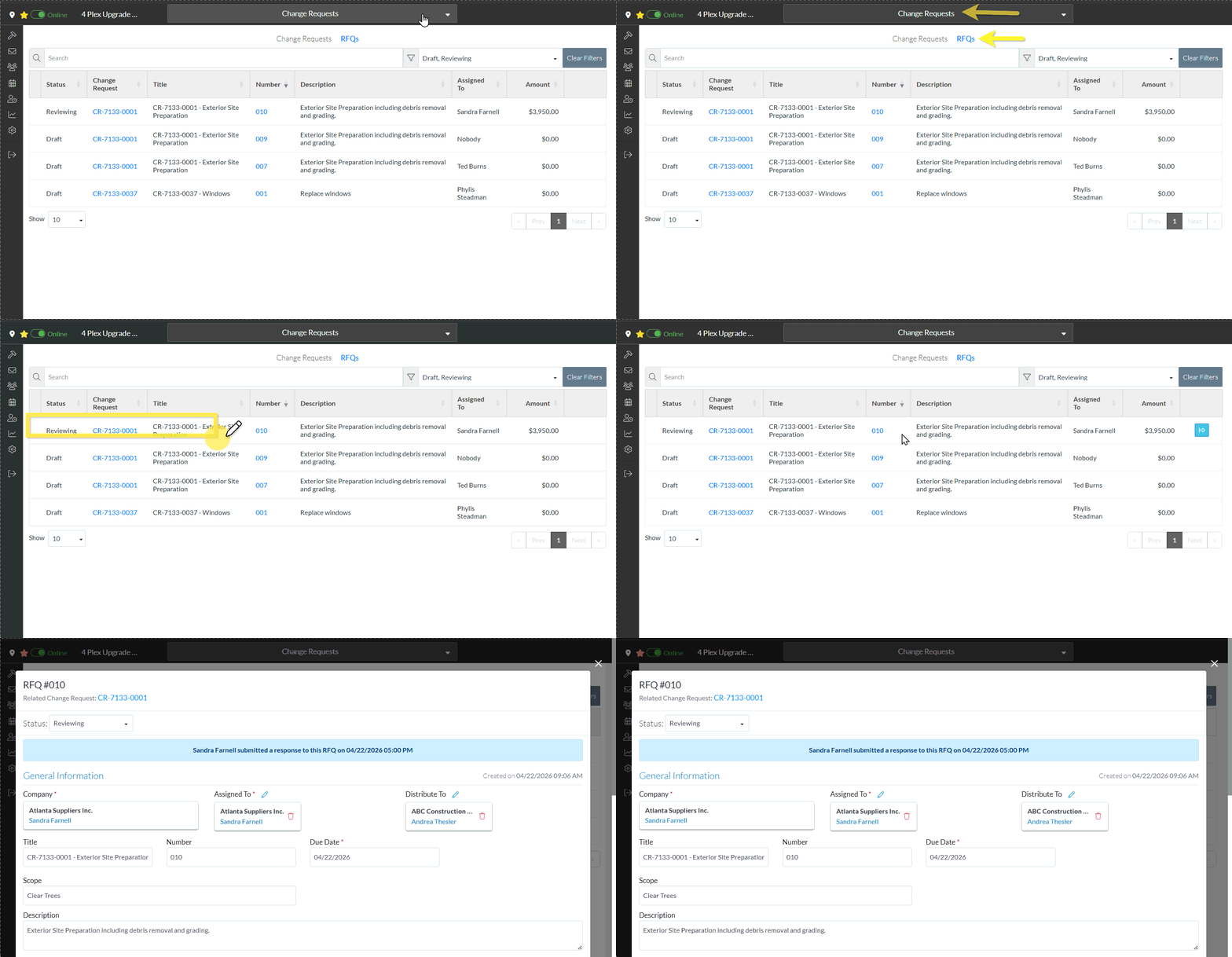
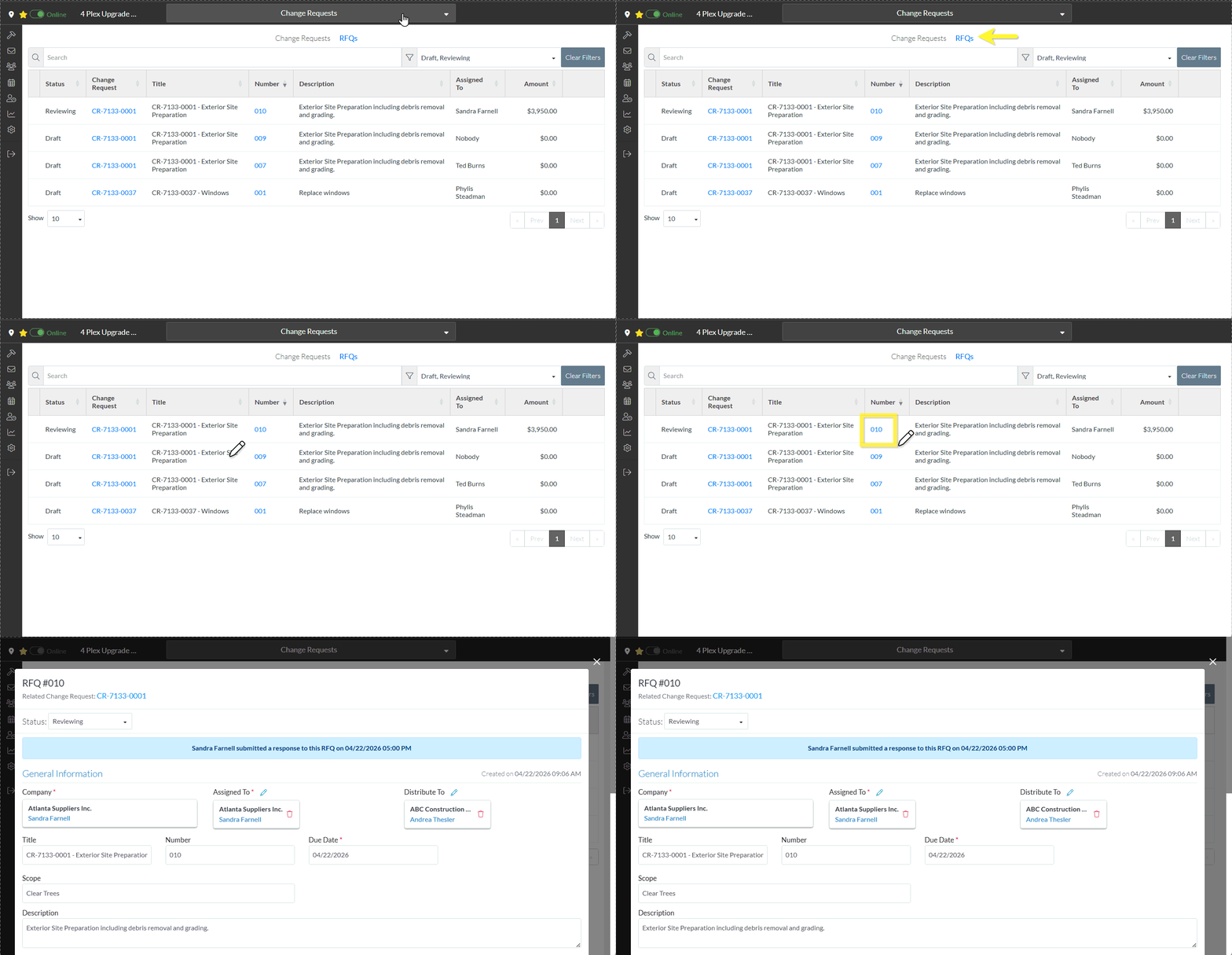
This is help for viewing an existing RFQ from the List of all RFQs accessed from Change Requests on the Project Navigation Menu and via the RFQs in the Lists Navigation Menu.
The status impacts the information about an RFQ that can be edited. (See RFQ – Status for more information).
Edit or View the RFQ by hovering on the RFQ row and clicking on the View button on the RFQ row (in the far right column).OR Right click on a RFQ and select View from the context sensitive pop-up menu.OR Double click on the Change Request RowOR Click on the RFQ number.
The RFQ - View/Edit form displays. The layout and navigation of this form depends on what the current status of the RFQ is.
Click here for more information on the Layout and Navigation of the form for each Status
 Updated
 button on the RFQ row (in the far right column).