RFQ - View/Edit - Layout and Navigation - Reviewing Status
 Updated
Suggested Prior Reading
Create and Manage RFQs - Overview
RFQs -Automatic Status Settings and Functions
Reviewing RFQ
An RFQ in a Reviewing Status, if a Company/Contact has responded with a quote. The quote can be submitted from the Company/Contact themselves via the email that was sent OR the Project Manager/Estimator can manually enter the Response on behalf of the Subcontractor/vendor.
- If the Company/Contact responds via the email and enters the quote themselves, the RFQ status is automatically set to Reviewing and the Response is populated with the details from the Subcontractor/Vendor (see RFQ - View/Edit - Receive Response from Subcontractor/Vendor).
- If the Project Manager/Estimator manually updates the RFQ with a response on behalf of the Subcontractor/Vendor, the RFQ status is automatically set to Reviewing after the Response is entered (see RFQ - View/Edit - Manually Enter Response).
- An RFQ can have the Status manually set to Reviewing (see RFQ - View/Edit - Edit Status to Reviewing)
Top of Form
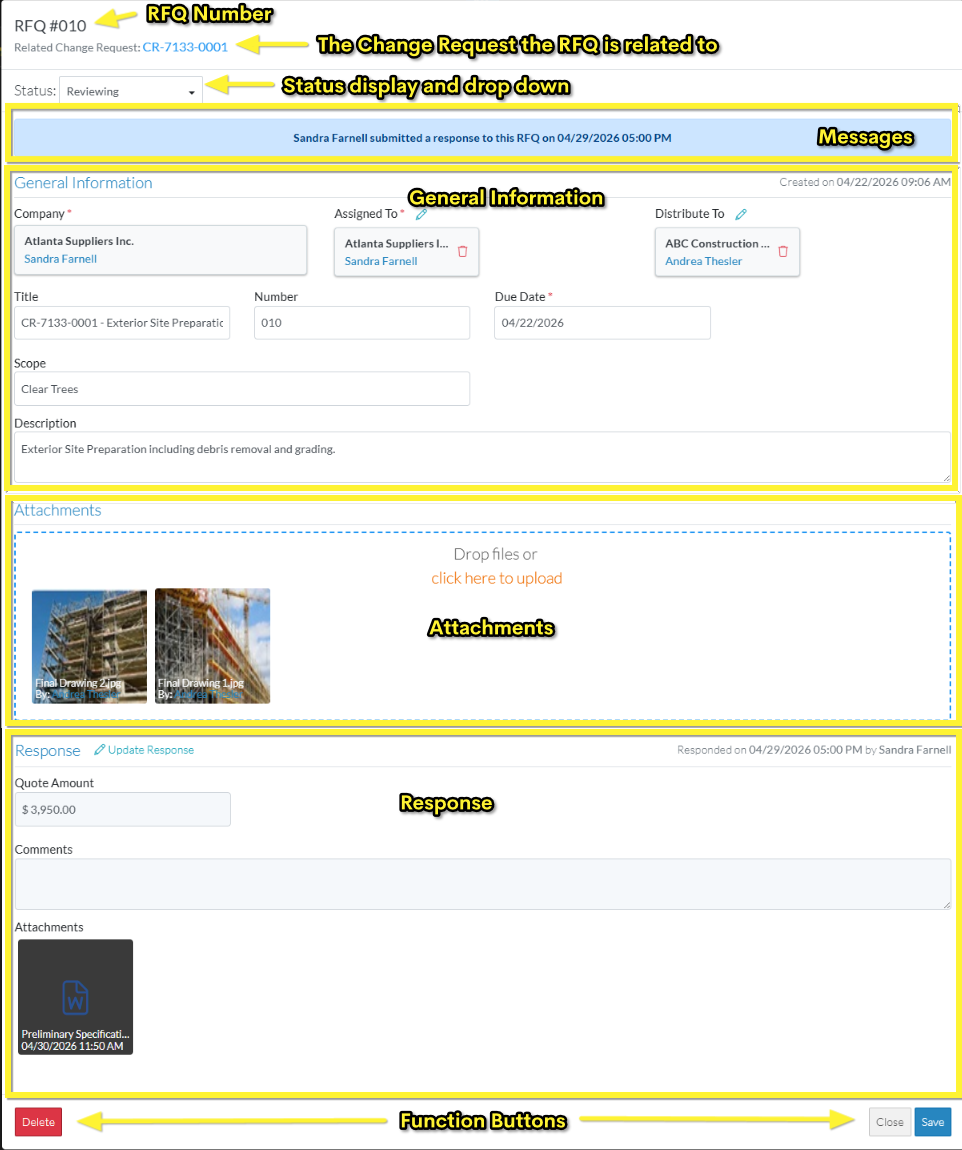
When viewing or editing an RFQ, the RFQ - View/Edit form displays the RFQ Number as the title.
Below that, the Related Change Request for the RFQ displays. The Change Request displays in blue text and the blue text can be clicked on to leave this form and go to the Change Request - View/Edit form (see Change Request – View/Edit - Form Layout and Navigation for more information on the form displayed if the Change Request is clicked on).
Below the RFQ and Change Request is the:
- Status display and drop down- where the Status is displayed and can be changed (if required).
- Messages - Below the Status is a message indicating that a response has been submitted for the RFQ, who submitted the response and the date/time it was submitted.
Middle Section of the RFQ View/Edit Form
The middle section of the RFQ - View/Edit form changes depending on the Status and what functions have been done. For an RFQ in the Reviewing Status the following displays:
- General Information - The Company can not be changed when the RFQ is in the Reviewing Status but other General Information can be. See RFQ - View/Edit - General Information.
- Attachments - Attachments can not be viewed, uploaded and deleted when the RFQ is in the Reviewing Status. See RFQ - View/Edit - Attachments.
- Response - The Response can be viewed and also manually updated. See RFQ - View/Edit - Response.
Bottom Section of the Change Request Form
Function Buttons display at the bottom of the form to:
- Delete the RFQ - see RFQ - Delete
- Close the form (without saving any changes) or Save the RFQ.
Next Steps
View the Response, see RFQ - View/Edit - Response.
Update the Response, see RFQ - View/Edit - Update Response.
Resend the Request, see RFQ - View/Edit - Resend Request.
Set the RFQ to revising if required, see RFQ - View/Edit - Revise Status.
View the General Information, see RFQ - View/Edit - General Information.
View Attachments, see RFQ - View/Edit - Attachments.
Manually change the Status of the RFQ, see RFQ - View/Edit - Edit Status.
Delete the RFQ, see RFQ - Delete.
