RFQ - View/Edit - Receive Response from Subcontractor/Vendor
 Updated
Suggested Prior Reading
Change Request Specific RFQs - View/Edit
OR
Change Requests - List of all RFQs - View/Edit
RFQ - View/Edit - Reviewing Status
Response Submitted by Subcontractor/Vendor
If a Response was submitted by a Subcontractor/Vendor themselves, via responding to the Email that was sent, the RFQ will automatically be set to a Reviewing Status. See RFQ - View/Edit - Reviewing Status for more information.
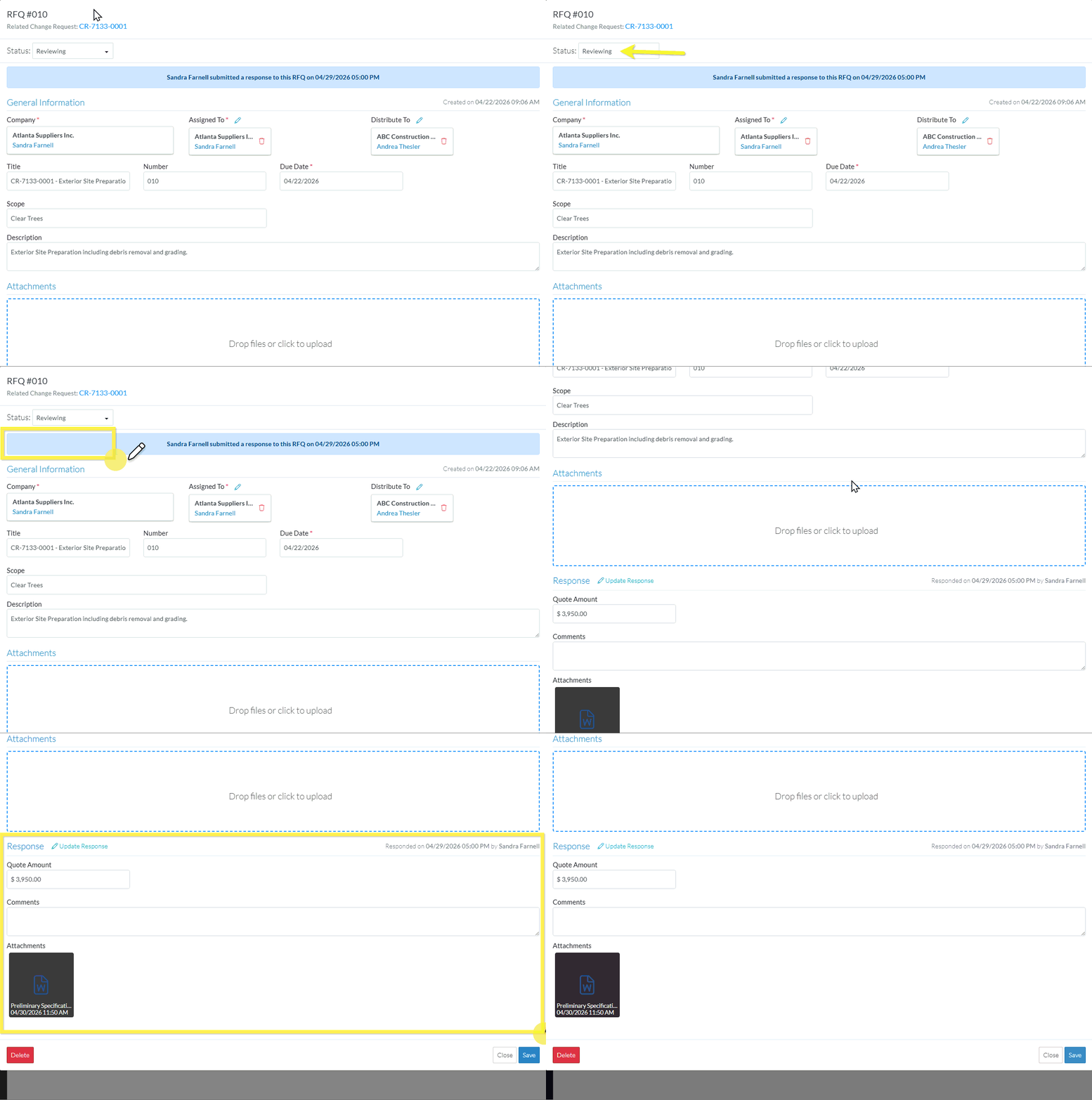
To view the Response submitted by the Subcontractor/Vendor.
- View or Edit the RFQ, see the following for the appropriate list the view/edit is being invoked from:
Change Request Specific RFQs - View/Edit
OR
Change Requests - List of all RFQs - View/Edit
The RFQ - View/Edit form displays.
There will be a blue message bar displaying the Contact who responded and the date and time of the Response.
See RFQ - View/Edit - Layout and Navigation - Reviewing Status for more information. - Scroll to the Response section. For more information on the Response, see RFQ - View/Edit - Response.
- Continue editing the RFQ, see More Information below.
OR
Click the Close button to close the RFQ form, see Next Steps below.
More Information
Update the Response received, see RFQ - View/Edit - Update Response.
Manually set the Status of the RFQ to another Status
Set the Status to Draft, see RFQ - View/Edit - Edit Status to Draft
Set the Status to Reviewing, see RFQ - View/Edit - Edit Status to Reviewing
Set the Status to Revise, see RFQ - View/Edit - Edit Status to Revise
Set the Status to Approved, see RFQ - View/Edit - Edit Status to Approved
Set the Status to Closed, see RFQ - View/Edit - Edit Status to Closed
Delete the RFQ, see RFQ - Delete.
Next Steps
The list the View/Edit was invoked from displays.
- If it was invoked from the Change Request - View/Edit form via the RFQs component, see Change Request Specific RFQs - Overview.
- If it was invoked from the Change Requests on the Project Navigation Menu and via the RFQs in the Lists Navigation Menu, see Change Requests - List of all RFQs - Overview.
