Change Request – View/Edit - Form Layout and Navigation
 Updated
Suggested Prior Reading
Click here for Grouped List View
OR
Click here for Simple List View
Editing a Change Request
This help explains how to view or edit a Change Request.
This form can be invoked from the Change Requests List OR the Contracts - List of all Change Requests and there are also different views that can be set for All Change Requests Lists. See All Change Requests Lists - Views Examples to determine which view is set for the organization, then see the above Suggested Prior Reading for the applicable view and list).
For either of the lists or for either View, once the view/edit function is invoked, the Change Request - View/Edit form is the same.
The status impacts the information about a Change Request that can be edited. (See Change Request – Status for more information).
Change Requests are made up of multiple components:
- General Information (such as Client, Title, Number, Scope, Revenue Source and Description)
- Schedule of Values (the details about the Change Request)
- Financial Markups (for the Change Request)
Each of these components display on a form that has a static top section and static bottom section, then the middle section changes to display the component selected.
Form Navigation Menu Options (that display in the static top section) are used to change what components is displayed in the middle section.
This help describes the:
- The top of the Change Request Add Form (which doesn't change)
- The bottom of the Change Request Add Form (which doesn't change)
- The Form Navigation Menu Options (to toggle between components)
- The middle section of the Change Request Add Form (which changes depending on what component is selected)
Top of the New Change Request Form
When viewing or editing a Change Request, the Change Request - View/Edit form displays that as the title.
Below that, the Related Contract for the Change Request displays. The Contract Number displays in blue text and the blue text can be clicked on to leave this form and go to the Contract - View/Edit form (see Contracts - View/Edit for more information on the form displayed if the Contract Number is clicked on).
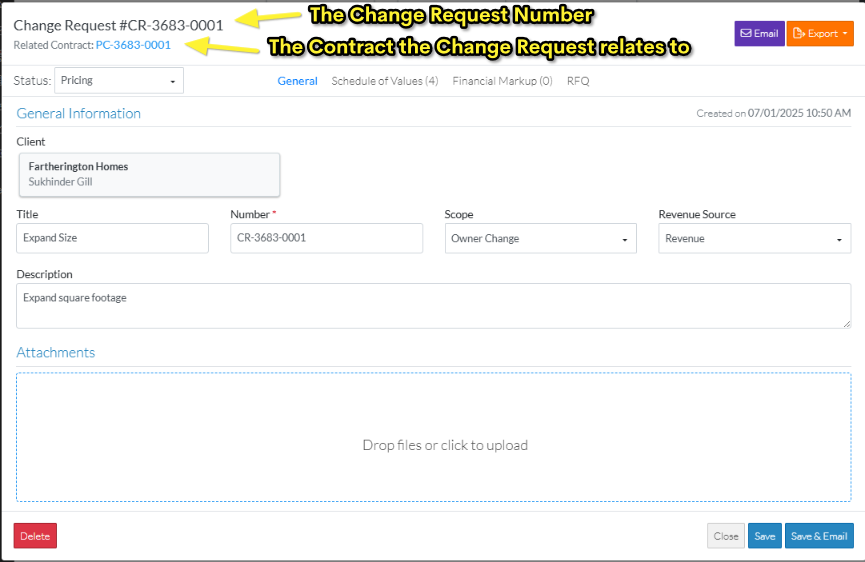
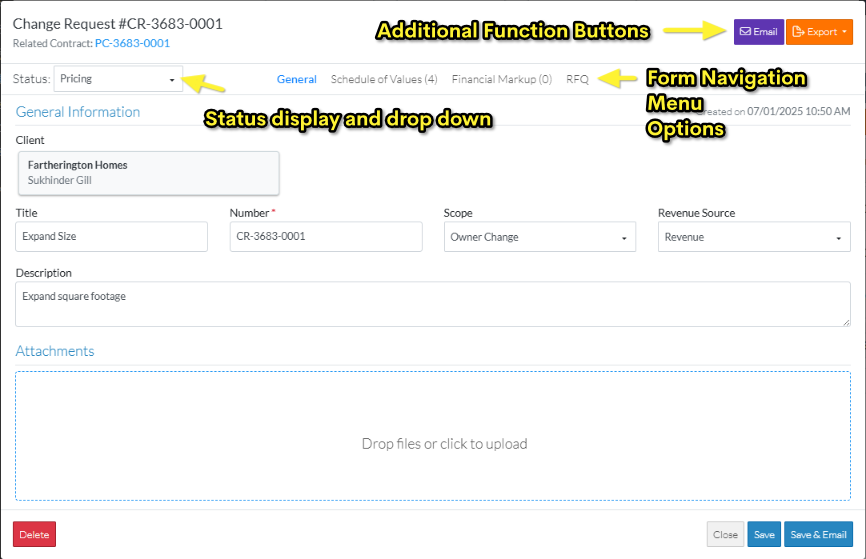
Across from the Change Request Number are additional functional buttons:
- Email – to send an email with a link to the Change Request information
- Export – to export the Change Request information to a PDF
Below the top row are the following:
- Status display and drop down- where the Status is displayed and can be changed (if required)
- Form Navigation Menu Options - this is used to toggle between the different components of the Change Request.
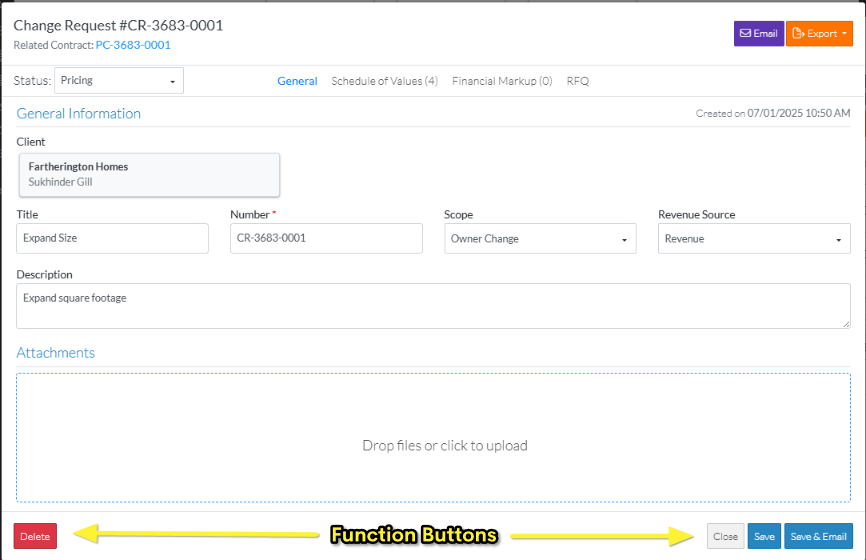
Bottom Section of the Change Request Form
The Function Buttons to Close the form, Save the Change Request (and all its Components) or Save and Email the Change Request (and all its Components) are also displayed at the bottom of the form.
Depending on the status of the Change Request, additional buttons such as the Delete button may also appear at the bottom of the form. The Change Request is deleted by clicking this button from this form.
Form Navigation Menu Options (to toggle between components)
The Form Navigation Menu options are used to toggle between the different components of the Change Request.
The example below show all options available. Depending on the Permissions set for the user, not all menu options may display. If a menu option doesn't display, it means the user does not have permissions to access that.
The currently selected component is highlighted in blue writing.
Click on the text on the Form Navigation Menu to toggle between the components (if a component is hovered on but not selected, it appears light blue).
The ability to edit the different components of the Change Request depends on the Status. See Change Request – Status for the details on what can be edited and when.
The menu options may appear with a () and a number next to it. This is the number of items in that section.
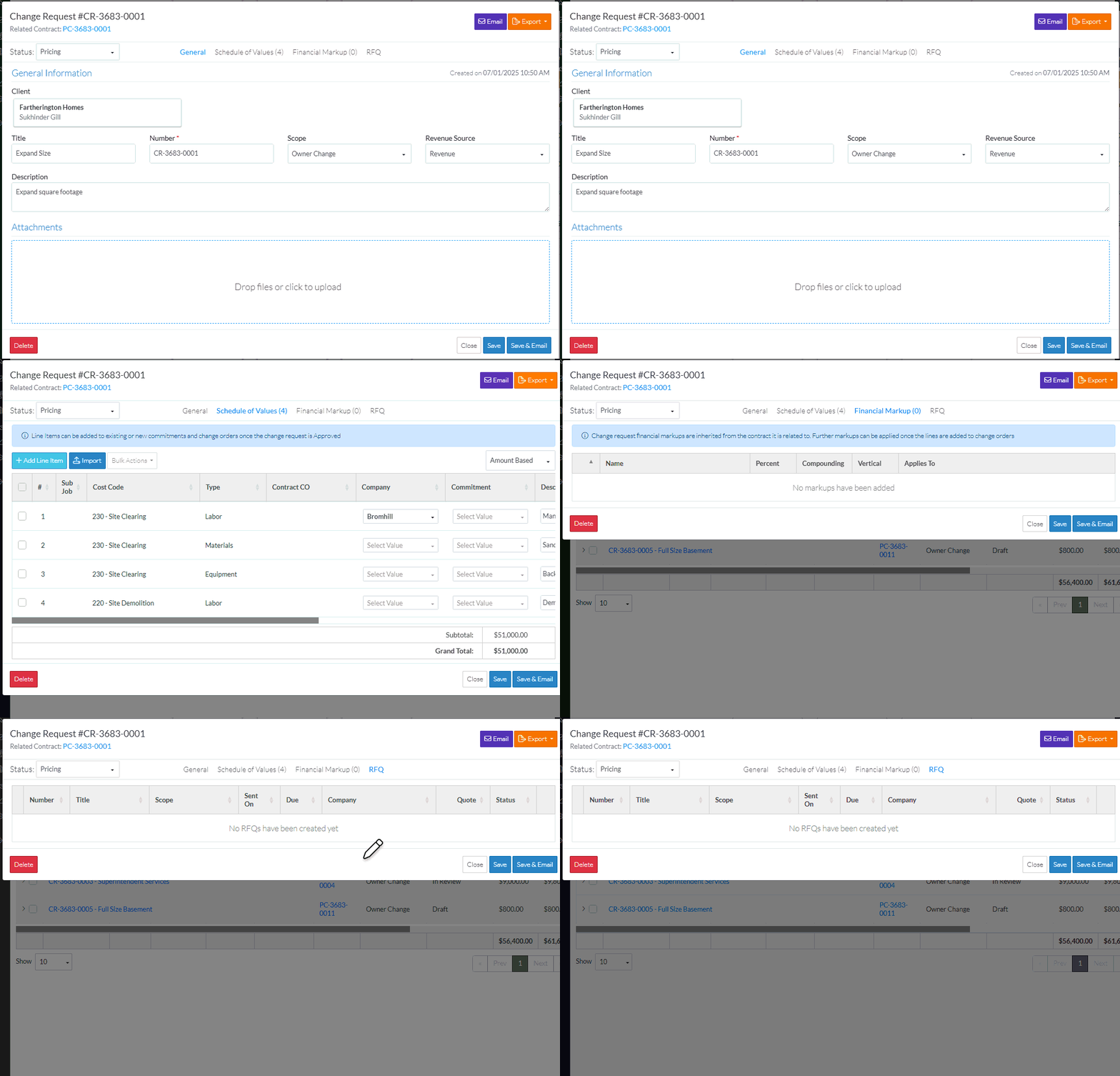
When toggling between components, the top and bottom static sections of the form don't change.
The Status can be changed when any of the Change Request Components are displayed. This changes the status and also automatically saves the entire Change Request (General, Schedule of Values and Financial Markups). The display of the components may change to correspond to the functionality available with the Status.
The Change Request can be saved, saved and emailed or closed when any of the Change Request components are displayed (and the function either cancels all changes on all forms and components if closed, or saves changes on all forms and components if saved or saved and emailed).
Middle Section of the Change Request View/Edit Form
The middle section of the Change Request - View/Edit form, changes depending on what Component is selected on the Form Navigation Menu Options (see above).
The General component is displayed by default when the View/Edit function is initiated.
Next Steps
Set the Status if required, see Change Request - Edit - Status.
Enter or Change general information about the Change Request, see Change Request - General.
Create or manage Change Request Schedule of Values, see Change Request - Schedule of Values - Overview.
Create or manage Change Request Financial Markups, see Change Request - Financial Markups - Overview.
Create or manage RFQs, see RFQs - Overview.
