Change Requests List - Change Request - View/Edit (Simple List View)
 Updated
Suggested Prior Reading
Change Requests - Multiple Lists and Views
Change Requests List - Accessing
Change Requests List - Overview
Change Requests List - Layout and Navigation (Simple List View)
To View or Edit an Existing Change Request
This is help for viewing or editing an existing Change Request from the Change Requests List.
Note* There are multiple ways to access Change Requests and multiple views that can display, see Change Requests - Multiple Lists and Views for more information. This help is for the Simple List View.
The status impacts the information about a Change Request that can be edited. (See Change Request – Status for more information).
- Access the project, see Project - Accessing.
- Access the Change Requests List, see Change Requests List - Accessing
- If required, Search, Filter and/or Sort Columns to navigate the List of Change Requests and locate the Change Request to view/edit.
- Edit or View the Change Request by hovering on the Change Request row and click on the View
 button on the row (in the far right column).
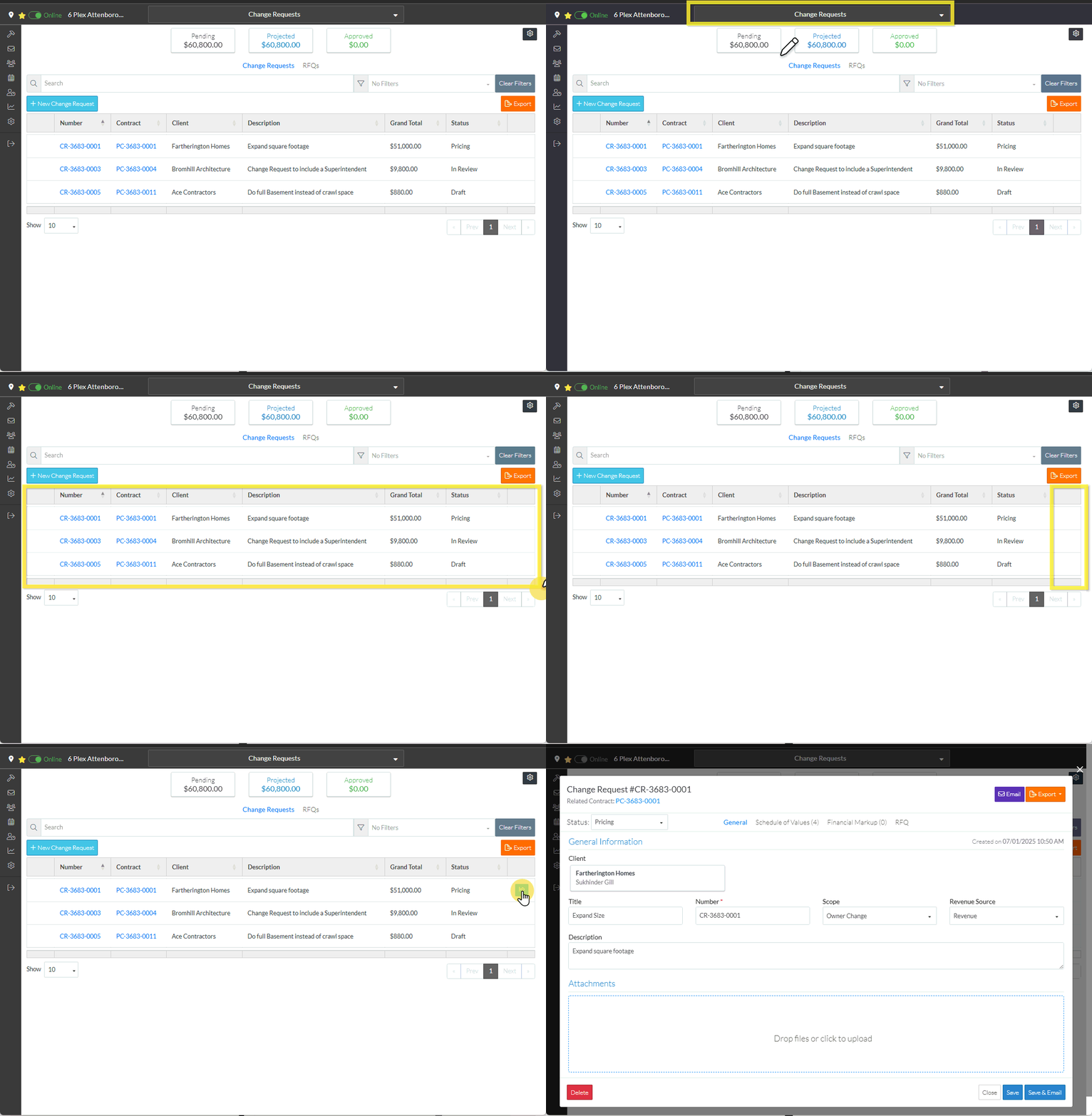
OR
Right click on a Change Request and select View from the context sensitive pop-up menu.
Note* the context sensitive pop-up menu may have different options depending on the status of the Change Request.
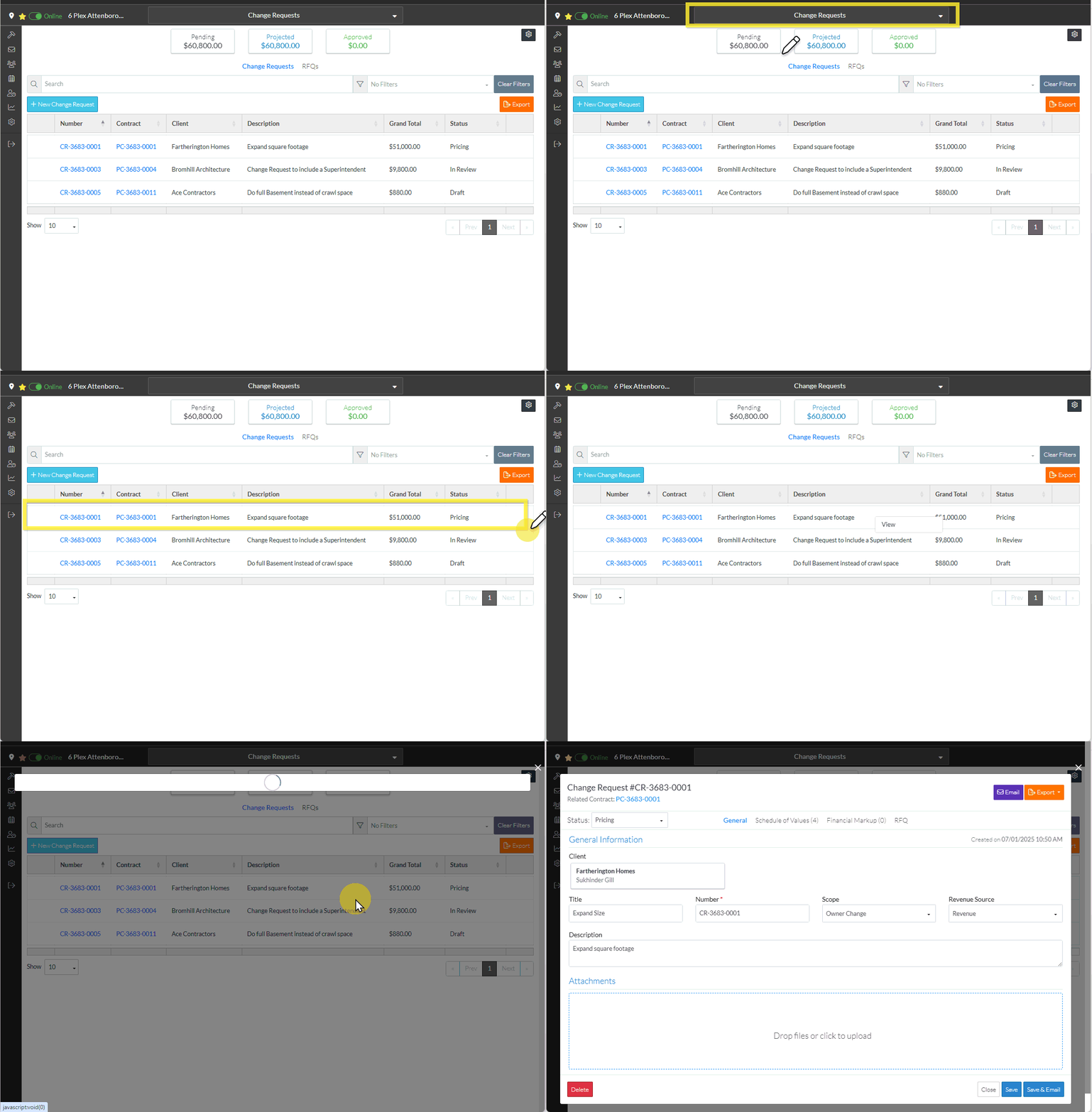
OR
Double click on the Change Request Row.
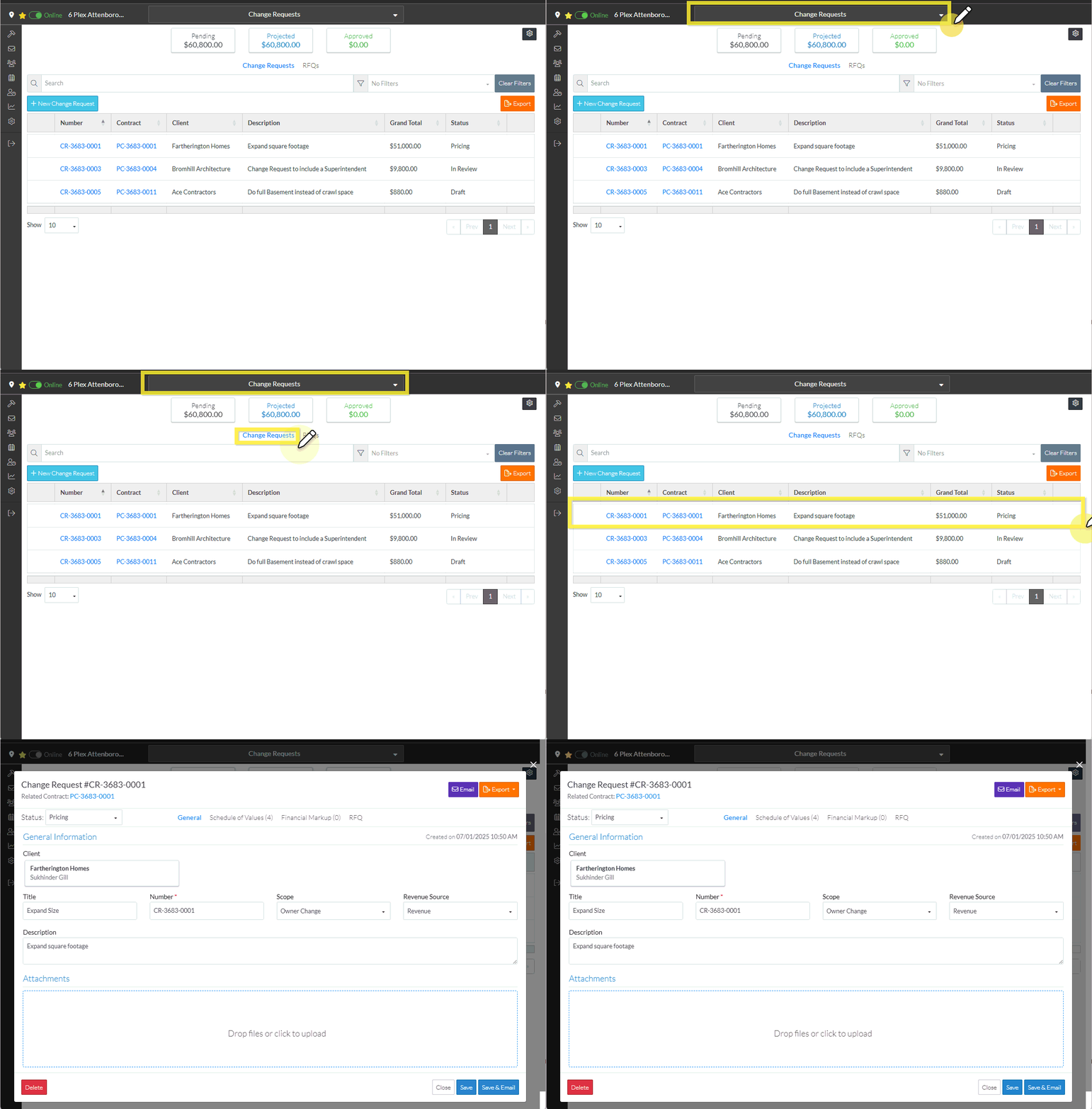
The Change Request - View/Edit form displays.
The Related Contract Number displays below title (it can be clicked on to go to the Contracts - View/Edit form).
The current Status is displayed below that.
The General component displays by default after the edit is initiated but other Components can be switched to via the Form Navigation Menu Options.
See Change Request – View/Edit - Form Layout and Navigation for more information on the layout and navigation.
Next Steps
Enter or view the information as required, see Change Request - Edit - Steps.
