Change Requests Lists -Search and Filter Options - Simple List View
The Change Requests Lists can be searched and/or filtered to narrow the list.
Note* There are multiple ways to access Change Requests and multiple views that can display, see Change Requests - Multiple Lists and Views for more information. This is help for both the Change Requests List AND the Contracts - List of all Change Requests in the Simple List View (see Suggested Prior Reading for more information).
There are options to:
Enter Text to Search For
and/or
Filter the list by Status
Multiple selections can be made from the Filter drop down. If more than on Status is selected, then it is an OR relationship between Statuses. (i.e. display if “Draft” OR “Approved”).
If search text is entered and filter(s) applied, an AND logic is applied: it must match the search criteria AND at least one of the status filters set.
There is also a Clear Filters button to quickly remove any search criteria entered and to reset the Status Filter to the default settings.
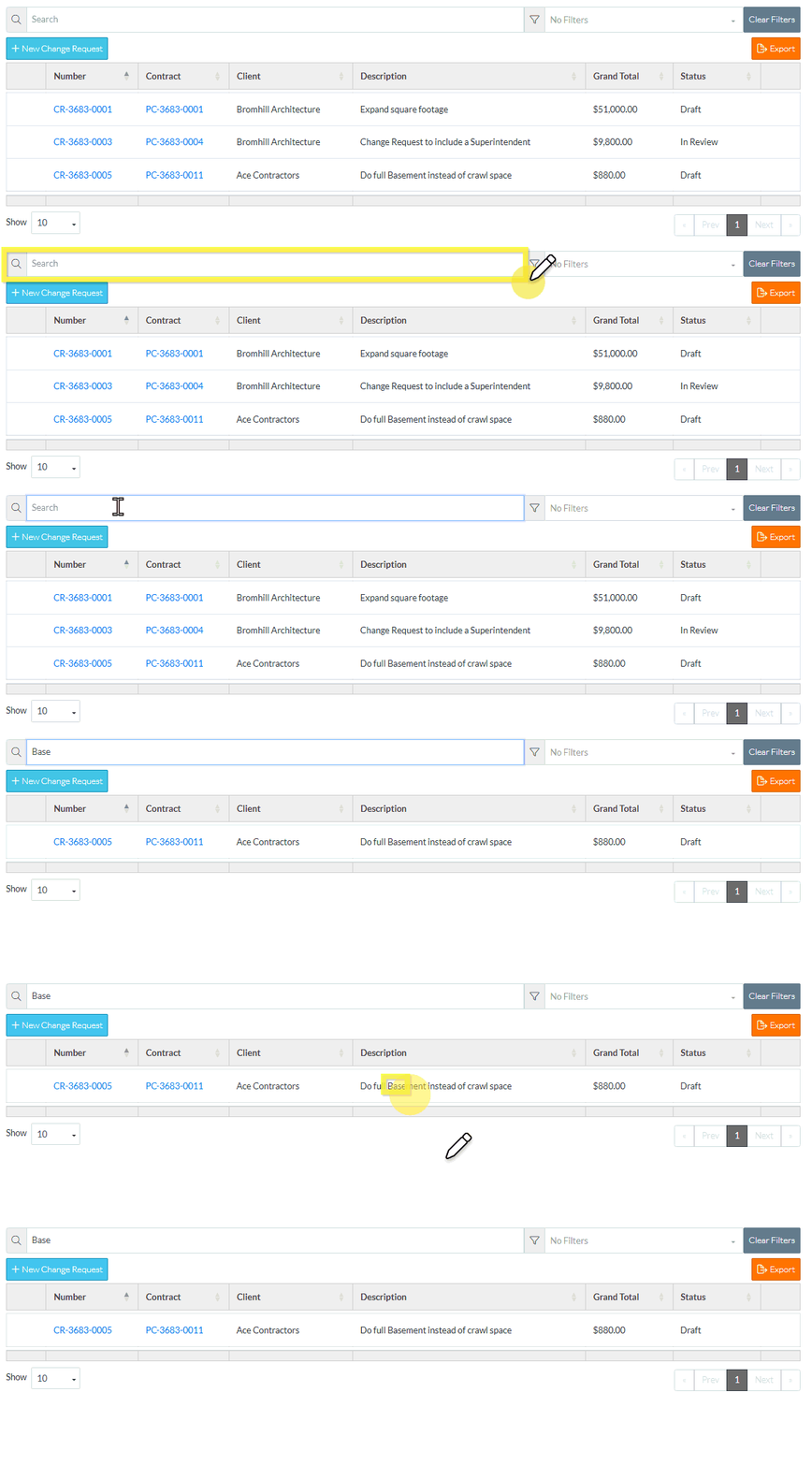
Enter Text to Search For
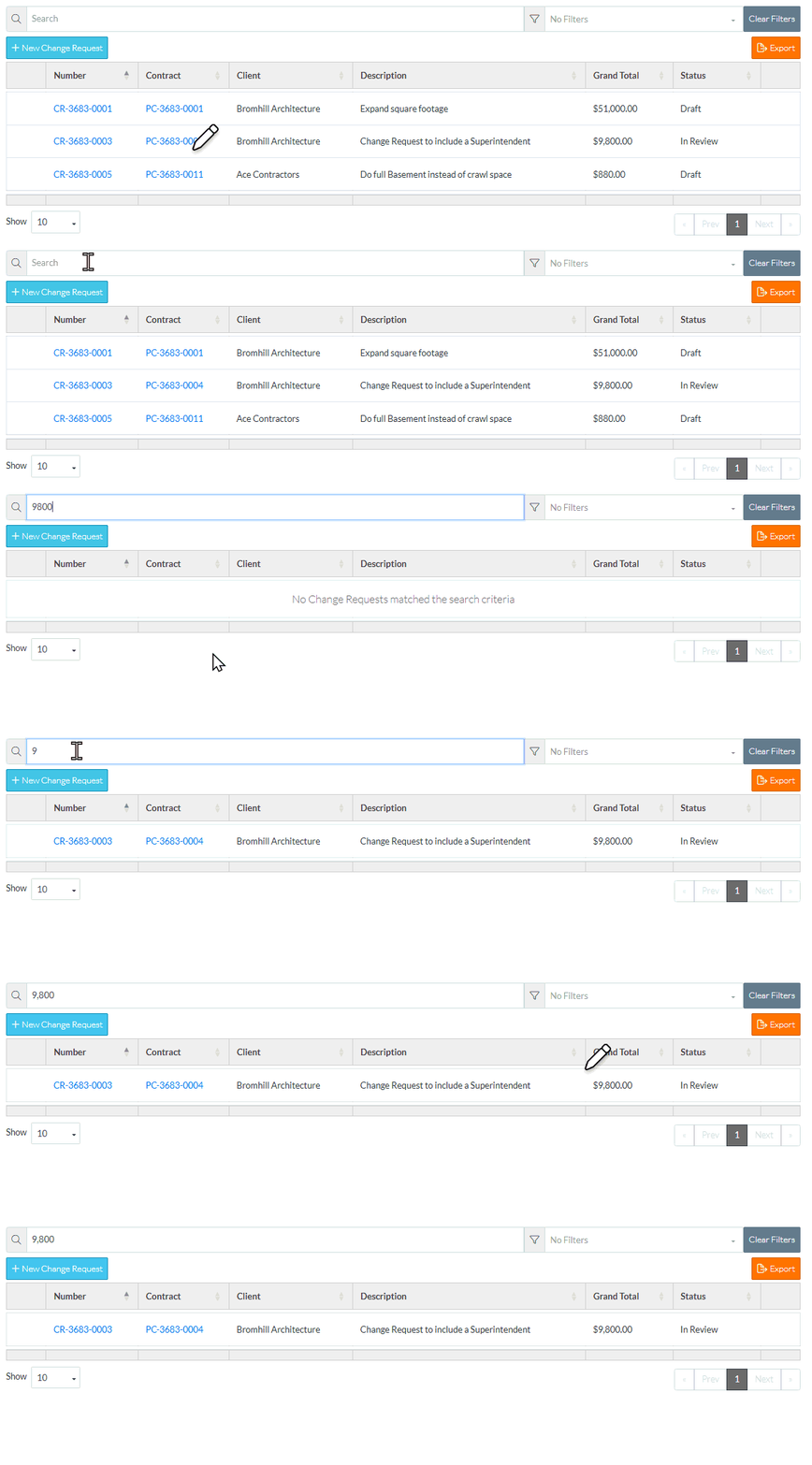
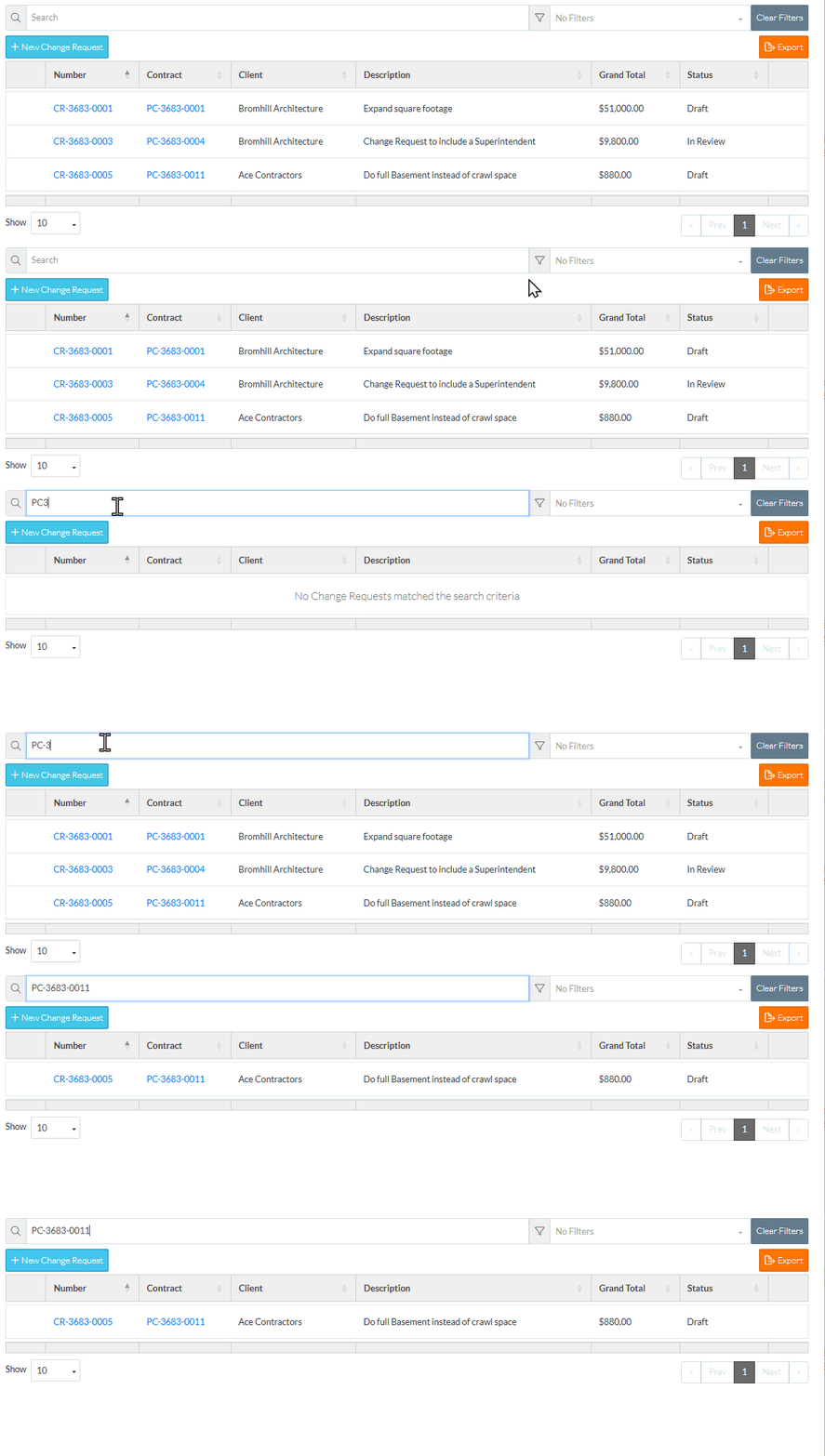
Click in the Search box and type in the text to search for. Any of the columns that are displayed will be searched including text, dates and amounts. As characters are entered, the list updates to show only those Change Requests that match what is entered (so partial searches can be entered).The search criteria has to be in the same format as column; for example "7,500" (with the comma) and not just "7500". Because the system does partial searches, the $ for a value does not need to entered, but can be. For example, either "7" or "7," or "7,5" or "7,50" or "7,500" or "$7" or "$7," or "$7,5" or "$7,50" or "$7,500" or "7,500.00" or "$7,500.00" would fine a Change Request with $7,500.00 in a value column. Dates need the slashes such as "09/01". The item would be found as well if "09" or "09/" or "09/1" or "9/1" or "9/10" or "9/1" was entered.To find a certain Change Request or all the Change Requests for a certain Contract, the Change Request Number or Contract Number can be entered in the search text (either partially or the full number using the Number Format specified). In the example above, to find all Change Requests for a certain Contract, enter "PC-3683-0011" to find the Contract (or a partial entry of that) but entering "PC36830011" will not find the Contract. For more on the Number Formats, see Settings - Contracts - Contract Settings OR Settings - Change Requests - Change Request Settings - Number Format.
This search is applied temporarily. When the list of all Contract Change Requests is closed and reopened, the search criteria will be removed.
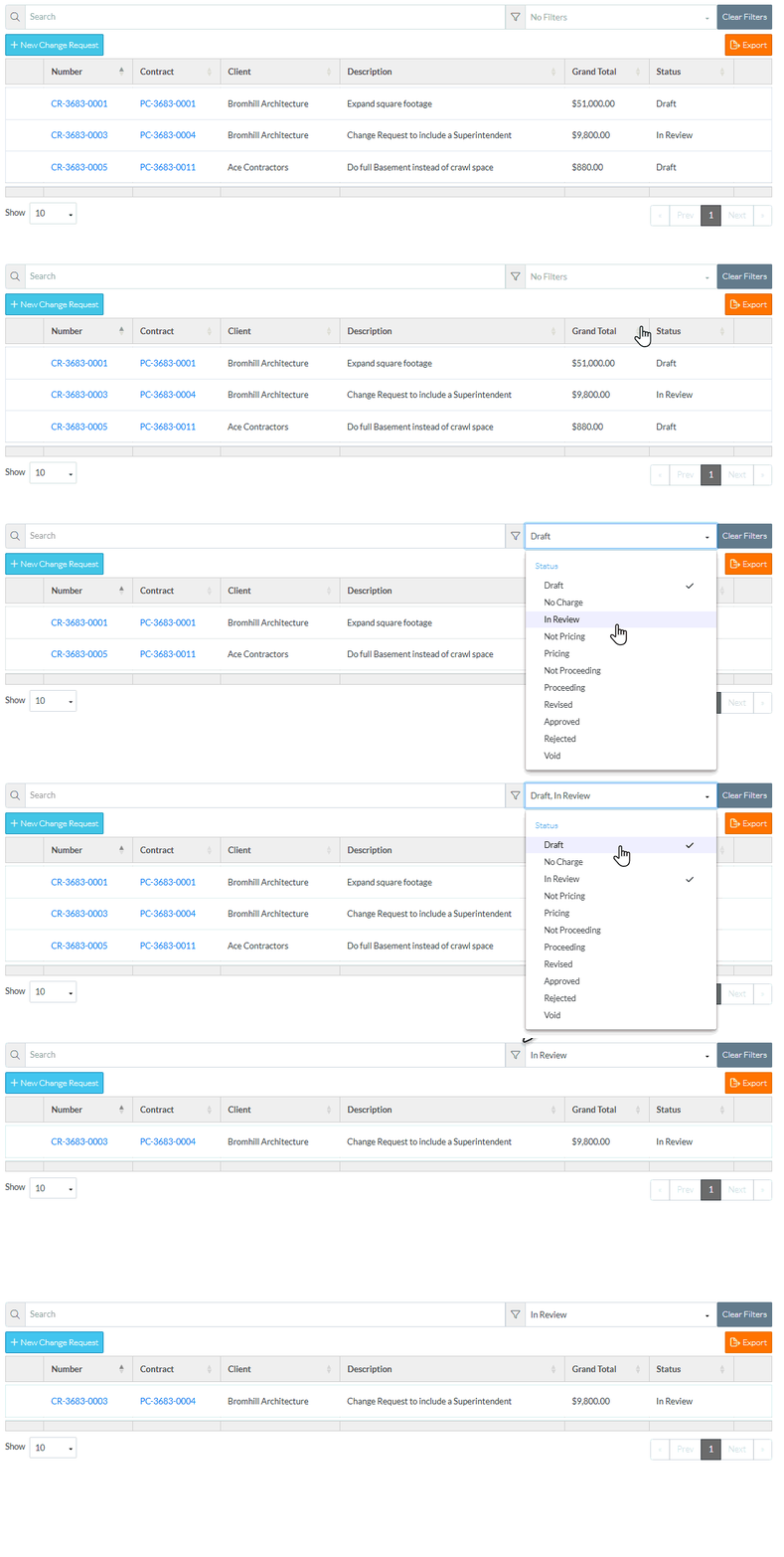
Filter the List by Status
Click on the Filter drop down.
Click on the Status. A check mark appears to the right of the selection. The list updates to show only those Contract Change Requests that match what is entered.
Click on more than one Status if required. A check mark appears to the right of each selection. The list updates to show only those Contract Change Requests that match what is entered.
Click on a Status with a check mark to toggle it off (the check mark is removed).
Click outside of the Filter box when the filters are set.
The drop down list disappears. The filters currently applied display in the filter box.
This filter will be applied temporarily. When the list of all Contract Change Requests is closed and reopened, the filter criteria is reset to the default.
Clear the Search Criteria and reset Status criteria to the default
Click the Clear Filters button to remove any search criteria entered and to reset the Status Filter to the default settings (see Change Requests List - Settings (Simple List View) to see or change the default settings).
 Updated
 button to remove any search criteria entered and to reset the Status Filter to the default settings (see Change Requests List - Settings (Simple List View) to see or change the default settings).