Contracts - List of all Change Requests - Layout and Navigation (Simple List View)
 Updated
Suggested Prior Reading
Change Requests - Multiple Lists and Views
Contracts - List of all Change Requests - Accessing (Simple List View)
Contracts - List of all Change Requests - Overview (Simple List View)
Contract - List of all Change Requests - Layout and Navigation - Simple List View
This Contract - List of all Change Requests displays all Change Requests for the Project in a Simple List view (one row per Contract).
Note* There are multiple ways to access Change Requests and multiple views that can display, see Change Requests - Multiple Lists and Views for more information. This is help for accessing Change Requests from the Contracts List, from the Change Request Component and for the Simple List View (see Contracts - List of all Change Requests - Accessing (Simple List View).
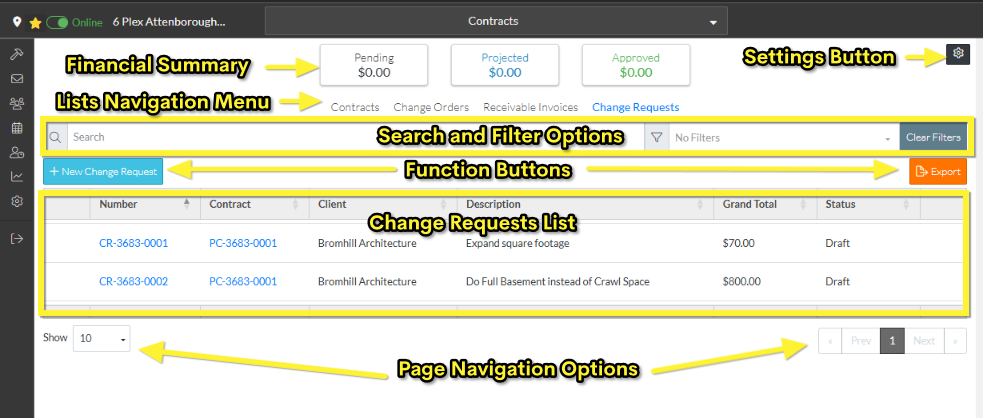
The following is the layout and navigation of the list:
- Financial Summary of all the Change Requests for all the Contracts for the Project.
- Settings Button to change how the information displays (such as what columns to display).
- Lists Navigation Menu to navigate to other information about the Project Contracts (such as lists of all Contracts, list of all Change Orders or list of all Receivable Invoices) and to toggle back and forth between the lists.
- Search and Filter Options to search and filter the list of all the Change Requests for all the Contracts for the Project.
- Function Buttons to add a New Change Request and to Export all the Change Requests for all the Contracts for the Project.
- Change Request List - the list of all the Change Requests displayed in a Simple List View with one row per Contract.
- Page Navigation Options to navigate the list of all the Contract Change Requests for all the Contracts for the Project.
Financial Summary
The top section of the list displays total values for all Change Requests for the Project by stage of the Change Request:
- Pending
- Projected
- Approved
Each stage will have certain statuses that pertain to that stage. The Change Requests with the statuses pertaining to that stage are summed and displayed in the Financial Summary. See All Change Requests Lists – Financial Summary for the stages and which statuses are included in that stage to calculate the totals.
Settings Button
To the Right of the Financial Summary information is the Settings button  .
.
The list of all Contract Change Requests displays according to the Settings. See Contract - List of all Change Requests - Settings (Simple List View) for more information.
Lists Navigation Menu
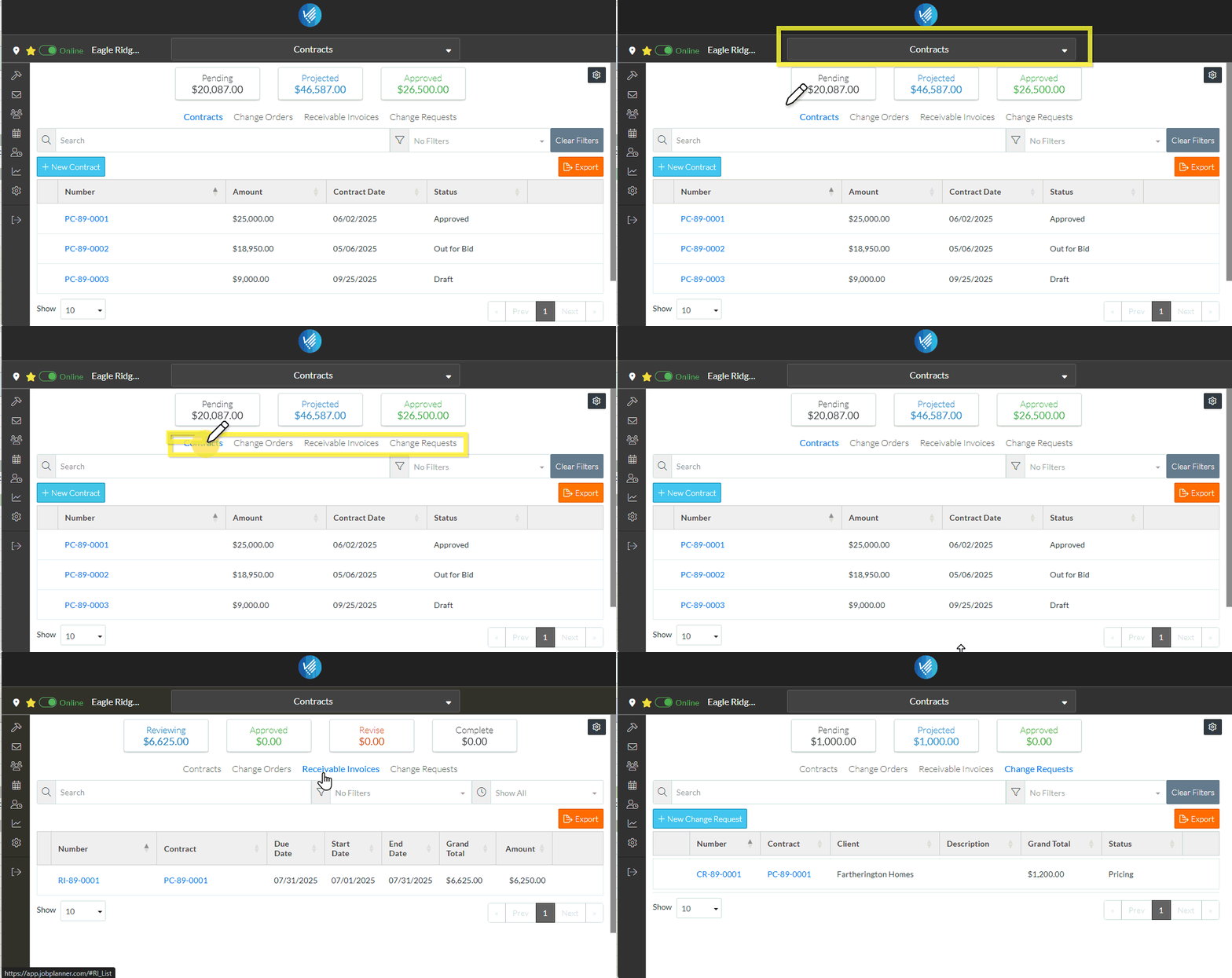
The Lists Navigation menu option for the form appears near the top of the form and is text that can be clicked on to switch between lists. There are four different lists that can be accessed:
- Contracts - the list of all the Contracts for the project (this is the default list that is displayed). See Contracts List - Overview.
- Change Orders - the list of all Change Orders for all Contracts for the entire project. See Contracts - List of All Change Orders - Overview.
- Receivable Invoices - the list of all Invoices for all Contracts for the entire project, see Contracts - List of All Receivable Invoices - Overview.
- Change Requests - the list of all Change Requests for all Contracts for the entire project. This is also where Change Requests can be added and/or viewed (then from the View/Edit form Change Requests can be or edited, deleted, emailed or exported to PDF (this help pertains to this list).
Clicking on those list menu options from here shows all Contracts, all Change Orders, all Receivable Invoices and all Change Requests for the Project. Note* Alternatively, Change Orders and Receivables Invoices only for one specific Contract, can be viewed (and then edited or deleted). See Contracts - View/Edit for more information.
The currently selected list is in blue text.
To switch between the lists, click on the text.
Note* This help pertains to the Change Requests list.
Search and Filter Options
Narrow the Change Request list by entering search criteria or setting filters on the Status. See All Change Requests Lists - Search and Filter (Simple List View).
Click the Clear Filter  button to remove any search or filter settings.
Function Buttons
There are function buttons to add a new Contract Change Request and Export the list of all Contract Change Requests:
Click the +New Change Request  button to add a new Contract Change Request, see Contracts - List of all Change Requests - New Change Request (Simple List View).
Click the Export  button to export the list of Contract Change Requests. See Contract - List of all Change Requests - Change Request - Export (Simple List View) for more information.
Change Requests List
This may be the full list of Change Requests or it could be a sub-set of Change Requests if search criteria or filters have been applied. See All Change Requests Lists - Search and Filter (Simple List View).
It can also have the columns sorted to display the list in different orders. see All Change Requests Lists - Sort Columns (Simple List View).
The list of all the Change Requests displays according to the Settings applied. See Contract - List of all Change Requests - Settings (Simple List View).
Hovering on a row on the list brings up the view  button for that Change Request OR alternatively right clicking on a row brings up context sensitive menu options and there is a View option OR the Change Requests can be double clicked on to view/edit it. See Contracts - List of all Change Requests - Change Request - View/Edit (Simple List View) for more information.
Page Navigation Options
There are different page navigation options:
Rows per page setting. If there are a larger number of Change Requests the number of rows per page that display can be changed. See Rows Per Page.
If there are a larger number of Change Requests (more than the number of Rows set to display per page), use the Prev, Next, <, > and Page number buttons to navigate through the pages of information. See Page Navigation for more information.
More Information
For more information on the List of all Change Requests for all Contracts for the Project, see:
- All Change Requests Lists - Search and Filter (Simple List View)
- All Change Requests Lists - Sort Columns (Simple List View)
- Contract - List of all Change Requests - Settings (Simple List View) to modify the Change Request List Settings (including columns to display)
Next Steps
Add a new Change Request, see Contracts - List of All Change Requests - New Change Request (Simple List View).
View or edit an existing Change Request including maintaining the Schedule of Values and Financial Markups, see Contracts - List of All Change Requests - Change Request - View/Edit (Simple List View).
View and maintain RFQs, see RFQs - Overview.
Delete a Change Request, see Contracts - List of All Change Requests - Change Request - Delete (Simple List View).
Email a Change Request, see Contracts - List of All Change Requests - Email (Simple List View).
Export a Change Request, see Contracts - List of All Change Requests - Export (Simple List View).
Export the full list of all the Change Requests, see Change Requests Lists - Export (Simple List View).
Change the Settings for the display of the list of Change Requests, see Contract - List of All Change Requests - Settings (Simple List View).
