All Change Requests Lists - Sort Columns (Simple List View)
 Updated
Suggested Prior Reading
Click here for Change Requests List
OR
Click here for Contracts - List of all Change Requests
Sort the List of Contract Change Requests in the Simple List View
The information displayed can be sorted in descending order or ascending order (if in descending order, numbers are listed first, then characters A to Z)
Note* There are multiple ways to access Change Requests and multiple views that can display, see Change Requests - Multiple Lists and Views for more information. This is help for both the Change Requests List AND the Contracts - List of all Change Requests in the Simple List View (see Suggested Prior Reading for more information).
If a column can be sorted it will contain dark grey or light grey up and down arrows. A dark arrow indicates that column is the currently active sorted column and the way it is pointing indicates the sort order. Light gray means it can be sorted on that column but isn't currently.
- Dark Arrow Up: Ascending order
- Dark Arrow Down: Descending order
To sort the Change Requests list (and then view, edit or delete the Change Request):
- Click on the column header to set the sort on that column
- To change the way a column sorts, click on the Column Header again to change the sort direction.
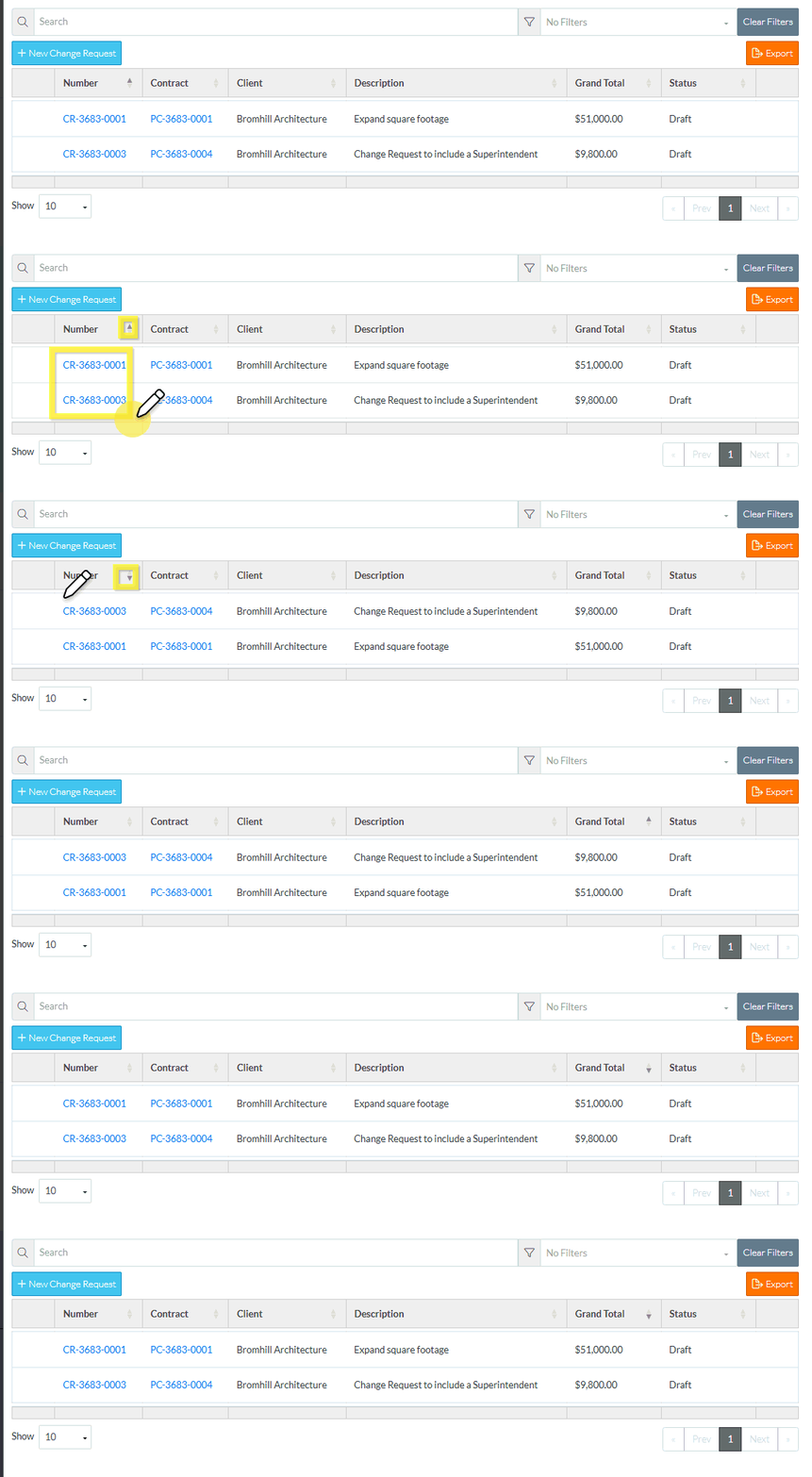
The system will remember the sort order and column that is set. The next time the Contract - List of all Change Requests or Change Requests List is displayed, that sort order and column is applied. Setting it on one list, sets it on the list other as well and for all Projects. It is remembered and applied if the system is exited.
More Information
To search and/or filter the list, see All Change Requests Lists - Search and Filter (Simple List View)
Next Steps
Click here for next steps for the Change Requests List
To add a new Change Request, see Change Requests List - New Change Request (Simple List View).
To view/edit an existing Change Request, see Change Requests List - Change Request - View/Edit (Simple List View).
To delete a Change Request, see Change Requests List - Change Request - Delete (Simple List View).
To email a Change Request, see Change Request List - Change Request - Email (Simple List View).
To export a single Change Request, see Change Requests List - Change Request - Export (Simple List View).
To view and manage RFQs, see RFQs - Overview.
To change Settings for the list display, see Change Requests List - Settings (Simple List View).
To export the full list of Change Requests, see Change Requests Lists - Export (Simple List View).
Click here for next steps for Contracts - List of all Change Requests
To add a new Change Request, see Contracts - List of All Change Requests - New Change Request (Simple List View).
To view/edit an existing Change Request, see Contracts - List of All Change Requests - Change Request - View/Edit (Simple List View).
To delete a Change Request, see Contracts - List of All Change Requests - Change Request - Delete (Simple List View).
To email a Change Request, see Contracts - List of All Change Requests - Email (Simple List View).
To export a single Change Request, see Contracts - List of All Change Requests - Export (Simple List View).
To change Settings for the list display, see Contract - List of all Change Requests - Settings (Simple List View).
To export the full list of Change Requests, see Change Requests Lists - Export (Simple List View).
