Contracts - List of all Change Requests - Overview (Simple List View)
 Updated
Suggested Prior Reading
Change Requests - Multiple Lists and Views
Contracts - List of all Change Requests - Accessing (Simple List View)
Contracts - List of all Change Requests
From the Contracts List, a list of all Change Requests for all the Contracts can be viewed.
This is accessed from Contracts, by clicking on the Contracts option on the Project Navigation Menu Options and then clicking on the Change Requests option from the form navigation menu (see Contracts - List of all Change Requests - Accessing (Simple List View).
Note* There are multiple ways to access Change Requests and multiple views that can display, see Change Requests - Multiple Lists and Views for more information. This help is for the Simple List View.
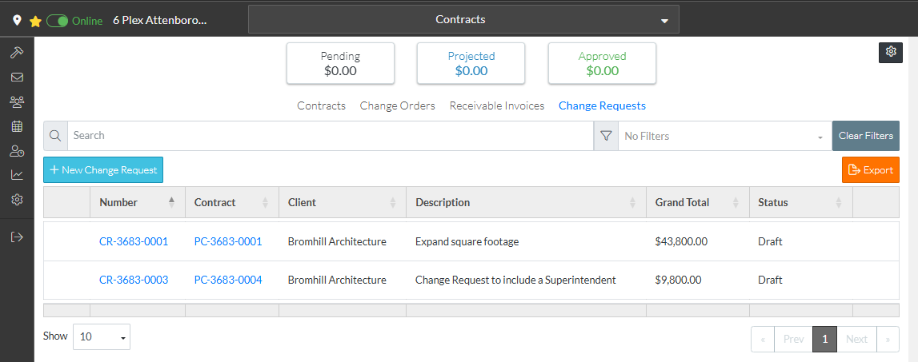
A Financial Summary of all the Change Requests appears at the top. See All Change Requests Lists – Financial Summary.
From this list, Change Requests can be Searched and/or filtered. See Change Requests Lists - Search and Filter (Simple List View).
It is also where new Change Requests can be added, and/or Change Requests can be viewed (From the View/Edit form, Change Requests can then be edited, Schedule of Values can be maintained, Line Items on the Schedule of Values can be assigned to Contract Change Orders, Commitments or Commitment Change Orders, RFQs can be created, Financial Markups can be maintained, the Change Request can be deleted or it can be exported to a PDF or emailed).
From this list RFQs can also be accessed and maintained.
This full list of Change Orders can be exported to Excel.
From this list, other Project Contract information can be navigated to; for example to see a list of all Contracts, All Receivable Invoices or all Change Orders that pertain to this project.
The Change Request list Settings can be changed to show what columns of information, how many rows display on the list and a default status filter that is always applied when the list is displayed.
For more information on the Simple View, see Contracts - List of all Change Requests - Layout and Navigation (Simple View).
Next Steps
Add a new Change Request, see Contracts - List of All Change Requests - New Change Request (Simple List View).
View or edit an existing Change Request including maintaining the Schedule of Values and Financial Markups, see Contracts - List of All Change Requests - Change Request - View/Edit (Simple List View).
View and maintain RFQs, see RFQs - Overview.
Delete a Change Request, see Contracts - List of All Change Requests - Change Request - Delete (Simple List View).
Email a Change Request, see Contracts - List of All Change Requests - Email (Simple List View).
Export a Change Request, see Contracts - List of All Change Requests - Export (Simple List View).
Export the full list of all the Change Requests, see Change Requests Lists - Export (Simple List View).
Change the Settings for the display of the list of Change Requests, see Contract - List of All Change Requests - Settings (Simple List View).
