Change Requests - Edit - Status
 Updated
Suggested Prior Reading
Click here for Grouped List View
OR
Click here for Simple List View
Overview
The Status is used to manage the Change Request. See Change Request – Status for a description of all the Statuses and the functional impacts for a Status and see Change Request – Status - Where Used for where Status(es) are displayed and reported and how they are used.
The Change Request Status can be changed to track the life cycle of the Change Request.
When viewing or editing a Change Request, the Status displays at the top of the view/edit form - regardless of which component is displayed i.e. General, Schedule of Values or Financial Markup. The Status can be changed when any component is displayed and if a Status is changed from any of the components, it applies overall to the Change Request.
Changing the Status invokes an automatic save and no other save functions are required (i.e. the form could now be closed and the status change is retained as it is already saved). If other information is changed in the same session, prior to changing the status, changing the status will invoke the save automatically for all changes. However, any changes made after the status is changed would require that the save function to be invoked to save those changes.
The Status can always be changed to any other Status for example, from Draft to Approved or Approved to Draft, but only if the Line Items from its Schedule of Values have not been created on a Contract Change Order. If the Line Items from its Schedule of Values have been created on a Contract Change Order the Status can only be changed to Approved, Rejected or Void. See Assign Change Request Line Items to Contracts and Commitments - Overview (Grouped List View) OR Assign Change Request Line Items to Contracts and Commitments - Overview (Simple List View) for more information.
To set the Status during the Edit
- If not already done, initiate the edit of a Change Request.
Note* The edit can be invoked from the Change Requests List OR the Contracts - List of all Change Requests and there are also different views that can be set for All Change Requests Lists. See All Change Requests Lists - Views Examples to determine which view is set for the organization, then see the above Suggested Prior Reading for the applicable view and list).
The Change Request View/Edit form displays. See Change Request – View/Edit - Form Layout and Navigation for more information on the form.
- To change the Change Request Status, click in the Status drop down (it displays near the top of the form below the Change Request # and the Related Contract and displays regardless of what Component is selected to display: General, Schedule of Values and Financial Markup).
This list of Change Request Statuses display. The currently selected status is highlighted with a gray bar in the drop down list. Also, any status that is hovered on is highlighted with a gray bar.
- Select the Status by clicking on it.
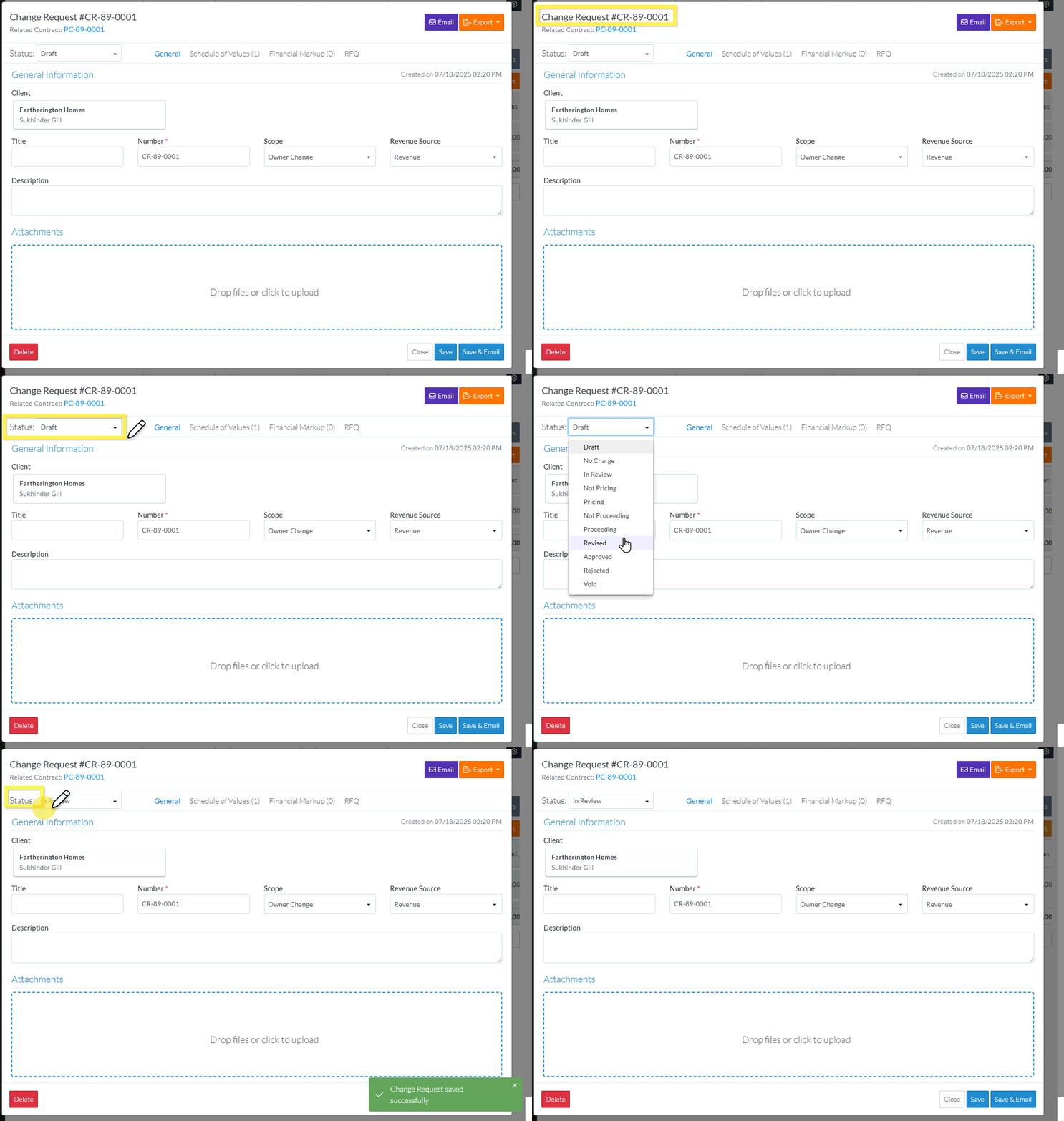
The new Status displays.
All the information about the Change Request including the Status change is automatically saved and a green popup message displays to confirm that (it will automatically disappear). The form may also update to reflect the functionality associated with the new status. For example, if the Change Request was draft and was changed to approved and the Schedule of Values component was showing, the component display will change to indicate that the Schedule of Values can no longer be edited.
NOTE* If the Line Items from its Schedule of Values have been created on a Contract Change Order Schedule of Values, then all the Statuses except for Approved, Rejected or Void are grayed out and can not be selected. The reason is that the Change Request can no longer be edited after it is Approved and the Line Items were created on a Contract Change Order. (The Line Items on the Contract Change Order Schedule of Values would need to deleted, in order to edit the Status).

- Enter or change other information as required, go to More Information below.
OR
Click the Close button (at the bottom of the form) to close the form. The Change Request List OR the Contract - List of all Change Requests displays depending on which form the Edit was invoked from (see Change Requests List - Overview or Contracts - List of all Change Requests - Overview).
More Information
Enter or Change general information about the Change Request, see Change Request - Edit - General.
Create or manage Change Request Schedule of Values, see Change Request - Schedule of Values - Overview.
Create or manage Change Request Financial Markups, see Change Request - Financial Markups - Overview.
Next Steps
Grouped List View
Click here for next steps for the Change Requests List (Grouped List View)
To create a new Change Request, see Change Requests List - New Change Request (Grouped List View).
To view/edit an existing Change Request, see Change Requests List - Change Request - View/Edit (Grouped List View).
To select Change Request Line Items and create them automatically on Contract Change Orders, Commitments or Commitment Change Orders or Send RFQs, see Change Requests List - Bulk Actions.
To delete a Change Request, see Change Requests List - Change Request - Delete (Grouped List View).
To email a Change Request, see Change Requests List - Change Request - Email (Grouped List View).
To export a single Change Request, see Change Requests List - Change Request - Export (Grouped List View).
To view and manage RFQs, see RFQs - Overview.
To change Settings for the list display, see Change Requests List - Settings (Grouped List View).
To export the full list of Change Requests, see Change Requests Lists - Export (Grouped List View).
Click here for next steps for Contracts - List of all Change Requests (Grouped List View)
To create a new Change Request, see Contracts - List of All Change Requests - New Change Request (Grouped List View).
To view/edit an existing Change Request, see Contracts - List of All Change Requests - Change Request - View/Edit (Grouped List View).
To select Change Request Line Items and create them automatically on Contract Change Orders, Commitments or Commitment Change Orders or Send RFQs, see Contracts - List of all Change Requests - Bulk Actions.
To delete a Change Request, see Contracts - List of All Change Requests - Change Request - Delete (Grouped List View).
To email a Change Request, see Contracts - List of All Change Requests - Email (Grouped List View).
To export a single Change Request, see Contracts - List of All Change Requests - Export (Grouped List View).
To change Settings for the list display, see Contract - List of all Change Requests - Settings (Grouped List View).
To export the full list of Change Requests, see Change Requests Lists - Export (Grouped List View).
Simple List View
Click here for next steps for the Change Requests List
To add a new Change Request, see Change Requests List - New Change Request (Simple List View).
To view/edit an existing Change Request, see Change Requests List - Change Request - View/Edit (Simple List View).
To delete a Change Request, see Change Requests List - Change Request - Delete (Simple List View).
To email a Change Request, see Change Request List - Change Request - Email (Simple List View).
To export a single Change Request, see Change Requests List - Change Request - Export (Simple List View).
To view and manage RFQs, see RFQs - Overview.
To change Settings for the list display, see Change Requests List - Settings (Simple List View).
To export the full list of Change Requests, see Change Requests Lists - Export (Simple List View).
Click here for next steps for Contracts - List of all Change Requests
To add a new Change Request, see Contracts - List of All Change Requests - New Change Request (Simple List View).
To view/edit an existing Change Request, see Contracts - List of All Change Requests - Change Request - View/Edit (Simple List View).
To delete a Change Request, see Contracts - List of All Change Requests - Change Request - Delete (Simple List View).
To email a Change Request, see Contracts - List of All Change Requests - Email (Simple List View).
To export a single Change Request, see Contracts - List of All Change Requests - Export (Simple List View).
To change Settings for the list display, see Contract - List of all Change Requests - Settings (Simple List View).
To export the full list of Change Requests, see Change Requests Lists - Export (Simple List View).
