Contracts - List of all Change Requests - New Change Request (Grouped List View)
 Updated
Suggested Prior Reading
Change Requests - Multiple Lists and Views
Contracts - List of all Change Requests - Accessing
Contracts - List of all Change Requests - Overview
Contracts - List of all Change Requests - Layout and Navigation (Grouped List View)
New Change Request
This is help for adding a Change Request from the Contracts - List of all Change Requests.
Note* There are multiple ways to access Change Requests and multiple views that can display, see Change Requests - Multiple Lists and Views for more information. This help is for the Grouped List View.
New Change Requests can only be added for Approved Contracts. See Contracts - Status for more information. When the New Change Request function is initiated, a list of only the Approved Contracts is displayed and can be selected.
- Access the project, see Project - Accessing.
- Access the Contracts, see Contracts List - Accessing.
- Access the Change Requests List from the Contract List, see Contracts - List of all Change Requests - Accessing.
- Click the + New Change Request
 button.
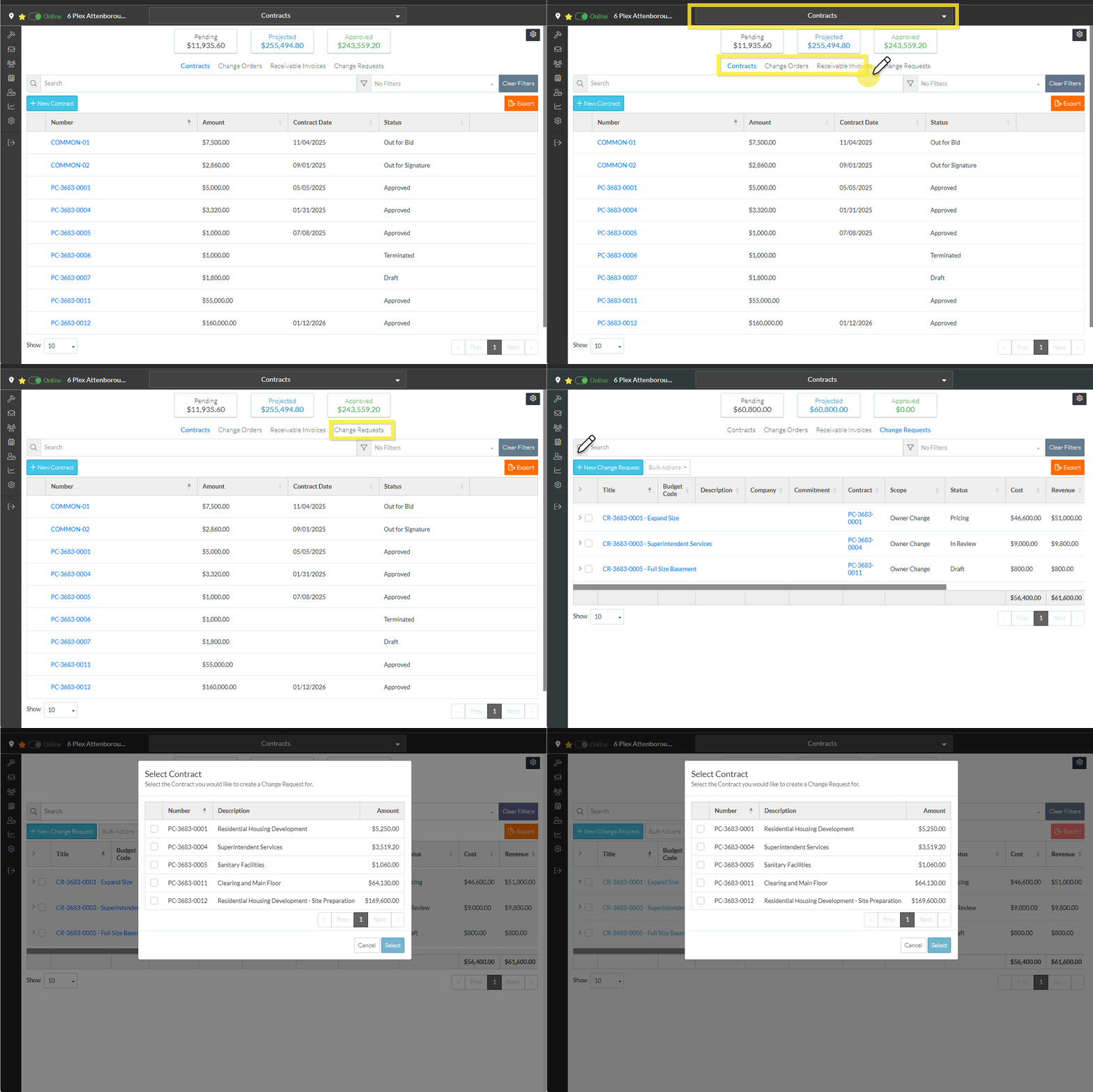
The Select Contract form displays which is a list of all Approved Contracts for the Project.
The first column is a selection column.
- Click in the box in the column for the Contract to select. The box turns from white to blue.
- To unselect a Contract, click on the blue box. It turns white again.
- To select a different Contract, if one is selected, click on a different Contract. The newly clicked Contract will be selected (the box turned blue) and the previously selected Contract selection box gets automatically unselected (set to white).
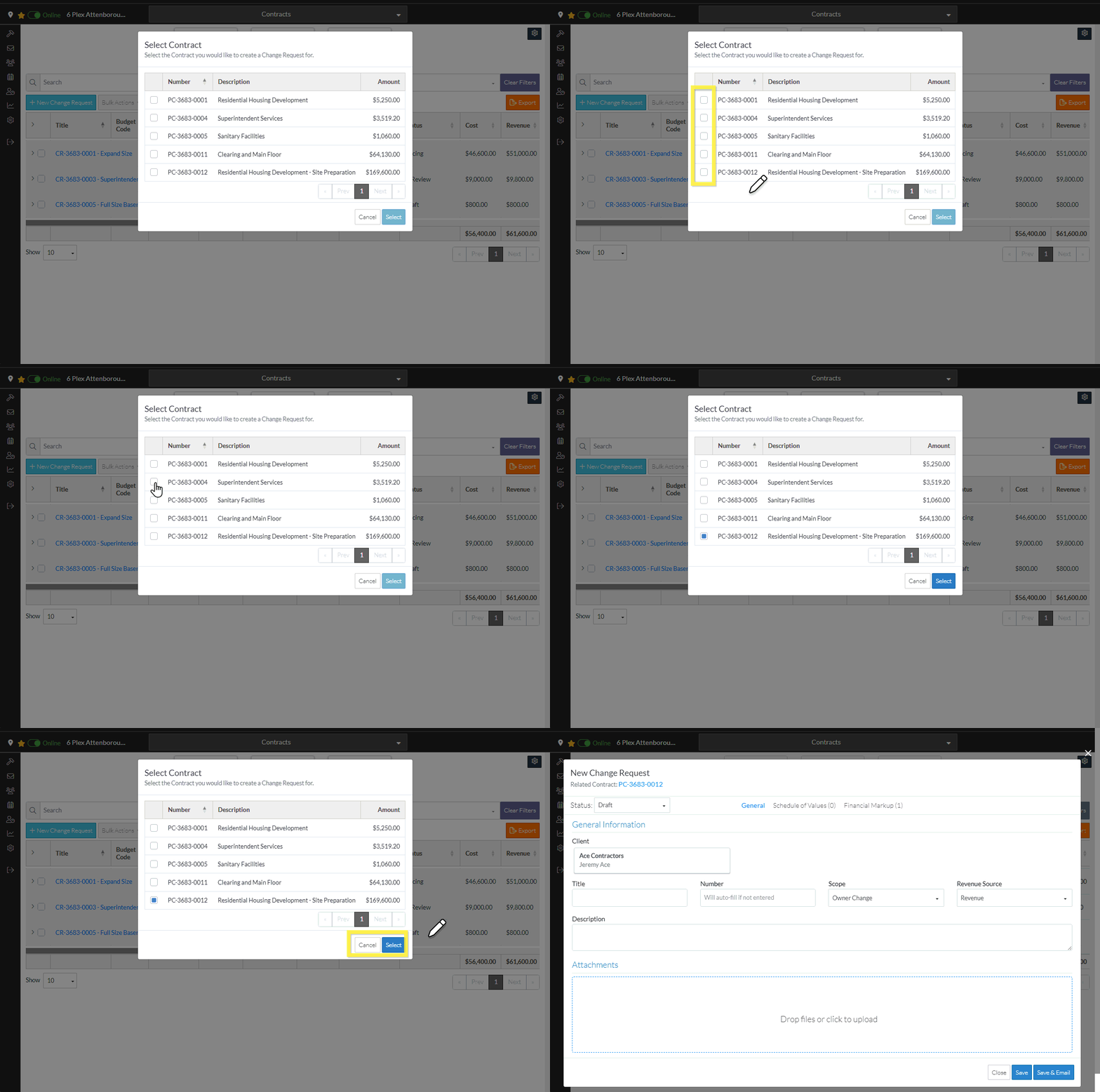
- Click the Select
 button to select the Contract (with the blue box). The New Change Request form displays (see below).
OR
Click the Cancel button to cancel the selection. The Contracts - List of All Change Requests displays. See Contracts - List of all Change Requests - Overview (Grouped List View).
New Change Request Form
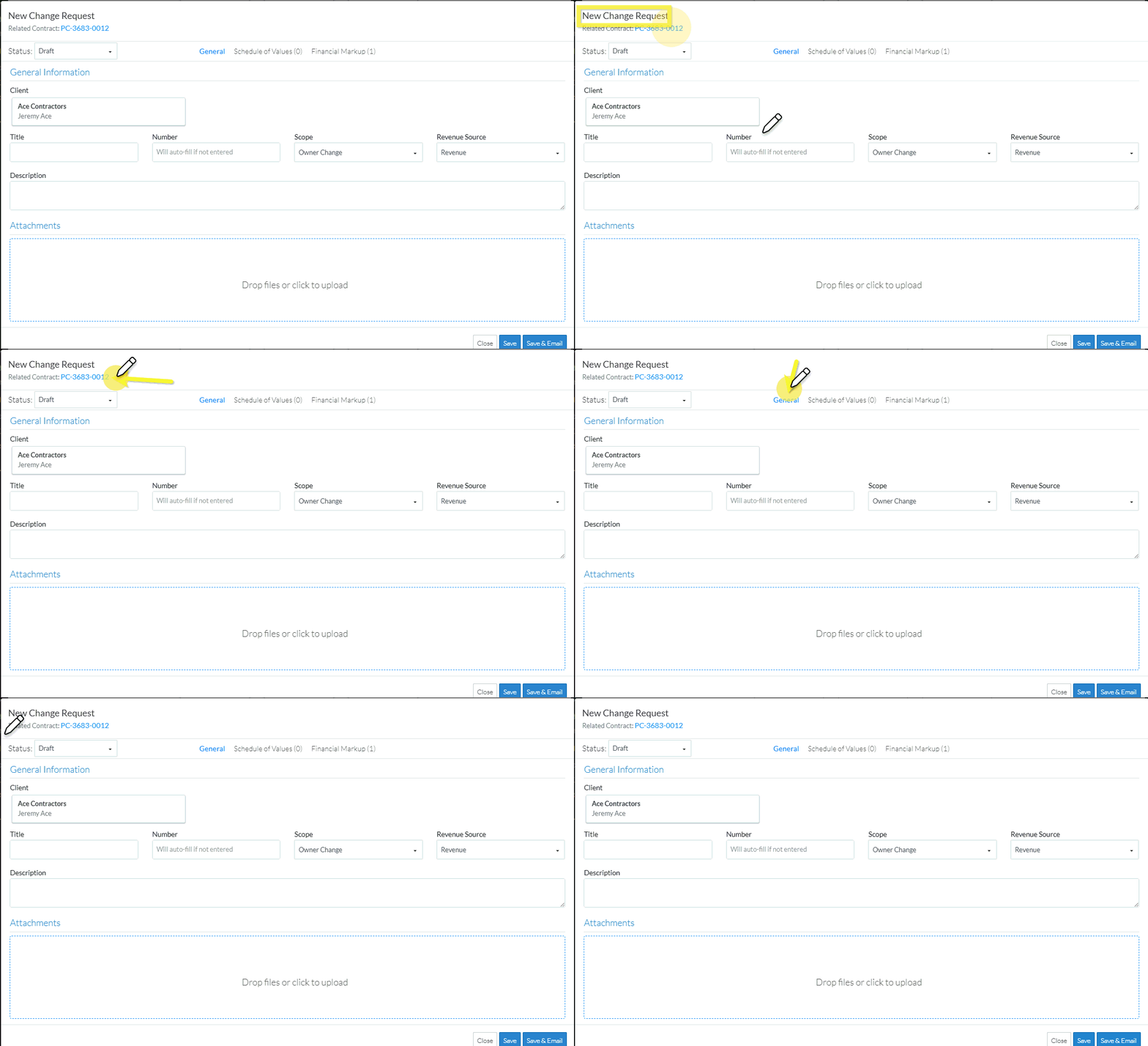
The New Change Request form displays after the Contract is selected.
The Related Contract Number displays below title (it can be clicked on to go to the Contracts - View/Edit form).
The General component displays by default during the add but other Components can be switched to via the Form Navigation Menu Options.
When adding a Change Request, the Status defaults to Draft. This is usually the appropriate status to use during the initial add while information is being entered and details haven't been finalized. See Change Request – Status for a description of all the Statuses.
See Change Request – Add - Form Layout and Navigation for more information on the layout and navigation.
Next Steps
Enter or view the information as required, see Change Request - Add - Steps.
Select Change Request Line Items and create them automatically on Contract Change Orders, Commitments or Commitment Change Orders, see Contracts - List of all Change Requests - Bulk Actions.
