Change Requests List - Settings (Grouped List View)
 Updated
Suggested Prior Reading
Change Requests List - Overview (Grouped List View)
Change Requests List - Accessing (Grouped List View)
Change Requests List - Layout and Navigation (Grouped List View)
Settings
This help pertains to the Change Requests List in the Grouped List View. Note* There are multiple ways to access Change Requests and multiple views that can display, see Change Requests - Multiple Lists and Views for more information and the view set for the organization.
Each time the Change Request List is displayed, user defined settings can be applied to show what information displays and how.
Changing the list settings is permanent and those settings are automatically applied every time the form opens. However, these settings can then also be changed dynamically on the form as well, however, these are a temporary change only and won’t be saved for the next time the form is opened.
The settings that can be changed are the:
- Default Filter to apply – to show only Change Requests with certain Status
- Rows per page - The number of rows (i.e. number of Change Requests) which will display per page
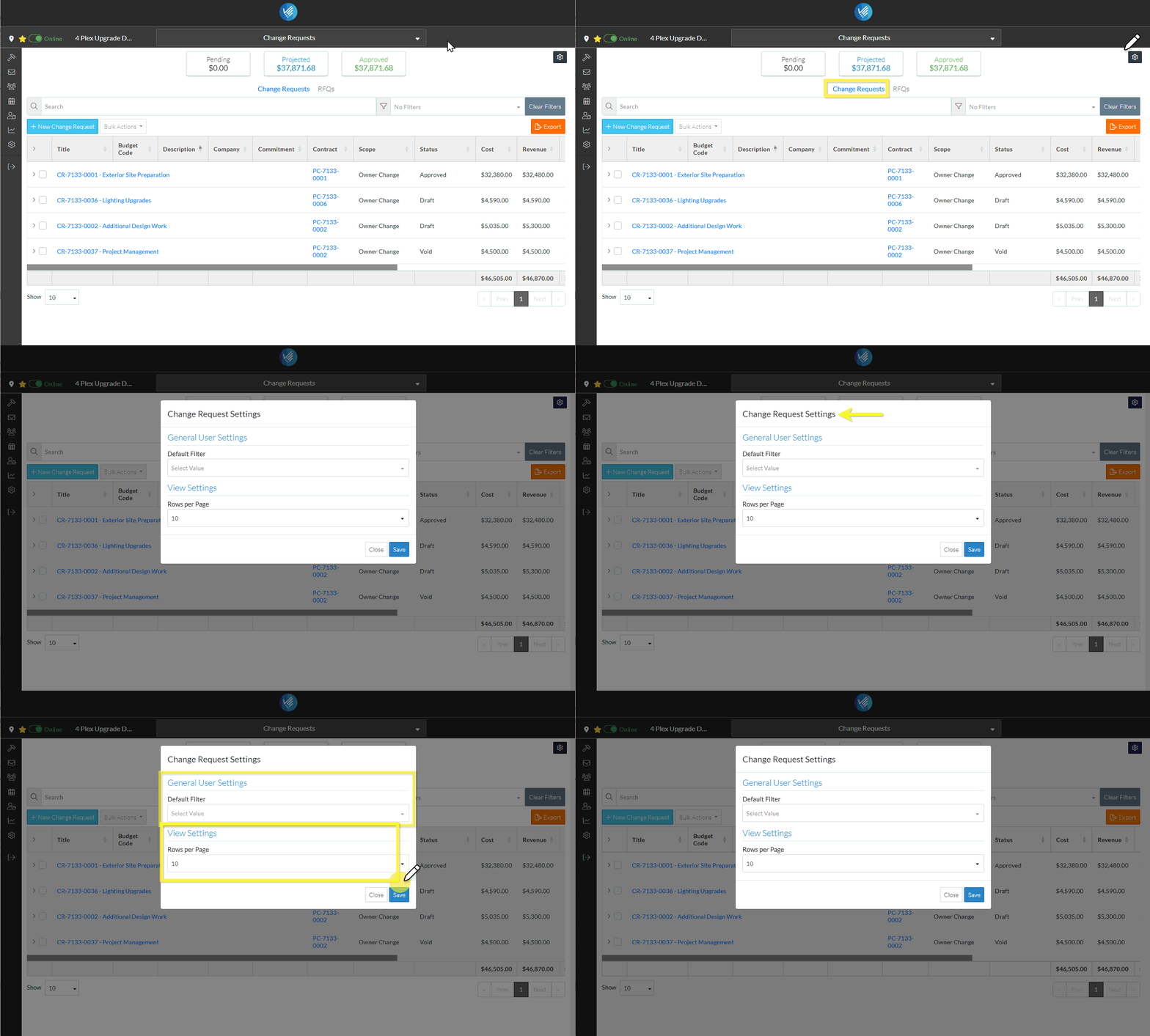
To Access Related Settings
- From the Change Request List, (see Change Requests List - Accessing (Grouped List View)), click on the Related Settings
 button. (For more information, see Change Requests List - Layout and Navigation (Grouped List View)).
 - The Change Request Settings form displays. There are two sections on the form:
- General User Settings
- User View Settings
Next Steps
To set the Default Filter, see All Change Requests Lists - Settings - Default Filter (Grouped List View).
To change the default number of rows to display, see All Change Requests Lists - Settings - Rows per Page (Grouped List View).
