Change Request - Add - General
 Updated
Suggested Prior Reading
Click here for Grouped List View
OR
Click here for Simple List View
Adding information on the General component
When adding a new Change Requests, there are multiple components.
The Change Request General component is where the general or core details of the Change Request are entered.
The General component is displayed by default when the Add function is initiated and it can be displayed at any time during the Add (if other components are displayed) via the Form Navigation Menu Options
When the General component is displayed, the General text will be highlighted blue in the Form Navigation Menu Options to indicate this. See Change Request – Add - Form Layout and Navigation for more information.
To access the General Component (if not already displayed)
- If not already done, initiate the add of a new Change Request.
The add can be invoked from the Change Requests List OR the Contracts - List of all Change Requests and there are also different views that can be set for All Change Requests Lists. See All Change Requests Lists - Views Examples to determine which view is set for the organization, then see the above Suggested Prior Reading for the applicable view and list to invoke the add from.
The New Change Request form displays. See Change Request – Add - Form Layout and Navigation for more information on the form.
- After the Add is initiated, the General component is displayed by default but to switch to it, if it is not displayed, click on the General in the Form Navigation Menu Options (in the example below the Schedule of Values component was displayed).
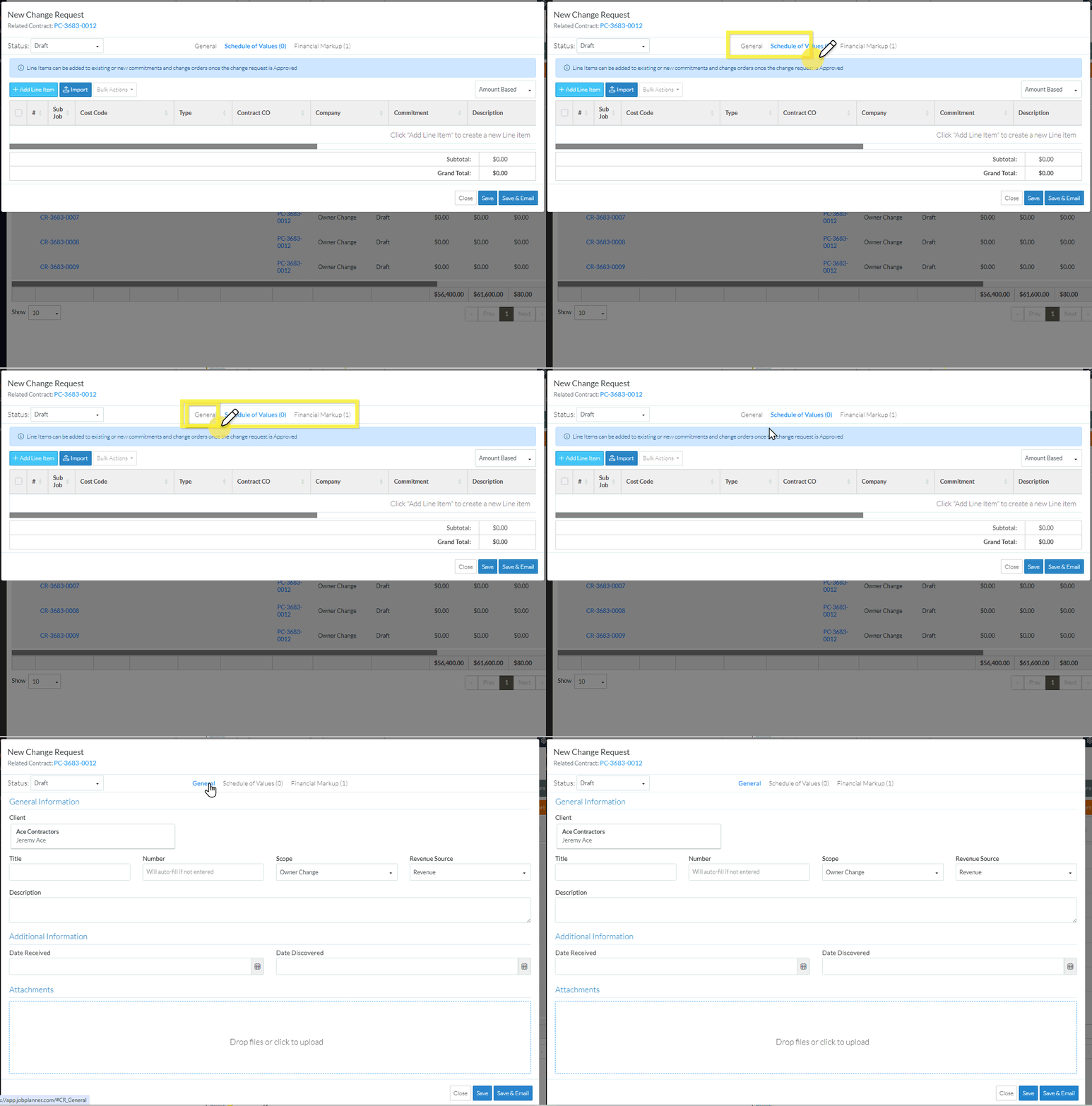
Layout and Navigation of the General Component
The General Component is separated into sections, with each section having a heading highlighted in blue:
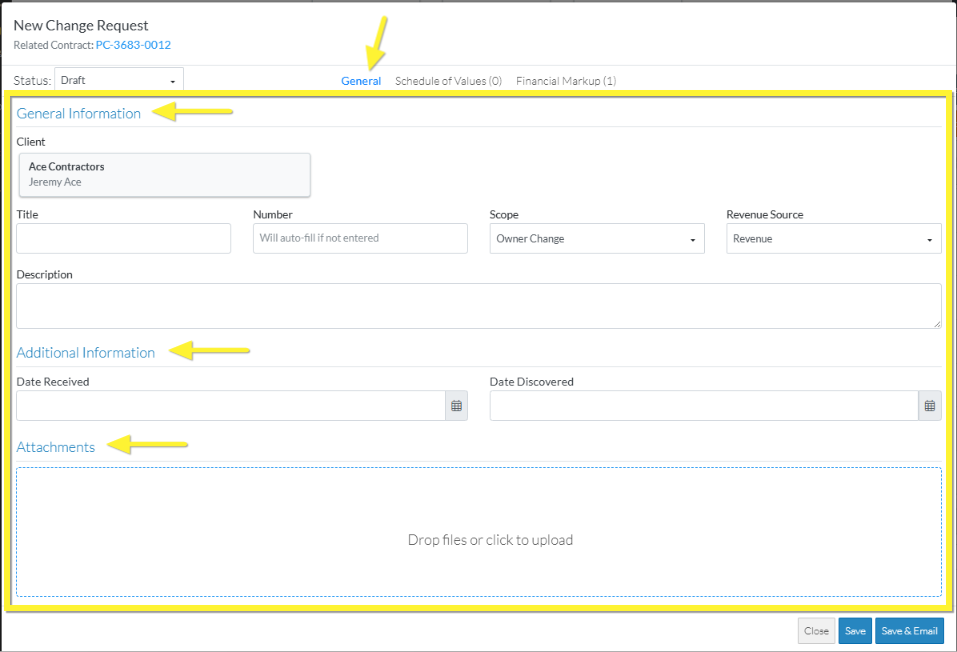
- General Information - These are the general details about the Change Request including the Client and Description.
- Additional Information - This section only displays if custom fields have been setup for the Change Request. If no custom fields have been setup, this section does not display.
- Attachments - These are general files associated with the Change Request.
For a New Change Request all the details on the Change Request General component can be added except for the Client which is inherited from the Contract.
Any field marked with an asterisk is a required field (as set by the System or the System Administrator).
If any of the General information is entered or changed, the overall Change Request must be saved to save those changes and the Change Request itself.
More Information
To enter or change the General Information, see Change Request - Add/Edit/View - General Information.
To enter or change the additional information, see Change Request - Add/Edit/View - Additional Information.
To upload attachments, see Change Request - Add/Edit/View - Attachments.
Next Steps
To change the status, see Change Request - Add - Status.
Create or manage Change Request Schedule of Values, see Change Request - Schedule of Values - Overview.
Create or manage Change Request Financial Markups, see Change Request - Financial Markups - Overview.
