Change Request - Add/Edit/View - General Information
 Updated
Suggested Prior Reading
Change Request - Add - General
OR
Change Request - Edit - General
General Information Overview
When adding, viewing or editing a Change Request, there is a General component that has all the general information pertaining to the Change Request.
This help pertains to General Information on the Change Request General component (for the other information on General component, see More Information below).
All the General Information can be edited, regardless of the Status, except the Client which is inherited from the Contract and can't be changed.
Any field marked with an asterisk is a required field (as set by the System or the System Administrator) and must be entered.
This help pertains to both adding and editing a Change Request.
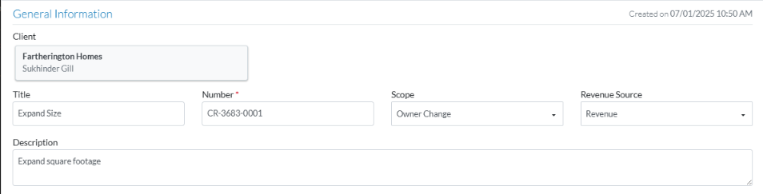
If viewing or editing an existing Change Request, the date and time it was created on is displayed on the right hand side across from the section title. If its a New Change Request this is blank.
To add or edit General Information:
- Navigate to the General Information section on the Change Request General Component (see Change Request - Add - General OR Change Request - Edit - General).
- Add or change the General Information as described below.
Name | Description |
Client | This is the Client for the Contract. This is automatically populated from the Contract and can't be changed. |
Title | This is a short, summarized description of the change for easy reference. This is a text field and is a optional. |
Number | The Change Request Number. This can be manually typed in (in any format) or the system will auto-populate this with a number if it is left blank (using the format of the Number as set by the System Administrator. See Settings - Change Requests - Change Request Settings). Note* If it is left blank, the auto generated number won't display until after the Change Request is saved. This is a required field. |
Scope | This is used to categorize the change scope (the details of the scope change would be outlined in the Description and in the Schedule of Values). There are two system predefined options;
This is a drop down. It defaults to the first item in the list. This is required. It displays on all the Change Requests Lists. It can also be printed on Project and System Change Request reports and is a Filter for reports to show only Change Requests with certain a certain scope (just those that are Owner Changes or just those that are Internal Changes).  |
Revenue Source | This is used to identify where the money for the change is coming from. There are two system predefined options;
This is a drop down. It defaults to the first item in the list. This is required.  |
Description | This is a more detailed explanation of what the change actually involves. This is used to define why the change is needed, what is changing and how it affects the work. It could include background for the change, general impacts on scope, schedule, budget or quality and any other pertinent details. This is a text field and is a optional. |
See Change Request - General Data for more information on each field and where it is used.
- To enter or change the Additional information, see Change Request - Add/Edit/View - Additional Information.
- To upload Attachments, see Change Request - Add/Edit/View - Attachments.
- Add, Edit or View other information for the Change Request, see More Information below.
OR
Click the Save button (at the bottom of the form) to save the Change Request.OR
Click here for more information on the Save function.
This saves the Change Request including any information on the General, Schedule of Values and Financial Markups Components.
This list the function was invoked from displays. See Next Steps below.
Click the Save & Email button (at the bottom of the form) to save the Change Request and email it.OR
Click here for more information on the Save and Email function.
This saves the Change Request as including any information on the General, Schedule of Values and Financial Markup components and sends an email with a link to the Change Request in JobPlanner (and optionally include the Change Request as a PDF attachment in the email). The Email can be sent to any Project Contacts. The Email Change Request form displays, see Email Change Request.
Click the Close button (at the bottom of the form) to close the form without saving the Change Request.
Click here for more information on the Close function.
If no information was changed or entered, the list the add or edit function was invoked from displays, see Next Steps below.
If information was changed, then an additional prompt displays indicating there were changes and additional prompts on what to do.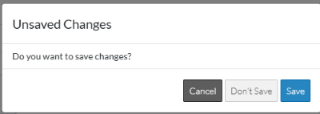
Click the Cancel button to cancel the Close action and return to the Change Request View/Edit form (see the steps above)
OR
Click the Don't Save button to cancel changes to the Change Request. The list the add or edit function was invoked from displays, see Next Steps below.
OR
Click the Save button to save the Change Request including any information on the General, Schedule of Values or Financial Markups components. The list the add or edit function was invoked from displays, see Next Steps below.
More Information
Create or manage Change Request Schedule of Values, see Change Request - Schedule of Values - Overview.
Create or manage Change Request Financial Markups, see Change Request - Financial Markups - Overview.
If this is an edit of an existing Change Request, view or manage RFQs, see RFQs - Overview.
Next Steps
Grouped List View
Click here for next steps for the Change Requests List (Grouped List View)
To create a new Change Request, see Change Requests List - New Change Request (Grouped List View).
To view/edit an existing Change Request, see Change Requests List - Change Request - View/Edit (Grouped List View).
To select Change Request Line Items and create them automatically on Contract Change Orders, Commitments or Commitment Change Orders or Send RFQs, see Change Requests List - Bulk Actions.
To delete a Change Request, see Change Requests List - Change Request - Delete (Grouped List View).
To email a Change Request, see Change Requests List - Change Request - Email (Grouped List View).
To export a single Change Request, see Change Requests List - Change Request - Export (Grouped List View).
To view and manage RFQs, see RFQs - Overview.
To change Settings for the list display, see Change Requests List - Settings (Grouped List View).
To export the full list of Change Requests, see Change Requests Lists - Export (Grouped List View).
Click here for next steps for Contracts - List of all Change Requests (Grouped List View)
To create a new Change Request, see Contracts - List of All Change Requests - New Change Request (Grouped List View).
To view/edit an existing Change Request, see Contracts - List of All Change Requests - Change Request - View/Edit (Grouped List View).
To select Change Request Line Items and create them automatically on Contract Change Orders, Commitments or Commitment Change Orders or Send RFQs, see Contracts - List of all Change Requests - Bulk Actions.
To delete a Change Request, see Contracts - List of All Change Requests - Change Request - Delete (Grouped List View).
To email a Change Request, see Contracts - List of All Change Requests - Email (Grouped List View).
To export a single Change Request, see Contracts - List of All Change Requests - Export (Grouped List View).
To change Settings for the list display, see Contract - List of all Change Requests - Settings (Grouped List View).
To export the full list of Change Requests, see Change Requests Lists - Export (Grouped List View).
Simple List View
Click here for next steps for the Change Requests List
To add a new Change Request, see Change Requests List - New Change Request (Simple List View).
To view/edit an existing Change Request, see Change Requests List - Change Request - View/Edit (Simple List View).
To delete a Change Request, see Change Requests List - Change Request - Delete (Simple List View).
To email a Change Request, see Change Request List - Change Request - Email (Simple List View).
To export a single Change Request, see Change Requests List - Change Request - Export (Simple List View).
To view and manage RFQs, see RFQs - Overview.
To change Settings for the list display, see Change Requests List - Settings (Simple List View).
To export the full list of Change Requests, see Change Requests Lists - Export (Simple List View).
Click here for next steps for Contracts - List of all Change Requests
To add a new Change Request, see Contracts - List of All Change Requests - New Change Request (Simple List View).
To view/edit an existing Change Request, see Contracts - List of All Change Requests - Change Request - View/Edit (Simple List View).
To delete a Change Request, see Contracts - List of All Change Requests - Change Request - Delete (Simple List View).
To email a Change Request, see Contracts - List of All Change Requests - Email (Simple List View).
To export a single Change Request, see Contracts - List of All Change Requests - Export (Simple List View).
To change Settings for the list display, see Contract - List of all Change Requests - Settings (Simple List View).
To export the full list of Change Requests, see Change Requests Lists - Export (Simple List View).
