Change Request - Add/Edit/View - Additional Information
 Updated
Suggested Prior Reading
Change Request - Add - General
OR
Change Request - Edit - General
Additional Information
When adding, viewing or editing a Change Request, there is a General component that has all the general information pertaining to the Change Request.
This help pertains to the Additional Information section on the Change Request General component (for the other information on the General component, see More Information below).
The System Administrator can setup custom fields for Change Requests, see Settings - Change Requests - Change Request Custom Fields. This section only appears if custom fields for the Change Request have been created.
If no custom fields have been setup, this section does not display.
For either a New Change Requests or editing an existing Change Requests, all the information on the the Additional Information can be added or edited regardless of the Status. See Change Request - Status for more details.
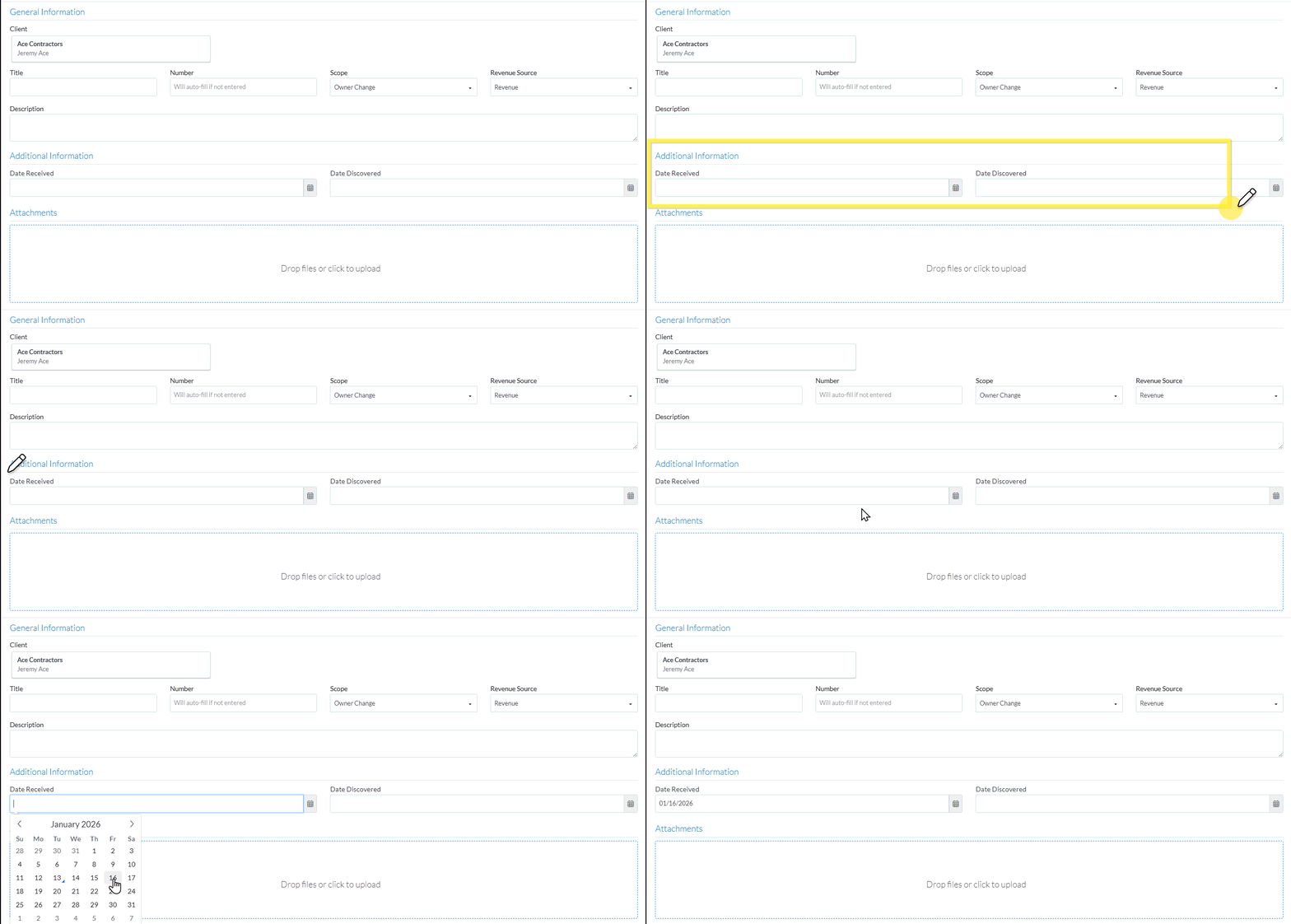
To add or edit Change Request Additional Information:
- Navigate to the Additional Information section on the Change Request General Component (see Change Request - Add - General OR Change Request - Edit - General).
- Add or change the Additional Information.
The information that can be entered will depend on the Field Type set for the custom field. Field Types can be
- Integer
- Percent
- Money
- Text (single line)
- Text Area (multiple lines)
- Boolean (yes/no)
- Choice
- Date
- Date and Time
- To enter or change the General Information, see Change Request - Add/Edit/View - General Information.
- To upload Attachments, see Change Request - Add/Edit/View - Attachments.
- Add, Edit or View other information for the Change Request, see More Information below.
OR
Click the Save button (at the bottom of the form) to save the Change Request.OR
Click here for more information on the Save function.
This saves the Change Request including any information on the General, Schedule of Values and Financial Markups Components.
This list the function was invoked from displays. See Next Steps below.
Click the Save & Email button (at the bottom of the form) to save the Change Request and email it.OR
Click here for more information on the Save and Email function.
This saves the Change Request as including any information on the General, Schedule of Values and Financial Markup components and sends an email with a link to the Change Request in JobPlanner (and optionally include the Change Request as a PDF attachment in the email). The Email can be sent to any Project Contacts. The Email Change Request form displays, see Email Change Request.
Click the Close button (at the bottom of the form) to close the form without saving the Change Request.
Click here for more information on the Close function.
If no information was changed or entered, the list the add or edit function was invoked from displays, see Next Steps below.
If information was changed, then an additional prompt displays indicating there were changes and additional prompts on what to do.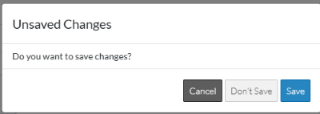
Click the Cancel button to cancel the Close action and return to the Change Request View/Edit form (see the steps above)
OR
Click the Don't Save button to cancel changes to the Change Request. The list the add or edit function was invoked from displays, see Next Steps below.
OR
Click the Save button to save the Change Request including any information on the General, Schedule of Values or Financial Markups components. The list the add or edit function was invoked from displays, see Next Steps below.
More Information
Create or manage Change Request Schedule of Values, see Change Request - Schedule of Values - Overview.
Create or manage Change Request Financial Markups, see Change Request - Financial Markups - Overview.
If this is an edit of an existing Change Request, view or manage RFQs, see RFQs - Overview.
Next Steps
Grouped List View
Click here for next steps for the Change Requests List (Grouped List View)
To create a new Change Request, see Change Requests List - New Change Request (Grouped List View).
To view/edit an existing Change Request, see Change Requests List - Change Request - View/Edit (Grouped List View).
To select Change Request Line Items and create them automatically on Contract Change Orders, Commitments or Commitment Change Orders or Send RFQs, see Change Requests List - Bulk Actions.
To delete a Change Request, see Change Requests List - Change Request - Delete (Grouped List View).
To email a Change Request, see Change Requests List - Change Request - Email (Grouped List View).
To export a single Change Request, see Change Requests List - Change Request - Export (Grouped List View).
To view and manage RFQs, see RFQs - Overview.
To change Settings for the list display, see Change Requests List - Settings (Grouped List View).
To export the full list of Change Requests, see Change Requests Lists - Export (Grouped List View).
Click here for next steps for Contracts - List of all Change Requests (Grouped List View)
To create a new Change Request, see Contracts - List of All Change Requests - New Change Request (Grouped List View).
To view/edit an existing Change Request, see Contracts - List of All Change Requests - Change Request - View/Edit (Grouped List View).
To select Change Request Line Items and create them automatically on Contract Change Orders, Commitments or Commitment Change Orders or Send RFQs, see Contracts - List of all Change Requests - Bulk Actions.
To delete a Change Request, see Contracts - List of All Change Requests - Change Request - Delete (Grouped List View).
To email a Change Request, see Contracts - List of All Change Requests - Email (Grouped List View).
To export a single Change Request, see Contracts - List of All Change Requests - Export (Grouped List View).
To change Settings for the list display, see Contract - List of all Change Requests - Settings (Grouped List View).
To export the full list of Change Requests, see Change Requests Lists - Export (Grouped List View).
Simple List View
Click here for next steps for the Change Requests List
To add a new Change Request, see Change Requests List - New Change Request (Simple List View).
To view/edit an existing Change Request, see Change Requests List - Change Request - View/Edit (Simple List View).
To delete a Change Request, see Change Requests List - Change Request - Delete (Simple List View).
To email a Change Request, see Change Request List - Change Request - Email (Simple List View).
To export a single Change Request, see Change Requests List - Change Request - Export (Simple List View).
To view and manage RFQs, see RFQs - Overview.
To change Settings for the list display, see Change Requests List - Settings (Simple List View).
To export the full list of Change Requests, see Change Requests Lists - Export (Simple List View).
Click here for next steps for Contracts - List of all Change Requests
To add a new Change Request, see Contracts - List of All Change Requests - New Change Request (Simple List View).
To view/edit an existing Change Request, see Contracts - List of All Change Requests - Change Request - View/Edit (Simple List View).
To delete a Change Request, see Contracts - List of All Change Requests - Change Request - Delete (Simple List View).
To email a Change Request, see Contracts - List of All Change Requests - Email (Simple List View).
To export a single Change Request, see Contracts - List of All Change Requests - Export (Simple List View).
To change Settings for the list display, see Contract - List of all Change Requests - Settings (Simple List View).
To export the full list of Change Requests, see Change Requests Lists - Export (Simple List View).
