Change Requests - List of all RFQs - Layout and Navigation
 Updated
Suggested Prior Reading
Change Requests - List of all RFQs - Overview
Change Requests - List of all RFQs - Accessing
List of all RFQs - Layout and Navigation
This List displays all the RFQs for all the Change Requests for the Project.
RFQs can not be created from this list. For more information on creating RFQs, see Create and Manage RFQs - Overview.
`The following is the layout and navigation of the list:
- Lists Navigation Menu to navigate to the list of Change Requests.
- Search and Filter Options to search and filter the list of all the Change Requests for all the Contracts for the Project.
- RFQs List - the list of all the RFQS for all Change Requests.
- Page Navigation Options to navigate the list of all the Contract Change Requests for all the Contracts for the Project.
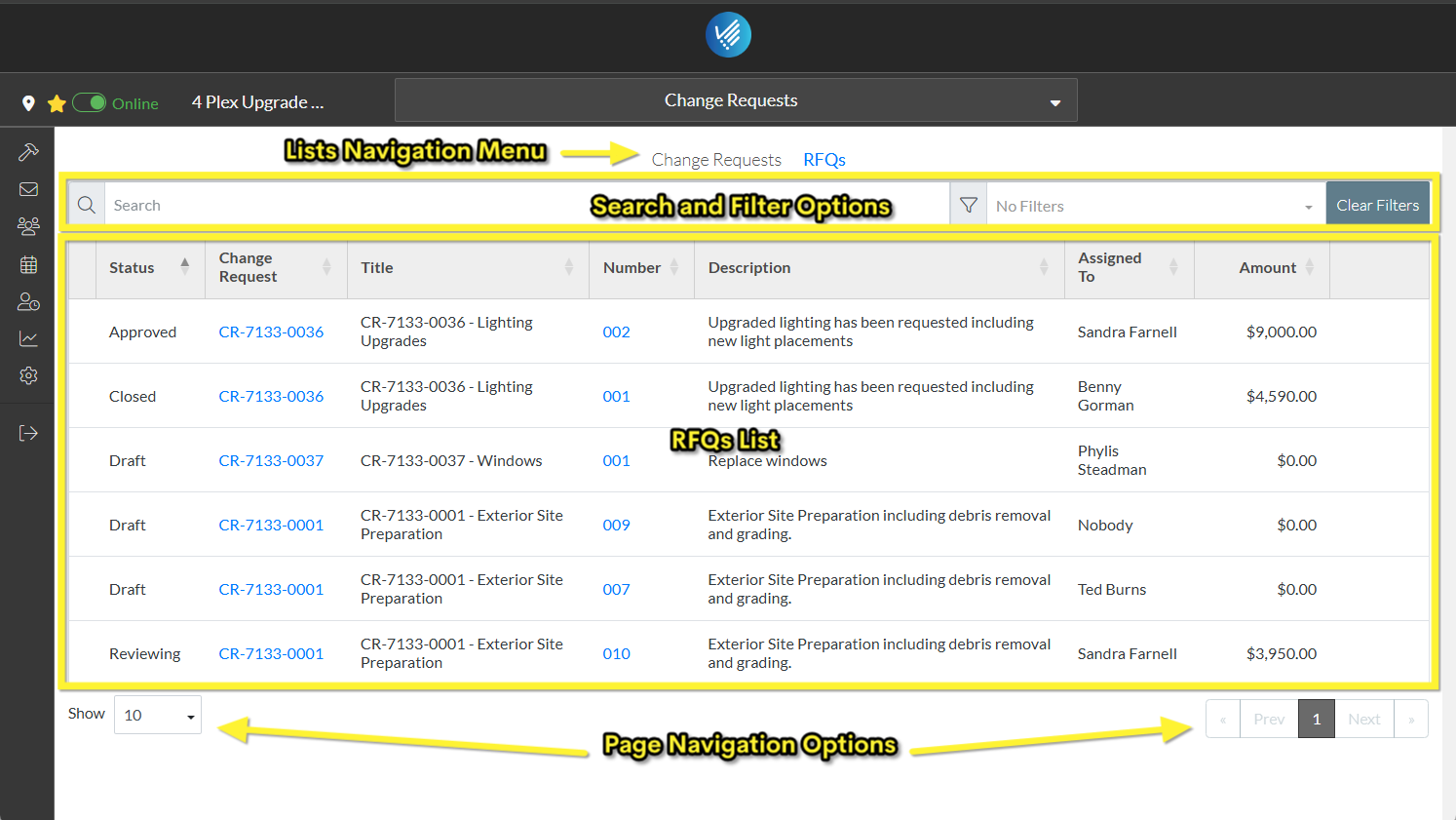
Lists Navigation Menu
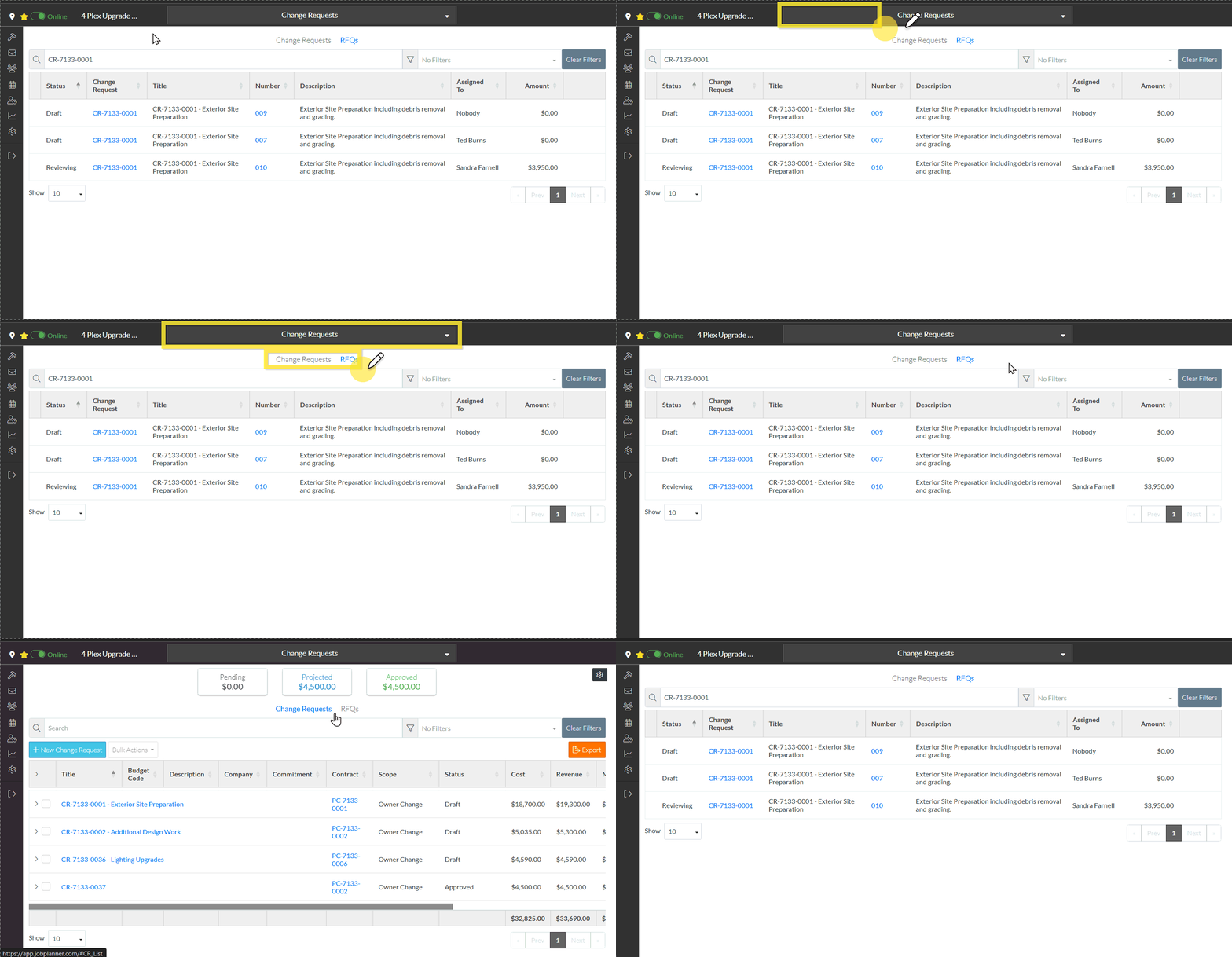
The Lists Navigation menu option for the form appears near the top of the form and is text that can be clicked on to switch between lists. There are two different lists that can be accessed:
- Change Requests - the list of all Change Requests for all Contracts for the entire project. See Change Requests - Overview (this is the default list that is displayed).
- RFQs - the list of all RFQs for all Change Requests for the project.
Clicking on those list menu options from here shows all Change Requests and all RFQs for the Project. Note* RFQs for one Change Request can be listed by Searching for the Change Request or alternatively, RFQs for one specific Change Request can be viewed, see Change Request Specific RFQs - Overview.
The currently selected list is in blue text.
To switch between the lists, click on the text.
Note* This help pertains to the RFQ list.
Search and Filter Options
Narrow the RFQ list by entering search criteria or setting filters on the Status. See Change Requests - List of all RFQs - Search and Filter.
Click the Clear Filter  button to remove any search or filter settings.
RFQs List
This may be the full list of RFQs or it could be a sub-set of RFQs if search criteria or filters have been applied.
It can also have the columns sorted to display the list in different orders. see Change Requests - List of all RFQs - Sort Columns.
Hovering on a row on the list brings up the view  button for that RFQ OR alternatively right clicking on a row brings up context sensitive menu options and there is a View option OR the RFQ row can be double clicked on to view/edit it or the RFQ Number can be clicked on. See Change Requests - List of all RFQs - View/Edit for more information.
Page Navigation Options
There are different page navigation options:
Show setting. If there are a larger number of RFQs the number of rows per page that display can be changed. See Rows Per Page.
If there are a larger number of Change Requests (more than the number of Rows set to display per page), use the Prev, Next, <, > and Page number buttons to navigate through the pages of information. See Page Navigation for more information.
More Information
Search and/or filter the list of all RFQs, see Change Requests - List of all RFQs - Search and Filter.
Sort the columns on the list of all RFQs, if required, see Change Requests - List of all RFQs - Sort Columns.
Next Steps
View an RFQ (to then edit it, update the status, submit a response or send to Vendors or Subcontractors), see Change Requests - List of all RFQs - View/Edit.
Delete an RFQ, see Change Requests - List of all RFQs - Delete.
