Change Requests - List of all RFQs - Sort Columns
 Updated
Suggested Prior Reading
Change Requests - List of all RFQs - Overview
Change Requests - List of all RFQs - Accessing
Change Requests - List of all RFQs - Layout and Navigation
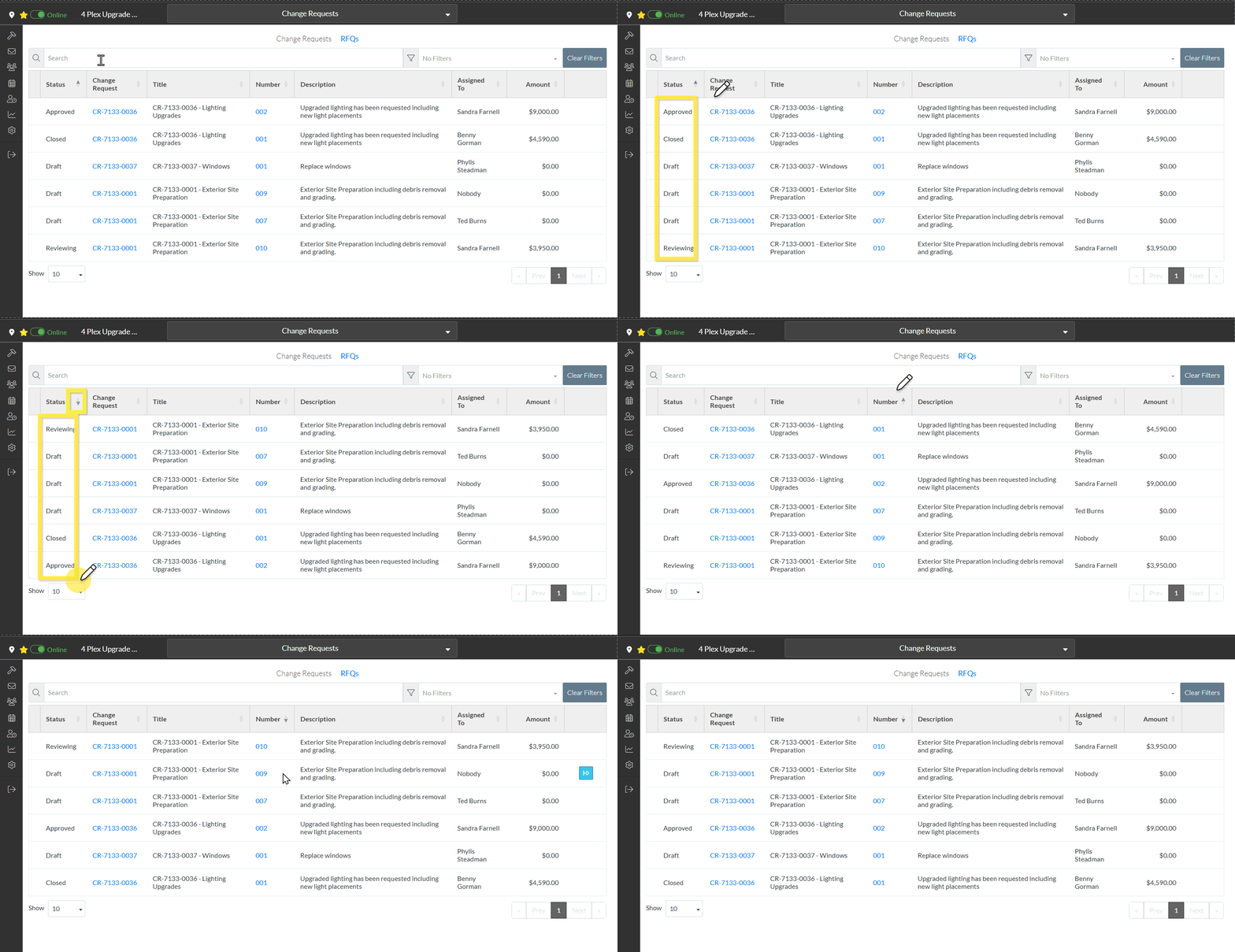
Sort the List of all RFQs
The information displayed can be sorted in descending order or ascending order (if in descending order, numbers are listed first, then characters A to Z).
By default when the list is displayed, it is sorted on the Status in ascending order, but that can be changed. Changing the sort from the Status is a temporary setting applied while the RFQ List or the Change Request List is displayed (i.e. the lists can be switched back and forth to and the sort is saved). Once the Change Request List or the RFQ List is closed and re-opened there will be no sorting applied.
If a column can be sorted it will contain dark grey or light grey up and down arrows. A dark arrow indicates that column is the currently active sorted column and the way it is pointing indicates the sort order. Light gray means it can be sorted on that column but isn't currently.
- Dark Arrow Up: Ascending order
- Dark Arrow Down: Descending order
To sort the Change Request specific RFQ list (and then view, edit it, update the status, submit a response or send to Vendors or Subcontractors):
- Click on the column header to set the sort on that column
- To change the way a column sorts, click on the Column Header again to change the sort direction.
More Information
Search and/or filter the list of all RFQs, see Change Requests - List of all RFQs - Search and Filter.
Next Steps
View an RFQ (to then edit it, update the status, submit a response or send to Vendors or Subcontractors), see Change Requests - List of all RFQs - View/Edit.
Delete an RFQ, see Change Requests - List of all RFQs - Delete.
